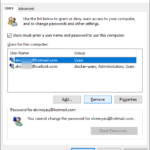
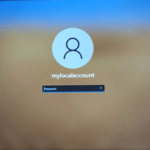
When you try to sign in to Windows 11 with your password, you might see “The referenced account is currently locked out and may not be logged on to” instead of your desktop, and your PIN usually stops working at the same time. Sometimes it shows up even when nobody typed a wrong password at all. This guide will show you how to get back in and how to find out what keeps locking the account if it happens again and again.
Also see: MSConfig “Something happened and your PIN isn’t available”
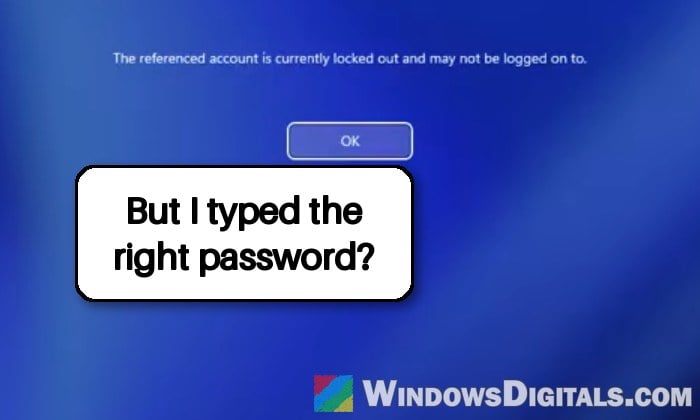
Why does Windows say your account is locked out?
Windows 11 comes with an account lockout policy turned on by default. According to Microsoft, after 10 failed sign-in attempts, the account is locked for 10 minutes, and the count of failed tries resets after 10 minutes too. It’s there to stop someone (or some automated tool) from guessing your password over and over, for example through Remote Desktop.
The thing is, Windows can’t tell the difference between you typing a wrong password and a program trying a wrong one in the background. Some common reasons the account gets locked are:
- Wrong passwords typed, by you, a kid, or something resting on the keyboard.
- A program retrying a bad sign-in in the background. Every failed try counts toward the limit.
- Remote Desktop open to the internet, where bots keep guessing passwords for your account.
- Lenovo Vantage on Lenovo laptops. Since late August 2026, a lot of Lenovo Yoga, Legion, LOQ, IdeaPad and ThinkPad owners have reported lockouts after sleep or a restart without typing anything wrong.
Wait 10 minutes and sign in again
Since the lockout only lasts 10 minutes by default, the simplest way back in is to just wait. Leave the PC on at the sign-in screen, don’t try any more passwords in the meantime, and sign in with your correct password once the time is up.
Usually you can sign in again after about 10 minutes, though it can take half an hour or more.
If the lockout never ends no matter how long you wait, the lockout duration on your PC may have been set to 0, which keeps the account locked until an administrator clears it. That’s what the next section is for.
Clear the lockout from another administrator account
If there’s another administrator account on the PC (a second account, or one belonging to someone else in the house), you can sign in with it and clear the lockout on your account right away. This works for local accounts, not for a Microsoft account.
Related guide: Create local admin account without password in Windows 11/10
Using Local Users and Groups (Pro edition)
This option is only available in Windows 11 Pro, Enterprise and Education. If you’re on Home, skip to the command method below (or see how to open Local Users and Groups on Home with a third-party tool).
- Press Win + R, type “lusrmgr.msc” and press Enter.
- Click the “Users” folder in the left pane, then double-click the locked account.
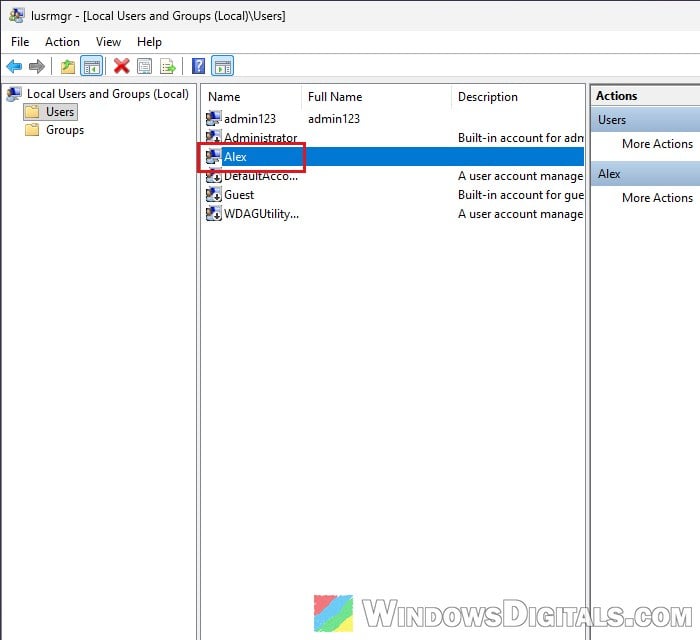
- In the “General” tab, uncheck “Account is locked out” and click “OK“.
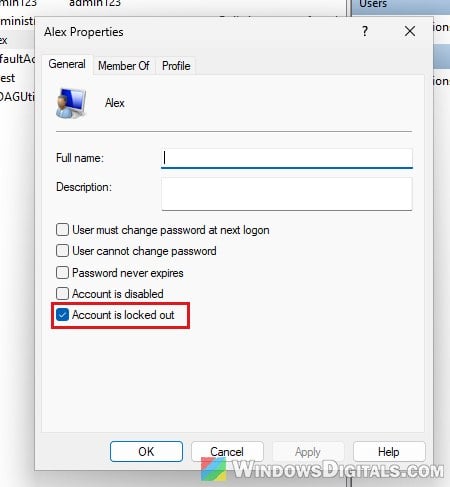
If the “Account is locked out” box is grayed out and unchecked, the account isn’t locked anymore.
Using a command (any edition)
- Search for “cmd” in the Start menu, right-click “Command Prompt” and choose “Run as administrator“.
- Type the following command and press Enter to see the exact account names on the PC:
net user
You can also run
net user "username"to check one account. A locked account shows “Locked” next to “Account active“. - Then type the command below, replacing username with the locked account’s name, and press Enter:
net user "username" /active:yes
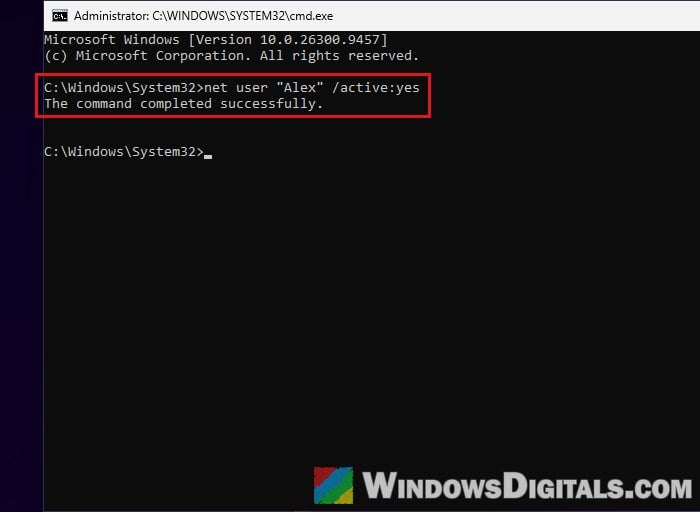
Sign out, and then sign in to your own account with its password. If your PIN still doesn’t work once you’re back in, set it up again under “Settings” > “Accounts” > “Sign-in options“.
Might be useful: Give Admin Permission/Rights to User in Windows 11/10
Find out what keeps locking your account
If the lockout keeps coming back, especially when you never typed a wrong password, something is trying to sign in with your account and failing. Windows writes every lockout to the Security log in Event Viewer, so you can see when it happened and sometimes what caused it.
- Press Win + R, type “eventvwr.msc” and press Enter.
- Go to “Windows Logs” > “Security“.
- Click “Filter Current Log” in the right pane, type “4740” in the box under “Includes/Excludes Event IDs” and click “OK“.
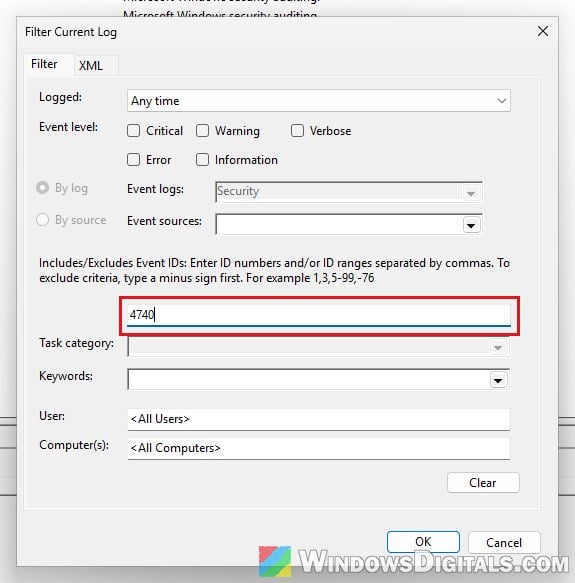
- Double-click the event to open it. It says “A user account was locked out“, with the account under “Account That Was Locked Out” and the time it happened.
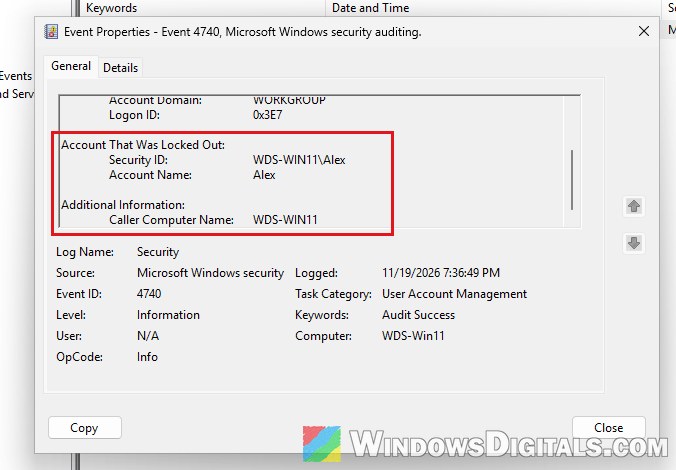
Then clear the filter so the whole Security log shows again, and look at the events just before that time. Failed sign-ins show up as event 4625. On some of the affected Lenovo laptops, the lockout came right after dozens of event 4798 entries from a process named LenovoVantage-(LenovoSecurityAddin).exe, and the lockout event had a blank caller computer name.
On a Lenovo laptop, update Lenovo Vantage
If you’re on a Lenovo laptop and the lockouts started out of nowhere, Lenovo Vantage is the most likely cause. The reports started in late August 2026, for some right after a Vantage update, and the lockouts usually hit after sleep, the screensaver or a cold boot.
A later Vantage update may fix it in the background, so once you’re signed in, leave the laptop online for a while and let Vantage update itself.
If the lockouts come back anyway, you can uninstall Lenovo Vantage for a few days as a test, and see if they stop.
Turn off Remote Desktop if you don’t use it
Remote Desktop hosting is only in Pro and higher editions, so if you’re on Home, this one doesn’t apply.
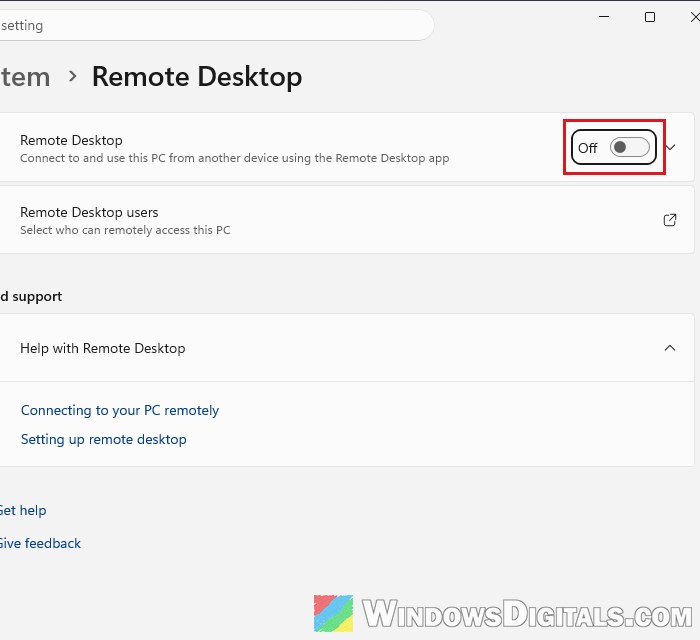
When Remote Desktop is turned on and the PC can be reached from the internet, bots can keep trying passwords on your account all day, which is what the lockout policy is there to stop. Cutting off that outside access can stop the lockouts.
If you don’t use Remote Desktop to connect to this PC, turn it off:
- Open “Settings” and go to “System” > “Remote Desktop“.
- Set the “Remote Desktop” toggle to “Off“.
Raise or turn off the lockout threshold (last resort)
If you can’t find what keeps locking the account, you can change how many failed tries it takes. Several people with the Lenovo problem did this and stopped getting locked out. Please be warned that setting the threshold to 0 turns the lockout off completely, which removes Windows’ protection against password guessing. Microsoft only suggests it when passwords are strong and failed sign-ins are being watched, and it’s a bad idea if Remote Desktop is on. A higher number, rather than 0, keeps some of the protection.
On Windows 11 Pro, use Local Security Policy:
- Press Win + R, type “secpol.msc” and press Enter.
- Go to “Account Policies” > “Account Lockout Policy“.
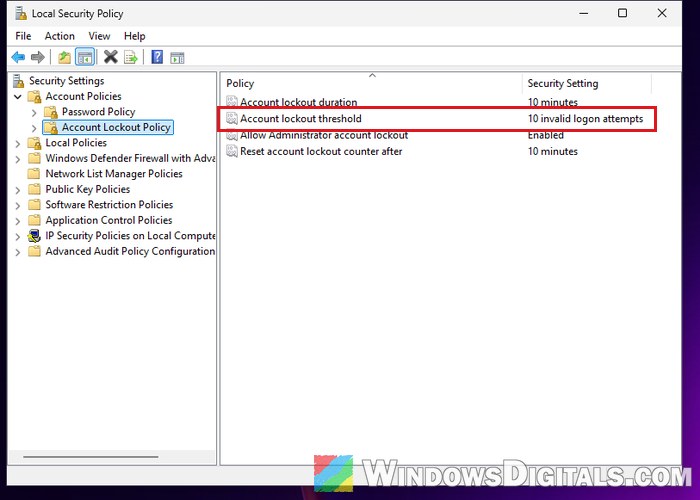
- Double-click “Account lockout threshold“, enter a higher number in “Account will lock out after” (or 0 to turn it off) and click “OK“.
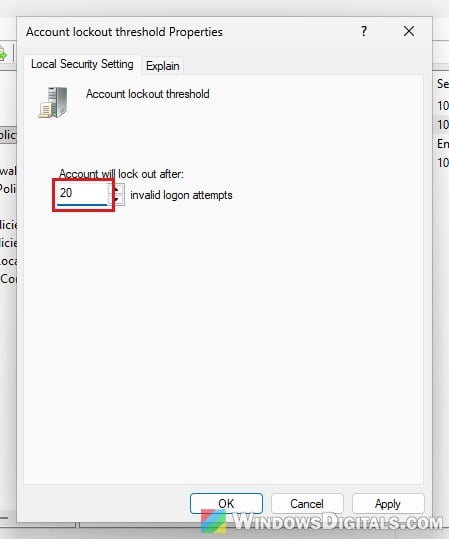
On Windows 11 Home, which doesn’t have Local Security Policy, run this in Command Prompt as administrator instead, replacing 20 with the number of tries you want:
net accounts /lockoutthreshold:20
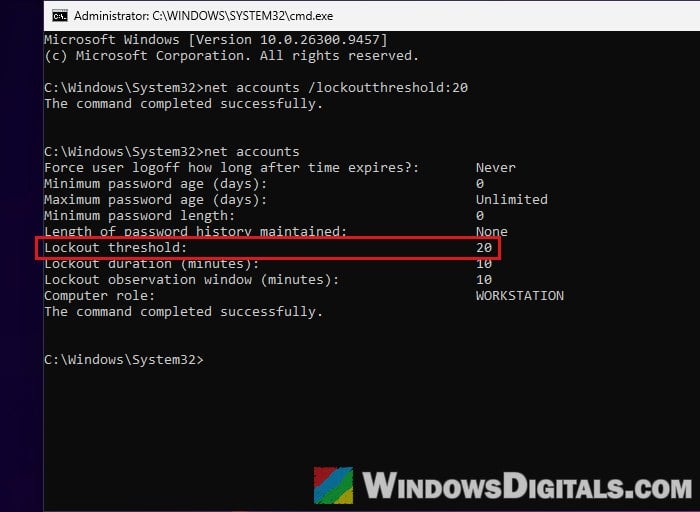
Run net accounts on its own afterwards and check the “Lockout threshold” line. The change takes effect right away, without a restart.