A Microsoft account usually asks for nothing more than a quick security code when you sign in from a new place or device. But sometimes the sign-in page for Outlook.com, Hotmail or Xbox says your account has been locked, or that Microsoft detected unusual activity, and the code, the “Let’s prove you’re human” check or the recovery form just won’t go through. This guide will explain which lock you’re dealing with and what you can do to get back in.
Also see: “Password Sign-In Isn’t Available. Try Another Method” on Microsoft Account
Which kind of lock do you have?
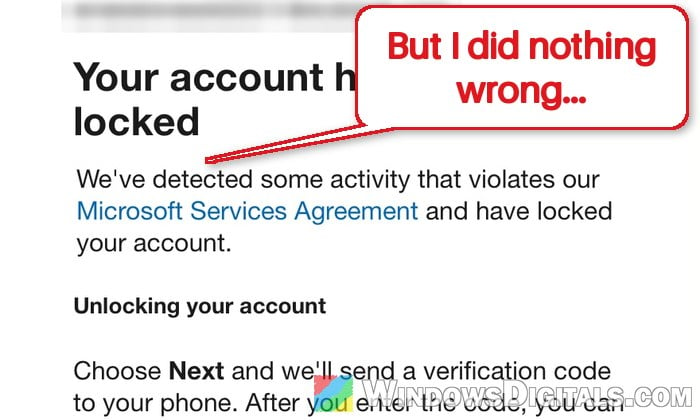
Microsoft locks or blocks accounts automatically when something looks risky: a sign-in from another country, a VPN or a new device, or activity it thinks breaks the Microsoft Services Agreement, like spam, bots or many accounts made from one place. Nobody checks it by hand first, so it also hits people who did nothing wrong, such as someone who redeemed several gift cards in a row or signed in while abroad.
Which way out you have depends on what the sign-in page says:
- “We have detected unusual activity“: Microsoft thinks your password may be at risk and wants you to verify it’s you and change it. Common after traveling or using a VPN.
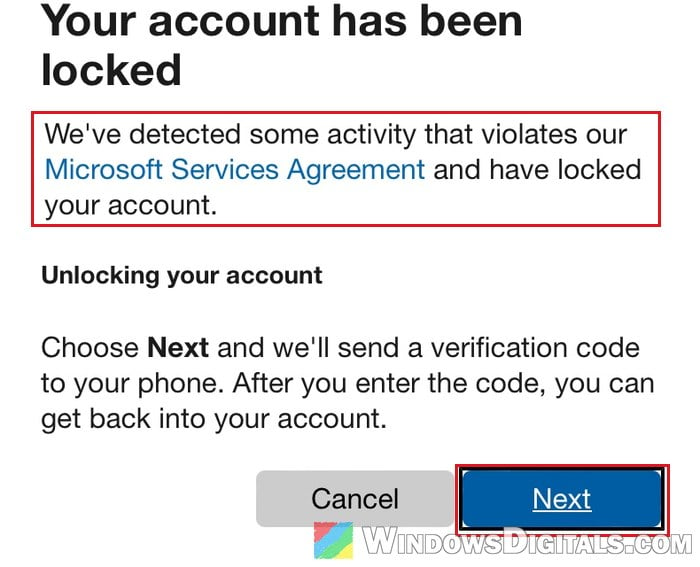
- “Your account has been locked” with a “Next” button: you can usually get it back yourself with the “Let’s prove you’re human” check and a text code.
- No “Next” button, or “Account recovery blocked”: a code won’t help here, and you need to send Microsoft a request (see below).
Linked issue: “Account Creation Has Been Blocked” When Making a Microsoft or Outlook Account
Stop trying for a while, then try again
Waiting is what Microsoft itself recommends. Every new attempt can reset the time lock, so spamming the code button or the human check only keeps you locked out longer, and too many code requests can stop codes coming at all.
Try again after a day, and if nothing has changed, wait longer, up to a week, without signing in from any device in between. Then try the steps below from the PC, browser and home network you normally sign in from, since a familiar device and location make it easier for Microsoft to believe it’s you.
If Outlook or Xbox sign-ins are suddenly failing for lots of people at once, it may be a Microsoft outage rather than a lock on your account.
Get back in with a text code
If your lock page has a “Next” button, you can usually sort it out yourself. Here’s how:
- Go to
https://account.microsoft.comin Edge, Chrome or Firefox on a computer and sign in with the locked account. - On the lock page, click “Next” and complete the “Let’s prove you’re human” check.
- Enter a phone number that can receive text messages and wait for the security code.
- Type the code and continue to get back into your account.
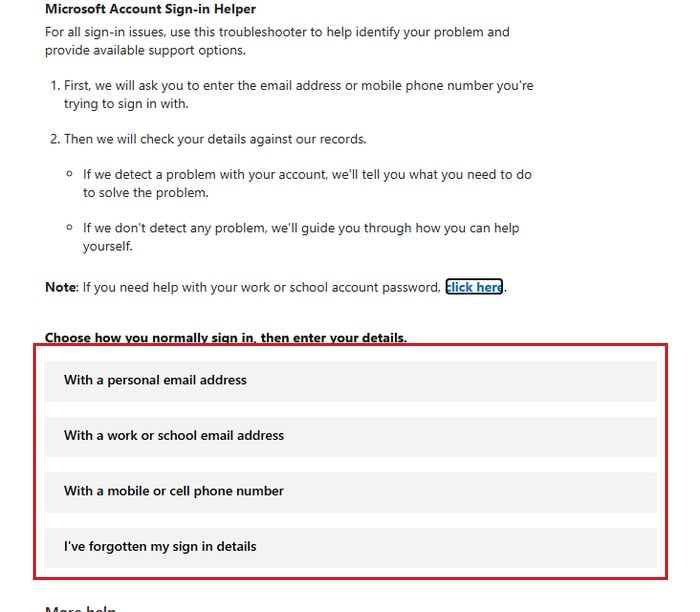
If you can’t even get to that page, try Microsoft’s Sign-in Helper at https://aka.ms/sign-in-helper. It checks your email or phone number and tells you what to do next.
Please note that internet (VoIP) phone numbers can’t receive Microsoft’s codes, so use a real mobile number. If you see “We cannot send a text message to this number“, stop and try again later.
If the “Let’s prove you’re human” check keeps failing
The check is usually a button you press and hold until it fills up. If it keeps saying to try again, your browser or connection is probably in the way:
- Turn off any VPN, since it can make your sign-in look like it’s coming from somewhere new. See: How to Disable VPN in Windows 11.
- Turn off ad blockers for the page, or Shields in Brave.
- Use Microsoft Edge or Chrome.
- Switch networks. For some people the check only went through once they turned Wi-Fi off and used their phone’s mobile data.
If it still loops, leave it for 24 hours.
Send the reinstatement request if there’s no “Next” button
When there’s no “Next” button or “Let’s prove you’re human” option, Microsoft says the account was locked for suspicious activity or for breaking its Terms of Use. The lock window then has a link that starts with “aka.ms/“. Click it and fill in the reinstatement form it opens.
A Microsoft Online Safety support agent reviews it and replies by email. Send it only once, because more requests only slow down the reply.
Related concern: “Windows locked due to unusual activity” Scam
The security code never arrives
Before asking for yet another code, check these:
- Look in your Junk folder for an email from @accountprotection.microsoft.com and mark the sender as safe.
- Codes only go to your main address or the email or phone you added to verify. The page shows the last two digits of the number or the first two letters of the email, so make sure it’s one you still have.
- If your phone blocks texts from unknown senders, allow them, then choose “I don’t have a code” for a new one.
- If the code goes to another Outlook address of yours, open that address in a separate private (InPrivate) window, so the browser doesn’t sign you out of the locked one.
- If authenticator app codes keep getting rejected, set your phone’s clock to automatic. These codes depend on the time.
If none of this helps, the block itself may be holding the codes back, so it’s back to waiting.
Pro tip: Invalid 2FA Code from Google or Microsoft Authenticator
Replace a phone number or email you no longer have
If you know your password but the phone or email on file is gone, start signing in and select “I don’t have any of these” when it asks you to verify your identity, then follow the prompts to add new security info. Microsoft makes you wait 30 days before the new info works, and using the old info during that time cancels the change.
If you can still sign in somewhere, you can also do it from your account’s “Additional security” page: select “Add a new way to sign in or verify“, add the new number or email, then remove the old one.
If someone else got into your account
If you did nothing unusual, someone else may really have signed in. On the sign-in page, select “Forgot my password“, then “I think someone else is using my Microsoft account“, and follow the steps. Once you’re back in, open https://account.microsoft.com/security, select “Review activity“, mark any sign-in you don’t recognize with “This wasn’t me“, and change your password.
Use the account recovery form as a last resort
When nothing else works, the “Recover your account” form at https://account.live.com/acsr is the only way left. Microsoft support agents can’t send reset links or change account details for you, so don’t trust anyone who offers to get you back in.
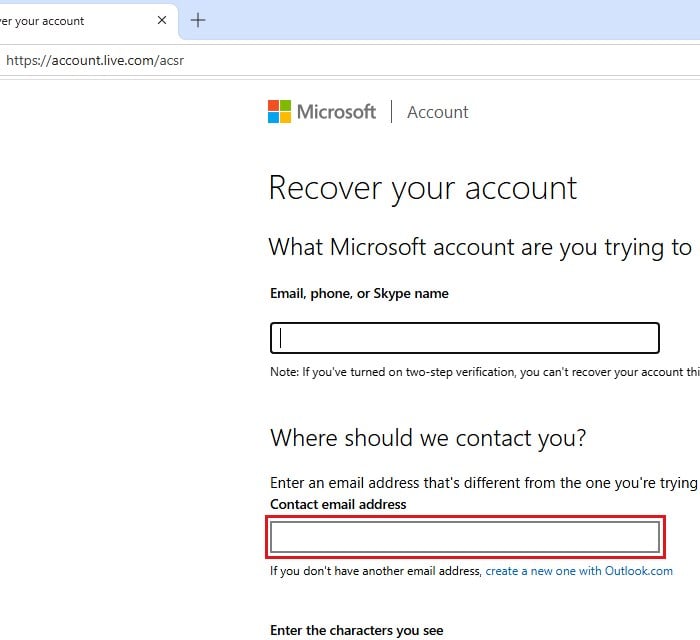
The form is checked automatically, so the more you remember, the better:
- Give a contact email you can read, even a friend’s or a new Outlook.com one.
- Fill in as much as you can. Wrong guesses don’t count against you.
- Add old passwords (check the ones saved in your browser), people you emailed and exact subject lines, or for Xbox, the hardware ID of your console.
- Send it from a PC and network you’ve signed in from before.
Microsoft replies within 24 hours, and you can try up to twice a day. The bad news is that if two-step verification was on and every way to verify is gone, Microsoft says it can’t help, and the account is usually lost for good.