A game’s page in your Steam Library normally shows the game, its Install or Play button and its latest news, but since Steam’s November 11 update, it also shows a box called “Anonymous framerate data“, asking if Steam can collect your framerate while you play, with the buttons Yes, No Thanks and Learn More. This guide will explain what Steam actually collects, whether it’s tied to your account, and where to change your answer later on Windows 11 or 10.
Also see: How to Hide AI Games on Steam (and Adult Games)
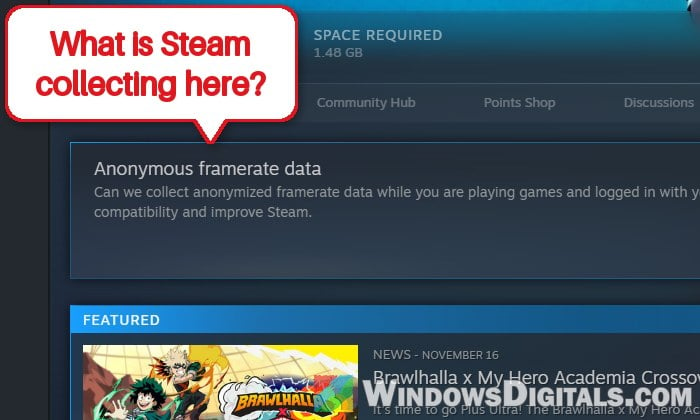
What is the “Anonymous framerate data” prompt?
It’s an opt-in request from Valve to record how many frames per second your games run at on your PC. Valve first tested it in the Steam Client Beta back in February, mostly for devices running SteamOS like the Steam Deck. With the Steam Client Update of November 11, the same prompt started showing up in the normal Steam desktop client for everyone, which is why so many people suddenly saw it after opening Steam.
The prompt sits near the top of a game’s page in your Library, right under the row of links such as Store Page and Community Hub. It reads “Can we collect anonymized framerate data while you are playing games and logged in with your Steam account?”
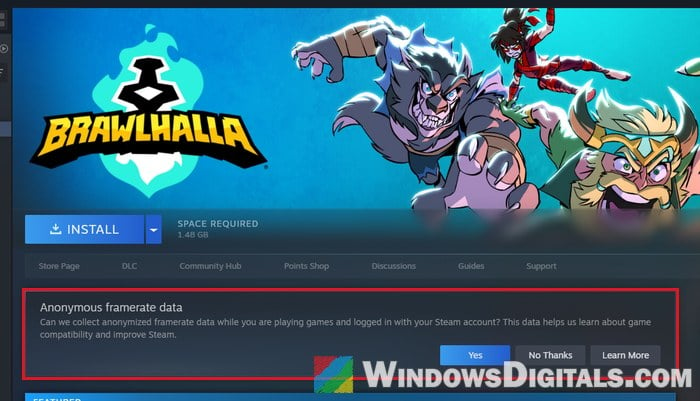
Don’t worry, this isn’t an error or a virus, and no game or app added it. Steam itself is asking, and Valve lists it in its November 11 update notes.
Related concern: Steam Account Hacked? Language or Profile Changed by Itself
What does Steam collect, and is it tied to your account?
If you click Yes, Steam records the framerate of the games you play and the kind of hardware you play them on. According to Valve, the data is stored without a connection to your Steam account, so it isn’t tied to your username or profile. The Learn More button says the same, and it also tells you where to change the setting later (more on that below).
Why does Valve want your framerate data?
Valve says the data helps it learn about game compatibility and improve Steam. On the Steam Deck, you can already see what that looks like. Since November 10, a game’s Store page can show the average framerate players get on Steam Deck, under Steam Deck Compatibility > Learn more, with a chart breaking down how often each framerate was seen. Those numbers come only from Steam Deck owners who opted in, and Valve says a majority of them did.
Valve calls the Steam Deck numbers a stepping stone toward framerate data for more devices, which is why the prompt now shows on Windows PCs too. The Steam Deck was the easy start since every Deck has the same hardware. PCs come in all sorts of combinations, which makes their numbers harder to read.
Valve hasn’t said yet what the PC data will show on the Store, and there are no public average framerates for Windows PCs so far. Many users on Reddit hope for an average FPS for PCs with similar hardware right on the Store page, but that’s only a guess for now.
Might be useful: Steam Client WebHelper Using So Much Memory (RAM), Why?
Should you click “Yes” or “No Thanks”?
It’s up to you. Sharing is optional, and you don’t need to share your own data to look at the framerate charts on the Store.
- Click Yes if you’d like to help build those performance numbers.
- Click No Thanks if you’d rather not share anything about your PC, or you just don’t like the idea of any data collection.
Either way, you can change your answer later.
How to turn anonymous framerate data on or off later
Whatever you clicked on the prompt, you can change it in your Steam account settings, under Data & Browsing. Here’s how to get there from the Steam app on Windows:
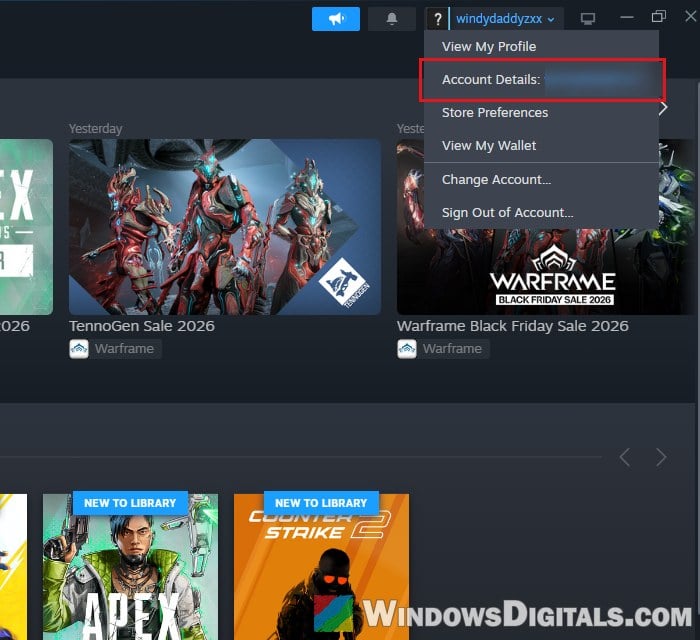
- Open Steam and click your account name in the top-right corner of the window.
- From the menu, select “Account Details” (it’s followed by your account name).
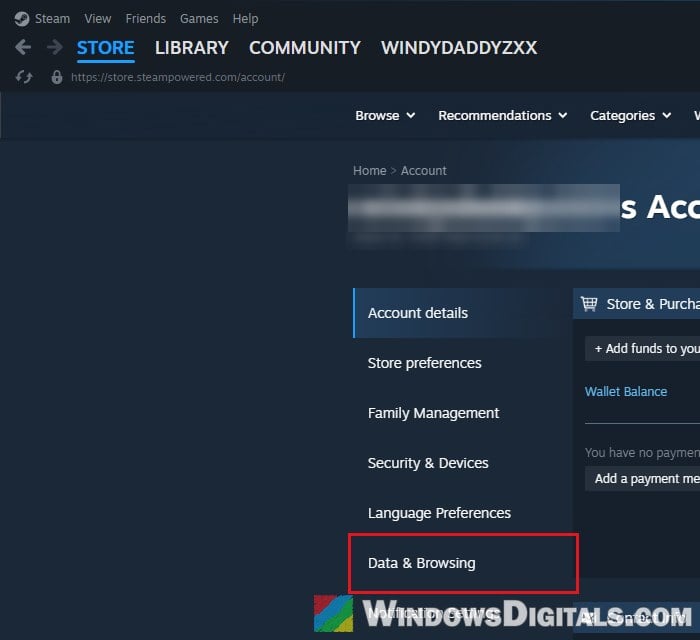
- On your account page, click Data & Browsing in the menu on the left.
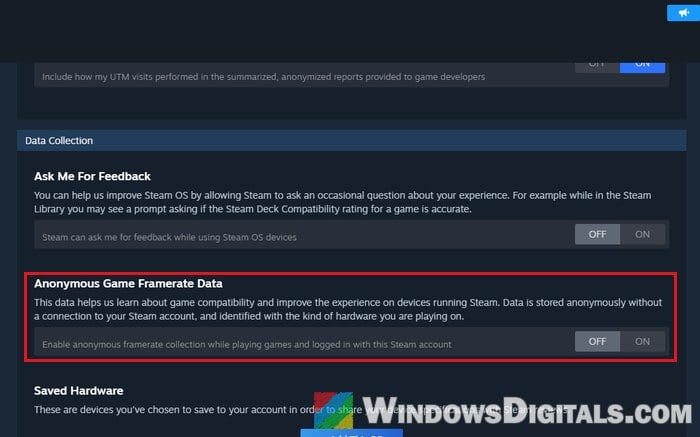
- Scroll all the way down to the Data Collection section. Under Anonymous Game Framerate Data, click OFF to stop sharing, or ON to share your framerate data.
What if you don’t see the prompt at all?
The prompt came with the November 11 Steam update, so an older Steam client won’t show it. To check, click Steam in the top-left corner and select Check for Steam Client Updates…, then download the update and let Steam restart. Also keep in mind that the prompt shows on a game’s own page in your Library, not on the Library’s Home page, so click a game on the left to see it.
If you’ve already answered it, or you’d rather not wait for the prompt at all, you can simply go to Data & Browsing as shown above and set Anonymous Game Framerate Data the way you want it.