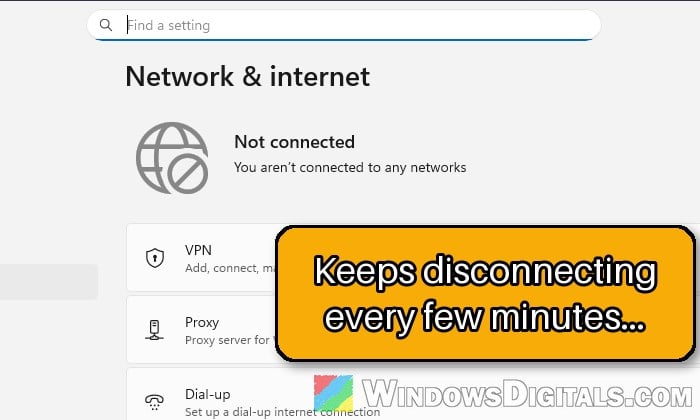
If your PC keeps disconnecting from WiFi every few minutes while your phone and other devices stay connected, the cause is often the PC’s WiFi adapter, its driver or how the router treats it. It may come back on its own after a minute, or only when you click the WiFi icon. This guide will show you how to tell whether it’s the PC or the router and how to fix it.
Also see: Ping Spikes Every Few Seconds in Online Games on Windows 11
Is it the PC or the router?
Your other devices being fine doesn’t fully clear the router, since some routers handle an older WiFi adapter differently from a phone. These checks tell you which side to look at.
- Restart the modem and the router. Turn both off, then turn the modem back on first and the router after it. It’s worth doing first if the drops started after a storm or power cut.
- Connect the PC to your phone’s hotspot and use it for a while. If it still drops there, the problem is the PC, its WiFi adapter or the driver. If it stays connected, your router is part of the problem (see the band steering section below).
- Watch the adapter when it drops. If your WiFi adapter disappears from “Network adapters” in Device Manager whenever the connection drops, that points to the driver or the WiFi card itself.
Stop Windows from turning off the WiFi adapter
Windows can turn off or slow down the WiFi adapter to save power, and that can make the connection drop. Microsoft lists this as one of the first things to check when WiFi keeps dropping. It doesn’t fix it for everyone, but it’s quick and safe.
- Right-click the Start button and select “Device Manager“.
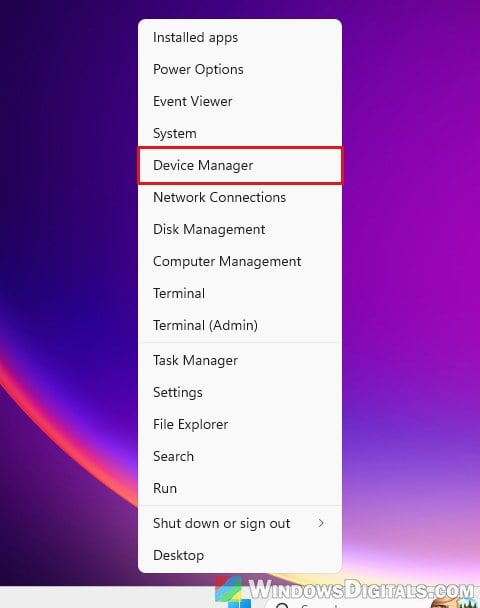
- Expand “Network adapters“.
- Right-click your WiFi adapter (it usually has “Wi-Fi”, “Wireless” or “WLAN” in its name) and select “Properties“.
- Go to the “Power Management” tab.
- Uncheck “Allow the computer to turn off this device to save power“.
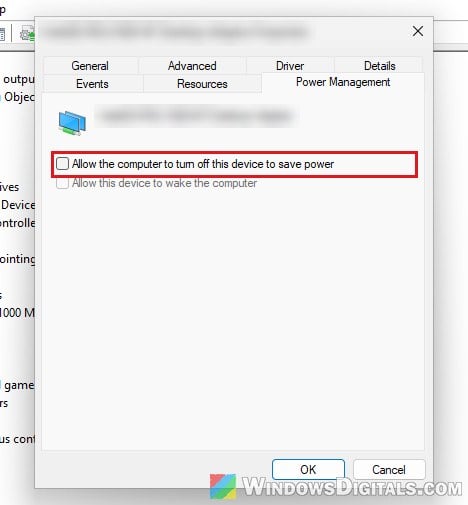
- Click “OK“.
Please note that some WiFi adapters don’t have a Power Management tab at all. If yours doesn’t, go to the power plan setting below.
Set the wireless adapter to “Maximum Performance”
The power plan has its own power saving setting for WiFi adapters. Here’s how to change it:
- Open Control Panel > Hardware and Sound > Power Options.
- Click “Change plan settings” next to the plan you’re using.
- Click “Change advanced power settings“.
- Expand Wireless Adapter Settings > Power Saving Mode.
- Set it to “Maximum Performance“. On a laptop, set it for both settings listed there.
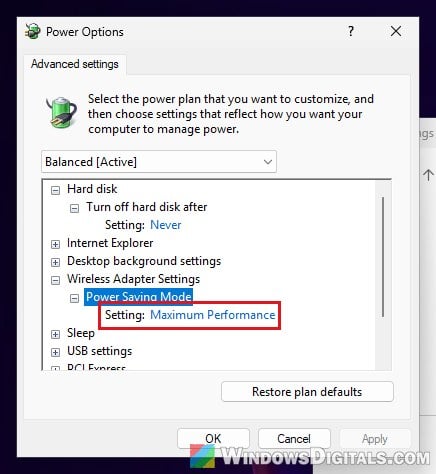
- Click “OK“.
Use the PC for a while and see if it still drops.
Install the WiFi driver from your PC or motherboard maker
The driver Windows Update installs for your WiFi adapter can be a generic one, and it doesn’t always get along with every adapter. Try downloading the WiFi driver from your laptop or motherboard maker’s support page for your exact model (or from Intel’s site for an Intel WiFi card), install it, and restart. If you’re already on the maker’s driver, try the opposite and let Windows install its own.
Pro tip: How to Install or Update Driver in Windows 11
Roll back the driver if it started after an update
If the disconnects started right after a Windows update or a new driver, try rolling the driver back.
- In Device Manager, right-click your WiFi adapter and select “Properties“.
- Go to the “Driver” tab.
- Click “Roll Back Driver“. If the button is greyed out, there’s no older driver to go back to.
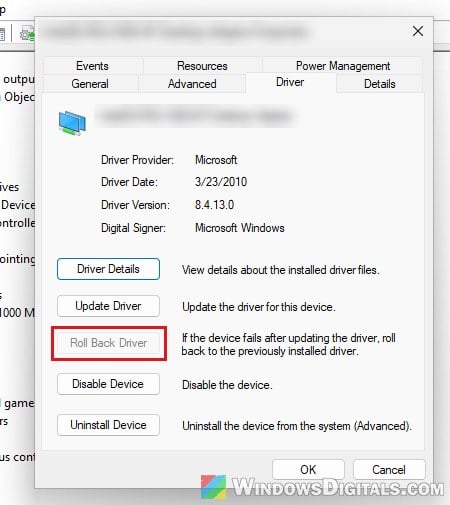
- Confirm the rollback, and restart the PC if asked.
Uninstall the adapter and let Windows reinstall it
Microsoft also suggests removing the driver completely so Windows sets the adapter up again from scratch.
- In Device Manager, right-click your WiFi adapter and select “Uninstall device“.
- If you see “Attempt to remove the driver for this device“, check it.
- Click “Uninstall“.
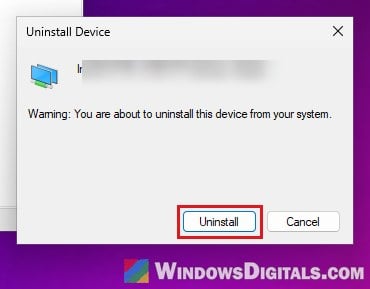
- Restart the PC. Windows will find the adapter and install a driver for it again.
Once the new driver is in, use the PC for a while and see if the drops are gone.
Tip: Download the maker’s driver before you uninstall, in case WiFi doesn’t come back after the restart.
Related problem: Accidentally Deleted the WiFi Driver, What to do?
Turn off band steering on your router
Some routers broadcast 2.4 GHz and 5 GHz under one network name and move each device to whichever band they think is best. This is called band steering (ASUS calls it “Smart Connect”). Some WiFi adapters, older ones especially, drop the connection each time they’re moved, and ASUS itself suggests turning Smart Connect off when WiFi keeps disconnecting.
To test it, open your router’s admin page (menus differ between brands, so check its manual) and turn off band steering or Smart Connect, which splits the network into one name per band. Then connect the PC to just one of them and see if the drops stop.
Changing the router’s wireless channel can also cut interference from neighbors’ networks.
Might be useful: How to Find the Best Channel for Your WiFi (VR)
Check the antennas or the USB WiFi adapter
On a desktop PC, the WiFi antennas screw into the back of the motherboard or the WiFi card. A loose or badly placed antenna can make the connection drop over and over. Make sure both antennas are screwed in firmly and point them straight up.
A small USB WiFi dongle might not be good enough for the distance to your router. A PCIe WiFi card or an Ethernet cable is usually more reliable.
Do a clean boot to rule out other apps
A VPN, firewall or another program that hooks into your network can also cause the drops. A clean boot starts Windows with only Microsoft’s own services, so you can see if the drops stop.
- Press Win + R, type “msconfig” and press Enter.
- Go to the “Services” tab.
- Check “Hide all Microsoft services“.
- Click “Disable all“.
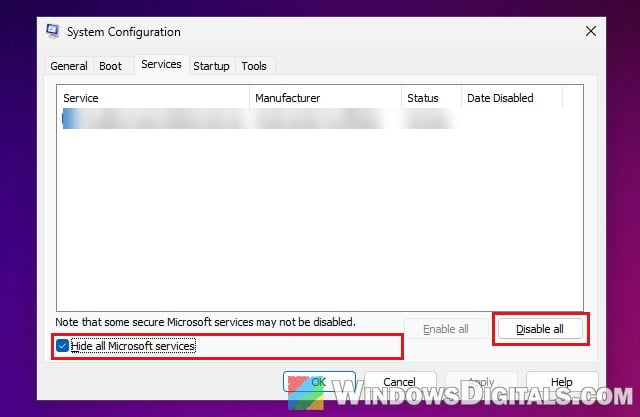
- Go to the “Startup” tab and click “Open Task Manager“.
- Disable every app that says “Enabled“, then close Task Manager.
- Click “OK” in System Configuration and restart the PC.
If the drops stop, turn things back on a few at a time to find the culprit.
Reset the network settings
Network reset removes and reinstalls all your network adapters and puts their settings back to default. Microsoft says it should be the last thing you try. Afterward, you’ll need to reconnect to your WiFi and may have to reinstall VPN software.
- Open Settings > Network & internet > Advanced network settings (on Windows 11).
- Select “Network reset“.
- Click “Reset now” and then “Yes“. The PC will restart.
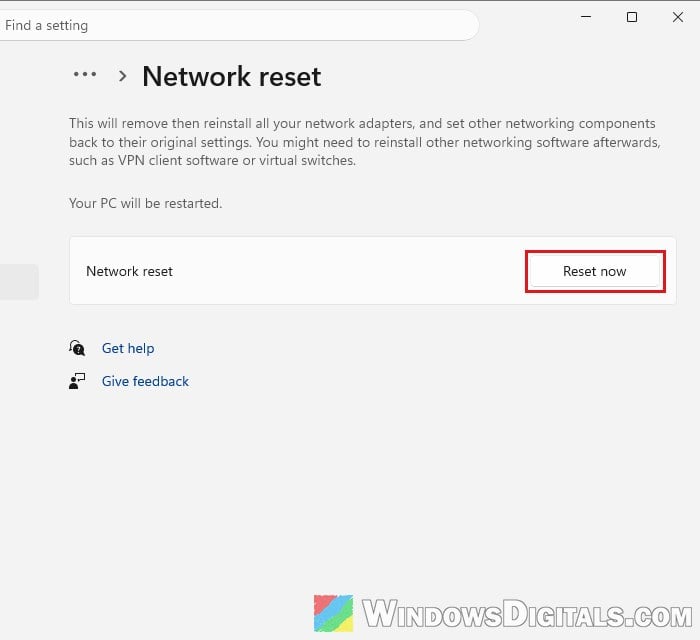
Reconnect to your WiFi and use the PC for a while to see if it still drops.
Linked issue: How to Fix “No Internet, Secured” WiFi in Windows 11/10
It might be the WiFi card itself
If the PC drops on every network, including your phone’s hotspot, and nothing above helped, the WiFi card itself could be failing, especially if it keeps disappearing from Device Manager. Borrowing any USB WiFi adapter for a test, or plugging in an Ethernet cable, is the quickest way to confirm it. If that connection stays up, the built-in card is the problem.
If your laptop or PC is still under warranty, contact the manufacturer to have the WiFi card replaced.