Windows Backup is something you’d expect to set up once or skip, but on Windows 11 it keeps coming back with “Action advised – back up your PC“, “Let’s back up your PC” or “Back up your PC to Microsoft account“, even after you click “No thanks”, and even if you already back up your files some other way. This guide will show you where each of these reminders shows up and which settings switch them off.
Also see: How to Disable or Remove OneDrive From Windows 11
Where do the “Back up your PC” reminders show up?
The reminders don’t come from one place, which is why turning off one setting usually isn’t enough. Depending on your PC, you might see them as:
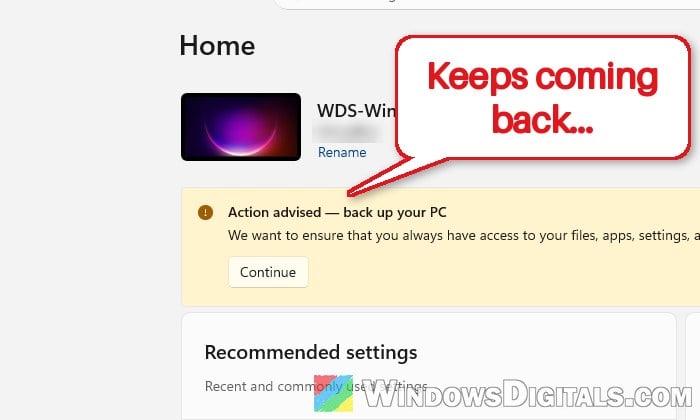
- A yellow banner on the Settings Home page that says “Action advised – back up your PC”, with a Continue button that opens Windows Backup.
- A pop-up notification (toast) at the bottom right of the screen, such as “Let’s back up your PC”.
- A message next to your account picture in the Start menu, like “Back up your PC to Microsoft account”.
- A full-screen prompt asking you to back up to OneDrive.
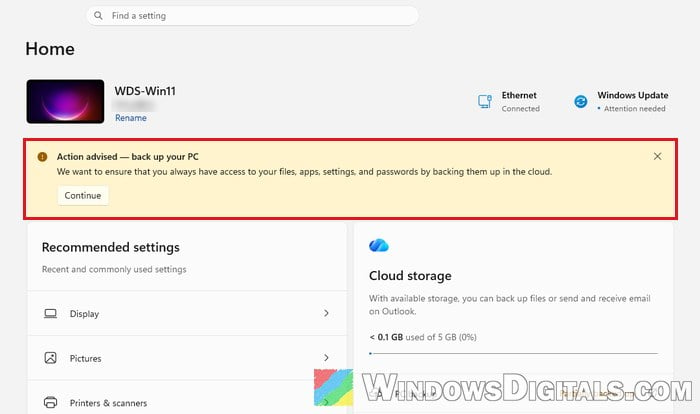
Dismissing a reminder or clicking “No thanks” often only hides it for a while. The reminder keeps coming back, for some people every day, and it shows up even on PCs without OneDrive. So you’ll need to switch it off in each place it shows up.
Turn off “Show notifications in Settings”
The banner on the Settings Home page counts as a notification from the Settings app, and Windows has a separate switch for those. Turning it off removes the “Action advised – back up your PC” banner.
- Press Win + I to open Settings.
- Go to Privacy & security > Recommendations & offers.
- Turn off “Show notifications in Settings“.
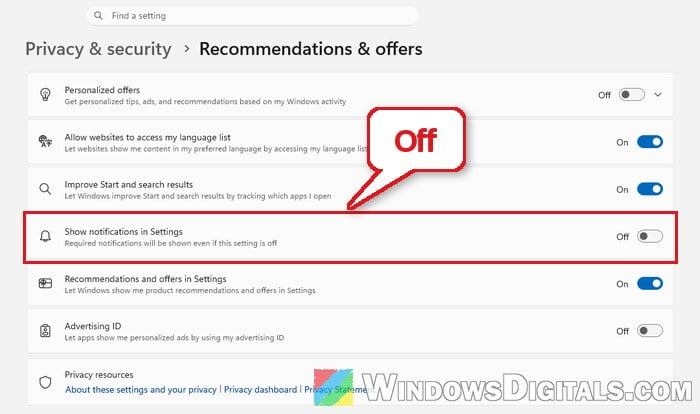
- Optionally, also turn off “Recommendations and offers in Settings“, which stops Windows from showing product suggestions and offers inside the Settings app.
Go back to Home in Settings, and the backup banner should be gone. Its description says required notifications still show even when it’s off, so Windows can still show anything it considers required.
Turn off account-related notifications in Start
The “Back up your PC to Microsoft account” message in the Start menu is one of Windows’ account-related notifications, the small alerts that show up next to your account picture and the power button.
- Open Settings and go to Personalization > Start.
- Turn off “Show account-related notifications“.
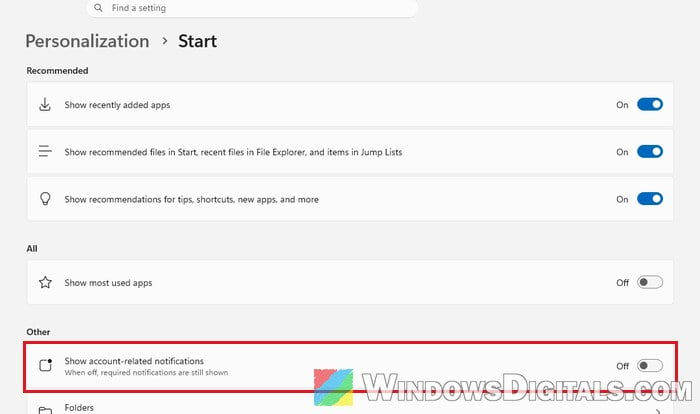
- While you’re there, you can also turn off “Show recommendations for tips, shortcuts, new apps, and more” to cut down on other suggestions in the Start menu.
Open Start, and the backup message by your account picture should be gone. This one handles the Start menu message only. It may not stop the pop-up notifications, so carry on with the next section too.
Related guide: How to Remove “Recommended” From Start Menu in Windows 11
Stop tips and suggestions in Notifications
Turning off Windows’ tips and its suggestions for finishing the setup of your device may also cut down some of the backup pop-ups. It won’t hurt anything, since these are only suggestions.
- In Settings, go to System > Notifications.
- Scroll down and click Additional settings to expand it.
- Uncheck “Get tips and suggestions when using Windows“.
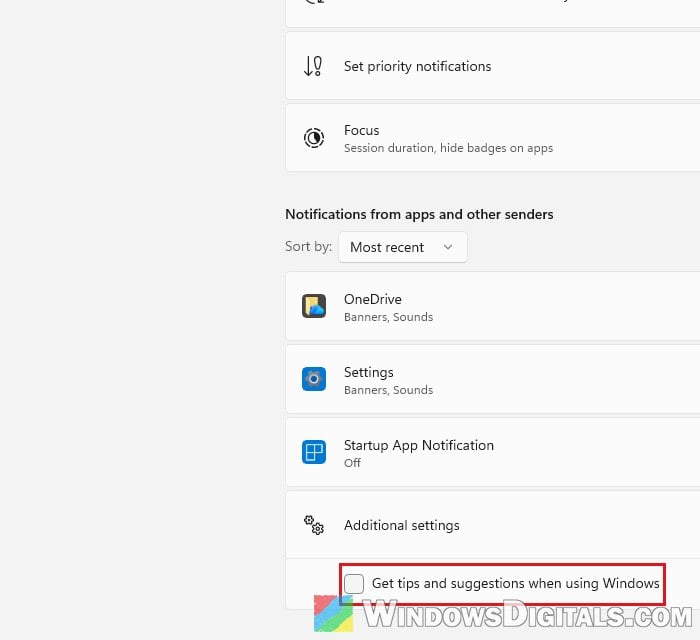
- If you also see “Suggest ways to get the most out of Windows and finish setting up this device” (older Windows 11 builds may have it here), uncheck it as well.
If a backup pop-up still shows up later, look at which app it comes from (the name at the top of the notification). You can then turn off notifications for that sender in the “Notifications from apps and other senders” list on the same page, or from the three-dot menu on the notification itself. Be careful not to switch off OneDrive’s notifications if you rely on them for sync warnings.
Might be useful: How to Disable Desktop Pop Up Notifications on Windows 11
Choose “Opt out of backup” on the full-screen prompt
Since around late August 2026, Microsoft has been gradually adding an “Opt out of backup” button to the full-screen OneDrive backup prompt in Windows 11, next to “Continue” and “Remind me in 3 days”. Before that, you could only put it off with “Remind me in 3 days” or “Skip for now”.
If your PC shows this prompt, choose “Opt out of backup” instead of putting it off. You may then see one more choice, “Skip for now” or “Backup now”, so pick “Skip for now“. Microsoft hasn’t announced the change officially and it’s rolling out slowly, so not every PC has the button yet.
Uncheck “Windows Backup” in Security and Maintenance
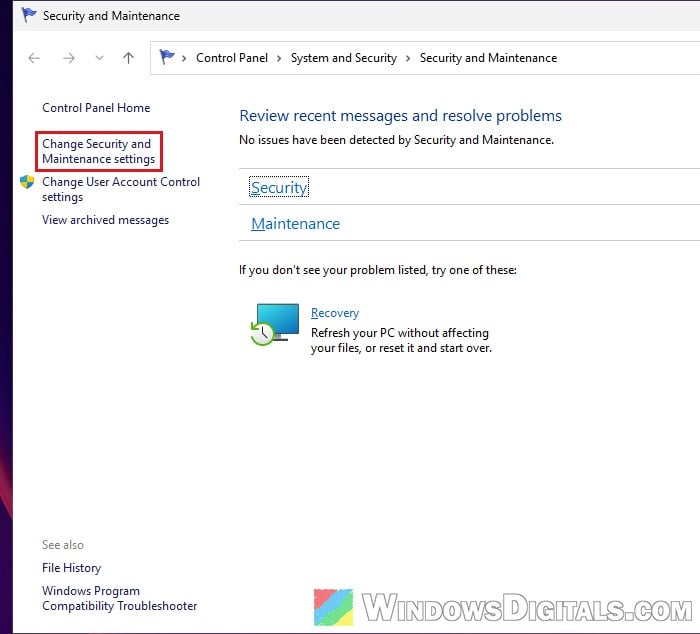
The old Control Panel still has its own list of maintenance messages, and “Windows Backup” is one of them. It may not do much on its own (it can already be unchecked and the reminder still comes back), but it only takes a few seconds.
- Press Win + R, type “wscui.cpl” and press Enter to open Security and Maintenance.
- Click “Change Security and Maintenance settings” on the left.
- Under Maintenance messages, uncheck “Windows Backup“.
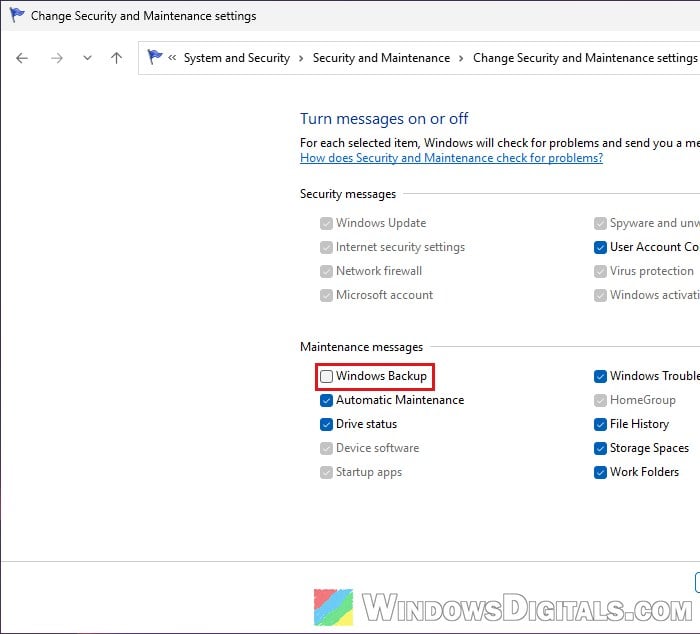
- Click OK.
Security and Maintenance will then stop flagging Windows Backup as something that needs your attention.
Does turning these off stop your backups?
No. These settings only hide the reminders. They don’t turn off a backup you set up yourself, whether it’s OneDrive folder backup, File History or another backup app, and they don’t delete anything already in your OneDrive.
If you do want to stop backing up your folders to OneDrive, that’s a separate setting in OneDrive itself: click the OneDrive icon in the taskbar corner, then the gear icon > Settings > Sync and backup. And if you’d rather have OneDrive gone completely, keep in mind that removing it alone usually doesn’t stop the backup reminders, since they come from Windows rather than the OneDrive app.