There is a quite common issue with Steam where your drive suddenly runs low on space, and the culprit turns out to be Steam’s background recordings, sometimes taking up close to 100 GB. Deleting them from Steam doesn’t always free the space either, because older recordings can stay in the folder after Steam stops listing them. This guide will walk you through deleting them for good, switching the feature off, or keeping it on while making it use far less space.
Also see: How to Clean C: Drive in Windows 11
Why do Steam’s background recordings take up so much space?
Steam has a built-in game recorder. When it’s set to Record in Background, it records everything you play, so you can go back and save a moment you didn’t plan to record. By default, it keeps the most recent 120 minutes of video at “High” quality, and Steam estimates that this needs somewhere around 10.8 to 34.2 GB depending on your game’s resolution.
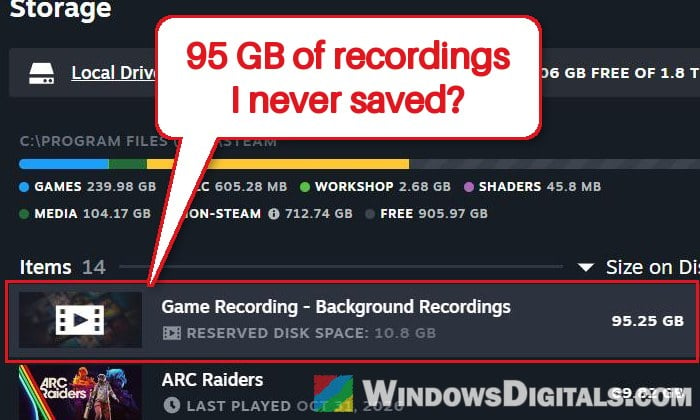
According to Steam, these background recordings are temporary. Once the space set aside for them is full, older footage gets overwritten as you play, while clips you save from them are kept. In practice, a lot of people end up with far more than that estimate. Users on Reddit have reported 95 GB, 100 GB and even close to 300 GB of background recordings. One common reason is old recordings left behind in the folder: Steam stops showing them, but the video files are still on the drive. Moving the recordings folder to another drive can also leave the old folder and its files where they were.
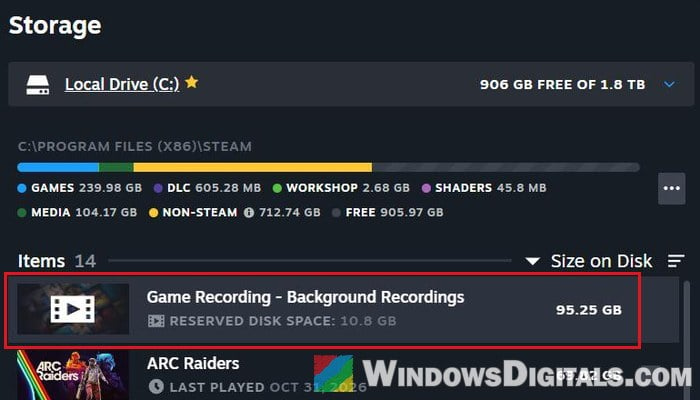
To see how much space they’re taking up right now, open Steam > Settings > Storage. They show up as “Game Recording – Background Recordings“, with their size on the right.
Suggested read: Where Steam Saves Soundtracks and How to Get the MP3 Files
Delete background recordings in Steam
The cleanest way is to delete them from Steam’s own media library, where your recordings, clips and screenshots are listed. Filtering it to background recordings only means your saved clips and screenshots won’t be touched. Here’s how to do it:
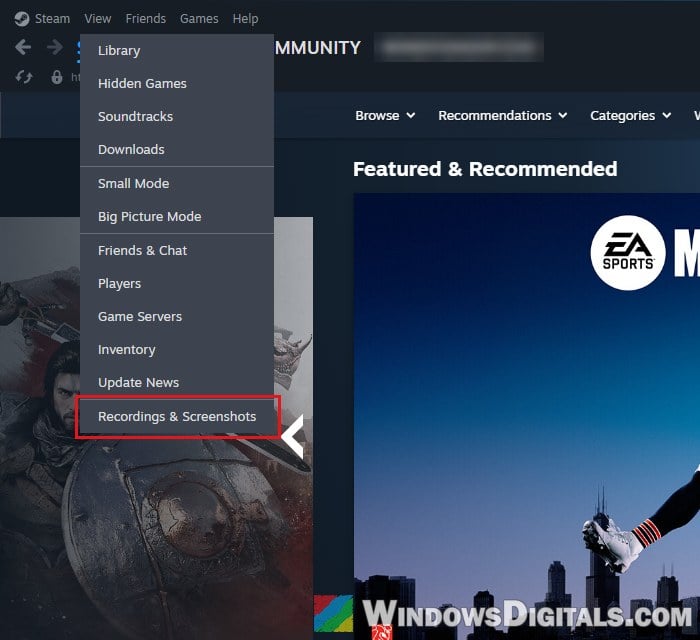
- In the Steam window, click View > Recordings & Screenshots.
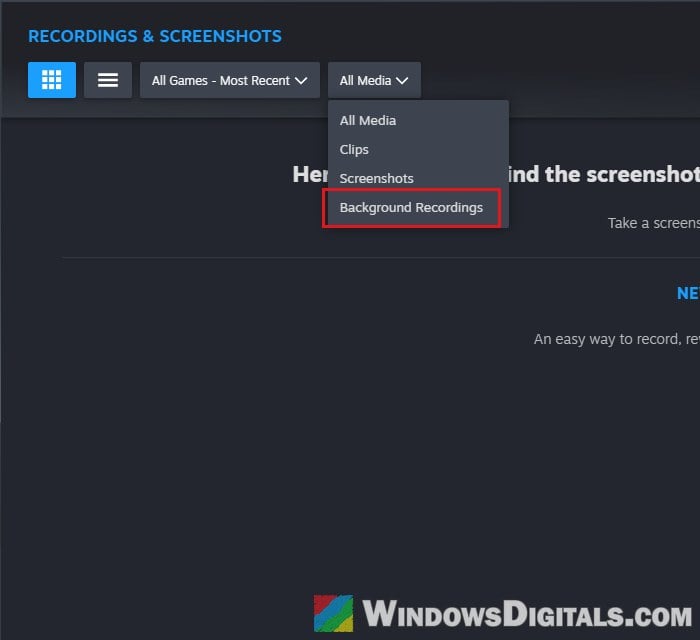
- Click the media filter (it says “All Media” by default) and choose “Background Recordings“.
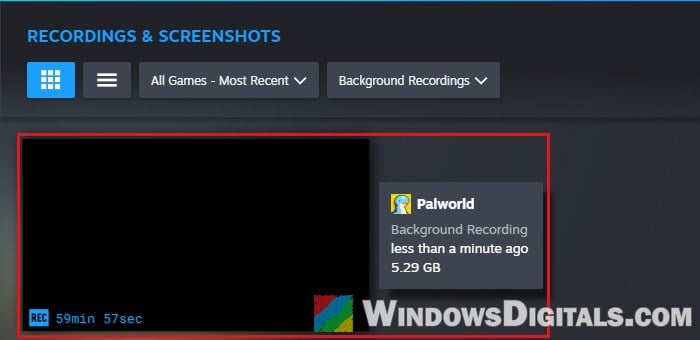 If you only see your latest recording, try changing the “All Games – Most Recent” filter next to it so older ones show up too.
- Click Select… in the top right corner, then Select All to pick every background recording.
- Click the trash can icon next to it to delete them, and confirm if Steam asks.
Once that’s done, go back to Settings > Storage and check whether the size of “Game Recording – Background Recordings” went down. If the recordings show up again the next time you open the settings, or the size barely changes, the files are still in the folder. Delete them by hand as shown in the next section.
Delete leftover recordings from the folder
Sometimes Steam only lists your latest background recording while older ones are still sitting on the drive, or the recordings you deleted in Steam pop back up the next time you open the settings. In both cases, deleting the files in File Explorer is what actually frees the space.
- In Steam, go to Settings > Game Recording.
- Scroll down to “Recordings folder” and note the path. By default it’s:
C:\Program Files (x86)\Steam\userdata\<number>\gamerecordings
The number is different for every Steam account. If you see several numbered folders under “userdata”, the path shown here tells you which one is yours.
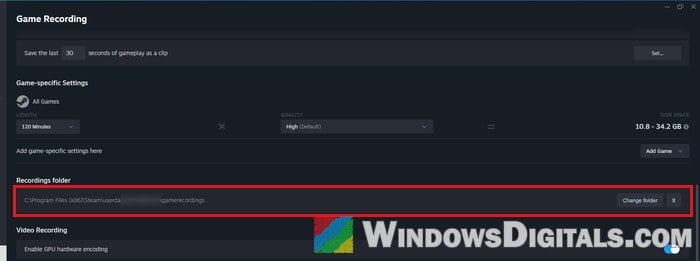
- Open File Explorer, type (or paste) that path into the address bar and press Enter.
- Open the video folder.
- Look for folders whose names start with bg_, followed by a number and a date. These are your background recordings, and each one can be around 10 GB.
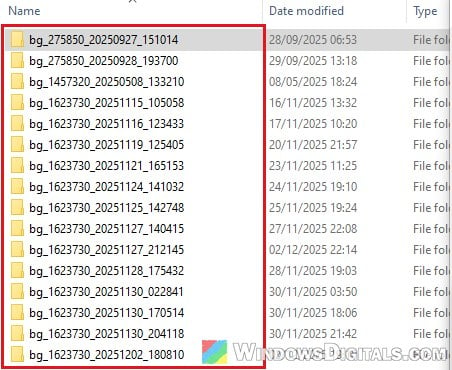
- Select the bg_ folders you don’t need and delete them.
- Empty the Recycle Bin afterwards, otherwise the space won’t be freed.
Steam might still show a few entries for the deleted recordings that won’t play anymore. Those are just leftover entries, and they don’t take up any real space.
Turn off background recording
If you never save clips from your gameplay, there’s no reason to let Steam record in the background at all. Turning it off stops new recordings from filling up the drive.
- Open Steam > Settings.
- Select Game Recording on the left.
- Under “Select your recording mode“, choose Recording Off.
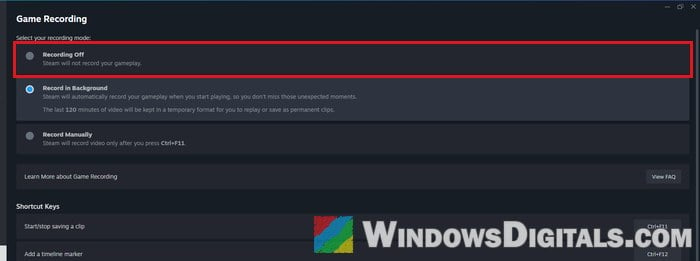
If you still want to record a clip now and then, choose Record Manually instead. Steam will then only record when you press the start/stop key, which is Ctrl + F11 by default. Steam may also offer to delete the background recordings it already kept when you switch modes. If it does, you can let it, since your saved clips are separate.
Related guide: How to Record Screen on Windows 11/10 With NVIDIA Share
Keep background recording, but make it use less space
If you like being able to save a moment after it happens, you can keep background recording on and simply give it less room. Both settings are under Steam > Settings > Game Recording, in the “Game-specific Settings” section, and the DISK SPACE estimate next to them updates as you change them.
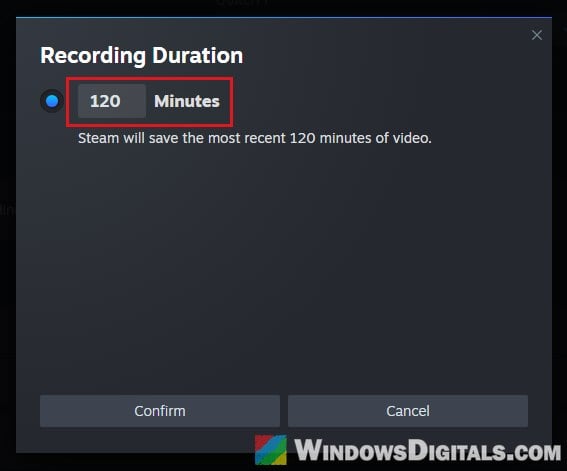
- Click the LENGTH drop-down (120 Minutes by default), type a shorter duration, for example 30 or 60 minutes, and click Confirm.
- Click the QUALITY drop-down, pick a lower level and click Confirm. Medium is a good middle ground, and Low uses the least disk space, with the most compression.
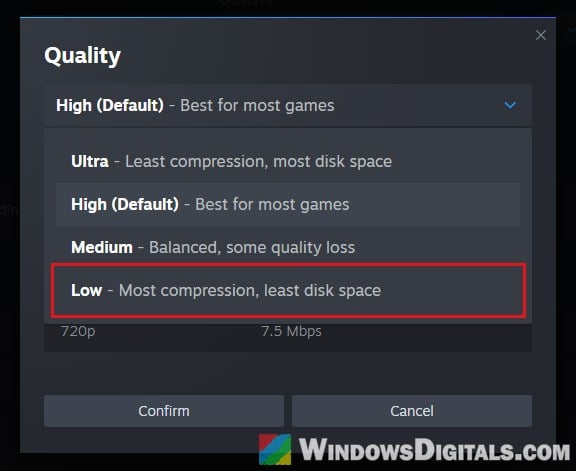
These settings apply to all games. If only one game needs a longer or sharper recording, click Add Game next to “Add game-specific settings here” and give that game its own length and quality.
If it’s mainly your C: drive that’s running out of space, you can also click Change folder under “Recordings folder” and pick a folder on a bigger drive. After moving it, check the old folder (see “Delete leftover recordings from the folder” above) and delete anything left in it, since the old files can stay behind.