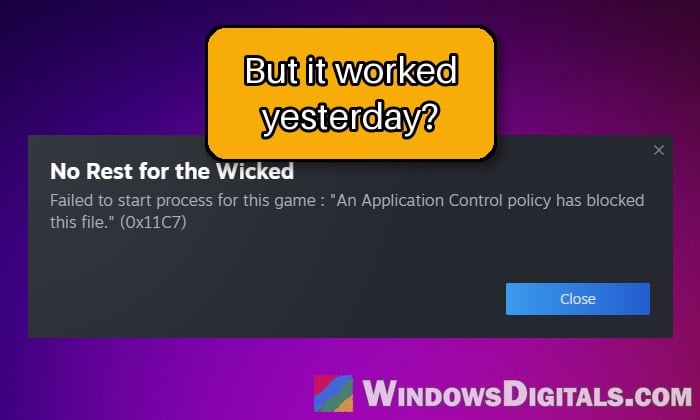
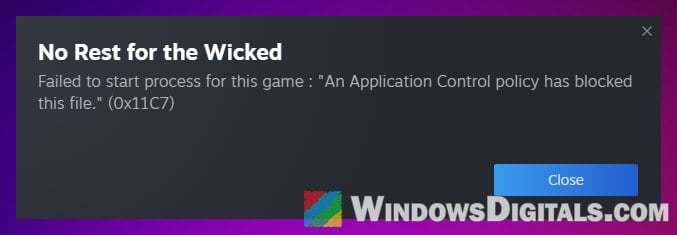
When you click Play on a game in Steam or another launcher on Windows 11, you might see a pop-up with the game’s name that says Failed to start process for this game : “An Application Control policy has blocked this file.” (0x11C7), even though the same game ran fine yesterday. This guide will explain why Windows suddenly blocks a game it used to allow and how to get it running again.
Also see: “Smart App Control Has Blocked Part of This App” in Windows 11
Why does Windows suddenly block a game?
On a home PC, this message usually comes from Smart App Control, a Windows 11 security feature. Every time you run a program, it asks Microsoft’s cloud service whether the file is safe. If the service has no confident answer, the file is only allowed to run if it’s signed with a trusted certificate. Plenty of games, especially indie and smaller ones, ship with unsigned files, so they can end up blocked.
The block tends to show up out of nowhere, often:
- After a Windows update the night before (the most common case).
- After a game update that replaced the game’s main file with a new one.
- When Microsoft’s rating of the file changes, even though nothing on your PC did.
Reinstalling the game, verifying its files or running it as administrator usually doesn’t help, since you get the same file back and Windows still won’t run it.
Related problem: “DirectX 12 Support Not Detected” Starting a Game
Restart your PC and install any updates
Yes, this might sound a little silly, but sometimes the game opens normally again after a simple restart. In other cases, the block goes away by itself within a day or two, or after the game’s next update. It doesn’t work for everyone, but it costs nothing to try before changing any security settings.
While you’re at it, open Settings > Windows Update and install anything that’s waiting, then check whether the game has an update in your launcher. Restart once more and try launching the game again.
Check if Smart App Control is the one blocking it
First, make sure Smart App Control is actually turned on. Here’s how to check:
- Open the Start menu, search for “Windows Security” and open it.
- Click “App & browser control“, then click “Smart App Control settings“.
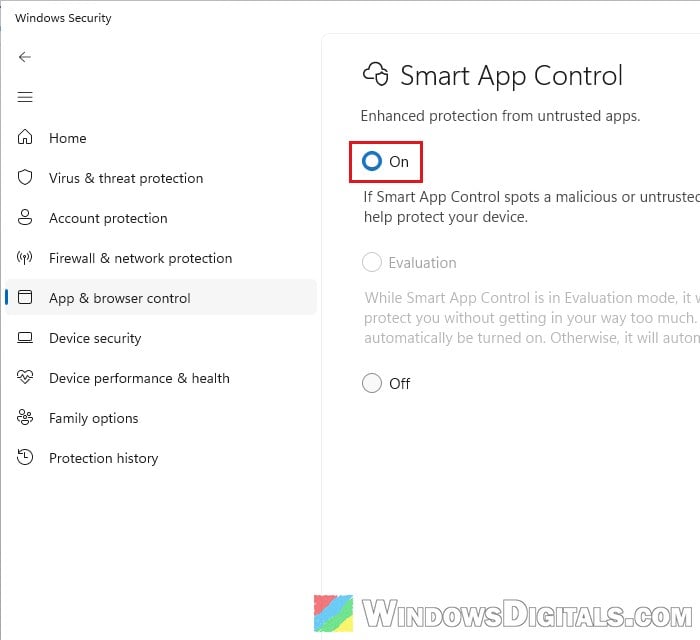
- See which option is selected: “On“, “Evaluation” or “Off“.
If it says “On” or “Evaluation“, Smart App Control is very likely what blocked your game. Blocks can also show up under “Virus & threat protection” > “Protection history” as “Smart App Controls” or “Blocked app” entries, but not every block is listed there, so don’t worry if you can’t find one.
If Smart App Control is already “Off” and the error still shows, something else is enforcing an App Control policy. On a work or school PC, that’s usually a policy your organization set, so the fixes below may not be yours to make, and it’s best to ask your IT department.
Might be useful: Windows 11 Security Shows “Page not available”
Add the game’s folder to Windows Security exclusions
This is the workaround that has helped the most people. Many players on Reddit got their game launching again by adding its folder as an exclusion in Windows Security and then restarting the PC, across all sorts of games. It doesn’t work for everyone, and Microsoft says there’s no official way to make a Smart App Control exception for a single app. This fix also only works if Microsoft Defender is your antivirus. Still, it keeps Smart App Control on, so it’s worth a try before turning anything off.
First, find where the game is installed. In Steam, right-click the game in your “Library“, go to “Manage” and click “Browse local files“. Note the folder that opens. In another launcher, use the folder you installed the game to.
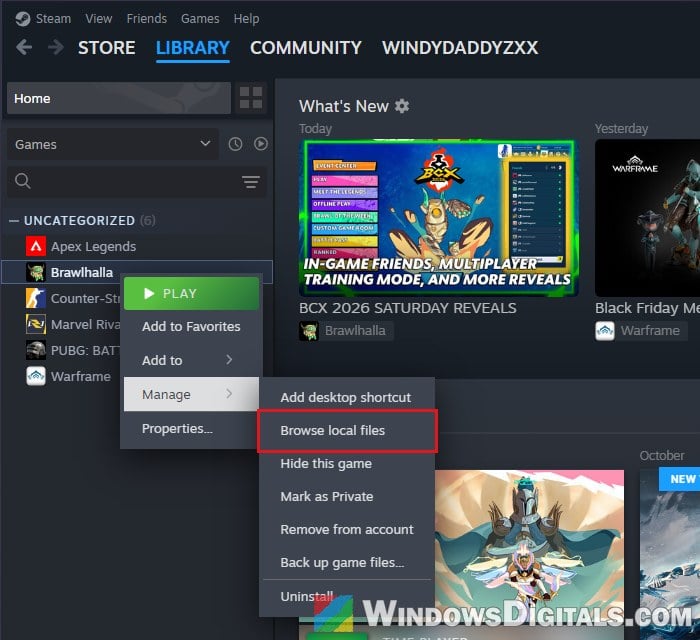
Then add it as an exclusion:
- Open Windows Security and click “Virus & threat protection“.
- Under “Virus & threat protection settings“, click “Manage settings“.
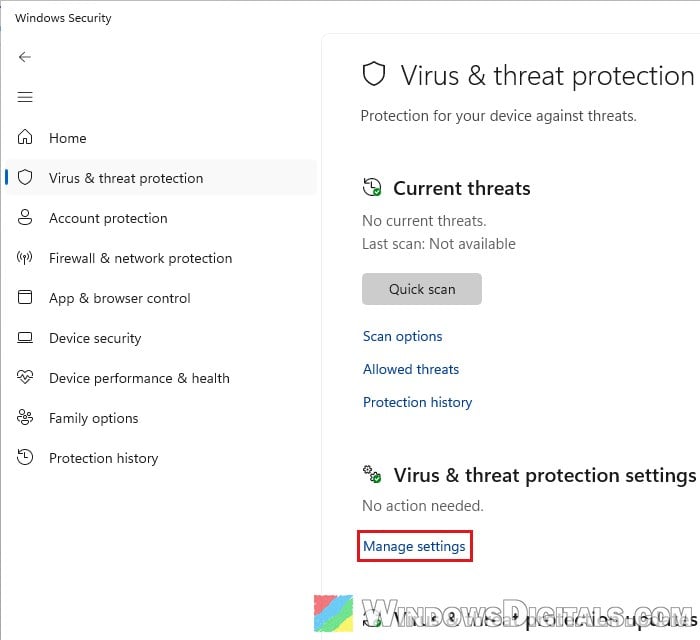
- Scroll down to “Exclusions” and click “Add or remove exclusions“. Click “Yes” if a User Account Control prompt appears.
- Click “Add an exclusion” and select “Folder“.
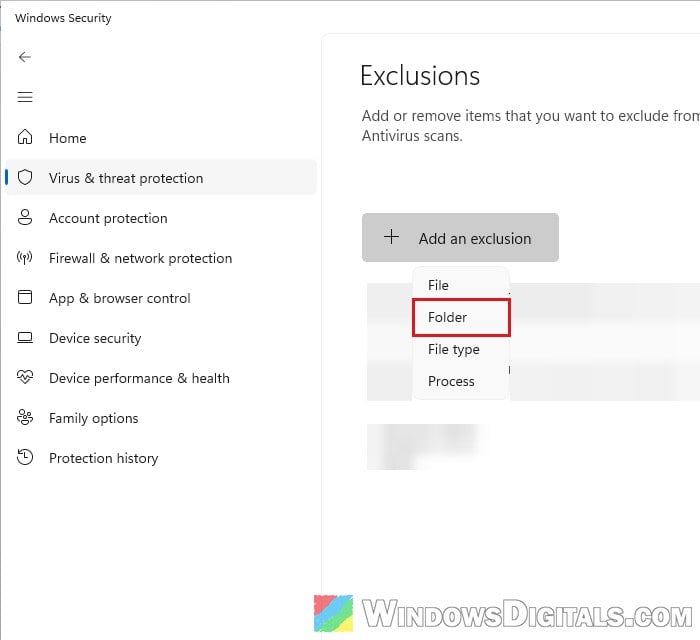
- Select the game’s folder and click “Select Folder“.
- Restart your PC, then launch the game again.
Please be warned that Microsoft Defender won’t scan anything inside an excluded folder. Only do this for a game you got from Steam or the developer’s own website, and only add that game’s folder, never your Downloads folder or a whole drive. Once the game has had an update or two, you can try removing the exclusion from the same page.
Related concern: Virus and Threat Protection Missing in Windows 11
Turn off Smart App Control (and back on later)
If the exclusion didn’t help, turning Smart App Control off is the fix that works reliably. In most cases, the game starts right away once it’s off.
- Open Windows Security and click “App & browser control“.
- Click “Smart App Control settings“.
- Select “Off“.
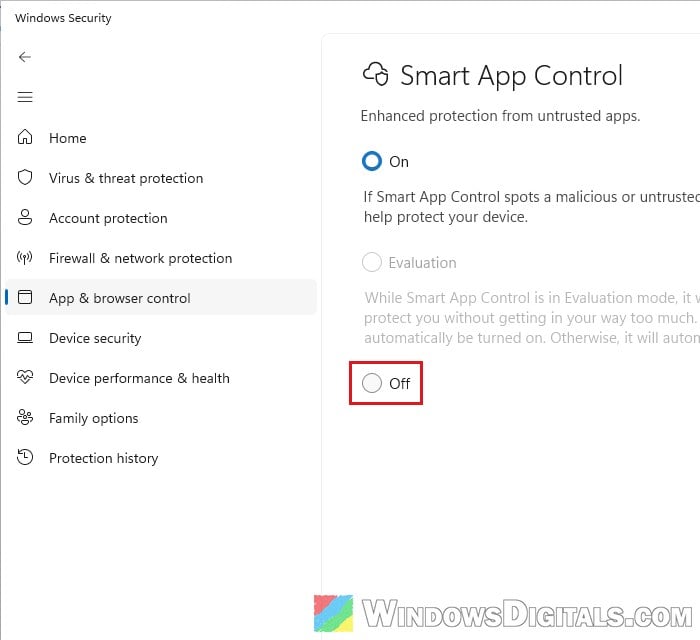
- Click “Yes” if a User Account Control prompt appears.
Then launch the game again.
You might read in older comments that Smart App Control can never be turned back on once it’s off. That’s no longer true. Since the April 2026 update, you can switch it on and off from the same page without reinstalling Windows, so some people simply turn it off while playing and back on afterwards. On some PCs, the October 2026 update grayed out the “On” option again. Microsoft fixed that in a later update, and the steps are in Smart App Control Grayed Out After KB5127648 in Windows 11.
Important: Smart App Control also blocks real malware and unwanted apps, so be careful what you download while it’s off. Microsoft Defender keeps running either way.
Report the false block to Microsoft
If you think the game was blocked by mistake, you can send its file to Microsoft so they can take another look at it. Go to https://www.microsoft.com/en-us/wdsi/filesubmission, choose “Home customer“, pick “Smart App Control” as the product, upload the game’s main file and select “Incorrectly detected as malware/malicious“. Signing in is optional.
You can also send feedback through the Feedback Hub app under “Security and Privacy” > “Smart App Control“. And let the game’s developer know: Microsoft’s own advice is to ask the developer to sign their app, which is the real long-term fix.