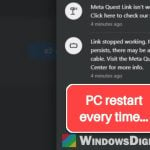
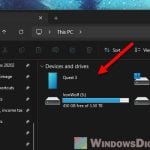
When you play PC VR games with Virtual Desktop’s new USB cable connection on a Quest 3, you might see the picture in the headset suddenly freeze during demanding games or fast scenes, while the game keeps running just fine on your PC monitor. Restarting Virtual Desktop brings the picture back, but only until the next freeze. This guide will walk you through what’s causing it and how to get a stable wired connection.
Also see: WiFi 5 vs WiFi 6 vs WiFi 6E for Virtual Desktop (VR)
Why does Virtual Desktop freeze over a USB cable?
Virtual Desktop has always been a wireless app. Streaming over a USB cable was only added in its beta in August 2026 (version 1.34.19, which needs Quest OS v2.4 or later). It doesn’t work like Meta Horizon Link. Instead, it uses Meta’s USB networking feature (USB NCM) to run a normal network connection over the cable, so to Virtual Desktop the cable is basically the same as Wi-Fi or Ethernet. The headset and Windows handle the connection itself.
According to Virtual Desktop’s developer, the freezing is a known issue with Meta’s USB networking feature, and it mostly shows up when two things come together:
- A PC with an Intel CPU (Intel USB controllers): these are more sensitive to poor cables than the USB controllers on AMD systems.
- A low-quality USB cable, especially the cheap charging link cables that have an extra power plug (a power injector). Many of them don’t fully meet the USB standard.
The developer has reported the bug to Meta, and it’s Meta who has to fix it. That’s also why Meta Horizon Link on the same cable, or Virtual Desktop over Wi-Fi, can work fine on the same PC while the USB mode keeps freezing. Until a fix arrives, the cable and the USB port are what you can actually change.
Related problem: Meta Quest 3 “General Device Problem” in Link (Cable)
Use a high-quality USB 3 cable without a power injector
A good USB 3 cable that follows the USB standard, such as the official Meta Quest Link Cable or Linus Tech Tips’ (LTT) TrueSpec cables, solves the issue, even on Intel PCs, according to Virtual Desktop’s developer. Virtual Desktop’s Discord server also has an announcement about this issue with the cables they recommend.

The ones to be careful with are the cheap link cables with a separate charging plug. They’re popular because they keep the Quest 3 charged while you play, but they’re also the usual suspect behind this freeze. Even a plain USB-C to USB-C cable without a power port can stop the freezing a charging cable causes.

Please note that many of the cables Virtual Desktop recommends don’t charge the headset while you play. If you need power, add it another way (a powered adapter or expansion card) instead of going back to a charging link cable.
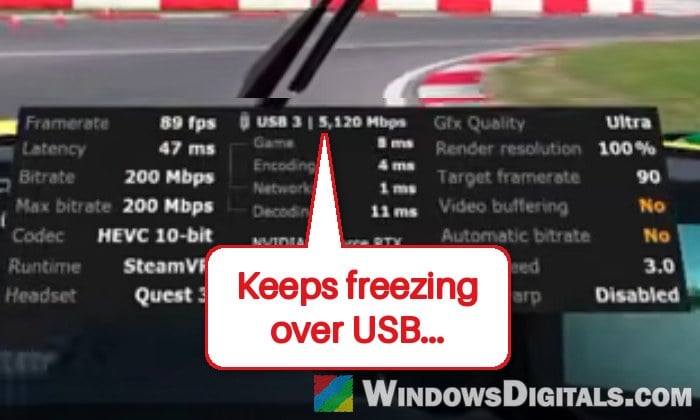
You can also check what Virtual Desktop thinks of your connection. Over USB, Virtual Desktop shows the link type and speed, such as “USB 3 | 5,120 Mbps” in its performance overlay. If it doesn’t say USB 3, or Virtual Desktop warns that your cable isn’t good enough and the bitrate is limited, the cable (or the port) is the likely problem.
Related concern: Quest 3 Charging While Playing Link Cable Doesn’t Work
Check if your PC uses an Intel USB controller
Since the problem mostly hits PCs with Intel USB controllers, it helps to know which one you have. If it’s Intel, the cable and port matter even more. Here’s how to check:
- Right-click the “Start” button and select “Device Manager“.
- Expand “Universal Serial Bus controllers“.
- Look at the host controller entries. An Intel one has “Intel” in its name, while an AMD one has “AMD“.
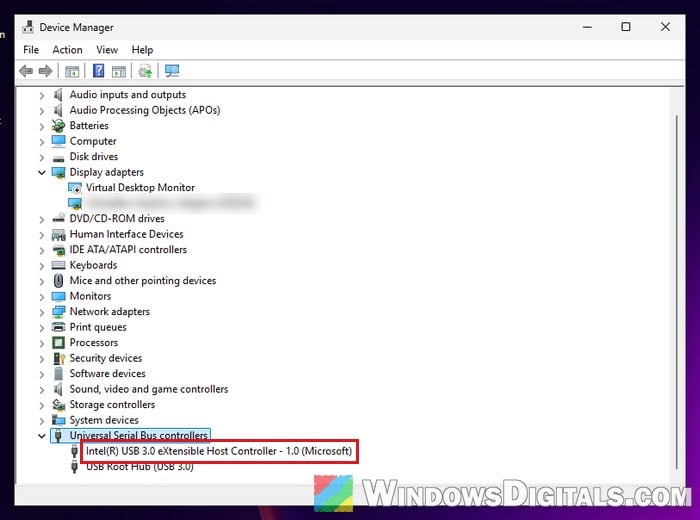
If you only see Intel controllers, follow the cable fix above and the port fix below before anything else.
Plug the cable into a different USB port, or use a PCIe USB card
The USB port matters too. Plug the cable straight into a USB 3 port on the PC, ideally one wired directly to the CPU (your motherboard’s manual shows which ones), and don’t run it through a USB hub. If it still freezes, try the other USB 3 ports in turn, front and rear, since one port can behave better than another on the same PC.

A PCIe USB 3.0 card can also help: plug the headset into it instead of the motherboard’s own ports. It stopped the freezes for some, though not always every stutter.
While you’re at it, tie the cable to the head strap so it doesn’t pull on the Quest’s USB-C port when you move. A port that gets tugged on can drop the connection too.
Might be useful: What do the Red USB Ports (SS10) mean on my PC?
Keep your Quest and both Virtual Desktop apps up to date
Since the bug is in Meta’s USB networking, the real fix will most likely come with a Quest system update. Keep the headset updated so you get it as soon as Meta releases it.
On the Virtual Desktop side, keep both apps on the same release: if the headset app is on the beta, the PC needs the beta Streamer too. The Streamer shows its version at the bottom of its window.
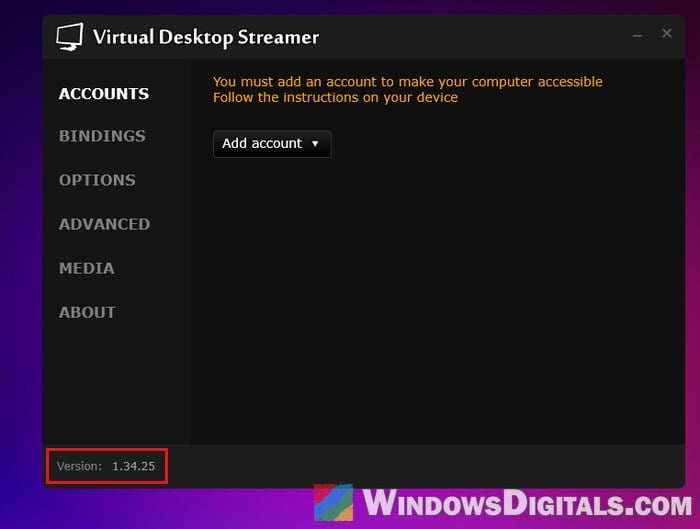
At the time of writing, the USB mode is still in Virtual Desktop’s beta (on the headset, long-press the “Virtual Desktop” tile, then “Settings” > “Release Channels” > “BETA“), and the matching beta Streamer for the PC is linked from Virtual Desktop’s beta announcement (UploadVR’s article about the beta links it too).
Use Wi-Fi or Meta Horizon Link until Meta fixes it
If no cable or port gets rid of the freezes, the reliable workaround is to stop using the USB mode for now. Virtual Desktop over Wi-Fi doesn’t go through Meta’s USB networking: connect your PC to the router with an Ethernet cable and the headset to 5 GHz (or 6 GHz) Wi-Fi, the way Virtual Desktop has always been meant to run.
If you’d rather stay wired, there are two other options:
- A USB-C to Ethernet adapter on the headset, with an Ethernet cable to your router: it’s a separate wired network connection that Virtual Desktop can use instead of the USB mode. It needs a Realtek chipset (RTL8153 is the usual one), since adapters with ASIX chips don’t work on the Quest.
- Meta Horizon Link: it uses its own connection over the same cable, so it can run fine on a cable that freezes in Virtual Desktop.
Linked issue: PC can’t detect Quest 3 (USB device not recognized)
Do USB power saving settings help?
A popular tip is to turn off “Allow the computer to turn off this device to save power” for every USB hub in Device Manager and to disable USB selective suspend in the power plan. But Virtual Desktop’s developer has said these settings aren’t the cause of the freezes on Intel PCs, and changing them doesn’t solve the problem. So don’t spend too long on it, and focus on the cable and the port instead.