Firefox with only a tab or two open should be fairly light, and a brand-new Firefox profile on a Windows 11 or 10 PC can stay under 1 GB of RAM. Lately, though, some people are seeing Firefox use 4 to 5 GB of RAM or more with just one or two tabs, sometimes only the home page, and the number keeps climbing every few minutes. This guide will explain what can make Firefox eat this much memory and how to bring it back down.
Also see: Why is My Memory Usage So High When Nothing is Running?
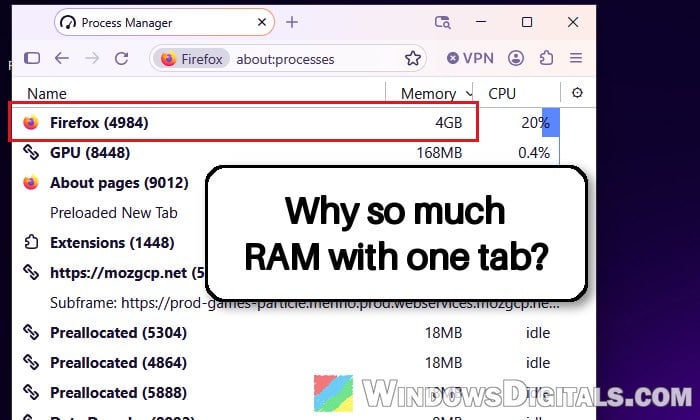
Why does Firefox use so much RAM with only a few tabs?
A few different things can push Firefox’s memory usage this high:
- A bloated “datareporting” folder in your Firefox profile. Since around Firefox 159 (released October 27, 2026), a number of people found that the main Firefox process grew to several gigabytes even with only the home page open, and that it dropped to its usual size once this one folder was removed. Mozilla has said it’s looking into it, but there’s no official fix yet.
- Heavy or leaky websites. According to Mozilla, most of the memory a browser uses with a few tabs open is taken by the websites themselves, and some sites leak memory the longer they stay open.
- Extensions that use a lot of memory in the background.
- The GPU process, which handles hardware acceleration and can sometimes hold a few gigabytes by itself.
Keep in mind that Windows Task Manager isn’t very precise for a browser that runs many processes. Firefox’s own Task Manager, covered below, gives you a much clearer picture of what’s taking the memory.
Might be useful: How to Clear RAM Cache in Windows 11
Check what’s using the memory in Firefox’s Task Manager
Before changing anything, check which part of Firefox is taking the memory. Its own Task Manager lists every tab, extension and background process with how much memory each one uses.
- Type “about:processes” in the Firefox address bar and press Enter. You can also press Shift + Esc, or open the Firefox menu (the three lines) > “More Tools” > “Task Manager“.
- Click the “Memory” column header to sort the list by memory, and look at the top of the list.
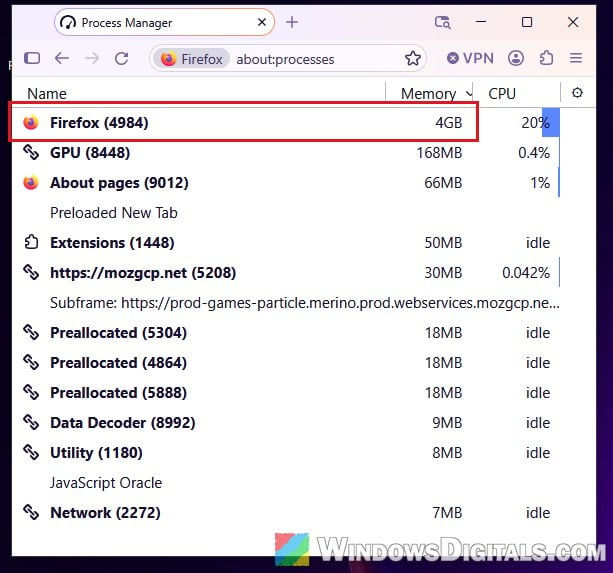
- If one tab or extension stands out, close or reload that tab, or turn that extension off.
If the biggest number is next to the main “Firefox” process itself, even with only one tab open, the next fix is the one most likely to help.
Rename the “datareporting” folder in your Firefox profile
The “datareporting” folder is where Firefox keeps its usage data (telemetry) on your PC before it’s sent or cleaned up. It’s not clear yet why, but once this folder has built up for a while, it can make the main Firefox process keep growing. Several users on Reddit have confirmed that renaming or deleting this folder brought their RAM usage back to normal. Putting the old folder back has also brought the problem back.
It’s safe to remove, since Firefox simply makes a new “datareporting” folder the next time it starts, and your bookmarks and saved logins stay as they are. We’ll rename it instead of deleting it, so you can put it back if nothing changes. Here’s how to do it:
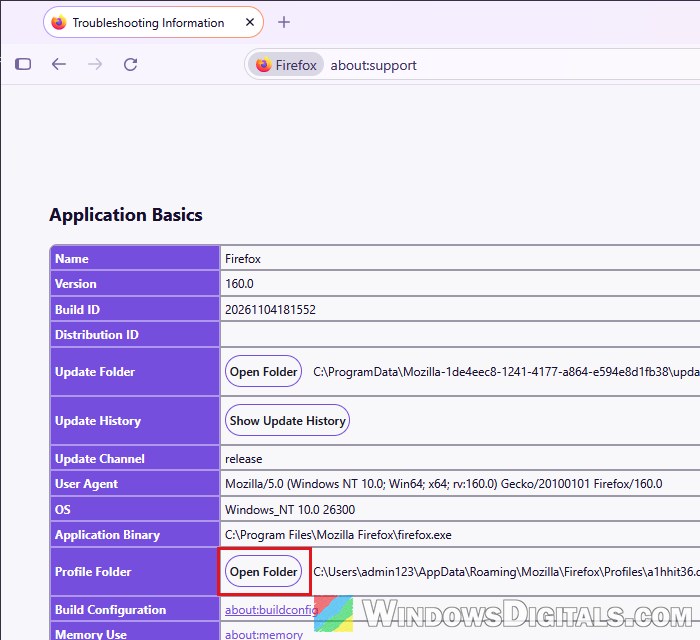
- Type “about:support” in the address bar and press Enter.
- In the “Application Basics” section, find the “Profile Folder” row and click “Open Folder“. This opens your current profile folder in File Explorer.
- Close Firefox completely (leave the File Explorer window open).
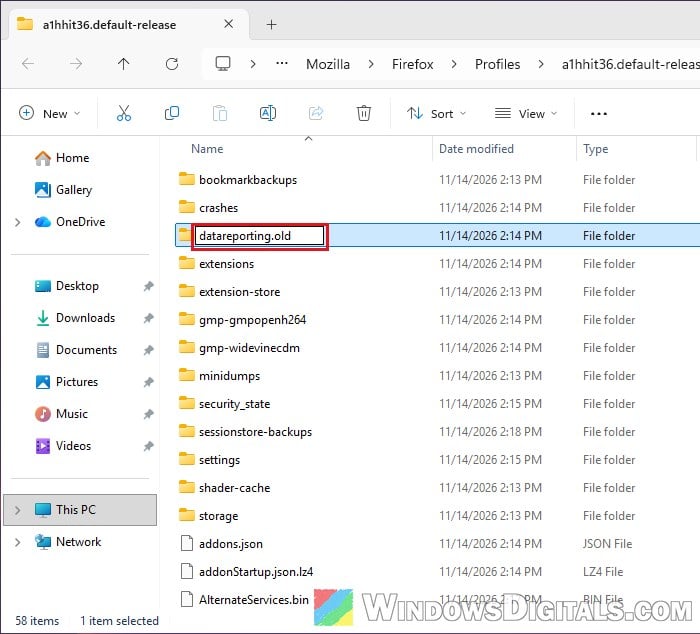
- In the profile folder, select the “datareporting” folder, press F2, and rename it to “datareporting.old“.
- Open Firefox again. It will create a fresh “datareporting” folder by itself.
Then check Firefox’s memory again with your usual tabs open. If it stays low, you can delete the “datareporting.old” folder. If nothing changed, close Firefox, delete the new “datareporting” folder and rename “datareporting.old” back to “datareporting”.
Note: Your profile folder is usually under %APPDATA%\Mozilla\Firefox\Profiles\.
Related guide: How to Clean Up AppData Folder in Windows 11
Free up memory with “Minimize memory usage”
Firefox has a built-in button that forces it to clean up memory it no longer needs. It doesn’t fix the cause, but it gets some RAM back right now.
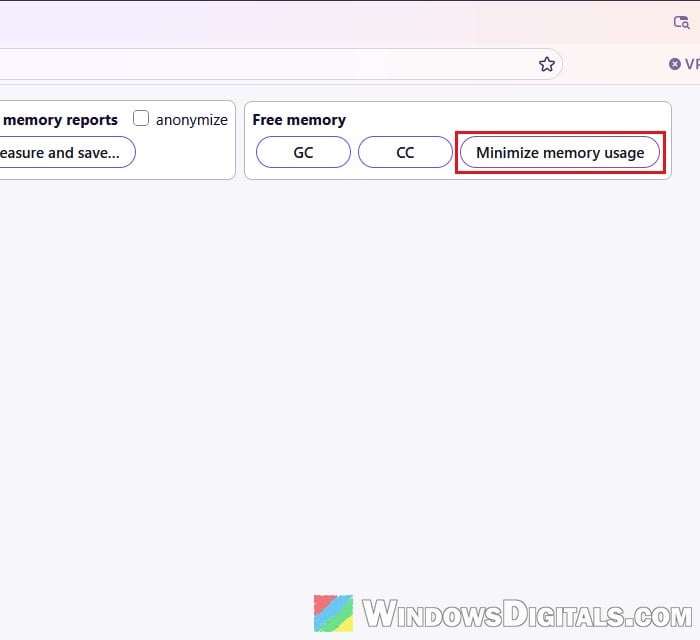
- Type “about:memory” in the address bar and press Enter.
- Under “Free memory“, click “Minimize memory usage“.
If the memory drops a lot and then slowly climbs back up, something is still leaking, usually a website, an extension or the “datareporting” folder above.
Check your extensions in Troubleshoot Mode
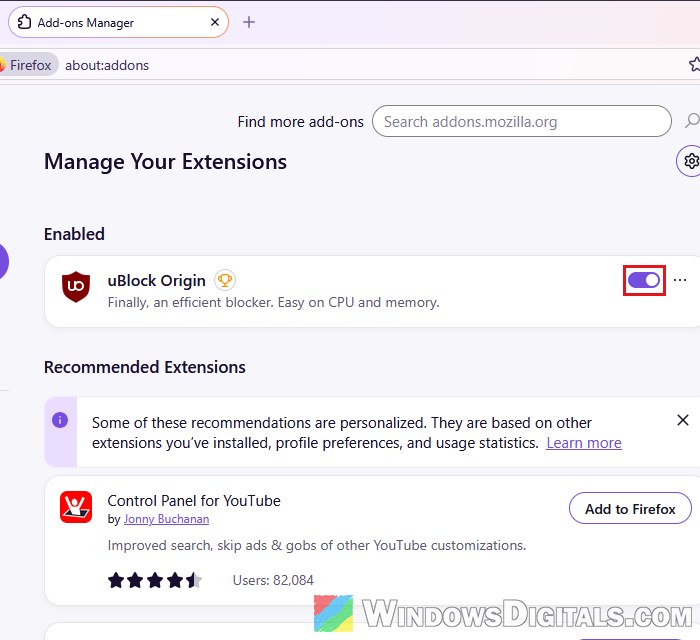
Troubleshoot Mode starts Firefox with all your extensions and themes turned off for one session. If Firefox stays light in this mode, one of your extensions is the likely cause.
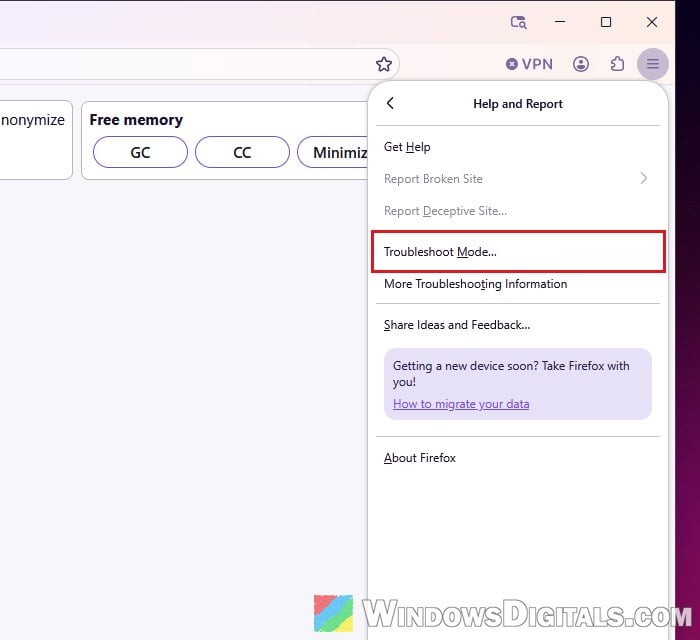
- Click the Firefox menu (the three lines) and select “Help and Report“.
- Click “Troubleshoot Mode…“, then “Restart“, and then “Open“.
- Use Firefox for a while and watch the memory.
- If the memory stays low, restart Firefox normally, open the menu and select “Extensions and Themes” (or press Ctrl + Shift + F). Turn your extensions off with their toggles, then back on one at a time to find the one that causes it.
Related problem: Twitch Causing High CPU Usage on Firefox or Chrome
Close or unload heavy tabs like YouTube
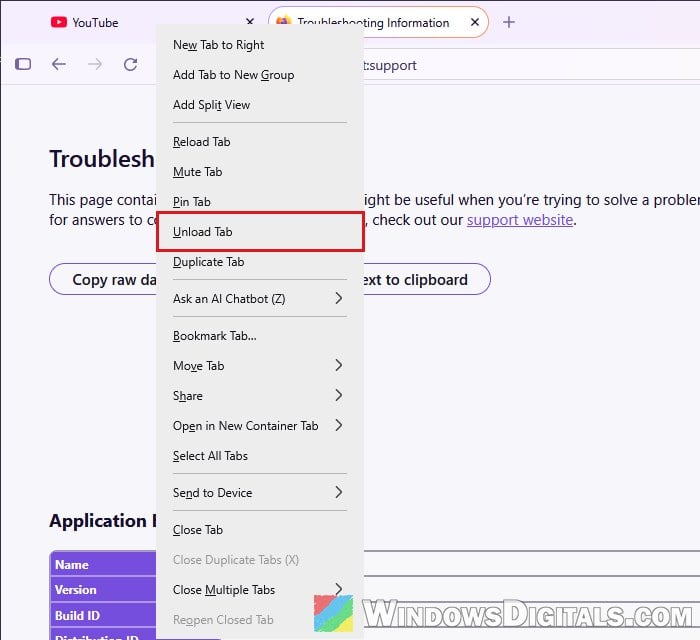
Some websites hold on to more memory the longer their tab stays open. YouTube is one of them: each video you watch in the same tab adds to its memory. Closing that tab and opening the site again in a new tab frees that memory.
If you want to keep a tab without it using memory, right-click it and select “Unload Tab“. The tab stays in your tab bar.
Turn off hardware acceleration (as a test)
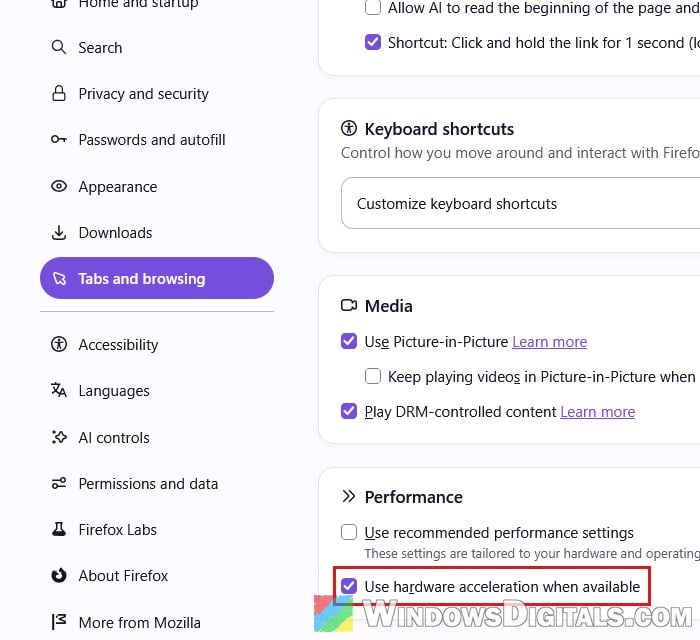
When the “GPU” process is the big one in “about:processes“, hardware acceleration can be the reason. Turning it off can lower Firefox’s memory usage, but it also moves video decoding from your graphics card to the CPU, so videos can stutter and your CPU usage and laptop battery drain can go up. Treat this as a test, and turn it back on if things get worse.
- Open the Firefox menu and select “Settings“, then click “Tabs and browsing” on the left.
- Scroll down to “Performance” and uncheck “Use recommended performance settings“.
- Uncheck “Use hardware acceleration when available“.
- Restart Firefox.
After the restart, open “about:processes” again and see whether the “GPU” process is still as big.
Linked issue: High GPU Usage While Watching YouTube Videos
Refresh Firefox or try a new profile
If nothing above helped, something else in your profile may be the cause. A quick way to check is to create a new profile from “about:profiles” with “Create a New Profile” and open it with “Launch profile in new browser“. If Firefox stays under 1 GB in the new profile, your old one is the cause.
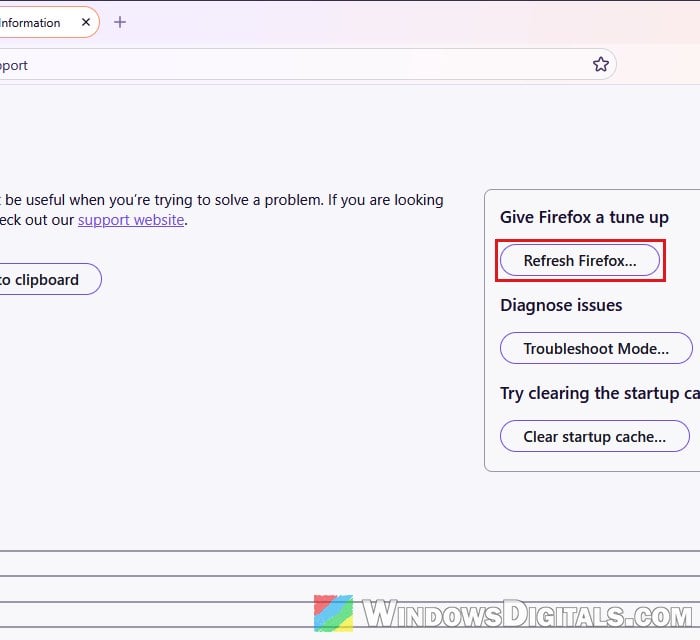
To fix the old profile itself, refresh Firefox. It removes your extensions and customizations, but keeps essential information like your bookmarks and passwords.
- Type “about:support” in the address bar and press Enter.
- Click “Refresh Firefox…” and confirm.
After the refresh, add back only the extensions you need, and see whether the memory stays down with the tabs you normally keep open.