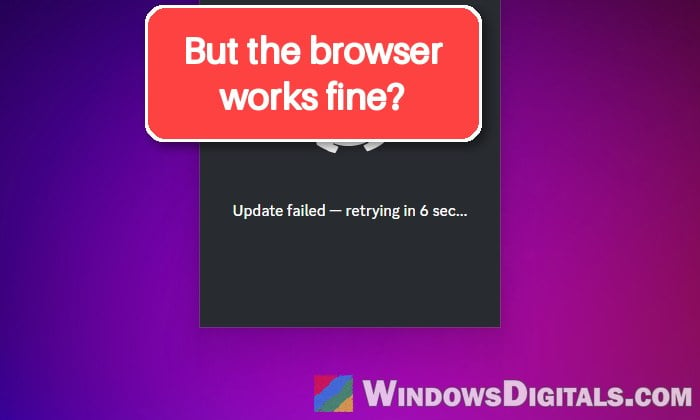
If you’ve noticed that apps like Discord, Steam, the EA app or the Microsoft Store suddenly say there’s no internet connection or keep spinning on “Checking for updates“, while every website still loads fine in your browser, the problem is usually something on your PC that only gets in the way of apps, not your internet itself. This guide will show you what causes it and how to get your apps back online.
Also see: How to Fix “No Internet, Secured” WiFi in Windows 11/10
Why do apps lose internet when the browser still works?
Your browser and your desktop apps don’t always go out to the internet the same way. Many desktop apps and Windows’ own services use a part of Windows called WinHTTP, and according to Microsoft, WinHTTP has its own proxy setting, separate from the one your browser follows. Browsers can also look up websites with their own secure DNS, so a browser can work fine while everything else on the PC is stuck.
Some common reasons for this issue are:
- A leftover proxy from a VPN or proxy app that was closed or uninstalled.
- A VPN app that changed your network settings, even when it isn’t connected.
- The wrong date and time, which breaks the secure connections apps use.
- A firewall or antivirus blocking the apps.
- Damaged network settings (Winsock or TCP/IP).
It’s a pretty common issue that you’ll find discussed on Reddit and Microsoft’s forums, and the fixes below go through these causes one by one.
Try a few quick checks first
Before changing anything, a couple of quick tests can tell you where to look:
- Restart your PC and your router. It sounds silly, but it clears a lot of odd network problems.
- Connect your PC to your phone’s hotspot and open the app again. If it connects on the hotspot, the problem is likely your router or your internet provider. If it still fails, the problem is on your PC, and the fixes below apply.
- Open a website in your browser that you’ve never visited before. Pages you’ve visited can load from the browser’s cache, which can make it look like the internet works when it doesn’t.
- If the apps work in Safe Mode with Networking but not normally, something that starts with Windows, like an app or a service, might be blocking them.
Set the correct date and time
Apps connect to their servers over secure connections that check certificates, and certificates only work when your PC’s clock is right. If the date is off, apps like Steam can drop offline. This can happen after you change the date for a game, for example.
- Open Settings and go to Time & language > Date & time.
- Turn on “Set time automatically“.
- Click “Sync now“.
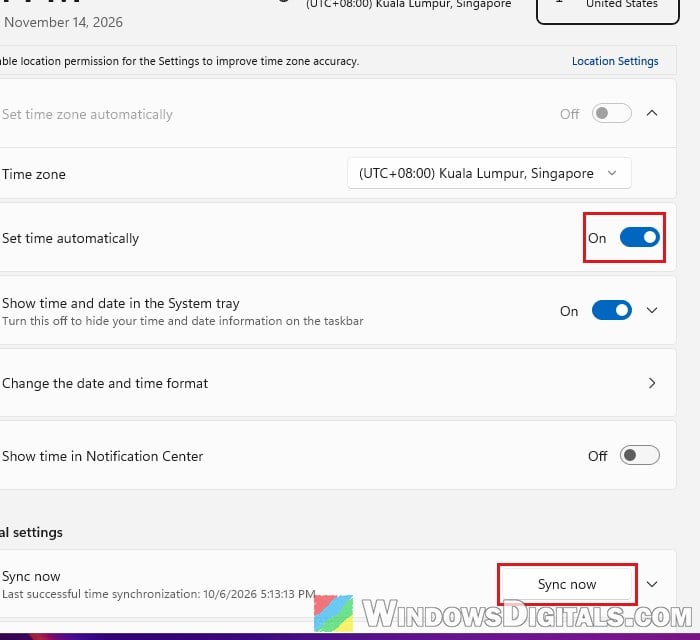
Close the app completely and open it again to see if it connects now.
Related problem: Date and Time is Always Wrong on Windows 10
Turn off any proxy and reset the WinHTTP proxy
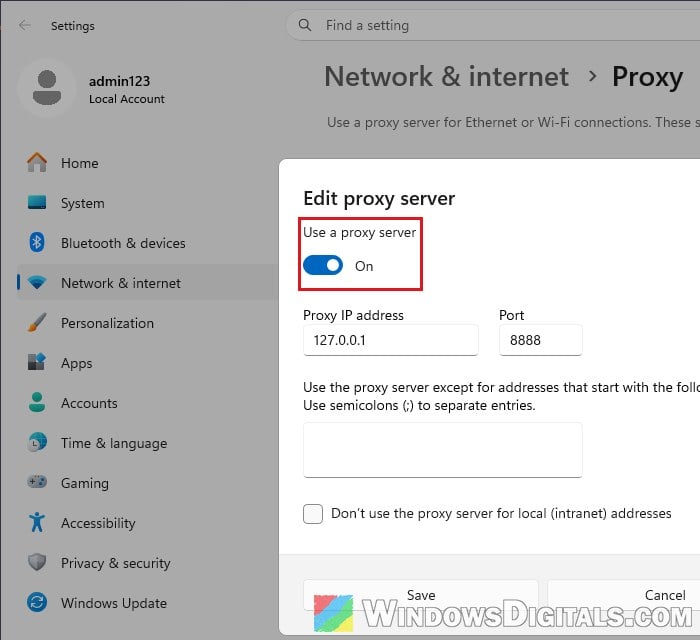
VPN and proxy apps can set a proxy in Windows while they run, usually on your own PC’s address (127.0.0.1) and a port. If the app closes badly or gets uninstalled, the setting can stay behind, and apps keep trying to go through a proxy that isn’t there anymore. Since WinHTTP has its own proxy setting, check both places.
Check the proxy in Settings
- Open Settings and go to Network & internet > Proxy.
- Under “Manual proxy setup“, if “Use a proxy server” says “On“, click “Edit” next to it.
- Unless your school or work network needs one, turn “Use a proxy server” off and click “Save“.
Reset the WinHTTP proxy
- Search for “Command Prompt” in the Start menu, right-click it and select “Run as administrator“.
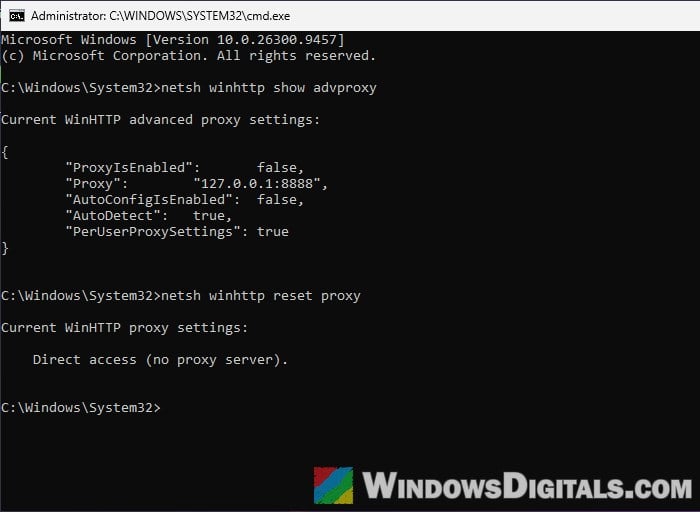
- Type the following command and press Enter to see the current WinHTTP proxy:
netsh winhttp show advproxy
If the “Proxy” line shows an address you never set, like
127.0.0.1with a port number, that’s very likely your problem. - Then reset it with this command:
netsh winhttp reset proxy
It should now say “Direct access (no proxy server)“.
- Restart your PC.
Then try the app again.
Pro tip: How to Disable Proxy Settings in Windows 11/10 Permanently
Disconnect or uninstall your VPN app
A VPN app hooks into Windows’ network settings, even when it isn’t connected, and a crash or power cut while it was on can leave some of those settings changed. If you have a VPN installed, even one you rarely use, it’s worth removing it as a test.
- Disconnect the VPN and quit the app.
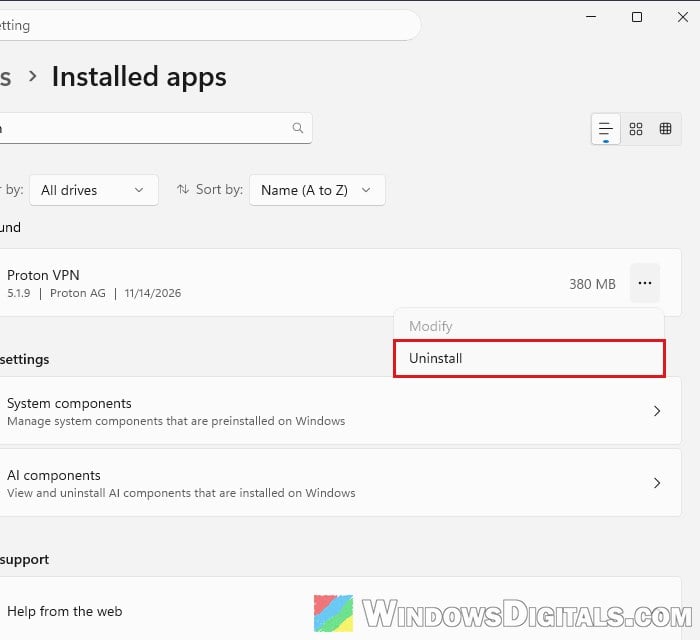
- Open Settings and go to Apps > Installed apps.
- Find your VPN app, click the three dots next to it and select “Uninstall“.
- Restart your PC and try the app again.
If your apps connect again, reinstall a fresh copy of the VPN later if you still need it.
Might be useful: How to Disable VPN in Windows 11
Check your firewall and antivirus
A firewall can let your browser through while it blocks other apps. To test it, turn off your third-party firewall or antivirus for a minute and open the app. If it connects, turn the protection back on and add the app to its allowed list. Steam, for example, may need to be allowed again after a client update.
For Windows’ own firewall, here’s how to check that an app is allowed:
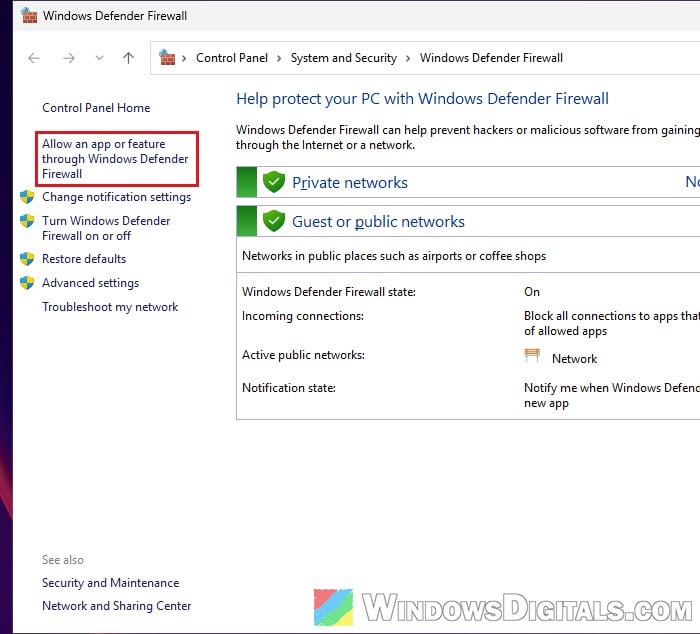
- Press Win + R, type “firewall.cpl” and press Enter.
- Click “Allow an app or feature through Windows Defender Firewall“, and make sure the app is in the list and allowed.
For detailed instructions, read: How to Allow an App Through Firewall in Windows 11.
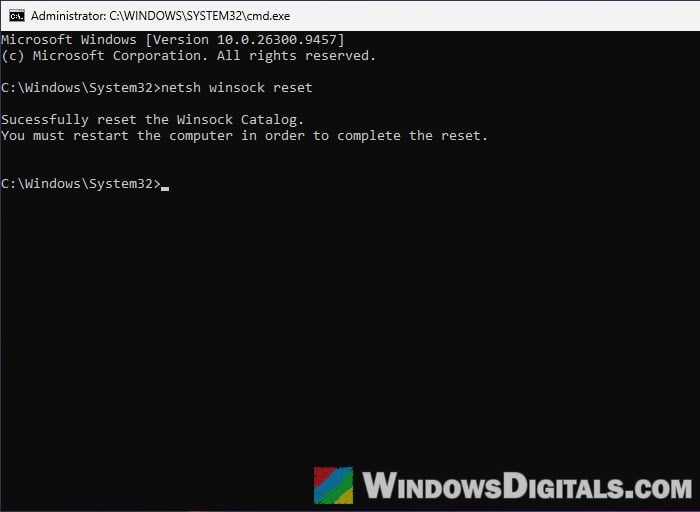
Reset Winsock and TCP/IP
Winsock and TCP/IP are the parts of Windows that handle network connections for your programs. If their settings get damaged, resetting them puts back the defaults. Microsoft lists these same commands for fixing connection problems.
Please note that resetting Winsock can remove parts of some VPN or filtering apps, so you might need to reinstall your VPN afterward.
- Open Command Prompt as administrator.
- Type the following commands one by one, and press Enter after each:
netsh winsock reset
netsh int ip reset
ipconfig /release
ipconfig /renew
ipconfig /flushdns
- Restart your PC.
Once it’s back, open the app again and see if it can connect.
Try a different DNS server
A DNS problem can block apps while the browser, with its own DNS settings, still works. It doesn’t fix this very often, but it’s quick to try:
- Open Settings > Network & internet, and click “Ethernet“, or “Wi-Fi” and then your network.
- Next to “DNS server assignment“, click “Edit“.
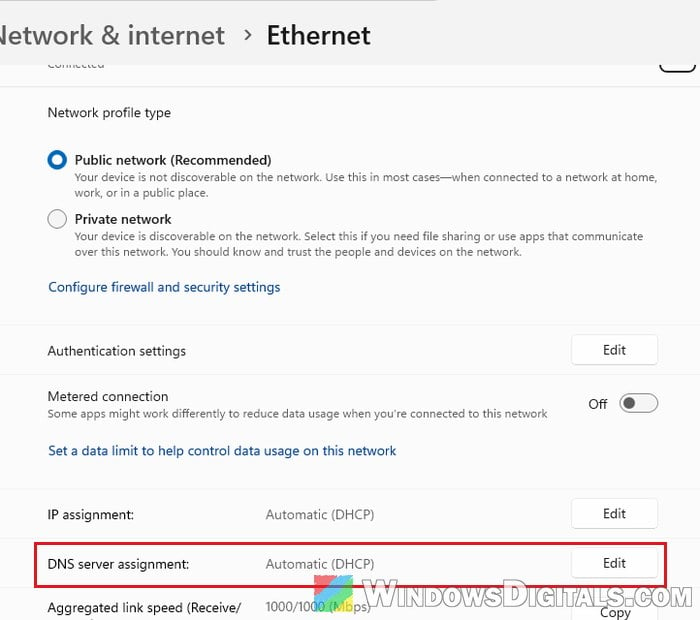
- Select “Manual“, turn on “IPv4“, and enter
1.1.1.1as the “Preferred DNS” and1.0.0.1as the “Alternate DNS“. - Click “Save“.
Then restart the app and check if it gets past its loading screen.
Learn more: Change DNS to Google or Cloudflare in Windows 11/10
Use network reset as a last resort
If nothing above worked, Windows’ network reset removes all your network adapters and installs them again with their default settings. Microsoft suggests it as the last step. Afterward, you might need to reinstall VPN apps or virtual switches, and your networks may be set back to Public.
- Open Settings and go to Network & internet > Advanced network settings.
- Click “Network reset“.
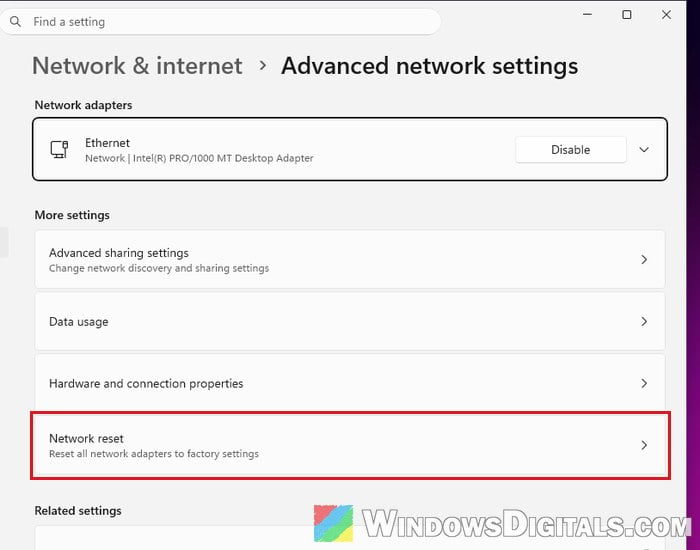
- Click “Reset now“, then “Yes“. Your PC will restart.
Once it’s back, reconnect to your network and open the app that couldn’t connect to see if it works now.