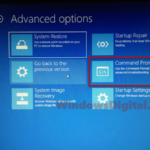
If your PC got stuck after installing KB5132061, the November 2026 security update, and now shows error 0xc0000001, “A recently serviced boot binary is corrupt“, INACCESSIBLE_BOOT_DEVICE, or just restarts over and over at the maker’s logo, you may be able to get it back without wiping it. This guide will show you which fixes have worked so far, starting with the ones that keep your files and apps.
Also see: KB5132061 Failed to Install With 0x800f0993, 0x800f0989 or 0x80070306
Why won’t Windows start after KB5132061?
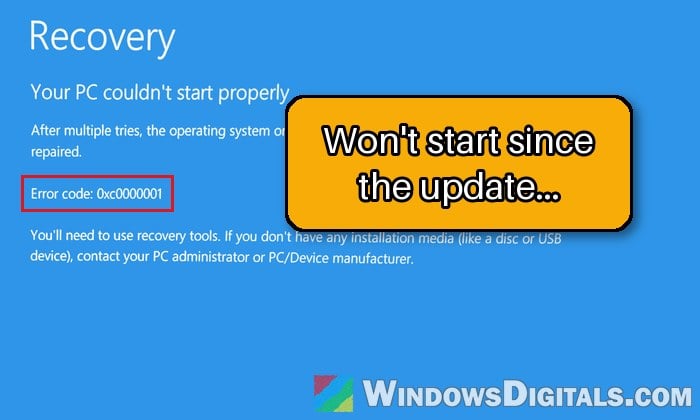
KB5132061 is the security update Microsoft released on November 10, 2026 for Windows 11 26H2 (build 26300.9974), 25H2 (26200.9974) and 24H2 Enterprise and Education (26100.9974). Many PCs installed it fine. On some, the next start after “Update and shut down” or “Update and restart” never made it back to the desktop:
- A blue Recovery screen with error code 0xc0000001, sometimes with 0xc0000098 for the BCD file.
- INACCESSIBLE_BOOT_DEVICE, and Startup Repair saying that a recently serviced boot binary is corrupted.
- The PC restarts a few seconds after the logo, or loops between restarts and “Automatic Repair“. On some, Safe Mode still works.
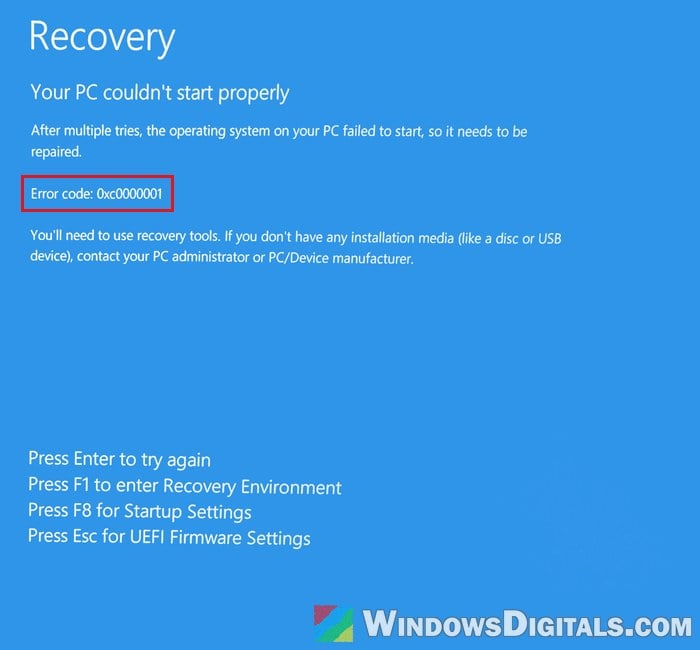
As of November 15, Microsoft hasn’t listed this as a known issue; its KB5132061 page only mentions failed installs. On some affected PCs, the logs show an update that’s only half done, with KB5132061 waiting to install and the previous update waiting to uninstall. That’s likely why some of the usual repair tools fail here.
Linked issue: Windows 11: Recovery “Your PC needs to be repaired”
First, open the recovery screen
The fixes below start from the Windows Recovery Environment (Windows RE), the blue “Choose an option” screen. Windows opens it by itself after failing to start a few times. If it doesn’t, force it:
- While Windows is loading, hold down the power button until the PC turns off.
- Do this twice. On the third start, Windows should open it.
- Select Troubleshoot, then Advanced options.
If your PC never gets that far, make a Windows 11 USB drive on another PC with Microsoft’s Media Creation Tool (see How to Burn Windows 11 ISO to USB), start the broken PC from it, pick your language and keyboard, and click “Repair your computer” instead of “Install“.
Please note that if your drive uses BitLocker, Windows RE asks for the BitLocker recovery key before most of these tools work, so have it ready.
Related guide: BitLocker Recovery Key Not in Your Microsoft Account
Uninstall the latest quality update
Removing the update is the fix that has worked most often, and it’s the safest, since your files and apps stay. KB5132061 is a monthly quality update, not a feature update, so that’s the one to pick.
Here’s what you should do:
- In Windows RE, go to Troubleshoot > Advanced options and select Uninstall Updates.
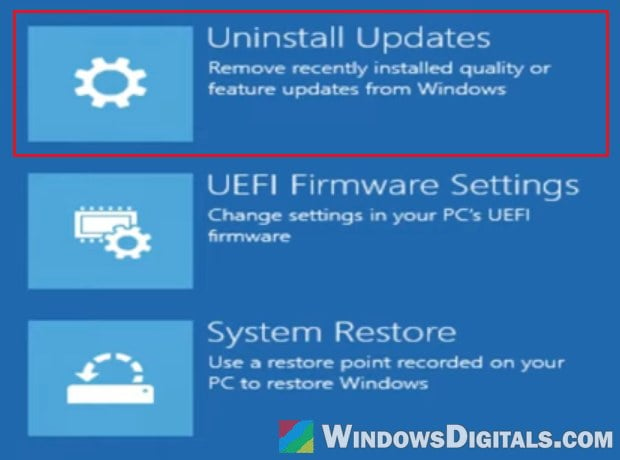
- Select “Uninstall latest quality update“.
- Confirm, and enter your BitLocker recovery key if it asks for one.
- When it’s done, restart the PC and see if Windows starts normally.
Because the update may not have finished installing, Windows RE sometimes says there’s no quality update to remove, or the uninstall fails with an error. If that happens, move on to the next fix.
Use point-in-time restore (if it’s been less than 3 days)
Point-in-time restore is a recovery option that puts the whole Windows drive back to how it was at an earlier time. It’s on by default on home PCs, with a restore point about every 24 hours.
The catch is that these restore points are kept for only up to 72 hours, so if your PC broke more than 3 days ago, there may be none from before the update. Also, anything changed after the restore point is lost (new files, apps, settings changes and passwords), though OneDrive files and other drives aren’t touched.
Follow the steps below:
- In Windows RE, select Troubleshoot > Point-in-time restore. If you don’t see it there, your PC doesn’t have it, so skip to the next fix.
- Enter your BitLocker recovery key if asked.
- Pick a restore point from before the update, select Continue, then Restore.
- Don’t turn the PC off while it works. It restarts into Windows when it’s finished.
Pause updates as soon as Windows starts (see below), or the update can install itself again and bring the problem back.
Turn off Intel virtualization in BIOS
For a couple of people on Microsoft’s forums, Windows started again as soon as Intel Virtualization Technology (VT-x) was turned off in the BIOS, even after the uninstall and System Restore had failed. It isn’t an official fix, but it’s quick to try and easy to undo.
Be warned: Only change this one setting. Changing other BIOS settings by mistake can stop your PC from starting, and a changed setting can bring up the BitLocker recovery screen. If you’re not sure what you’re doing, get someone to help you.
Here’s how to do it:
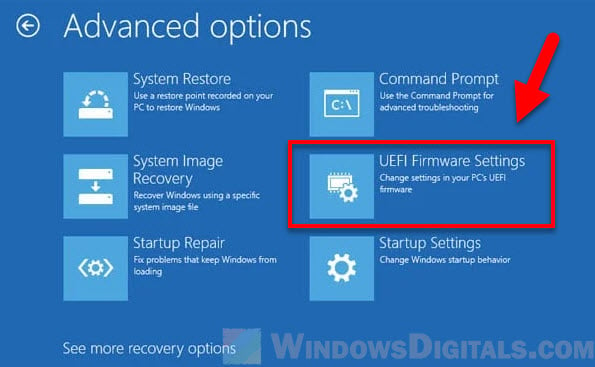
- In Windows RE, go to Troubleshoot > Advanced options > UEFI Firmware Settings, then click Restart.
- Find Intel Virtualization Technology (it may also be called VT-x or VMX). It’s usually under Advanced or CPU Configuration. On some HP laptops, it’s a checkbox called Virtualization Technology (VTx) under Advanced > System Options.
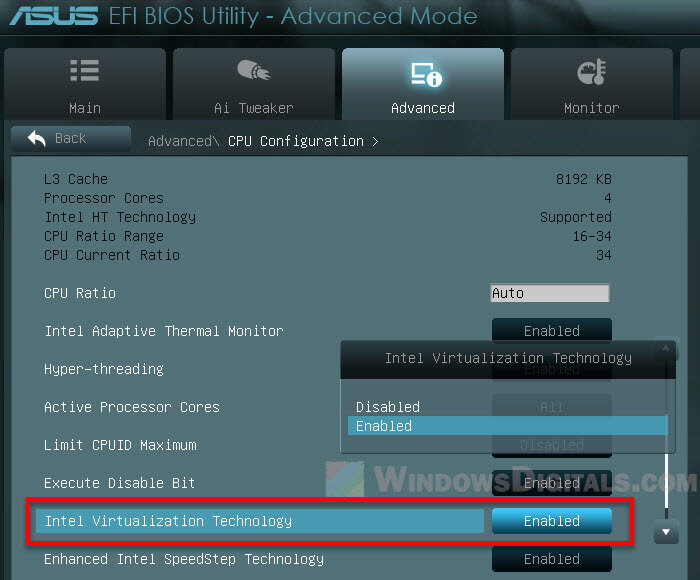
- Set it to Disabled (or uncheck it).
- Save and exit, usually with F10, and confirm with Yes.
- Let the PC restart and see if Windows now gets past the logo.
With it off, virtual machines, WSL 2, Windows Sandbox and some security software won’t work, so leave it off only until Microsoft fixes the update. Turning it back on brought the problem back for at least one person.
Try System Restore or Startup Repair
Both are under Troubleshoot > Advanced options. They won’t hurt, but neither helped most people with this update. System Restore goes back to a restore point from before November 10 if you have one (see How to System Restore Windows 11/10 to a Previous Date). Startup Repair is usually what reports that the boot binary is corrupt, so expect it to fail.
Similar issue: Windows 11/10 “Diagnosing your PC” Startup Repair Loop
Pause updates once Windows starts again
Windows Update will offer KB5132061 again. After a clean reinstall, installing it again broke one person’s PC three times out of three. Pause updates until Microsoft releases a fixed one:
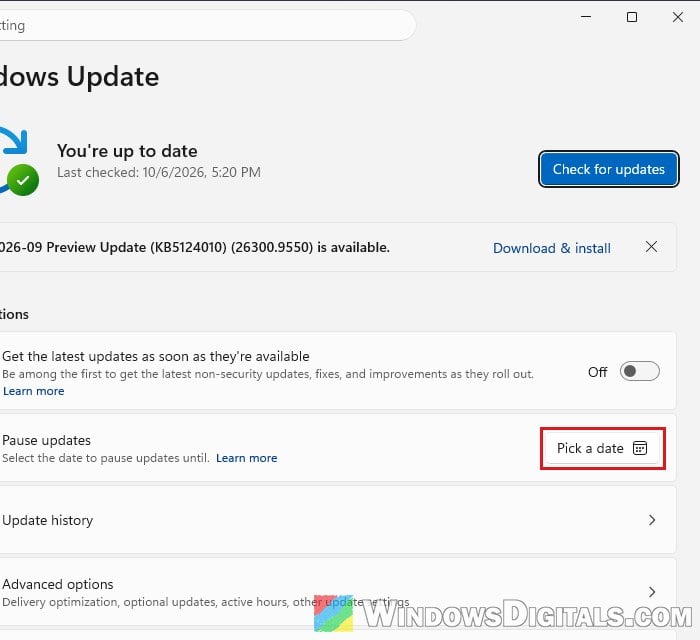
- Press Win + I and select Windows Update.
- Click Pick a date next to Pause updates and choose a date a week or two away.
Resume updates once Microsoft releases a fixed one, since they carry security fixes.
Copy your files off, then reinstall Windows as a last resort
If nothing else works, reinstalling Windows will get your PC working again, but copy your files off the drive first.
- If your PC still starts in Safe Mode, copy your files to a USB drive from there. See Enter Safe Mode in Windows 11/10 when PC isn’t booting.
- If it doesn’t, open Troubleshoot > Advanced options > Command Prompt in Windows RE (or press Shift + F10 on the USB drive’s setup screen), type “notepad” and press Enter. In Notepad, click File > Open and set the file type to All Files. Copy your folders to a USB drive with right-click Copy and Paste. The Windows drive may not be C: here.
If Windows starts but still feels broken, a repair install (setup.exe from a Windows 11 ISO, run inside Windows, keeping your files and apps) is the gentler option. From a USB drive at boot, Windows Setup can only do a clean install, which removes your apps and settings and can wipe your files too.