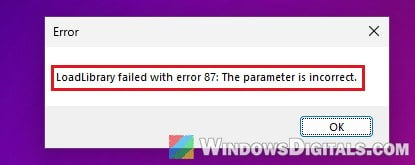
A game, Blender or the Minecraft launcher should just open on a PC with an AMD Radeon graphics card, but sometimes all you get is a small box that says “LoadLibrary failed with error 87: The parameter is incorrect“, and the app never starts. It tends to show up right after a new AMD driver, an Adrenalin update or a graphics card swap. This guide will show you why it happens and how to get your games opening again.
Also see: AMD Software Warning: Graphics Driver Replaced?
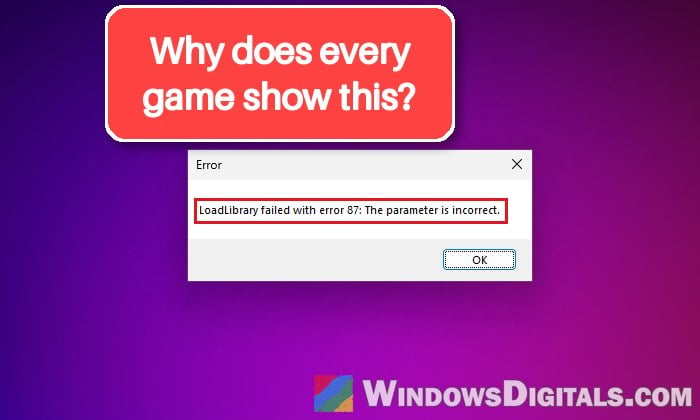
What does “LoadLibrary failed with error 87” mean?
The message means the game or app couldn’t load one of the files it needs from the graphics driver (the OpenGL part of it, in many cases). Error 87 is Windows’ generic “The parameter is incorrect” code, so the number only tells you the load failed, not exactly why.
Almost every report of it comes from PCs with AMD Radeon graphics, including new cards like the RX 9070 XT and the built-in Radeon graphics of Ryzen processors. The usual triggers are:
- A new AMD driver or an automatic Adrenalin update that didn’t install cleanly.
- A new graphics card, especially when switching from NVIDIA to AMD, with the old driver’s leftovers still on the PC.
- A game or driver crash that left the AMD driver unloaded, so Windows falls back to a basic one.
- Windows Update replacing the AMD driver with a different version of its own.
So most of the time it’s a damaged or mismatched graphics driver, and that’s what most of the fixes below deal with.
Pro tip: Check Graphics Card on Windows 11/10 (NVIDIA, AMD or Intel)
Check if Windows sees your graphics card properly
Before reinstalling anything, take a quick look at whether the AMD driver is even loaded. If it isn’t, every app that needs the graphics card will fail the same way.
- Right-click the Start button and select Device Manager.
- Expand Display adapters and look at what’s listed:
- Your card should be listed by its name, for example AMD Radeon RX 9070 XT.
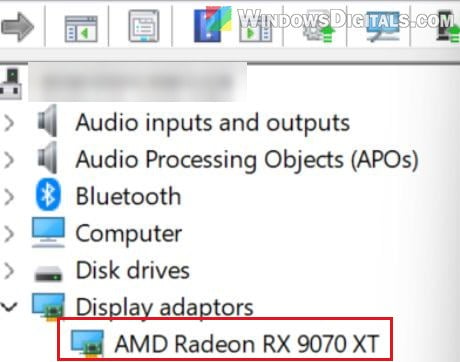
- If your Radeon card is missing, has a yellow warning icon, or shows up as Microsoft Basic Display Adapter instead, the AMD driver isn’t working. Go straight to the clean reinstall in the next section.
- If the card shows as disabled (this can happen after a crash), right-click it and select Enable device.
- Your card should be listed by its name, for example AMD Radeon RX 9070 XT.
If the card looks fine here but the error still appears, the driver files themselves are likely broken, so carry on with the next fix.
Do a clean reinstall of the AMD driver with DDU
Just installing the AMD driver again on top of the old one often doesn’t help, because the broken parts stay behind. Display Driver Uninstaller (DDU) wipes every trace of the old driver first, so the new one goes onto a clean slate. It’s the fix suggested most often for this error on Reddit, and it has worked even where reinstalling the driver the normal way several times didn’t.
Safe Mode is recommended for this but not required. If you run DDU in normal Windows instead, its own guide says to run it twice, with a restart each time, to get the same result. Also note that DDU removes your AMD Software profiles, so you might need to set your refresh rate, colors and other settings again.
Here’s how to do it:
- Go to AMD’s driver page at
https://www.amd.com/en/support/download/drivers.html, search for your card in the Search for your AMD product box, and download its driver. Don’t run it yet.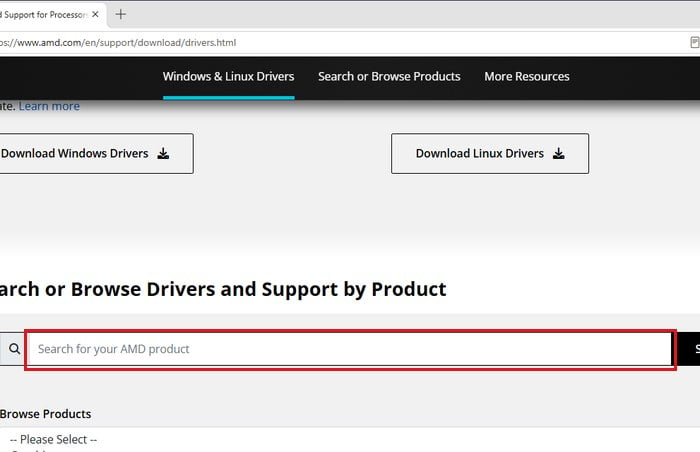
- Download DDU from its official page at
https://www.wagnardsoft.com/display-driver-uninstaller-dduand extract it to a folder on your desktop. - Disconnect your PC from the internet (unplug the cable or turn Wi-Fi off). This stops Windows from installing its own graphics driver while you clean up.
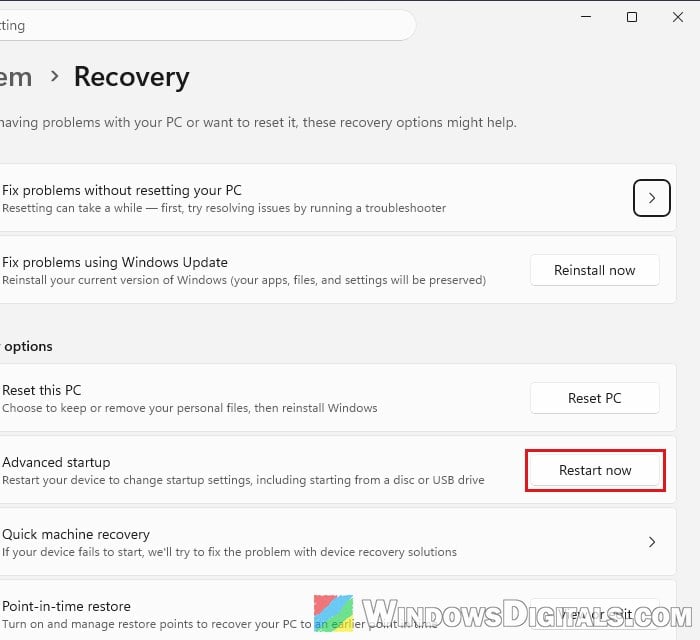
- Restart into Safe Mode. Go to Settings > System > Recovery, click Restart now next to Advanced startup, then choose Troubleshoot > Advanced options > Startup Settings > Restart, and press 4 for Safe Mode. If your drive is encrypted with BitLocker, have your recovery key ready.
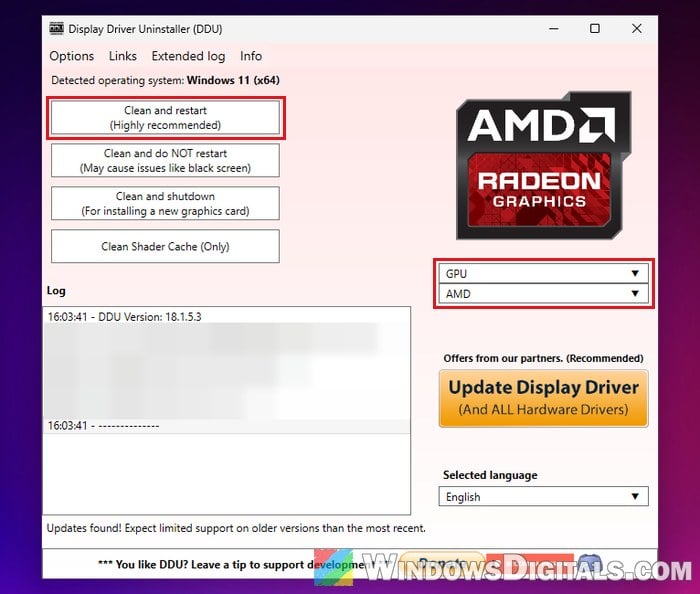
- In Safe Mode, open Display Driver Uninstaller. Select GPU as the device type and AMD as the brand in the drop-downs on the right.
- Click Clean and restart.
- Once Windows starts normally again, run the AMD driver you downloaded and install it.
- Reconnect to the internet.
Now open the game or app that showed the error. If it opens, keep reading the next part so Windows doesn’t undo the fix.
For more detailed instructions: Enter Safe Mode in Windows 11/10 when PC isn’t booting
Stop Windows Update from replacing the AMD driver
If the error comes back after a while, check whether Windows Update has swapped your AMD driver for its own again. You can tell Windows not to download drivers by itself:
- Press Win + R, type “sysdm.cpl” and press Enter.
- Go to the Hardware tab and click Device Installation Settings.
- Select “No (your device might not work as expected)” and click Save Changes.
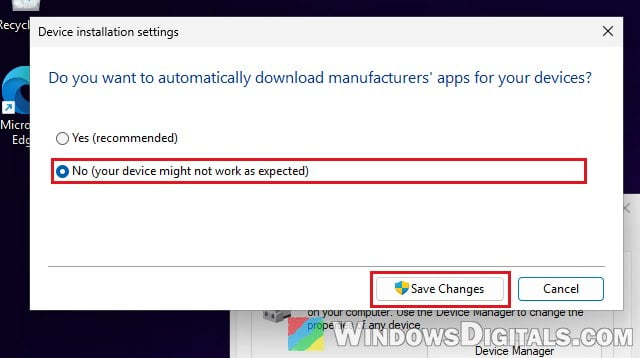
This setting alone doesn’t block every driver from Windows Update. On Windows 11 or 10 Pro, you can also turn on a Group Policy that does:
- Press Win + R, type “gpedit.msc” and press Enter.
- Go to Computer Configuration > Administrative Templates > Windows Components > Windows Update > Manage updates offered from Windows Update.
- Double-click “Do not include drivers with Windows Updates“, select Enabled and click OK.
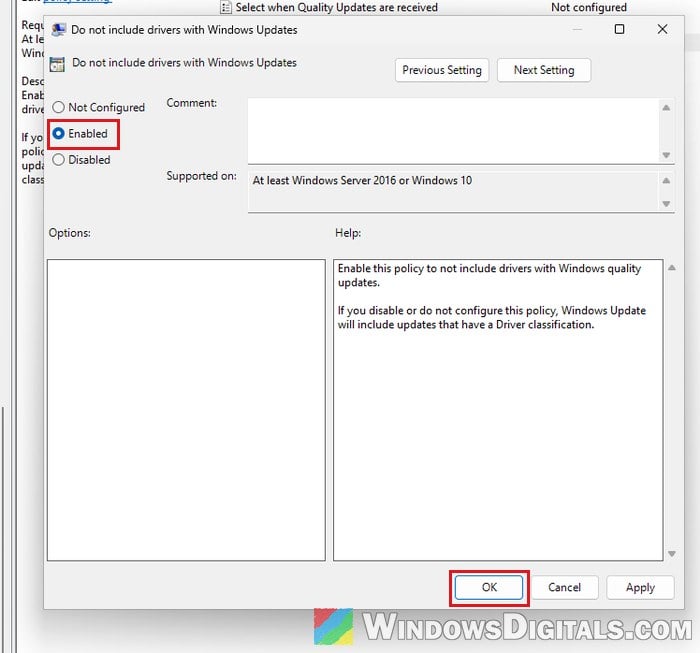
Remember to undo these later if you want Windows to keep your other drivers up to date.
Related concern: What is this random AMDAutoUpdate.exe window?
Go back to an older AMD driver
If the error started right after a driver update, the new driver itself might be the problem with your card or your game. Going back to the version that worked before is worth a try until a newer driver works for you.
The quickest way, when Windows still has the previous driver:
- Open Device Manager and expand Display adapters.
- Right-click your AMD card and select Properties.
- Go to the Driver tab and click Roll Back Driver.
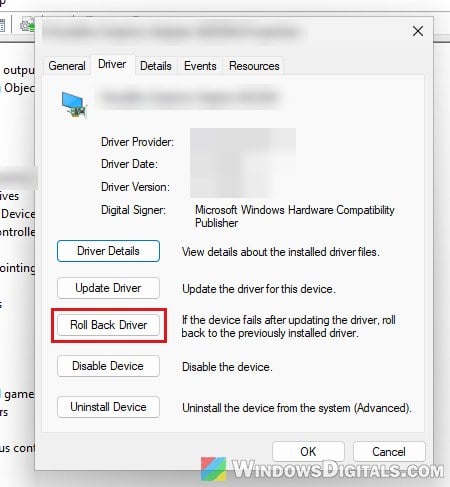
- Confirm the rollback and restart the PC.
If Roll Back Driver is greyed out, there’s no older driver on the PC to go back to. In that case, do the DDU clean-up from the previous section, and then install an older driver from AMD’s website instead of the latest one.
Might be useful: How to Update Graphics Driver in Windows 11
Reinstall the game or app that shows the error
If only one app shows the error and everything else that uses the graphics card works, that app’s own files may be damaged. Uninstall it from Settings > Apps > Installed apps, download a fresh copy from its official source, and install it again.
Reset Windows as a last resort
If none of the above works, something left over in Windows itself is likely the cause, which can happen after moving from an NVIDIA card to an AMD one on the same Windows install. Resetting Windows gives the AMD driver a completely clean system to install on.
Back up your files first, since a reset can remove your apps and, depending on the option you pick, your personal files too. For the full steps, see: How to Reset Windows 11/10 to Factory Default.