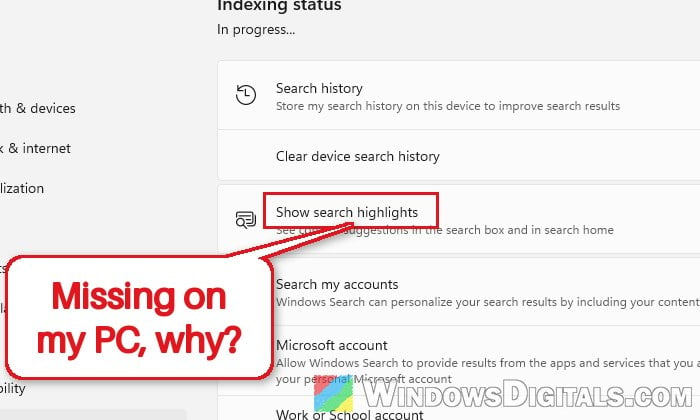
If the little daily picture in your taskbar search box has disappeared, the search panel looks almost empty, and the “Show search highlights” switch is nowhere to be found in Settings, it’s most likely not something wrong with your PC. This guide will explain why search highlights can go missing in Windows 11, especially after the 26H2 update, and whether you can get them back.
Also see: Change Windows 11 Start Menu Search to Google
Page Contents
What are search highlights?
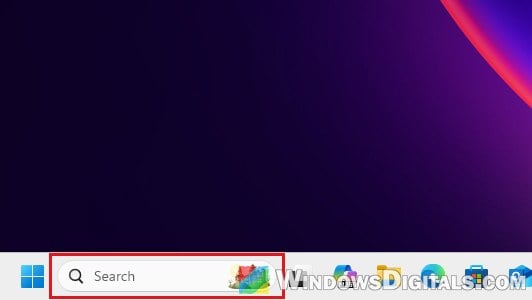
Search highlights are the Bing-powered extras in Windows Search: the small daily picture on the right side of the taskbar search box, plus the suggestions you used to see in search home when you opened search.
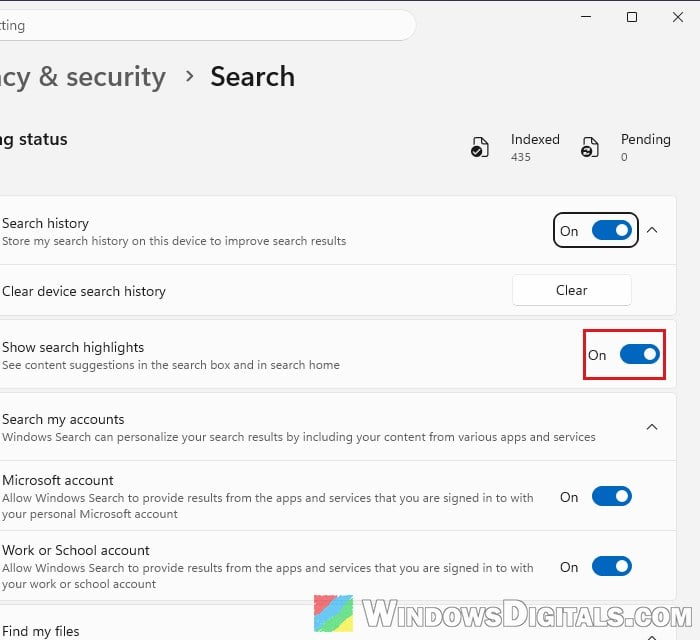
On PCs that still have them, you can turn them on or off with the “Show search highlights” switch in Settings > Privacy & security > Search.
Why are search highlights gone after the 26H2 update?
If you’re on Windows 11 version 26H2 and both the picture and the switch disappeared, it’s most likely a change from Microsoft, not a fault on your PC. In July, Microsoft announced a reworked Windows Search box for 26H2, where search home was simplified to cut down on visual clutter and promotional content was removed from web results. On Microsoft Q&A, a user on 26H2 (build 26300.9550) reported exactly this: no picture, a mostly blank search panel, and no search highlights option in Settings. A volunteer moderator there said the feature was taken out of Search in 26H2.
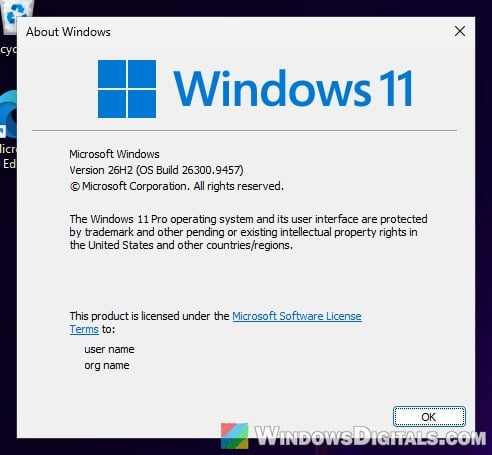
Microsoft’s own announcement doesn’t mention search highlights by name, though, and the change doesn’t seem to reach every PC at the same time. When we checked a Windows 11 26H2 PC on build 26300.9457, and again after updating it to 26300.9550, the picture and the “Show search highlights” switch were both still there. Microsoft often switches changes like this on for a few PCs at a time (and it can depend on your region), so two PCs on the same version can look different for a while.
To check which version you’re on, press Win + R, type winver and press Enter.
Suggested read: Windows 11 Search Indexer High CPU and Disk Usage
Can you bring them back on 26H2?
Probably not, if your PC got the 26H2 change. The Microsoft support moderator who answered the Q&A thread advised against more registry changes, and said it’s fine to keep using Windows Search without search highlights while keeping Windows updated. Restarting Windows Search or deleting Search’s app data won’t bring back a feature that was taken out. If you miss it, the best you can do is tell Microsoft through the Feedback Hub app.
Might be useful: Windows 11 Search Slow? Speed Up Search in File Explorer
Other reasons the switch can be missing
Search highlights went missing for some people well before 26H2, too. If you’re on an older version, or just want to rule everything else out, here are the other reasons a Microsoft support moderator gave on Microsoft Q&A:
- You’re in a country where it’s turned off. Search highlights are disabled in some EU countries because of regional rules.
- A policy turned it off. Search highlights can be switched off by the “Allow search highlights” policy, for example on a work or school PC managed by an organization.
- Search suggestions or Bing search were turned off in the registry.
Check the registry values
Please note that none of this brings search highlights back if your PC already got the 26H2 change. It’s only worth checking on an older version, or if the switch was already missing before 26H2.
If this is your own PC and it’s not managed by an organization, you can check whether one of these values is turning search highlights off. Incorrectly changing the registry can cause problems in Windows, so please create a system restore point first. If you’re not sure what you’re doing, it’s better to just leave it as is. If a key or value below doesn’t exist on your PC, skip that step.
- Press Win + R, type
regeditand press Enter. - Click Yes when Windows asks for permission.
- Copy and paste the following path to the address bar and press Enter:
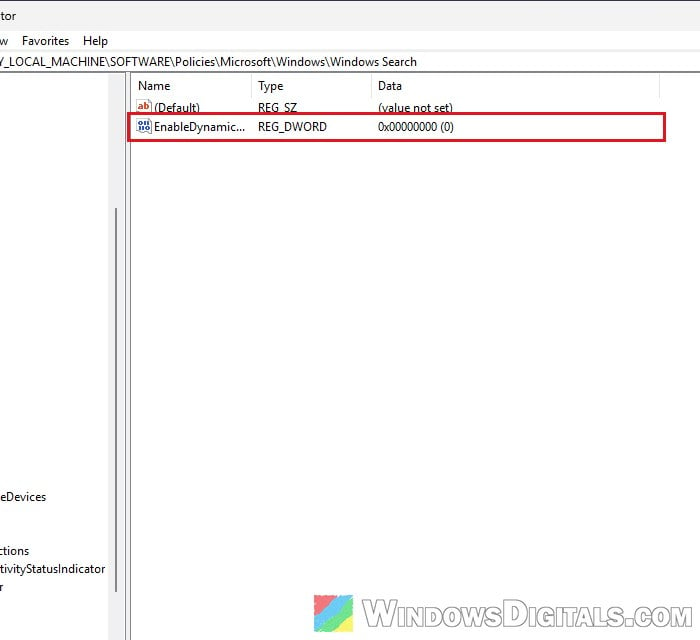
HKEY_LOCAL_MACHINE\SOFTWARE\Policies\Microsoft\Windows\Windows Search
- If there’s a value named EnableDynamicContentInWSB set to 0, right-click it, select Delete and click Yes. This is the value behind the “Allow search highlights” policy.
- Copy and paste this path to the address bar and press Enter. If DisableSearchBoxSuggestions is set to 1, delete it the same way:
HKEY_CURRENT_USER\Software\Policies\Microsoft\Explorer
- Copy and paste this path to the address bar and press Enter:
HKEY_CURRENT_USER\SOFTWARE\Microsoft\Windows\CurrentVersion\Search
- If BingSearchEnabled is set to 0, double-click it, change the Value data to 1 and click OK.
- Restart your PC.
After the restart, check Settings > Privacy & security > Search again for the “Show search highlights” switch and turn it On. If it’s still missing, your PC most likely has the 26H2 change or a regional restriction, and there’s no switch left to turn back on, at least for now.