If you own a Sapphire or Gigabyte Radeon RX 7000 series graphics card and just found out there’s a VBIOS (firmware) security update for it, you’re probably wondering whether it’s worth the risk, especially since a few owners said their card stopped working after flashing it. This guide will explain what the update does, whether you should install it, and what to do if your card stops working.
Also see: AMD Software Warning: Graphics Driver Replaced?
Page Contents
What is this RX 7000 VBIOS security update?
The VBIOS is the firmware stored on the graphics card itself, so updating your AMD driver doesn’t touch it. In September 2026, Sapphire and Gigabyte started offering new firmware for their RX 7000 (RDNA 3) cards to patch a security issue found together with AMD (Gigabyte’s notes call it AMD-SN-6023).
AMD says the fixes are released before the details go public so people can update first, and that there are no reports of the vulnerabilities being used in actual attacks. ASUS, ASRock, PowerColor and XFX hadn’t released a matching update as of early October.
Pro tip: How to Update Graphics Driver in Windows 11
Should you install it?
If your exact card is on your maker’s list, yes, since AMD itself recommends installing it. There’s no need to rush, though. Do it when you have about 20 minutes and the PC is on stable power.
Don’t install it in these cases:
- Your card is from another brand. Never run Sapphire’s or Gigabyte’s tool on a card from another maker. The firmware is built for each maker’s own board, so a mismatch can damage the card.
- Your Sapphire model isn’t in Sapphire’s list. Sapphire says owners of other RX 7000 models should wait for a future update.
- You can’t tell which Gigabyte BIOS series your card has (more on that below).
- You only use Linux. Sapphire’s tool only runs on 64-bit Windows 10 or 11.
Check if your Sapphire card is covered
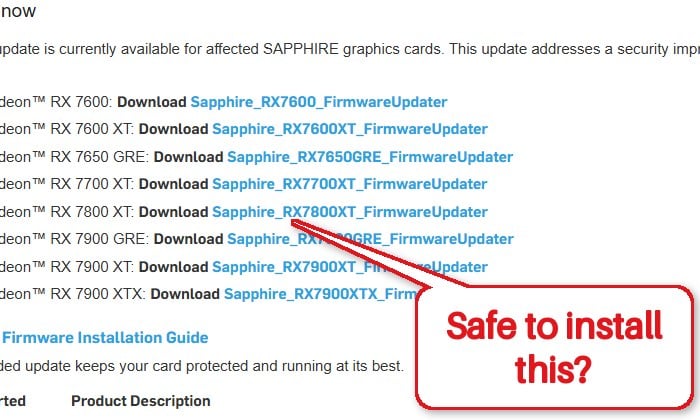
Sapphire has a firmware updater for each of these cards: RX 7600, RX 7600 XT, RX 7650 GRE, RX 7700 XT, RX 7800 XT, RX 7900 GRE, RX 7900 XT and RX 7900 XTX. But the table on its page goes by part number, not just the model name, so check your card’s part number (it looks like 11330-01) against it.
- Open
https://www.sapphiretech.com/en/drivers-downloadin your browser. - Scroll down to the “Firmware & Security Updates” section. Compare your part number with the supported models table, and download the updater for your card (for example, Sapphire_RX7800XT_FirmwareUpdater).
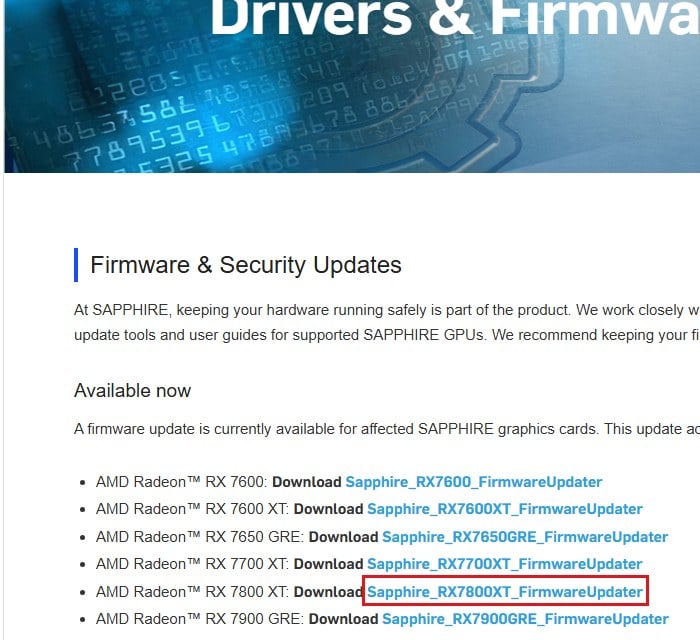
If your part number isn’t listed, leave the card alone for now and check the page again later.
How to install the Sapphire RX 7000 firmware update safely
Before you start, make sure the AMD Adrenalin Edition driver is installed and up to date, or the tool won’t continue. Save your work, since the update restarts Windows into Safe Mode twice.
Once the flashing starts, DO NOT turn off or restart the PC yourself, even if the screen goes black for a while. Sapphire warns that an interrupted update can permanently damage the card. If you’d rather not take that risk, it’s fine to wait or ask someone who has done it before.
Here’s how, following Sapphire’s installation guide:
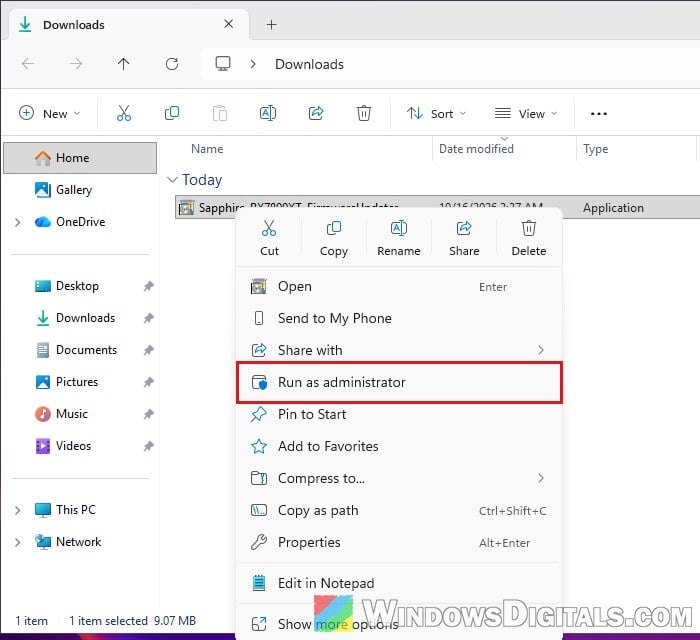
- Save the downloaded updater to any folder, such as Downloads or the desktop.
- Right-click it and select “Run as administrator“.
- Choose a folder for the extracted files and click “OK“.
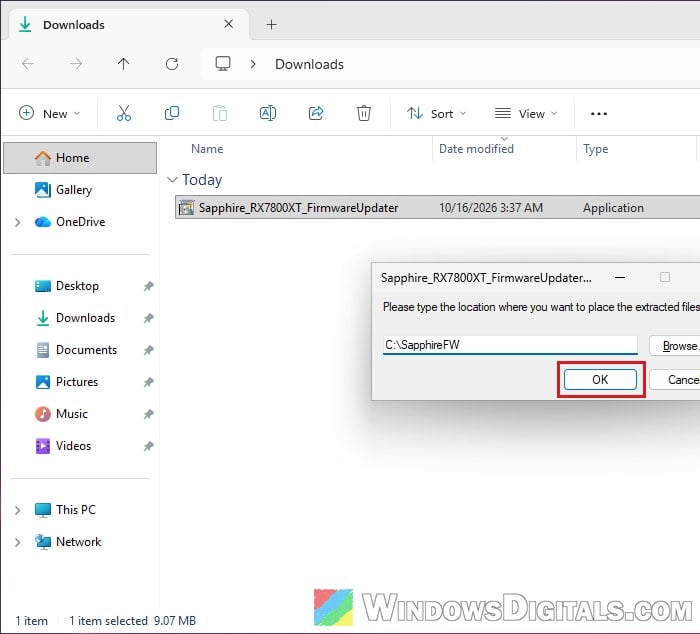
- Go to that folder, right-click the extracted program and select “Run as administrator” again. This opens the AMD Radeon Firmware Updater.
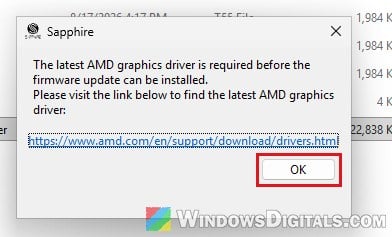
- If your driver is too old, the tool tells you to install the latest AMD graphics driver and closes when you click “OK“. Update the driver, then run the tool again.
- When it asks you to close all running applications, do so and click “OK“.
- Read the license agreement, tick “I Accept the EULA“, and click “Next“.
- The tool lists the AMD graphics cards it finds. If “Update Needed” says No for your card, it doesn’t need this update. Otherwise, tick your card and click “Next“.
- When it says the update needs Safe Mode, click “OK“. The PC restarts into Safe Mode, and the tool opens again by itself.
- Read the warning and click “Next“. Don’t open any other apps while it’s flashing, and wait for the progress bar to finish.
- On RX 7000 cards the tool runs twice. After “Part 1 of 2 completed“, click “Reboot Now” so it can go back into Safe Mode and finish the second part. When it shows “Part 2 of 2 completed“, click “Reboot Now” again.
Once Windows is back to normal, the tool should show “Update Needed” as No. To double-check, open AMD Software: Adrenalin Edition, go to System > Hardware Details, and compare the BIOS Part Number with the firmware version the tool showed.
Linked issue: Windows 11 Keeps Booting in Safe Mode (Fix)
What about Gigabyte cards?
Gigabyte puts the update on each card’s own support page on gigabyte.com, under Support > BIOS, so look up your exact model and its revision (for example, Rev. 1.0 / 1.1).
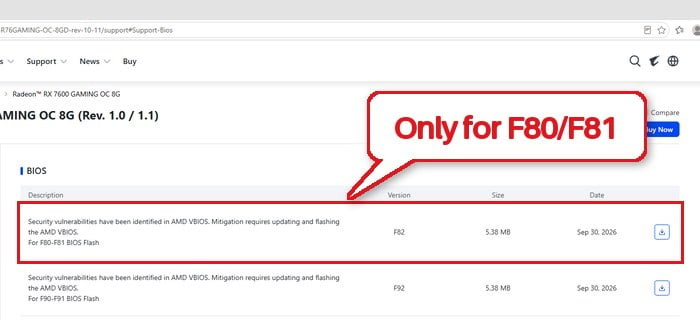
The catch is that Gigabyte’s update must stay in the same BIOS series as the one already on your card. For the RX 7600 GAMING OC 8G, for instance, F80 or F81 updates to F82, and FX0 or FX1 to FX2. Gigabyte’s page also says the flash needs Visual C++ 2008. If you can’t tell which series your card is on, ask Gigabyte support (with your serial number) before flashing anything.
What if your GPU stops working after the update?
A few Sapphire owners said their card stopped working after the update. In one case, Device Manager showed “This device cannot start. (Code 10)“, and reinstalling the driver didn’t help. In another, the screen stayed black after the Safe Mode restart, the owner powered the PC off, and the card gave no picture after that. Here’s what you can try, in this order.
Give it time and don’t cut the power
A black screen during the Safe Mode part doesn’t always mean something went wrong, since the tool may still be writing the firmware. Forcing the PC off then is exactly what Sapphire warns against. Give it well past the 15 to 20 minutes Sapphire says the whole update takes before you do anything.
Boot from integrated graphics and run the updater again
If your processor has integrated graphics, plug the monitor into the motherboard’s video port and start Windows from there. Then run the Sapphire updater for your exact card again. If it still finds the card, it can try to write the firmware again, though there’s no promise it brings every card back.
Related concern: Monitor Works on Motherboard But Not GPU, Why?
Switch to the second BIOS (only if your card has one)
Some graphics cards have a small switch that selects a second BIOS, which may let the card start again. Not every model has one, so check your card’s manual first.
Contact Sapphire or Gigabyte support
If none of this works, don’t flash firmware files you found elsewhere. Sapphire’s guide says to contact Sapphire’s customer service if anything goes wrong during the update, with the error you saw. For a Gigabyte card, give Gigabyte support your serial number. If the card is still under warranty, mention that too.