If your Windows 11 or 10 PC freezes and then crashes with the stop code DPC_WATCHDOG_VIOLATION (0x133), whether it’s while gaming, at startup or even while the PC is just sitting idle, it usually means a driver got stuck and held up the processor for too long. This guide will show you how to find out which driver it is and what you can do to stop the crashes.
Also see: Windows 11/10 Computer Blue Screen When Idle (Fix)
What does DPC_WATCHDOG_VIOLATION mean?
Drivers do some of their work in short, high-priority jobs called deferred procedure calls (DPCs). While one runs, almost nothing else on that processor can. Windows keeps a timer, the “watchdog”, on these jobs. If a single job runs far too long, or the processor is kept busy at that priority for too long in total, Windows stops the PC on purpose with this stop code.
Usually the screen freezes first (the mouse may still move for a moment), sometimes with a buzzing sound, and then the crash screen appears. On recent Windows 11 versions, that screen is actually black rather than blue, but it’s the same error.
According to Microsoft, it’s generally caused by a faulty driver that doesn’t finish its work in time. In the cases people have reported recently, the culprit was:
- a USB game controller (the Xbox 360 controller driver,
xusb22.sys) - the graphics driver, NVIDIA’s
nvlddmkm.sysor AMD’s - a USB Wi-Fi adapter
- AMD’s GPIO or audio drivers on laptops and desktops
Since the culprit is different on every PC, the first thing to do is find out which driver Windows blamed.
Find the driver the crash points to
Windows keeps a record of these crashes, and Reliability Monitor is the easiest place to look:
- Press Win + R, type
perfmon /reland press Enter. - Click a day that shows a failure in the Windows failures row.
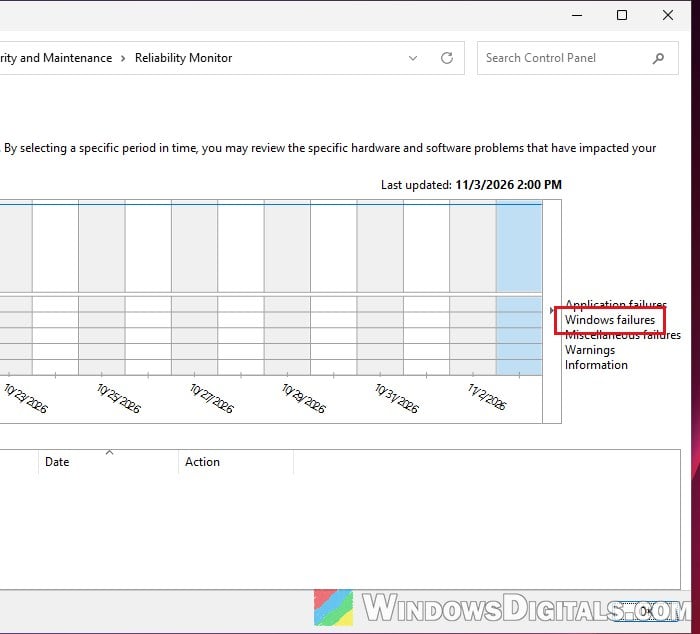
- In the list below, find the critical event for the shutdown or blue screen, click View technical details and look for the code 133.
You can also check Event Viewer:
- Press Win + R, type
eventvwr.mscand press Enter. - Go to Windows Logs > System.
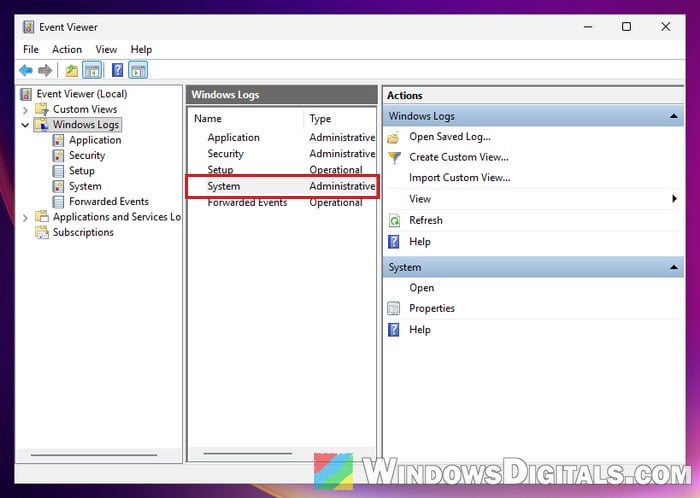
- Look for an error saying the computer has rebooted from a bugcheck, with 0x00000133 in it. Other errors in the System log can point to the device involved too.
For the most detail, Windows saves small crash files called minidumps in C:\Windows\Minidump:
- Install WinDbg from Microsoft Store.
- Open the newest file in
C:\Windows\Minidumpwith it. - Run the following command:
!analyze -v
- Look at the lines MODULE_NAME and IMAGE_NAME: they name the driver that was running when the watchdog fired.
The named driver is a strong lead, not proof: sometimes the dump only shows whatever was running at the time. If fixing it doesn’t help, carry on below.
Pro tip: Windows 11 Dump File Location
Unplug USB devices and update the named driver
If the driver belongs to something plugged in, such as a game controller, a USB Wi-Fi adapter or a Bluetooth dongle, the quickest test is to unplug that device and use the PC normally for a day. It’s also worth removing any hardware you added right before the crashes started, as Microsoft suggests. For a USB Wi-Fi adapter, a USB 2 port instead of a USB 3 one, or Ethernet, can also help.
For a device that can’t simply be unplugged, update its driver or switch it off for a while in Device Manager:
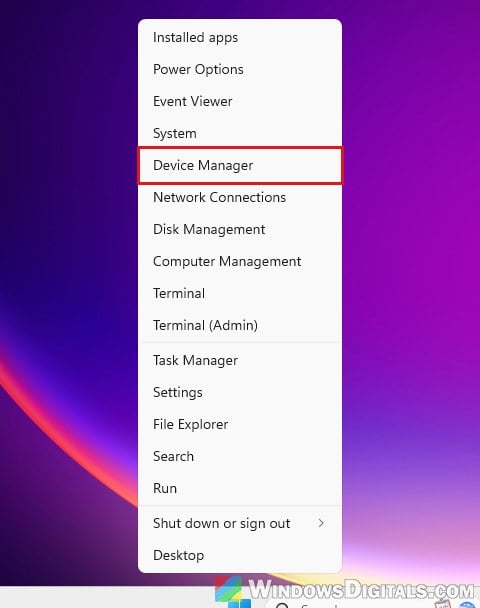
- Right-click the Start button and select Device Manager.
- Find the device, right-click it and select Properties.
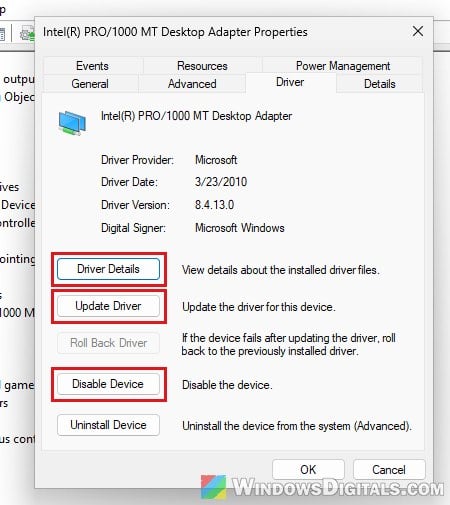
- Go to the Driver tab.
- Click Driver Details to see which
.sysfiles the device uses, so you can match it with the driver the crash named. - Click Update Driver to look for a newer driver, or Disable Device to test the PC without it for a day.
Also check the device maker’s website for a newer driver, as Microsoft suggests. Then use the PC as usual for a day and see if the crashes come back.
Might be useful: How to Install or Update Driver in Windows 11
Do a clean reinstall of the graphics driver
When nvlddmkm.sys (NVIDIA) or an AMD graphics driver shows up in the dump, or the crashes happen mostly in games and video editing, the graphics driver is the most likely suspect. A plain update over the old driver doesn’t always help, so a clean reinstall is the better bet: remove the old driver completely with Display Driver Uninstaller (DDU), then install the newest driver for your card.
On a laptop, the graphics driver from the laptop maker’s own support page is worth a try too, after a DDU clean install. When the dumps point to AMD’s audio drivers, updating to Adrenalin 26.9.2 or later has fixed the crashes for some people.
Related guide: How to Update Graphics Driver in Windows 11
Update chipset drivers and the BIOS
Chipset drivers are what Windows uses to talk to your motherboard. If they’re old or missing, a device on the board can hold up the processor and cause this crash. AMD’s GPIO driver (amdgpio2.sys), a low-level motherboard driver, has shown up in these dumps on an AMD gaming laptop, for example.
Be warned: A failed BIOS update can brick your motherboard. Only use the file from your PC or motherboard maker’s support page for your exact model, don’t turn off the PC while it runs, and if you’re not sure what you’re doing, it’s better to get someone to help you instead.
Go to your PC or motherboard maker’s support page (or AMD’s, for an AMD chipset) and install the latest chipset and graphics drivers, plus Intel’s management drivers on Intel PCs, then the latest BIOS. Lenovo’s own support recommends the same for 0x133 crashes. A BIOS update alone can make a big difference: on one PC it took the crashes from every few minutes to rare.
Check the SSD and storage driver
An SSD’s firmware can be behind it too, so check your SSD maker’s tool (Samsung Magician, WD Dashboard, Crucial Storage Executive and so on) for a firmware update.
If your Windows drive is a SATA SSD and the dump names Intel’s storage driver (iaStorA.sys or iaStorAC.sys), you can switch the controller to the plain driver built into Windows instead. This changes the driver of the controller Windows boots from, so create a system restore point first, and if you’re not sure, get someone to help you instead.
- In Device Manager, expand IDE ATA/ATAPI controllers.
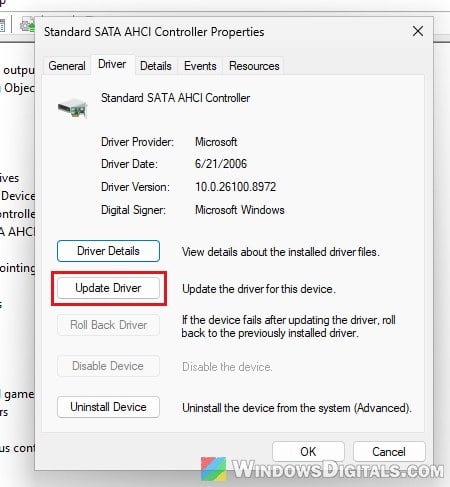
- Right-click the SATA AHCI controller and select Properties.
- Go to the Driver tab and click Update Driver.
- Select Browse my computer for drivers.
- Select Let me pick from a list of available drivers on my computer.
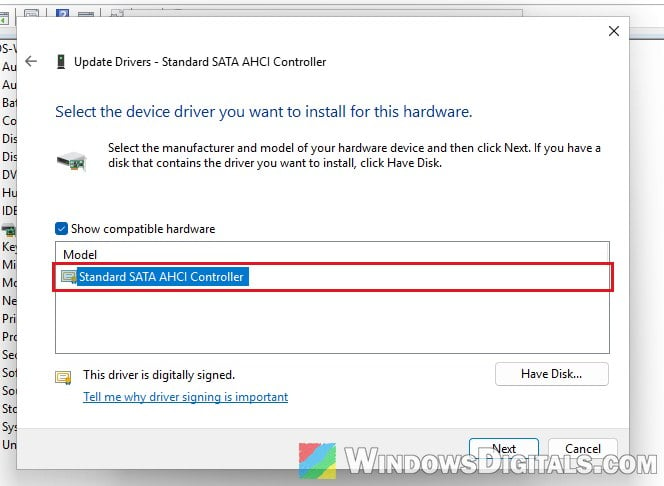
- Select Standard SATA AHCI Controller and click Next.
- Restart the PC.
Then use the PC as usual and see if the crashes stop.
Undo overclocks and test the hardware
If the dumps name nothing clear, or the crashes keep coming back, look at the hardware. Turn off XMP or EXPO in the BIOS and remove any CPU or GPU overclock or undervolt, then see if the crashes stop. Running MemTest86 overnight will tell you if a RAM stick is faulty.
Linked issue: The system has rebooted without cleanly shutting down first
The bad news is that sometimes it really is hardware. A failing CPU core has been behind it, and some laptops only stopped crashing after a repair or replacement. If your PC or laptop is still under warranty and nothing above helps, contact the manufacturer.