If Malwarebytes found “Trojan.PavinLoader” on your PC, usually right after you ran a cracked game, a fake installer or a “verify you’re human” command, and it shows up again a few hours after you quarantined it while your Steam, TikTok or other accounts start getting taken over, the infection is most likely still there, and your saved logins have probably been stolen. This guide will help you lock down your accounts first and then get the loader off your PC for good on Windows 11 or 10.
Also see: Trojan:PowerShell/Boxter Keeps Coming Back in Windows Security
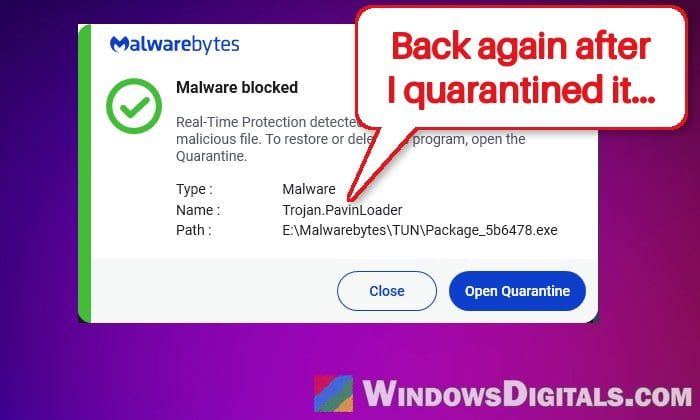
Why does PavinLoader keep coming back?
Trojan.PavinLoader is Malwarebytes’ name for a family of trojans whose job is to download and run more malware. It spreads through fake software downloads, fake game installers and “ClickFix” pages, the fake CAPTCHA pages that tell you to paste a command and run it.
In the campaigns Malwarebytes looked at, the last thing it installs is the Amatera Stealer, which takes the passwords saved in your browser, your cookies and session tokens, form data and crypto wallet data. That’s why people often see their accounts hijacked soon after the infection, sometimes even with two-factor authentication on, since a stolen session lets someone stay signed in without your password.
Some signs people notice when it first runs:
- Command Prompt windows flashing up a few times after opening the installer.
- MSBuild.exe running in Task Manager. It’s a real Windows tool that PavinLoader abuses to run its code.
- A browser opening by itself.
- Malwarebytes finding several items at once, such as Trojan.PavinLoader.BAT files.
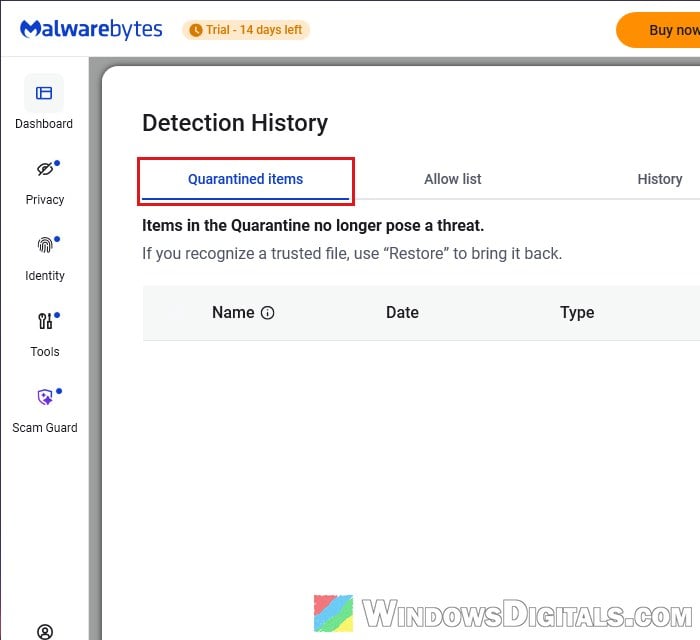
Quarantine only removes the files the scan caught. This loader hides its pieces in folders named after real companies (such as AppData\Local\Logitech), and loaders like this usually leave something behind, such as a scheduled task or a startup entry that brings the rest back, or an exclusion that stops Windows Security from scanning it. It can also come back after a “fresh install” if the drive was never actually wiped.
Linked issue: MSBuild.exe Virus Keeps Connecting to Unknown Websites, What to do?
First, secure your accounts from another device
The stealer may have already sent your saved passwords and cookies out, and cleaning the PC doesn’t undo that. Malwarebytes’ own advice is to change your passwords from a known clean device, starting with your email and anything that has to do with money.
Here’s what you should do:
- Disconnect the infected PC from the internet (unplug the cable or turn off Wi-Fi) so the loader can’t download anything new or send more data out.
- On your phone or another computer you trust, change the password of your email account first, since it can be used to reset everything else.
- Next, change the passwords for anything financial (bank, PayPal, Amazon), then Steam, Discord, social media and the rest.
- Turn on two-factor authentication wherever it’s offered.
- Sign out of all other sessions on each account. Most services have this in their security settings, and it kills the stolen cookies.
- Microsoft account: open Advanced security options in your account’s security dashboard, find Sign out everywhere and click Sign out.
Microsoft says signing out everywhere can take up to 24 hours, and it won’t sign you out of an Xbox console. Don’t sign in to anything on the infected PC until it’s clean.
Wipe the drive and reinstall Windows
Almost every reply to PavinLoader posts on Reddit says to do this, and Malwarebytes recommends it too. Scanners only remove what they find, so with a loader that keeps coming back, wiping the drive is the only way to be sure it’s gone.
Before you start, copy only the personal files you really need (documents, photos, saves) to a USB drive or OneDrive. Don’t keep the cracked game, its installer, or any .exe, .bat or .cmd file from around the time you got infected.
The simplest way is to reset Windows from Settings:
- Open Settings and go to System > Recovery.
- Next to Reset this PC, click Reset PC.
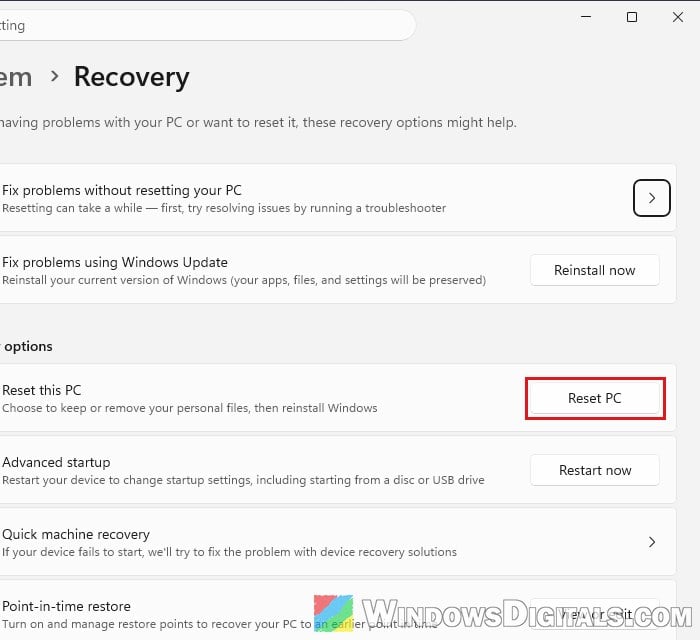
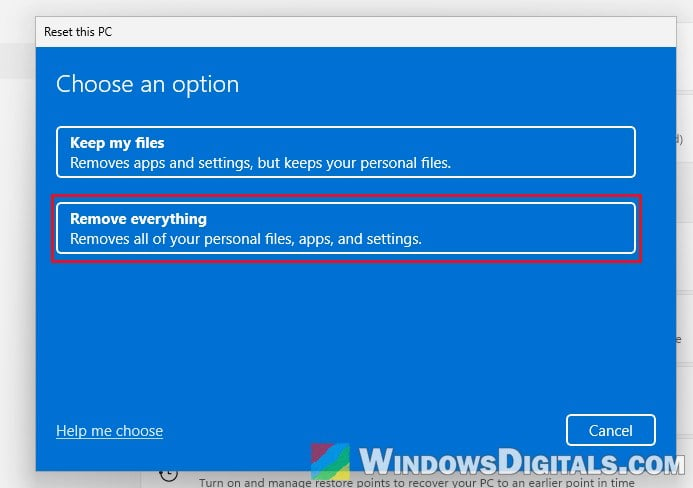
- Choose Remove everything.
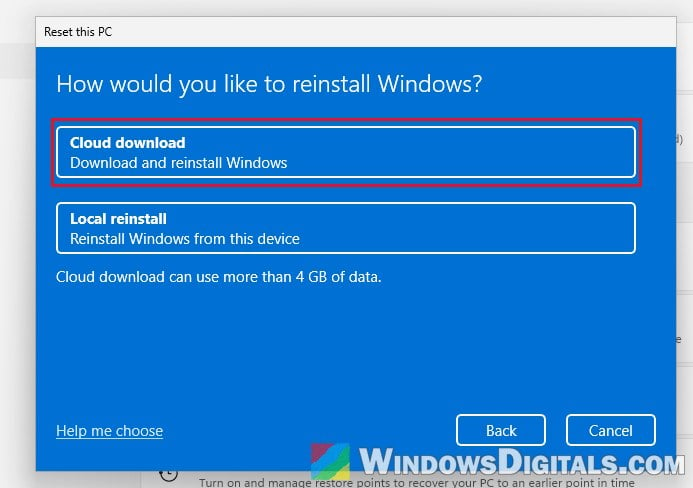
- Choose Cloud download for a fresh copy of Windows from Microsoft.
- Follow the rest of the instructions. Don’t restart the PC yourself during the reset, even if the screen stays black for a while.
When it’s done, Windows starts like a new PC. Set it up, and only then sign back in to your accounts.
Might be useful: How to Reset Windows 11/10 to Factory Default
Do a clean install from a USB drive instead
If the reset fails, or you want to be completely sure, do a clean install from a Windows USB drive made on another computer.
Warning: Deleting partitions wipes everything on that drive. Back up what you need first, and if you’re not sure what you’re doing, it’s better to get someone who knows to help you.
If you have other drives, shut down and unplug them first so you can’t wipe the wrong one. Then:
- Boot from the USB drive and go through Windows Setup until you reach the “Select location” screen with the list of drives and partitions.
- Delete every partition on Disk 0 until only “Disk 0 Unallocated Space” is left. With the other drives unplugged, Disk 0 is the drive Windows was on.
- Select the unallocated space and continue the install.
Why did it come back after I reinstalled Windows?
If you reinstalled Windows without deleting the partitions, Windows simply moved your old files into a Windows.old folder, and the malware went with them, so Malwarebytes finds it again. Deleting the partitions as above avoids this.
Related concern: Delete Windows.Old Folder in Windows 11/10, Access Denied?
If you can’t wipe the PC right away
These make it harder for the loader to come back, but they don’t guarantee the PC is clean. Treat them as a stopgap and keep the PC offline.
Remove exclusions it added to Windows Security
Malware like this can add itself to Windows Security’s exclusions, so Defender stops scanning those places. In one case, it had excluded its own folder in ProgramData and even the whole C:\ drive. Here’s how to check:
- Open Windows Security and go to Virus & threat protection.
- Under Virus & threat protection settings, click Manage settings.
- Scroll down to Exclusions and click Add or remove exclusions.
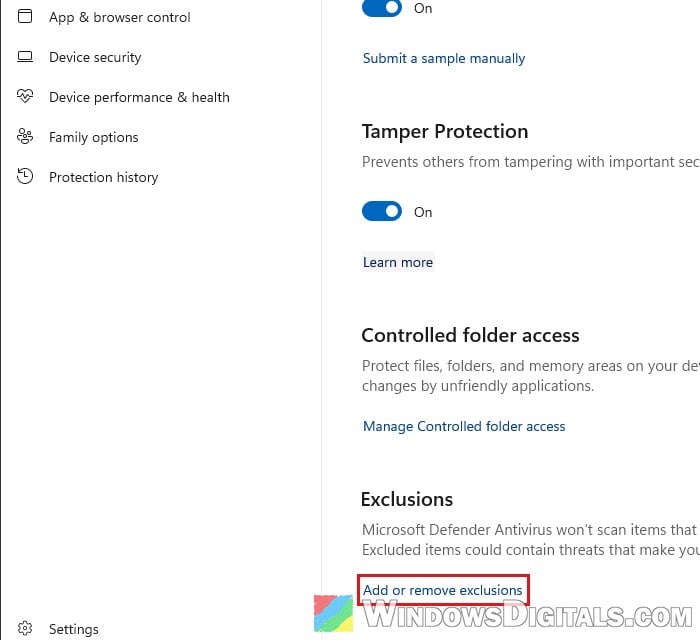
- Click any exclusion you didn’t add yourself and select Remove.
Once they’re gone, run the offline scan below so Defender checks those places again.
Run a Microsoft Defender Offline scan
An offline scan runs from outside Windows, so it can catch files that hide while Windows is running. Save your work first, since the PC restarts. Here’s how to run it:
- In Windows Security, go to Virus & threat protection.
- Under Current threats, click Scan options.
- Select “Microsoft Defender Antivirus (offline scan)” and click Scan now.
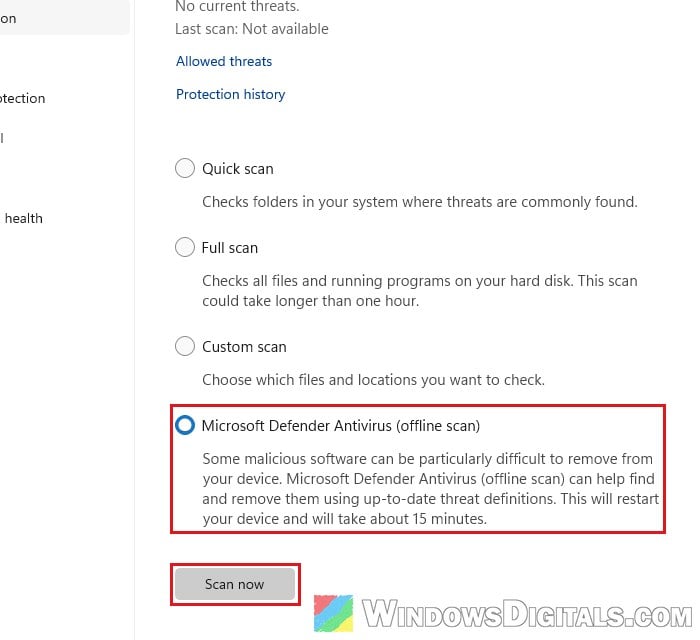
The PC restarts, runs the scan and restarts again. Check Protection history in Windows Security afterward to see what it found.
Get a volunteer to look at your logs
Volunteer malware removal helpers can read a log from FRST (Farbar Recovery Scan Tool) and write a fix script for your PC. FRST itself only lists what’s on your PC and removes nothing. Expect a few rounds of logs back and forth, and even then, you may still be told to reinstall Windows to be safe.
How to avoid getting it again
Skip cracked games, and only download installers from the maker’s own site. If a website ever asks you to paste a command into the Run box, PowerShell or a terminal to “prove you’re human” or fix an error, close it. No real CAPTCHA works that way.