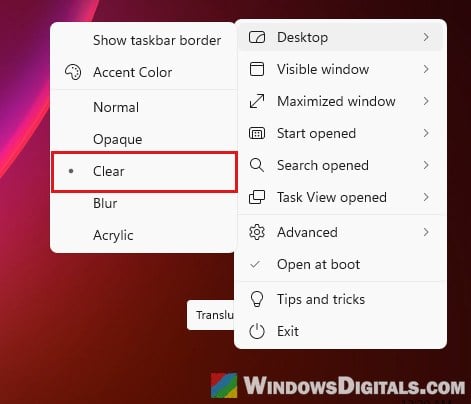
A number of people using TranslucentTB on Windows 11 have run into a problem where TranslucentTB no longer makes the taskbar transparent right after the November preview update KB5132057 (build 26300.10075) is installed. The app still runs and its icon still sits in the system tray, but whether you pick Clear, Blur or Acrylic, the taskbar keeps its normal solid look. This guide will look into why the update broke it and what you can do until a fixed version of TranslucentTB is out.
Also see: How to Change Taskbar Color to Any Color in Windows 11
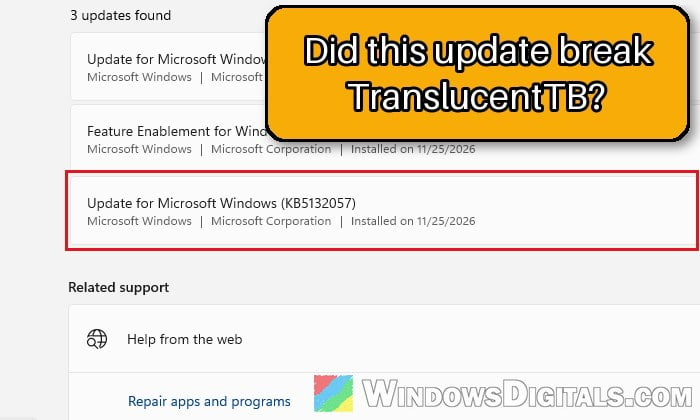
Why did TranslucentTB stop working after KB5132057?
KB5132057 is the optional “Preview” update Microsoft released on November 19, 2026 for Windows 11 version 26H2 (build 26300.10075) and 25H2 (build 26200.10075). So far, the reports all come from 26H2. Some people got an earlier build of it, 26300.10066, a few days before, and hit the same problem.
TranslucentTB works by finding a specific part of the taskbar and restyling it. From what users digging into the problem have found, the update seems to have changed how the taskbar is built, and version 2026.2, the current one, can no longer find that part. For most people nothing crashes and no error shows up. The effect just never gets applied. Restarting the PC, repairing or resetting the app, reinstalling it from the Microsoft Store and turning on “Transparency effects” in Windows don’t help, because the app itself needs to change.
Not every PC with KB5132057 has the problem, though. If your taskbar is still clear after the update, you don’t need to do anything.
On at least one PC, File Explorer (explorer.exe) also crashes every time TranslucentTB starts. If that’s happening to you, see the last section below.
The good news is that the developer of TranslucentTB has said a fixed version is already done and is only held up by code signing, which should be sorted out soon. Until then, removing the update is the only safe way to get the clear taskbar back.
Related problem: Windows 11 Taskbar is Frozen (How to Fix)
Check for a TranslucentTB update first
Since the fix has to come from TranslucentTB itself, the first thing to do is check whether the new version is already out. If it is, updating the app is all you need, and you can keep KB5132057 installed.
Here’s how to check which version you have and update it:
- Open Settings > Apps > Installed apps, and type “TranslucentTB” in the search box.
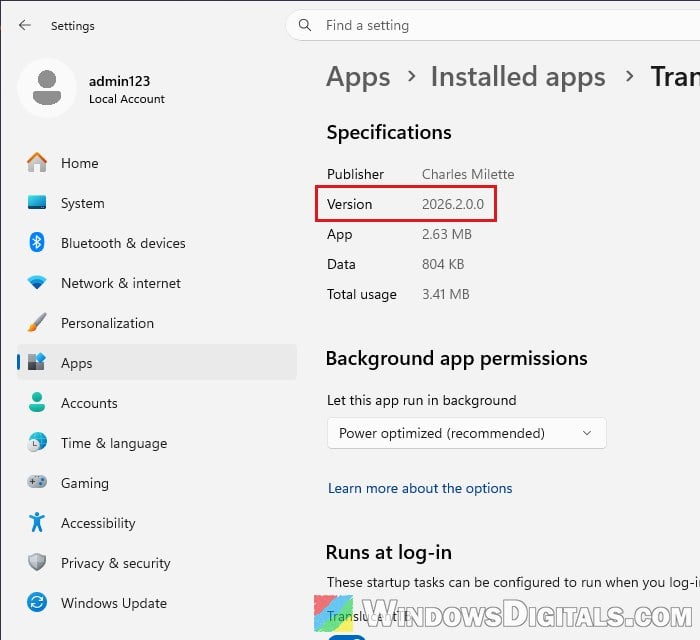
- Click the three dots (More options) next to TranslucentTB and select Advanced options. The Version is listed under Specifications. 2026.2.0.0 is the version that doesn’t work with the update.
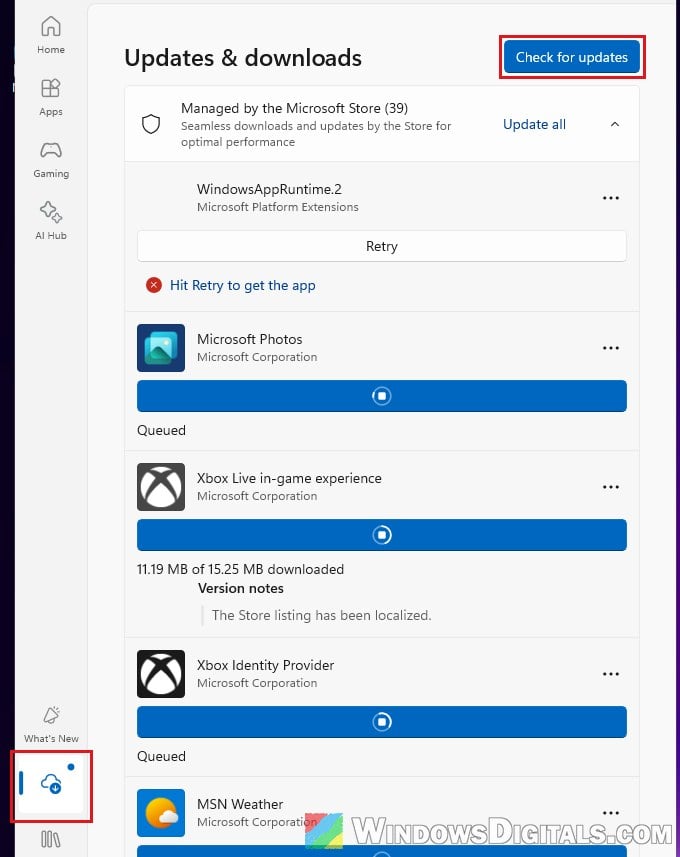
- Open the Microsoft Store and click the Downloads icon (the cloud with an arrow) at the bottom left, just above Library, to open Updates & downloads.
- Click Check for updates and let the Store install anything new, including TranslucentTB if a new version is out.
If you installed TranslucentTB from GitHub instead of the Store, check the releases page at https://github.com/TranslucentTB/TranslucentTB/releases for anything newer than 2026.2. After updating, right-click the TranslucentTB icon in the system tray, click Exit, and open TranslucentTB again from the Start menu.
Be warned: While waiting, you’ll see people offering their own “fixed” builds of TranslucentTB in GitHub comments and forks. The developer has asked people not to share them, saying their safety can’t be vouched for. TranslucentTB works inside Explorer, so an unofficial build gets a lot of access to your PC, and it’s better to wait for the official release.
Uninstall the KB5132057 update
If there’s no new TranslucentTB yet and you want your clear taskbar back now, removing KB5132057 is the fix that has worked so far. Because it’s an optional preview update with no new security fixes, uninstalling it isn’t as risky as removing a regular monthly security update. You only lose the other changes the preview brought.
To uninstall KB5132057, follow the steps below:
- Open Settings > Windows Update and click Update history.
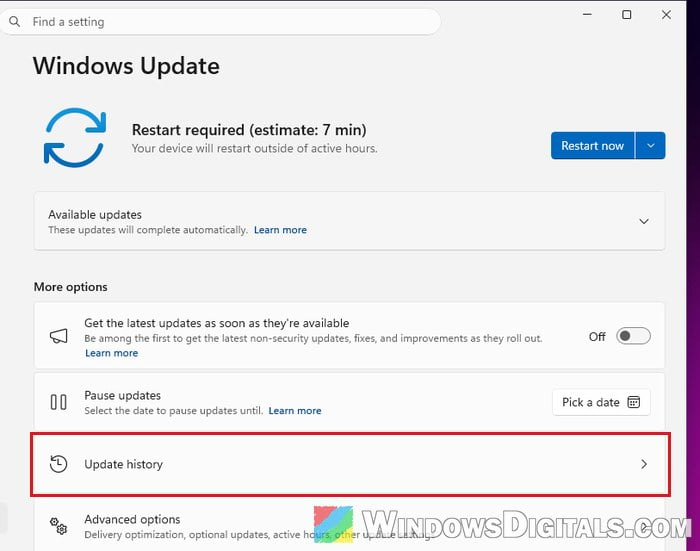
- Scroll down to Related settings and click Uninstall updates.
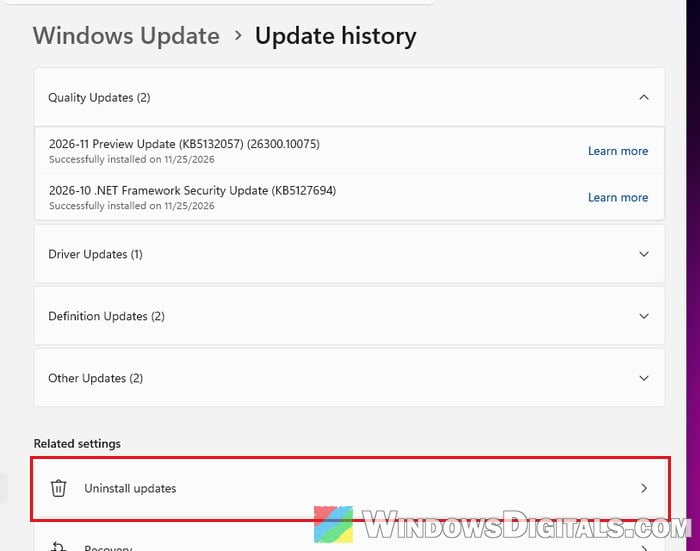
- Find KB5132057 in the list and click Uninstall next to it, then confirm by clicking Uninstall again.
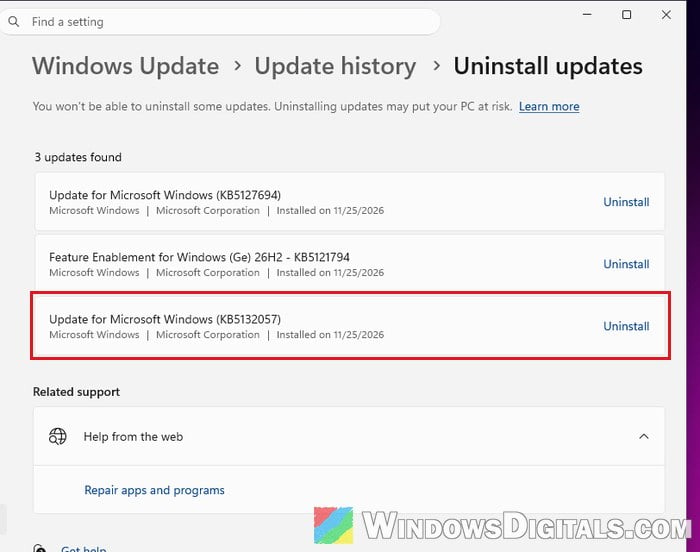
- Restart your PC when Windows asks you to.
Once Windows is back, start TranslucentTB if it didn’t start by itself and check whether the taskbar follows your settings again. For other ways to undo an update, see: How to Roll Back Windows 11/10 Update to Previous Version.
Keep the update from coming back
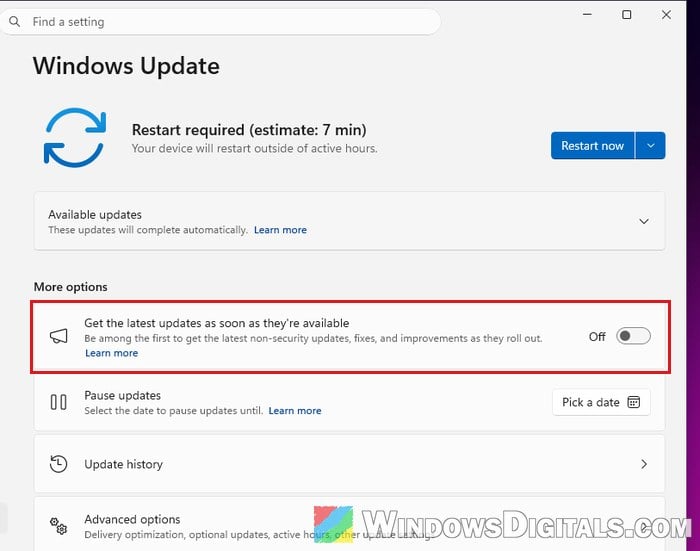
Uninstalling KB5132057 doesn’t stop Windows Update from showing it again. If the “Get the latest updates as soon as they’re available” switch is on, Windows installs optional preview updates like this one by itself, so it’s a good idea to turn it off. The same taskbar change will most likely be part of a later regular update too, so turning it off (or pausing updates) only buys you time until TranslucentTB is updated.
Here’s what to do:
- Open Settings > Windows Update.
- Make sure “Get the latest updates as soon as they’re available” is set to Off.
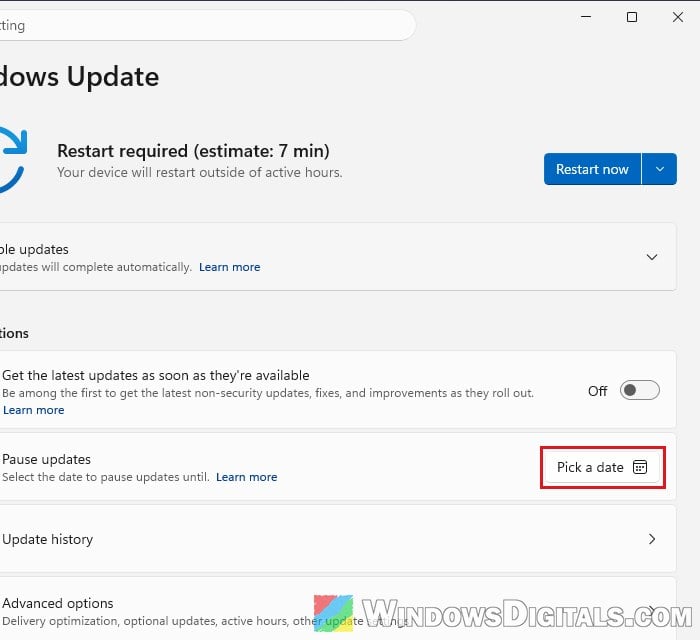
- If you also want to hold off on every update for a while, click Pick a date next to Pause updates and choose how long to pause them.
Remember to resume updates once a fixed TranslucentTB is out, since pausing also holds back the monthly security updates.
If File Explorer keeps closing, turn TranslucentTB off for now
When TranslucentTB makes explorer.exe crash every time it starts, it’s better to keep it off until you’ve removed the update or a new version is out. The taskbar just goes back to the normal Windows look in the meantime.
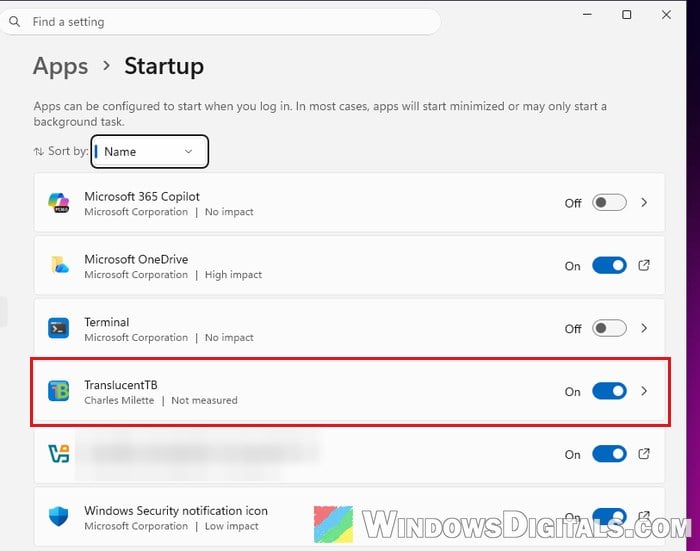
To stop it from running, right-click the TranslucentTB icon in the system tray and click Exit. To keep it from starting with Windows as well:
- Open Settings > Apps > Startup.
- Turn off the switch next to TranslucentTB.
Might be useful: Restart Explorer.exe with CMD or PowerShell in Windows 11
Once a fixed version is installed, turn the switch back on and open TranslucentTB from the Start menu, and your transparent taskbar should come back as before.