Buying a game, an add-on or a Game Pass plan in the Microsoft Store or the Xbox app takes just a couple of clicks, but sometimes the checkout stops with “Incorrect region. You are trying to purchase from an incorrect region. You’ll need to update your settings to purchase from the correct region.” It often shows up even when your account, Windows and card all point to the country you live in. This guide will explain why Microsoft thinks you’re in the wrong region and what you can do to buy again.
Also see: Microsoft Store Won’t Sign In on Windows 11
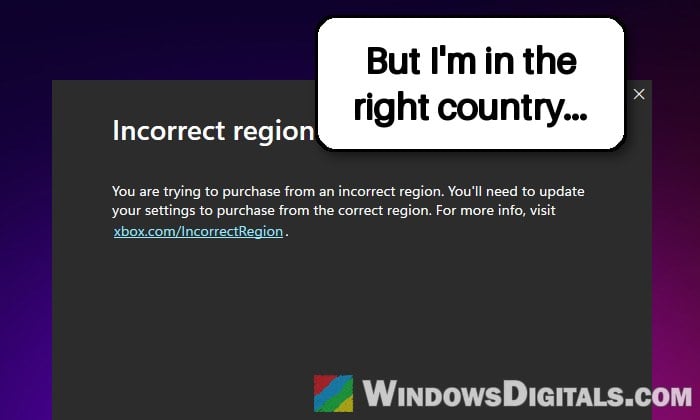
Why does Microsoft Store say you’re in the incorrect region?
Microsoft hasn’t said much about this check, but basically everything that tells it where you are has to point to the same country: your Microsoft account, Windows (or your Xbox), the store, the card or PayPal you pay with, and your internet connection. Some common reasons are:
- Windows is set to another country or region. The Microsoft Store and the Xbox app on PC go by the country set in Windows, not by your account alone.
- The payment method was issued in another country, or its billing address doesn’t match the country of your account.
- A VPN or proxy makes it look like you’re buying from another country.
- A gift card or code bought for another region. Microsoft’s gift terms only let you buy and redeem them in the same country or region.
- A temporary lock after travel or a VPN. Many users on Reddit report that accounts used from abroad or through a VPN are blocked from their own store for a while, most often in countries with lower regional prices such as Türkiye, India, Brazil and Argentina. Microsoft has never explained it.
The first few take only minutes to check, so start there.
Set Windows’ country or region to where you live
Microsoft’s own steps for changing the Store region on a PC go through this Windows setting. If it’s set to another country, the Store and the Xbox app sell to you from that country’s store. Here’s how to check it:
- Open Settings (press Win + I).
- Go to Time & language > Language & region.
- Under Country or region, select the country you actually live in.
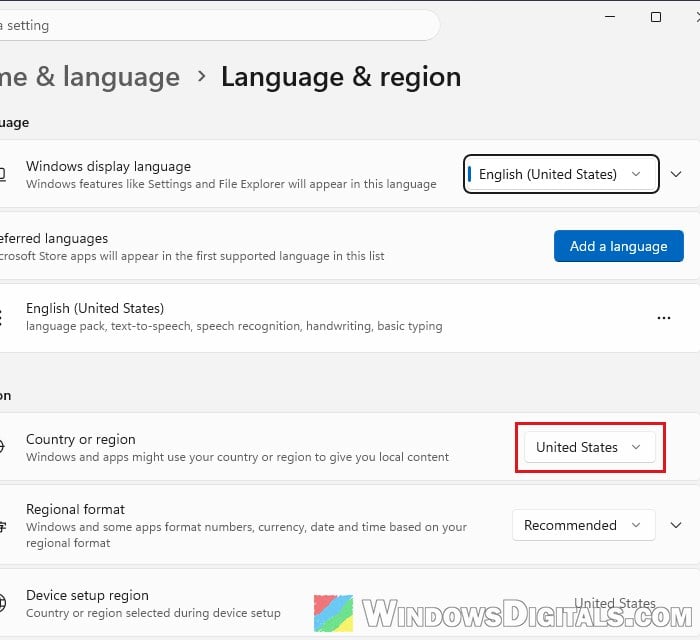
- Restart your PC, then open the Microsoft Store or the Xbox app again and retry the purchase.
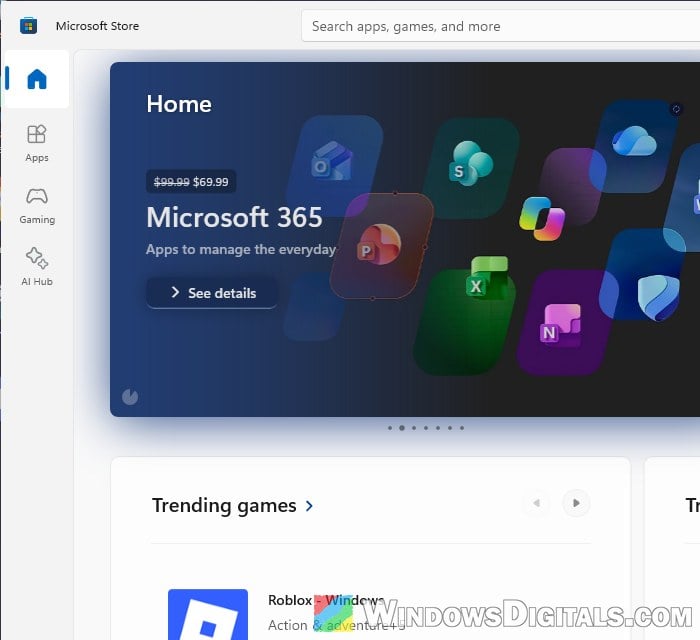
On Windows 10, it’s under Settings > Time & Language > Region. Either way, you can switch it back at any time.
Linked issue: PC Game Pass Not Under “Included with device” in Microsoft Store
Check your Microsoft account’s country or region
Next, check the country on your Microsoft account. In most cases you only need to look at it, not change it. Don’t change it unless you’ve actually moved to another country, since Microsoft warns that things you bought in one region may not work in another. Here’s where to check it:
- Go to
https://account.microsoft.comin your browser and sign in. - Open Your info on the left.
- Under Profile info, check the Country or region shown. If you did move, select Edit profile info and pick your new country there.
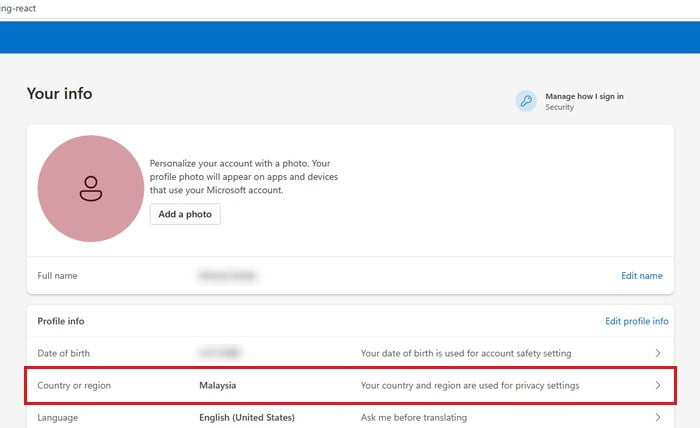
Please note that Microsoft won’t let you change it if you already changed it in the last three months, or if your account is suspended (for example, a subscription with an expired card or an unpaid balance). Spend any balance before you switch, as it can’t be moved to another region.
Make sure your payment method is from the same country
Microsoft checks where your card comes from as well as where your account says you live. The card or PayPal account you pay with has to be issued in the same country as your Microsoft account, with a billing address that matches your bank’s records. Here’s what to check:
- Go to
https://account.microsoft.comand open Payment options on the left. Microsoft may ask you to verify your email with a code first. - Check where each card or PayPal account listed there was issued, and its billing address.
- If one doesn’t match, update its address, or remove that card and add one issued in your country.
Might be useful: Can’t Download or Install Apps on Microsoft Store
Turn off any VPN or proxy before buying
A VPN, a proxy or any other service that sends your traffic through another country makes it look like you’re shopping from that country. That alone can cause the error, and it can also lead to the longer lock described in the last section. Here’s what to do:
- Disconnect your VPN app if you use one.
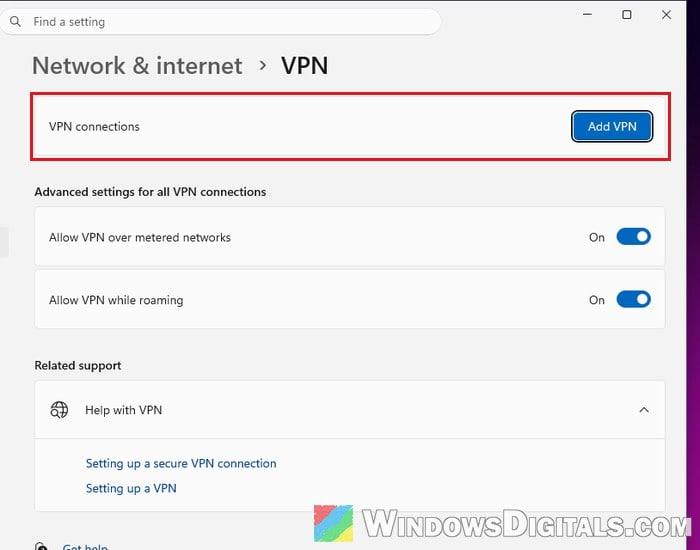
- In Windows, open Settings > Network & internet > VPN and make sure none of the VPN connections listed there is connected.
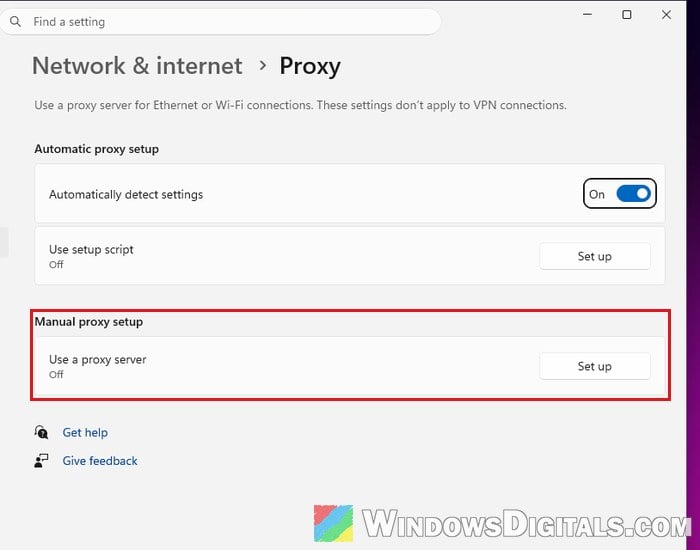
- Also check Settings > Network & internet > Proxy. Under Manual proxy setup, Use a proxy server should say Off unless you set one up on purpose.
- Try the purchase again. If the app still refuses, try buying the same thing on the Xbox website in an InPrivate or Incognito browser window.
Related guide: How to Disable VPN in Windows 11
Pick the right region on the website or your Xbox
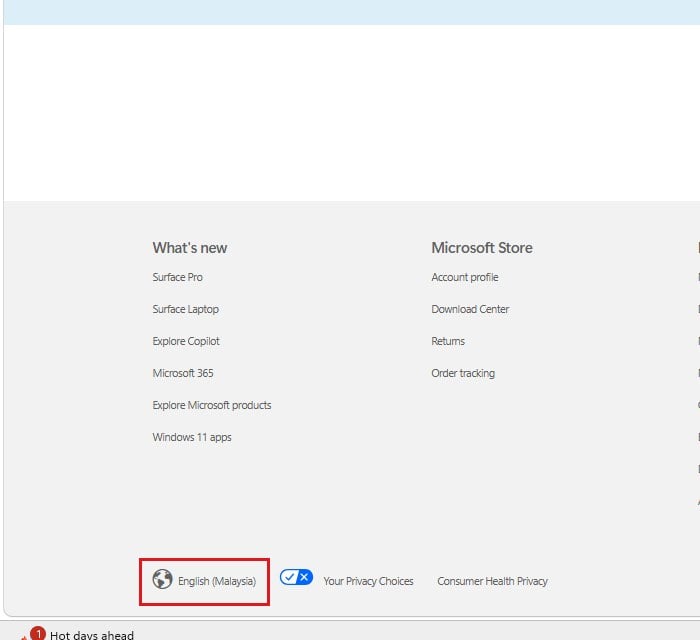
When you buy in a browser instead of the app, the Microsoft Store website has its own language and region choice. Go to https://www.microsoft.com/store, scroll to the very bottom of the page and select the globe icon (it shows your current language and region) to pick the right one.
On an Xbox One or Xbox Series X|S, press the Xbox button and go to Profile & system > Settings > System > Language & location. Pick your country under Location, then select Restart now. The console’s location also has to match the country of the card you pay with.
A gift card or code bought for another region
If the error only shows up when you redeem a code, the code itself is probably the problem. Microsoft only allows gift cards and codes to be bought and redeemed in the same country or region, so a code sold for another country (or a Game Pass code that came with a laptop made for another market) won’t work on your account. Ask the seller for a refund or for a code meant for your country instead.
Recently traveled or used a VPN? You may have to wait
If every setting above already matches and the error won’t go away, your account may be under a temporary region lock. It usually hits people who recently traveled, used a VPN, or used their account in two countries, and there’s no setting that clears it.
What usually helps is to make sure everything points to your country, stop using any VPN, use the account only from home, and wait. It can lift after about a week, but Xbox support has asked people to wait 30 days, and some locks last up to 90 days.
If you’d rather not wait, or the lock doesn’t lift, contact Microsoft’s support:
- Go to
https://support.microsoft.com/contactus. - Under Select the product you need help with, choose Xbox for a game, add-on or Game Pass purchase.
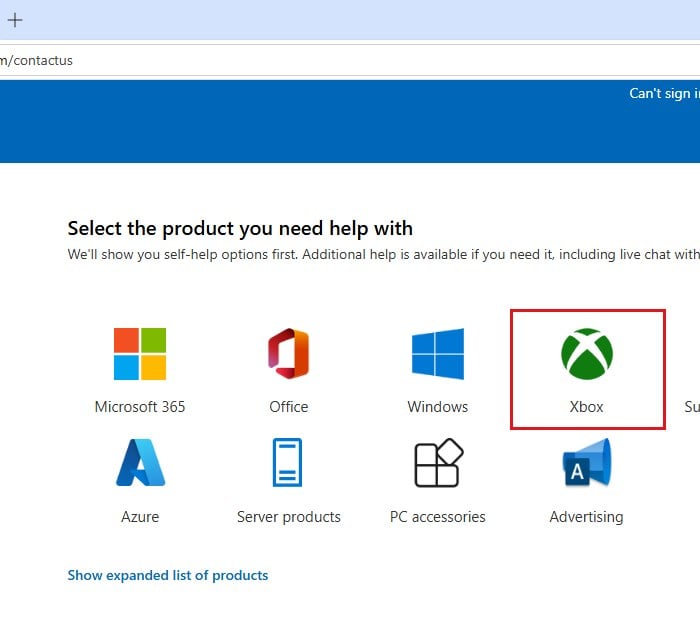
- Follow the options for a billing or purchase problem. Microsoft shows self-help options first, and more help, including live chat, is available after that.
Give them the exact error, the date and time of the failed purchase, and a screenshot of the error and of your account’s country. Support can’t always lift the lock, so don’t be surprised if they tell you to wait.