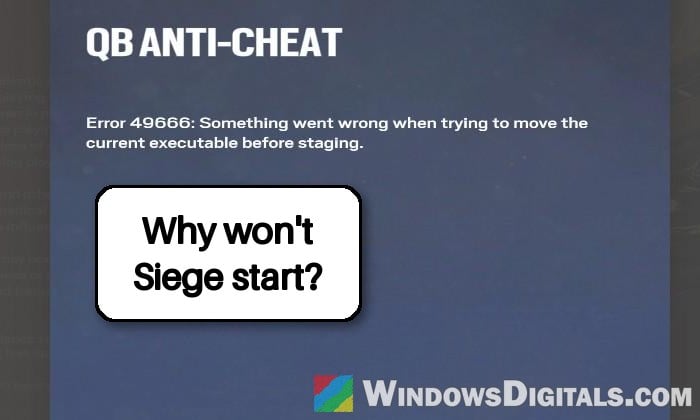
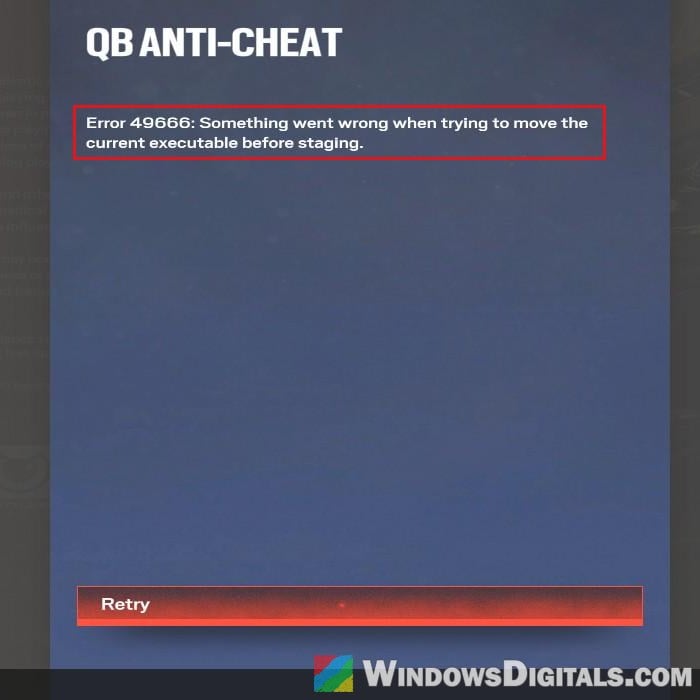
Rainbow Six Siege on PC runs Ubisoft’s own QB Anti-Cheat as it starts, and most of the time you never even notice it. Lately, though, many players get stopped right at launch by a “QB ANTI-CHEAT” screen that says “Error 49666: Something went wrong when trying to move the current executable before staging“, and the game never gets past it. This guide will explain what the error is actually complaining about and how to get the game launching again.
Also see: Failed to start Denuvo driver. Error code: 2148204812
What does error 49666 mean?
The error text gives a good hint. From what has been tested so far, Siege keeps a copy of its main executable for your account in a folder called multiexe inside the game’s install folder. When you launch on a different Ubisoft account, or after the game gets a new executable, it tries to move the new one into that folder first. If the old copy is still sitting there, the move fails and QB Anti-Cheat stops the game with error 49666.
That would also explain why the error often shows up on one Ubisoft account but not another on the same PC, or right after switching accounts. Ubisoft hands out different game executables to different players as part of its anti-cheat, so the copy left behind by one account can get in the way of the other.
The error has been around since the Siege X update in mid-2025, but a new wave of it started in November 2026. There’s no proper fix from Ubisoft yet, so the fixes below are the ones people have found themselves, starting with the one that has worked most often.
Delete the file in the “multiexe” folder
The leftover executable seems to be what blocks the launch, so removing it is the most direct fix. It’s also the one that has worked for the most players. The game should put a fresh copy there the next time it starts. You’re not deleting the game itself, only the staged copy.
Here’s how to do it:
- Close Rainbow Six Siege, Ubisoft Connect and, if you play through it, Steam (check the system tray too).
- Open the game’s install folder:
- Steam: right-click Rainbow Six Siege in your Library, select Properties, go to Installed Files and click Browse. In Steam’s default library, this is usually the following folder:
C:\Program Files (x86)\Steam\steamapps\common\Tom Clancy's Rainbow Six Siege
- Ubisoft Connect: copy and paste the following path into File Explorer’s address bar and press Enter (if you installed the game somewhere else, go there instead):
C:\Program Files (x86)\Ubisoft\Ubisoft Game Launcher\games\Tom Clancy's Rainbow Six Siege
- Steam: right-click Rainbow Six Siege in your Library, select Properties, go to Installed Files and click Browse. In Steam’s default library, this is usually the following folder:
- Open the multiexe folder.
- Delete RainbowSix.exe inside it (or everything inside the folder). Don’t delete anything else in the game folder.
- Start Ubisoft Connect again (running it as administrator doesn’t hurt here), then launch the game.
If Siege now gets past the QB Anti-Cheat check, you’re done. If you share the PC with another Ubisoft account, keep in mind that the error can come back every time you switch accounts, so you may have to repeat this each time until Ubisoft fixes it properly.
Rename the Ubisoft folder in AppData
Siege also keeps its own local data, including the file that controls this executable staging, in a folder called Ubisoft inside your local AppData folder. This has cleared error 49666 too, though often only until the next account switch.
Instead of deleting the folder, rename it, so you can put it back if you ever need to. Follow the steps below:
- Close the game, Ubisoft Connect and Steam (if you use it).
- Press Win + R to open the Run dialog box, type
%localappdata%and press Enter.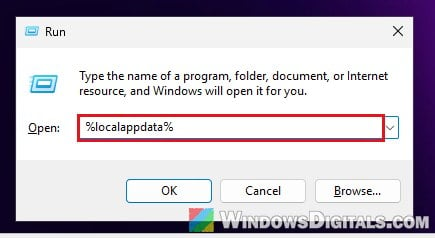
- Find the folder named exactly Ubisoft (not Ubisoft Game Launcher, which belongs to Ubisoft Connect itself, so leave that one alone) and rename it to “Ubisoft.old“.
- Launch Rainbow Six Siege again.
If the game starts and plays normally afterward, you can delete the “Ubisoft.old” folder later.
Pro tip: How to Clean Up AppData Folder in Windows 11
Set a fixed data center in GameSettings.ini
This one is a bit odd, and nobody has really explained why it helps. Changing the data center setting in Siege’s settings file from “default” to a fixed one has also gotten the game past error 49666, but every time it was done together with clearing the multiexe folder. So do it along with the first fix rather than on its own.
Here’s what you need to do:
- Make sure the game is closed.
- Open File Explorer and go to Documents > My Games > Rainbow Six – Siege.
- Open the folder with the long ID as its name, then open GameSettings.ini with Notepad.
- Scroll to the very bottom, to the [ONLINE] section, and find the line
DataCenterHint=default. - Change “default” to a data center close to where you live, for example
DataCenterHint=playfab/centralusin the US orDataCenterHint=playfab/eastasiain East Asia. The name always starts with “playfab/”, followed by a region. - Save the file with Ctrl + S.
- Clear the multiexe folder again as in the first fix, then launch the game.
A fixed data center can give you a higher ping if it’s far from where you live. Once the game launches normally again and the error doesn’t come back for a while, you can change the line back to DataCenterHint=default.
Verify the game files
Verifying makes Steam or Ubisoft Connect check every game file and download again whatever is missing or doesn’t match. It rarely fixes error 49666 on its own, but it’s easy to do, so it’s worth one try.
- Steam: right-click the game in your Library, select Properties > Installed Files, then click Verify integrity of game files.
- Ubisoft Connect: open the game’s page, click the cog icon, and select Verify files.
Let it finish, then launch the game again.
Related guide: How to Fix Steam “Missing Downloaded Files” Error – Game or Workshop
What Ubisoft Support suggests
When this error first appeared after the Siege X update, Ubisoft Support pointed to a few general checks. Nobody has reported them fixing error 49666, but they’re quick to rule out:
- Make sure Steam, Ubisoft Connect and Rainbow Six Siege are all installed on the same drive, ideally the one Windows is on.
- Turn off any third-party antivirus temporarily, only to test whether it’s getting in the way of the launch. Turn it back on afterward.
- Do a clean boot so no other startup app interferes with the game, and run a System File Checker scan to repair any damaged Windows files.
If none of the fixes above work, contact Ubisoft Support with the error code and the fixes you’ve already tried.