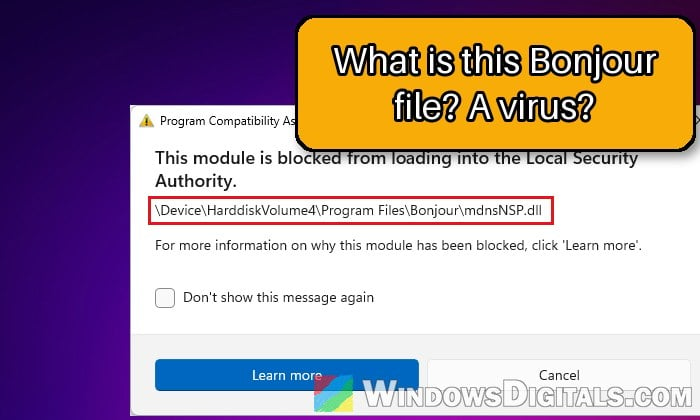
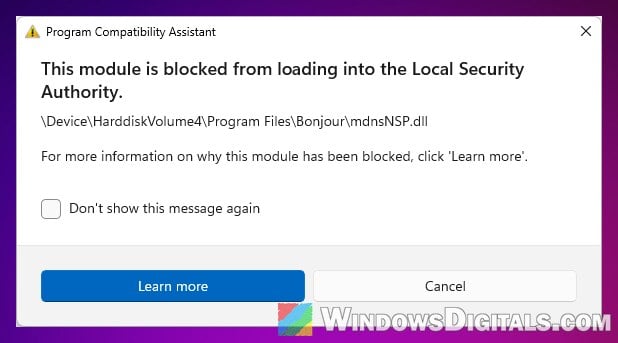
If you keep getting a Program Compatibility Assistant pop-up that says “This module is blocked from loading into the Local Security Authority” with a path like \Device\HarddiskVolume3\Program Files\Bonjour\mdnsNSP.dll under it, every time you start your PC or open certain apps, it’s Windows 11’s LSA protection refusing to load an old file from Apple’s Bonjour service. This guide will help you figure out whether you still need Bonjour and how to stop the warning without weakening your PC’s security.
Also see: Memory Integrity Can’t Be Turned On (Windows 11)
What is mdnsNSP.dll and why is Windows blocking it?
mdnsNSP.dll is part of Bonjour, Apple’s networking service that lets your PC find printers, Apple devices and other gear on your local network without any setup. It lives in the C:\Program Files\Bonjour folder, and because it plugs into how Windows looks up network names, the Local Security Authority (LSA, the Windows process that handles your sign-in and credentials) also tries to load it.
The Local Security Authority protection feature, which is on by default in recent versions of Windows 11, only lets files that meet Microsoft’s signing requirements load into LSA. Its job is to stop untrusted software from running inside LSA or reading its memory, which is where your sign-in details are. The mdnsNSP.dll file Bonjour installs dates back to 2015, and it doesn’t meet those requirements, so Windows blocks it and shows you the warning instead. Because LSA protection is now on by default, many people only started seeing this pop-up after moving to Windows 11 24H2 or later.
Is it a virus?
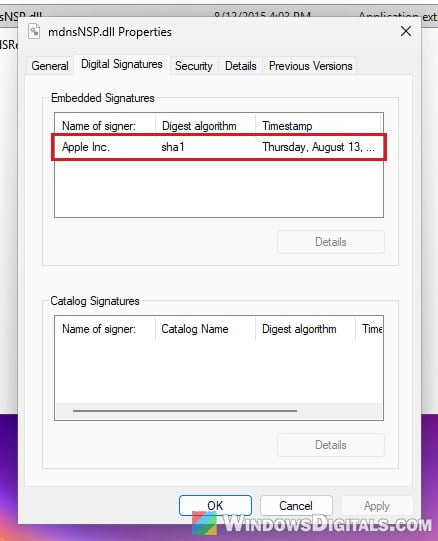
No, not by itself. Bonjour is Apple’s own software, and its files are digitally signed by Apple Inc. If you want to be sure, open C:\Program Files\Bonjour (Bonjour keeps a second copy in C:\Program Files (x86)\Bonjour), right-click mdnsNSP.dll, select Properties, and check the Digital Signatures tab. If the file is anywhere other than these two Bonjour folders, or isn’t signed by Apple, scan it before doing anything else.
Pro tip: How to Scan an .exe File for Viruses to Check If It’s Safe
How did Bonjour get on your PC?
Many people who see this warning never installed Bonjour on purpose. It usually comes along with something else, such as:
- iTunes, and Apple apps like iCloud or Apple Music
- Printer software, such as some Epson and HP tools that find printers over the network
- Other programs, such as some Adobe packages, SolidWorks, and audio software that uses Bonjour to find devices on the network
- Connecting an iPad to the PC
Uninstall Bonjour if you don’t need it
Unless you know a printer or app on your PC needs Bonjour, the simplest fix is to remove it. Microsoft’s own advice is to remove the software that’s loading the blocked file, and this is the fix that has worked for the most people on Reddit and Microsoft’s forums. Recent versions of iTunes keep working without it, though older ones may complain about a missing dnssd.dll. If that happens, update iTunes, and if Bonjour comes back with it, see the section below.
Here’s how to do it:
- Press Win + I to open Settings.
- Go to Apps > Installed apps.
- Type “Bonjour” in the search box.
- Click the three dots (…) next to Bonjour and select Uninstall.
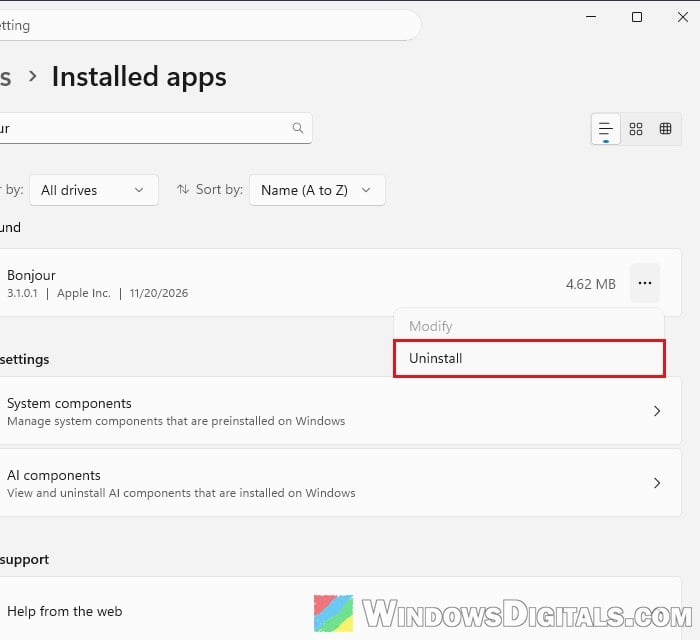
- Click Uninstall again to confirm, then click Yes when Windows asks whether to allow Bonjour to make changes.
- Restart your PC.
After the restart, the warning should no longer appear. If something you use stops finding your printer or other devices on the network, that app needed Bonjour. Reinstalling that app or the printer’s software usually puts Bonjour back, and the “Need Bonjour?” section below shows how to live with it.
What if Bonjour comes back?
If the warning comes back later, the app that brought Bonjour with it has likely installed it again, for example during one of its own updates. Check your Installed apps list, sorted by install date, for whatever was installed or updated around the time Bonjour came back. Then either keep that app and hide the warning (below), or uninstall that app if you don’t need it and remove Bonjour again.
Need Bonjour? Keep it and hide the warning
Updating or reinstalling Bonjour, or swapping it for Apple’s Bonjour Print Services package, is advice you’ll see a lot. Sadly, none of these give you a file Windows will load. The newest Bonjour you can get is version 3.1.0.1, which is also what Bonjour Print Services installs, and it still comes with the same mdnsNSP.dll from 2015 that LSA protection turns away.
So if a printer or an app on your PC really needs Bonjour, just keep it and hide the pop-up. Windows lets you turn off the warning for that one file. The next time the pop-up appears, tick “Don’t show this message again” and click Cancel.
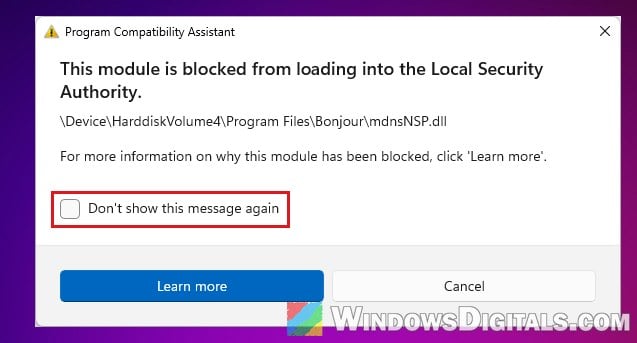
Please note that this only hides the message. Windows still blocks the file every time, but the apps that use Bonjour keep working just as they did before.
If it’s a printer that needs Bonjour, it’s also worth checking the printer maker’s website for a newer driver or app.
Might be useful: How to Reinstall Printer Driver on Windows 11
Don’t turn off LSA protection to get rid of it
You’ll find advice to turn off Local Security Authority protection in Windows Security > Device security > Core isolation details, or to add mdnsNSP.dll to LSA’s list of security packages in the registry. Both make the warning go away, but neither is worth it.
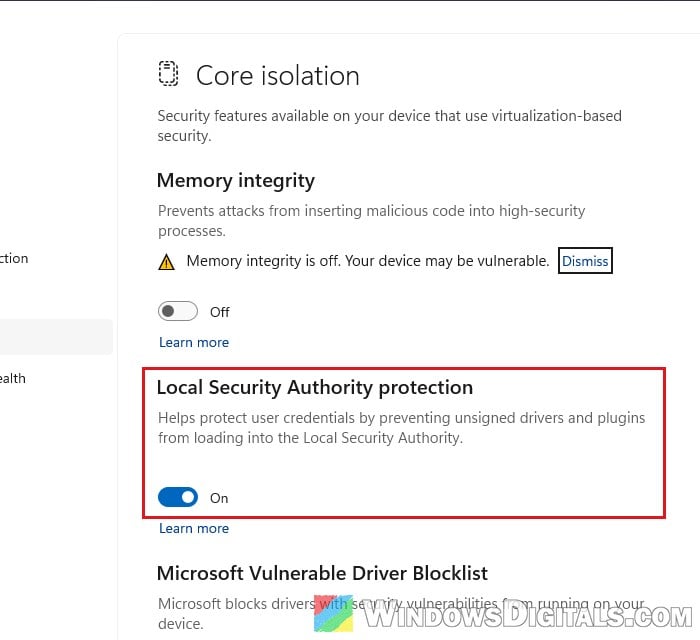
LSA protection is there to keep your sign-in credentials away from untrusted code. Turning it off removes that protection for everything, and forcing mdnsNSP.dll into LSA gives a 2015 file access to the process that holds your passwords, all to hide a pop-up. If you’ve already switched it off, turn the Local Security Authority protection toggle back on (or take mdnsNSP.dll back out of the registry if you added it there) and restart your PC, then use one of the fixes above instead.