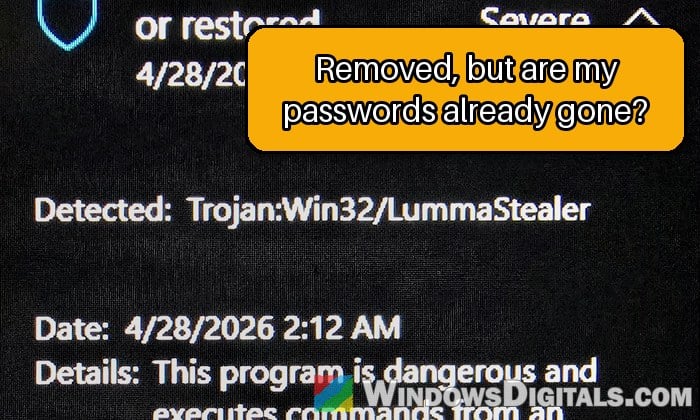
If Windows Security just showed you “Trojan:Win32/LummaStealer” (often with an ending like .MBX!MTB), usually after a fake CAPTCHA, a cracked game or a download that wasn’t what it said, it’s a password-stealing trojan, and the fact that Defender removed it doesn’t mean your accounts are safe. This guide will walk you through what it takes, how to tell if it actually ran, and what you should do next on Windows 11 or 10.
Also see: Trojan.PavinLoader Keeps Coming Back After Malwarebytes Removes It
What is Trojan:Win32/LummaStealer?
It’s Microsoft Defender’s name for Lumma Stealer (also called LummaC2), an information stealer that criminals rent out as a service. It doesn’t infect your files or lock you out. It quietly collects what’s saved on the PC and sends it out.
According to Microsoft’s own research, it goes after:
- Saved passwords, cookies and autofill data from Chrome, Edge, Firefox and other browsers.
- Crypto wallets, both wallet files and browser wallet extensions such as MetaMask.
- Files from VPN apps, email and FTP clients, and Telegram.
- Documents in your user folders, such as PDF and Word files.
- Basic details about the PC, like the Windows version and installed apps.
A stolen session cookie lets someone use an account you’re signed in to without your password or two-factor code, which is how Discord or Instagram accounts end up sending scam messages even after a password change.
Microsoft and law enforcement took down about 2,300 of Lumma’s domains in May 2025, after counting more than 394,000 infected Windows PCs in two months. It didn’t go away, though, and people are still reporting new detections in 2026.
How did it get on your PC?
Most of the time, it came from something you ran yourself, without knowing it. These are the usual routes:
- Fake CAPTCHA pages that tell you to press Win + R, then Ctrl + V, then Enter to “verify you’re human”. That pastes and runs a command the page copied for you.
- Cracked games and software, and fake download sites for fonts, mods or apps.
- Fake search ads for popular apps that lead to a copy of the real site.
- Phishing emails with a link or attachment.
Related concern: Trojan:Win32/Wacatac.H!ml: What You Need to Know
Did it actually run on your PC?
If Defender caught the file the moment it was downloaded, it most likely never ran, and you have much less to worry about. If it was found later, after you had already run the installer or the CAPTCHA command, assume it ran and your saved passwords and cookies are gone.
Here’s how to check:
- Open Windows Security and go to Virus & threat protection.
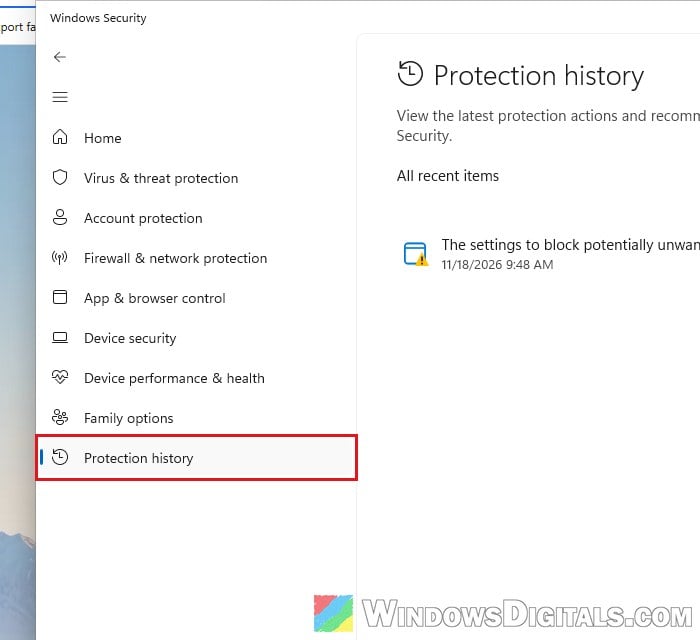
- Click Protection history (in the left pane, or the link on that page).
- Click the LummaStealer entry to see when it was detected and which file it was.
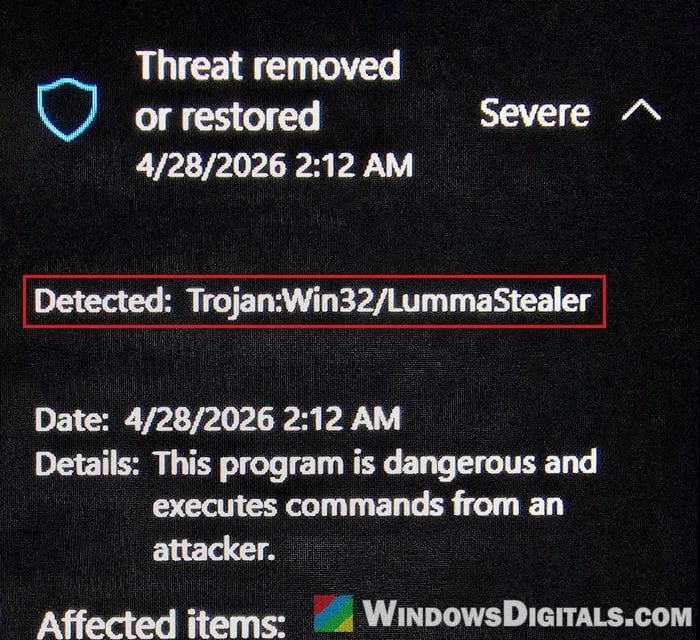
A name that starts with “Behavior:” (such as Behavior:Win32/LummaStealer) usually means Defender saw something running. You may also see names like Trojan:Win32/ClickFix or Trojan:HTML/FakeCaptcha next to it, which are the fake CAPTCHA part. A zip file you deleted without opening never had the chance to run.
Pro tip: Can’t Clear Protection History in Windows 11/10 Defender
Secure your accounts from another device first
If it ran, do all of this from your phone or another PC you trust. Changing passwords on the infected PC doesn’t help while something may still be running on it.
- Disconnect the infected PC from the internet. Unplug the network cable or turn off Wi-Fi, and don’t sign in to anything on it until it’s clean.
- Change the password of your email account first, since it can reset everything else. Then banking and anything with saved payment details (ask your bank for a new card if one was saved in the browser), then Steam, Discord, social media and the rest. Use a new password, not a small change to the old one.
- Sign out of all sessions on each account so the stolen cookies stop working. Most services have this in their security settings.
- Microsoft account: go to
https://account.microsoft.com/security, select Manage how I sign in, and use Sign out everywhere near the bottom. Microsoft says it can take up to 24 hours, and it won’t sign out an Xbox console.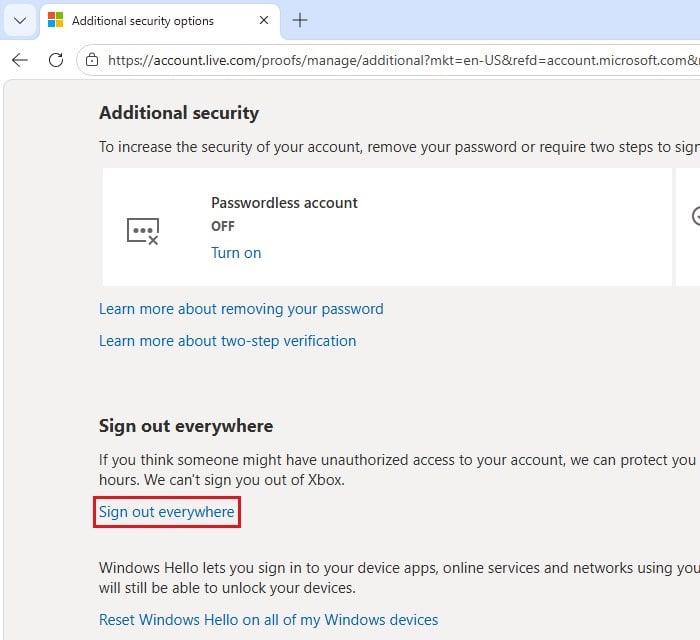
- Google account: go to
https://myaccount.google.com, open Security & sign-in, then Manage all devices under Your devices, and sign out of the infected PC and every device you don’t recognize.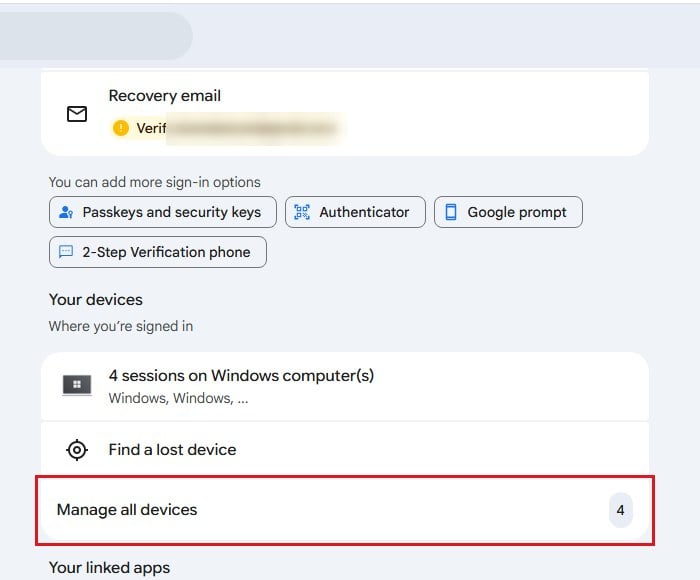
- Microsoft account: go to
- Turn on two-factor authentication everywhere you can. Microsoft recommends passkeys or a security key over text message codes.
- Revoke keys like a Steam Web API key, and check your email for forwarding rules you didn’t set up.
Scan the PC again
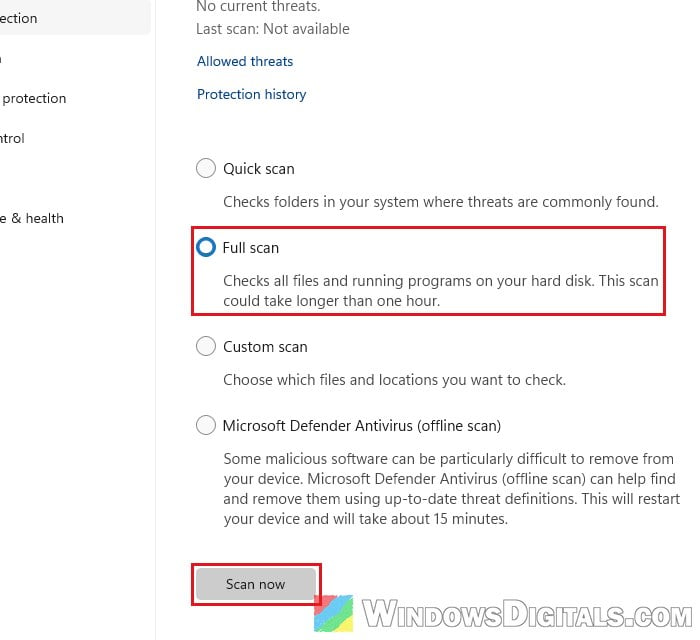
You can reconnect the PC for the scans and the reset, just don’t sign in to anything on it yet. Stealers like this often come bundled with other malware, so run a full scan and then a Microsoft Defender Offline scan, which restarts the PC and scans it outside of Windows.
- In Windows Security, go to Virus & threat protection and click Scan options.
- Select Full scan and click Scan now. Let it finish.
- Go back to Scan options, select “Microsoft Defender Antivirus (offline scan)” and click Scan now. Save your work first, since the PC restarts.
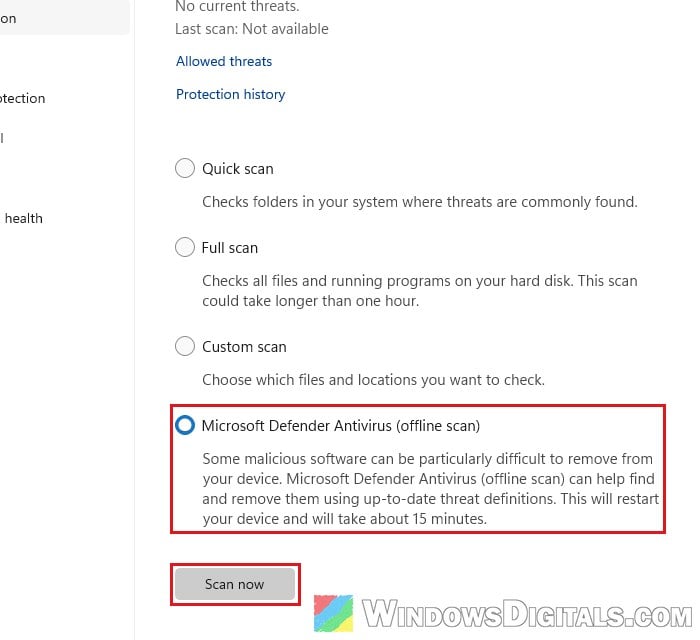
Back in Windows, check Protection history to see what the offline scan found. A second scanner, such as the free Malwarebytes, gives another opinion, but a clean scan isn’t proof that the PC is clean.
Reset Windows to be sure it’s gone
This is what most people on Reddit’s security communities will tell you: once a stealer has run, the only way to be sure is to wipe Windows and start fresh.
Before you start, copy only your personal files (photos, documents, videos) to a USB drive. Don’t copy any programs, installers, scripts or cracks. To spot a file pretending to be a photo, like photo.jpg.exe, turn on file name extensions first: in File Explorer, click View > Show > File name extensions.
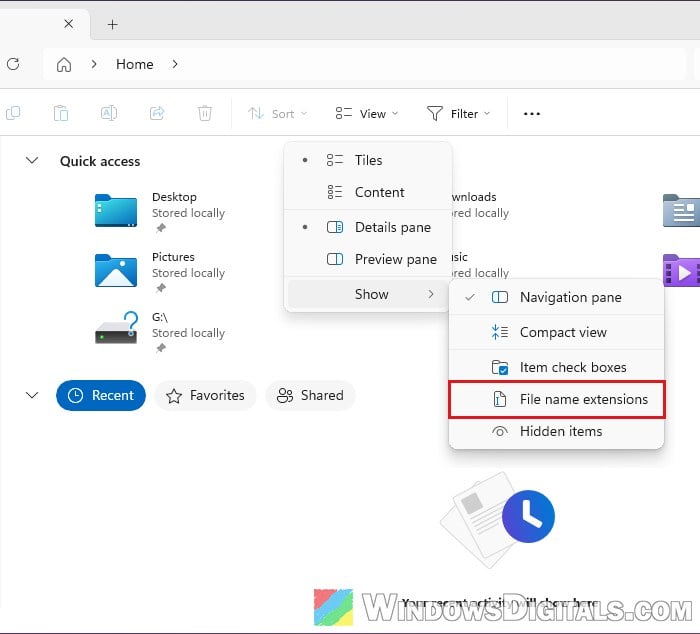
Then reset the PC:
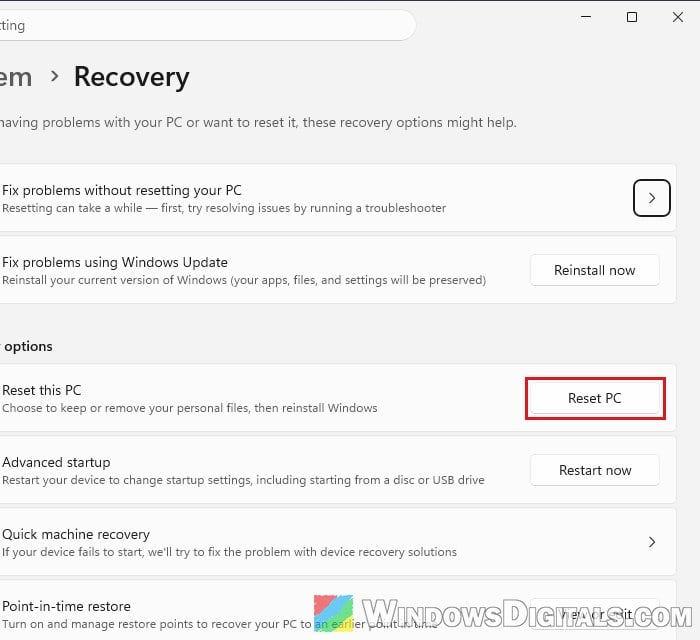
- Open Settings and go to System > Recovery.
- Next to Reset this PC, click Reset PC.
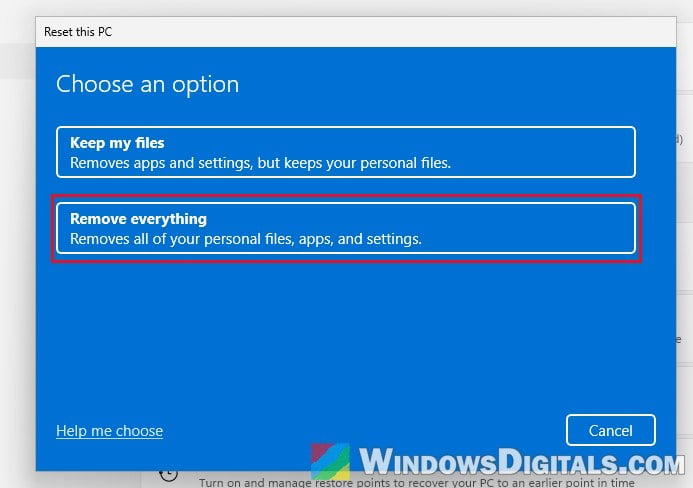
- Choose Remove everything.
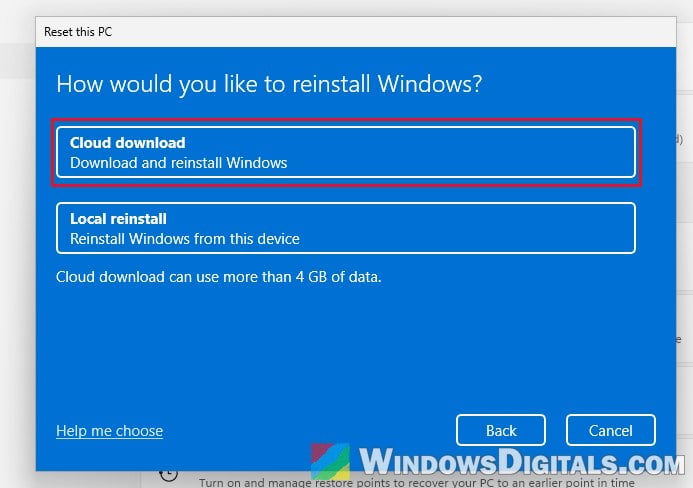
- Choose Cloud download to get a fresh copy of Windows from Microsoft.
- Follow the rest of the instructions, and only sign back in to your accounts once Windows is set up again.
A reset with “Remove everything” is usually enough. A clean install from a USB drive made on another PC is the safest option.
Might be useful: How to Reset Windows 11/10 to Factory Default
Are your photos and other files infected too?
No, Lumma steals data and doesn’t infect other files the way an old-school virus does, so your photos and videos are safe to keep. It doesn’t hide in the BIOS either.
What it can get to is every account you were signed in to on that PC, even the ones you also use on your phone. So do the account steps above even if Defender says it removed everything.
How to avoid it next time
- If a website asks you to paste something into the Run box (or anywhere else) to prove you’re human, close the page. No real CAPTCHA ever works that way.
- Download apps only from the maker’s own website.
- Stay away from cracked games and software.