When you turn on Safe boot in System Configuration (msconfig) and restart, you might end up with nothing on the screen at all: the PC powers on, the fans spin and the keyboard lights up, but the monitor stays black or says “No signal”, and every restart goes right back to the same black screen. This guide will walk you through getting the picture back and turning Safe boot off, even when you can’t see Windows.
Also see: Windows 11 Keeps Booting in Safe Mode (Fix)
Why does Safe boot leave you with a black screen?
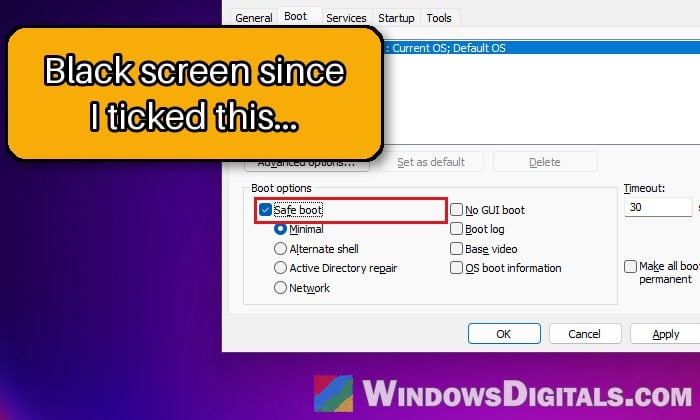
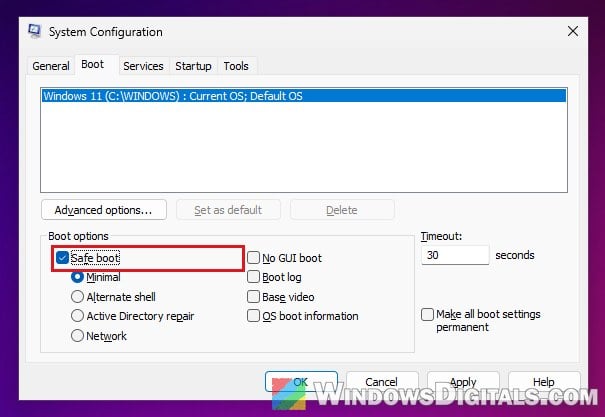
Turning on Safe boot in msconfig isn’t a one-time thing. Unlike starting Safe Mode from the recovery menu, it stays on until you clear the checkbox again, so Windows starts in Safe Mode on every single restart. According to Microsoft, this is exactly why a PC keeps booting into Safe Mode: the Safe boot option is still checked on msconfig’s Boot tab. Lots of people on Reddit have run into this, mostly after turning on Safe boot to run DDU (Display Driver Uninstaller) and remove their graphics driver.
Safe Mode starts Windows with only a limited set of files and drivers. That’s fine for most setups, but a monitor that depends on its own driver stays blank, for example one connected through a USB docking station, hub or USB display adapter. In that case Windows is likely running behind the black screen, waiting for you to sign in.
Since Safe boot is a Windows setting and not a BIOS one, clearing the CMOS or resetting the BIOS won’t turn it off. You can only clear it from Windows itself, once you get a picture back, or from the recovery environment.
Plug the monitor straight into the graphics card
Start with how your monitor is connected, since it’s the quickest thing to check and needs no recovery tools. If Safe Mode just doesn’t have the driver for that connection, plugging the monitor in another way should bring the picture back.
- If the monitor goes through a USB docking station, hub or USB display adapter, unplug it from there and connect it directly to a video port on your graphics card.
- Try a different port on the graphics card (DisplayPort instead of HDMI, for example) or another cable.
- If your CPU has built-in graphics, try the video port on the motherboard instead.
Then turn the PC on and give it a minute or two. If you see the sign-in screen, you’re in Safe Mode and can turn Safe boot off from Windows itself.
Related problem: Monitor Says “No Signal” When Windows Loads (Works in BIOS)
Turn off Safe boot in msconfig
In Safe Mode, your Windows Hello PIN might not work. If it doesn’t, sign in with your account password instead. Once you’re on the desktop, follow the steps below:
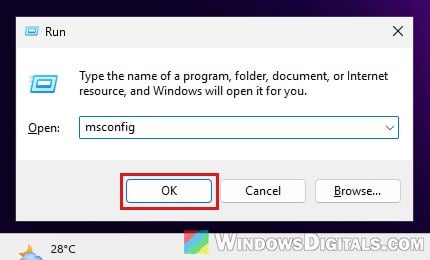
- Press Win + R, type “msconfig” and click OK.
- Go to the Boot tab.
- Under Boot options, clear the Safe boot checkbox.
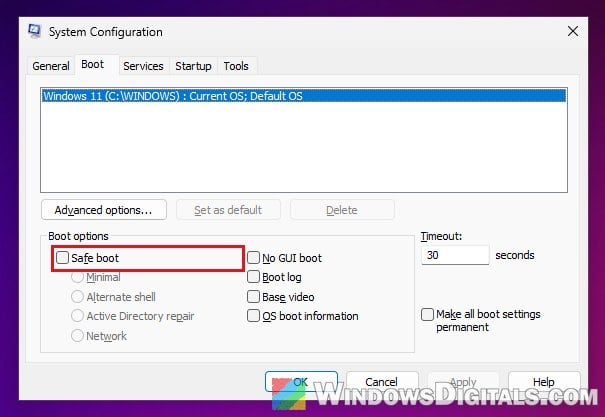
- Click OK and restart your PC.
Your PC should now start normally, with the monitor connected however you like.
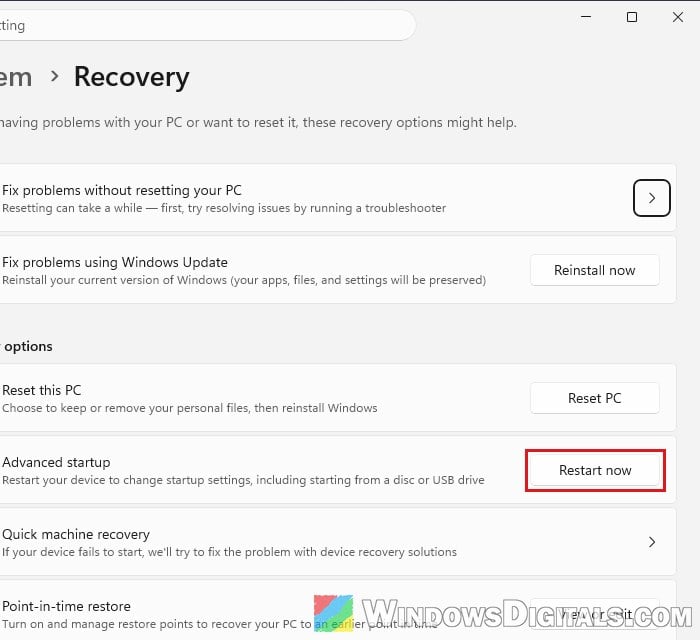
Tip: The next time you need Safe Mode, start it from Settings > System > Recovery > Advanced startup > Restart now, then pick Troubleshoot > Advanced options > Startup Settings > Restart. Safe Mode started this way ends with the next restart, so it can’t trap you like this.
Linked issue: MSConfig “Something happened and your PIN isn’t available”
Turn off Safe boot from the recovery environment
If the screen stays black whatever you plug it into, you can still turn Safe boot off without seeing Windows at all. The Windows Recovery Environment (WinRE) has its own Command Prompt, and Windows opens WinRE by itself after it fails to start twice in a row. The command below is the one Microsoft gives for a PC that keeps booting into Safe Mode.
Here’s how to do it:
- Turn the PC on and, a few seconds in, before Windows has time to finish loading, hold the power button until it shuts off.
- Do this one more time (sometimes it takes a third). On the next start, Windows should show the Automatic Repair screen.
- On the Automatic Repair screen, select Advanced options, then go to Troubleshoot > Advanced options.
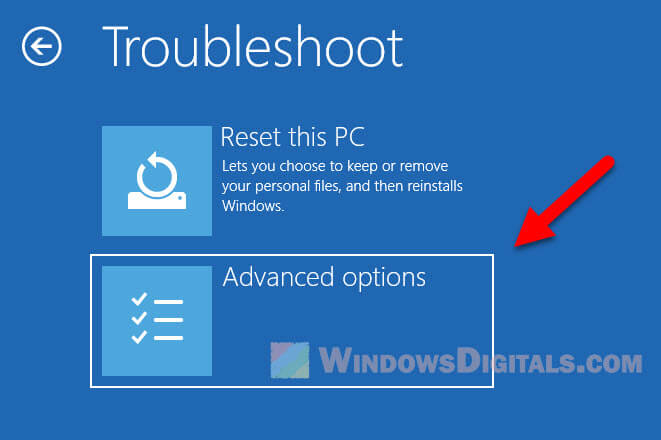
- Select Command Prompt. If your drive is encrypted with BitLocker, you may be asked for its recovery key first.
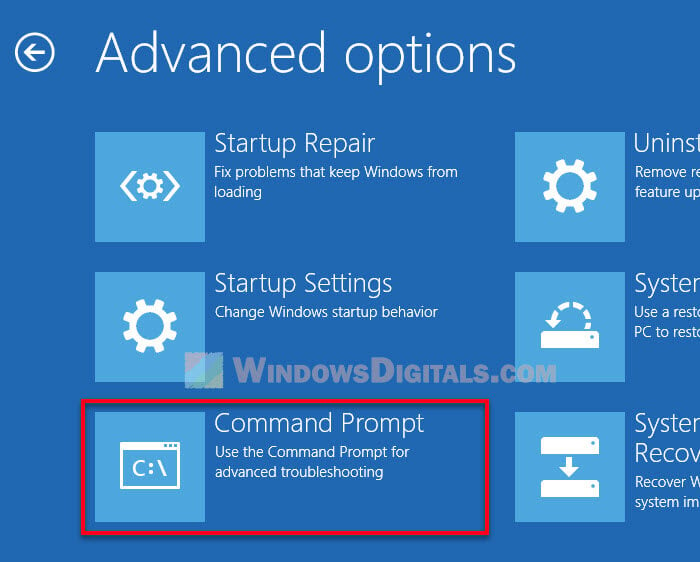
- Type the following command and press Enter:
bcdedit /deletevalue {default} safebootYou should see “The operation completed successfully.”
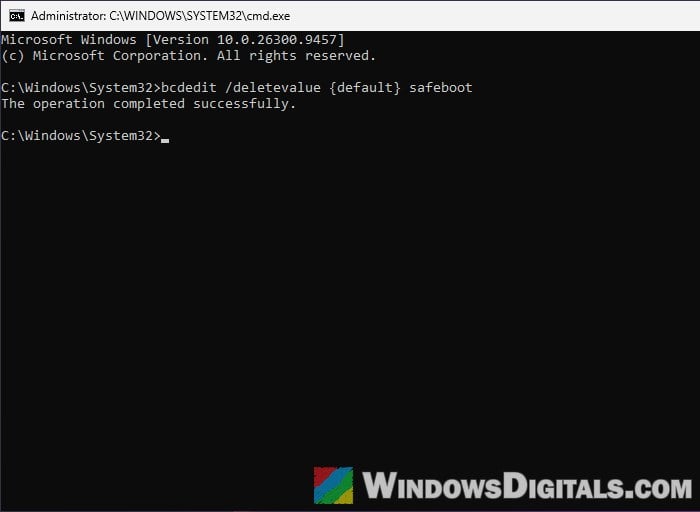
- Type “exit” and press Enter, then select Continue to start Windows.
Windows should now start normally instead of going into Safe Mode, and the picture should be back on your monitor.
Related concern: BitLocker Recovery Key Not in Your Microsoft Account
Use a Windows installation USB if recovery doesn’t show up
If forcing the shutdowns never brings up anything you can see, a Windows 11 installation USB gets you to the same recovery tools. This only helps if you can see the maker’s logo when the PC starts; if you can’t, see the last section first. Here’s what you should do:
- On another PC, go to
https://www.microsoft.com/software-download/windows11, download the Media Creation Tool and use it to create a USB installation drive. - Plug the USB drive into your PC, turn it on and press the boot menu key to boot from it. The key depends on the maker, usually F7, F8, F12 or Esc.
- When Windows Setup starts, select Repair my PC, then click Next (older installation media calls it Repair your computer).
- Go to Troubleshoot > Advanced options > Command Prompt, then run the same command as above:
bcdedit /deletevalue {default} safeboot - Close the Command Prompt, remove the USB drive and restart your PC.
Once it restarts without the USB drive, Windows should load normally and the picture should come back.
Might be useful: Windows 11 USB Not Booting (How to Fix)
What if even the BIOS logo doesn’t show?
The maker’s logo and the BIOS screen come up before Windows starts loading, so Safe Mode can’t hide them. If you don’t see them at all, even after trying another port and cable, the problem is most likely not Safe Mode, but the monitor, how the graphics card is seated or, on a laptop, the screen itself.
Test with another monitor or a TV if you can, and reseat the graphics card if you’re comfortable doing so. On a laptop, if an external monitor shows the picture, the laptop’s own screen or its connection is likely at fault. If your PC or laptop is still under warranty, contact the manufacturer instead of opening it up yourself.