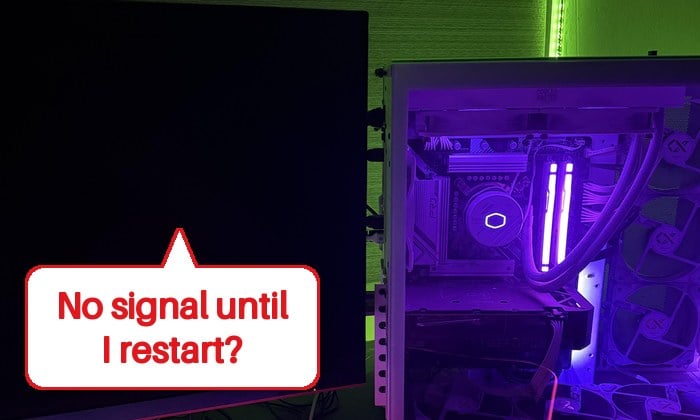
A PC that’s been switched off overnight should come up the same way it does after a restart: the logo, then Windows. On yours, though, the fans and lights come on but the monitor says “No Signal“, and only pressing the reset button (or forcing it off and on again) brings up a picture, after which everything works fine for the rest of the day. This guide will explain why the first boot behaves differently and what you can do to stop it.
Also see: Monitor Says “No Signal” When Windows Loads (Works in BIOS)
Why does it only happen on the first boot?
According to Microsoft, a restart always does a full boot cycle, while a shutdown with Fast Startup (on by default) saves Windows’ core session and drivers to a file and loads them back at the next power-on. The hardware also starts from cold, so a power-on really is a different start from a restart.
First, look at which kind you have:
- The PC never reaches the BIOS: the keyboard stays dark, keyboard shortcuts do nothing, and a debug light on the motherboard (often DRAM or CPU) may stay on. This points to the memory, BIOS settings or power.
- Windows starts but the screen stays black: you hear the Windows startup sound, or the PC shows up on your network, but there’s no picture. This points to the display side: the cable, the monitor, the graphics driver or Fast Startup.
Related problem: VGA Light on Motherboard Stays On and No Display
Give the first boot a minute or two
On a cold start, the motherboard trains the RAM: it tests and tunes how the memory runs. On DDR5 systems (AMD AM5 in particular), and after a CMOS clear, a BIOS update or new RAM, it can sit on a black screen for a minute or more. Press reset during it and the training starts over.
So next time, leave it a couple of minutes and watch the debug lights. If the PC comes up by itself, it was memory training. If the DRAM light is still on after a few minutes, move on.
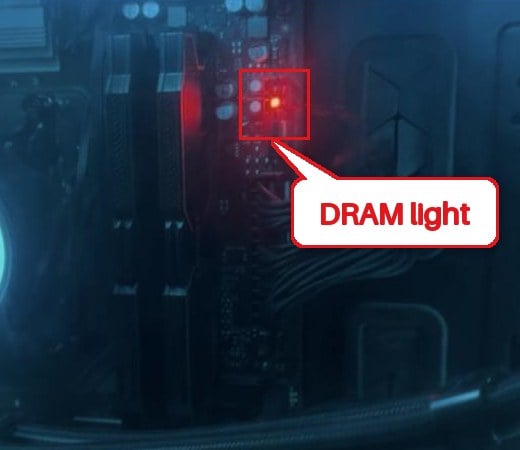
Linked issue: EZ Debug LED DRAM Light Stays On and PC Won’t POST
Turn off EXPO or XMP, then Memory Context Restore
If your RAM runs on an EXPO or XMP profile (its rated speed), it can be unstable, and a cold start is where that tends to show. Turning the profile off for a while tells you whether it’s the cause.
AM5 boards also have Memory Context Restore, which saves the training results so later boots can skip it and start much faster. Paired with EXPO, though, it’s been linked to cold-boot hangs, so it’s worth testing with it off. Here’s how:
- Restart the PC and enter the BIOS (the key is shown at startup and in your motherboard’s manual).
- Find the memory settings. Every board names and places them differently, so look for EXPO, XMP or DOCP, and for Memory Context Restore.
- Turn the profile off, and turn Memory Context Restore off too.
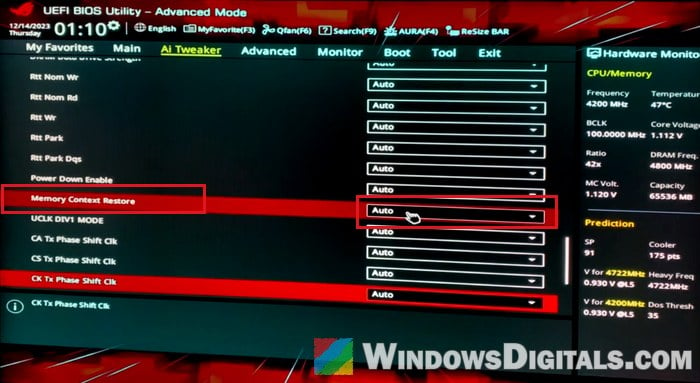
- Save your changes and exit.
If the first boot afterward stays black, give it a minute before pressing reset. With Memory Context Restore off, every boot takes a bit longer, since the board trains the memory each time.
If several cold boots in a row then work, turn the profile back on and keep Memory Context Restore off. If the hang comes back, the profile itself is the problem, so run the RAM without it.
Turn off Fast Startup in Windows
If Windows loads behind the black screen, Fast Startup could be the reason, since it changes how a shutdown works but not a restart. To test it without changing anything, do a full shutdown:
- Open Command Prompt.
- Type the following and press Enter:
shutdown /s /t 0
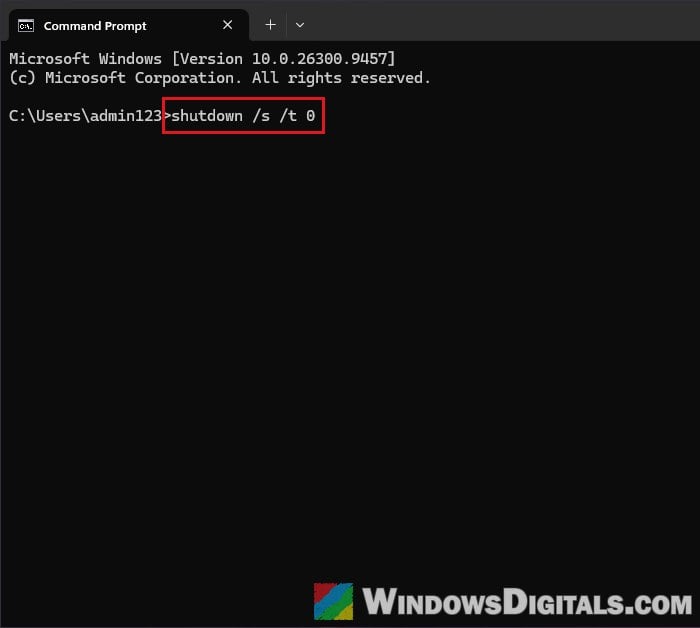
Leave the PC off as long as you usually do. If it then starts normally, turn Fast Startup off:
- Open Control Panel and go to Hardware and Sound > Power Options.
- Click Choose what the power buttons do on the left.
- Click Change settings that are currently unavailable.
- Uncheck “Turn on fast startup (recommended)” and click Save changes.
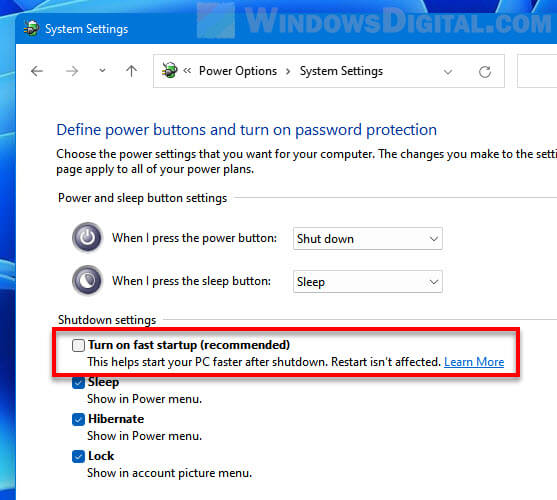
If it makes no difference, turn it back on, as Microsoft doesn’t recommend disabling it. A BIOS Fast Boot option, if your board has one, can be tested the same way.
Replug the monitor cable or try another port
If replugging the cable or power-cycling the monitor brings the picture back, the problem is between the card and the monitor.

A few things to try:
- Try another cable and another output on the graphics card, and the other kind if you can (HDMI instead of DisplayPort, or the reverse).
- Set the monitor’s input to the port you use.
- Turn off the monitor’s deep sleep mode in its own menu, if it has one. It can keep a DisplayPort monitor from waking up when the PC starts.
Then try a few cold starts in a row and see if the picture comes up each time.
Update the BIOS
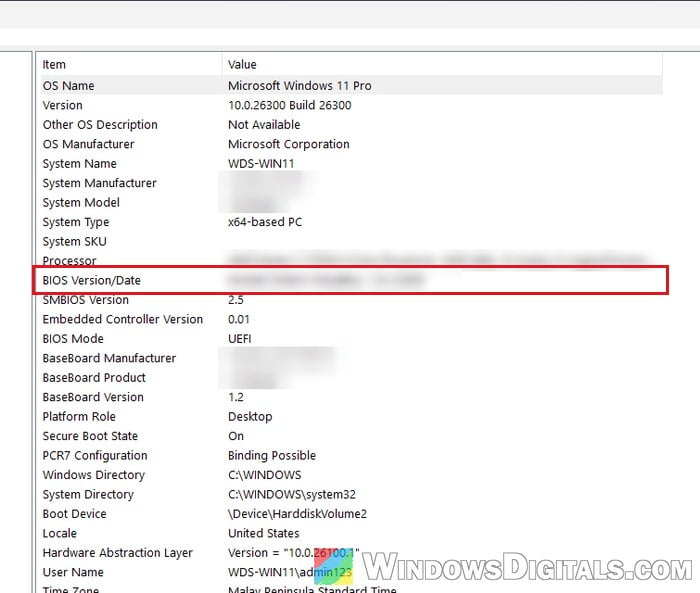
Board makers fix boot and memory problems in BIOS updates (ASRock, for one, told AM5 owners with boot trouble to update). To see your version, press Win + R, type “msinfo32” and press Enter, then look at BIOS Version/Date and compare it with your motherboard’s support page.
Be warned: A BIOS update that’s interrupted can leave your motherboard unusable. Follow your board maker’s instructions exactly, and if you’re not sure what you’re doing, get someone to help you.
If the problem started right after a BIOS update, try going back one version.
Clear CMOS and replace the CMOS battery
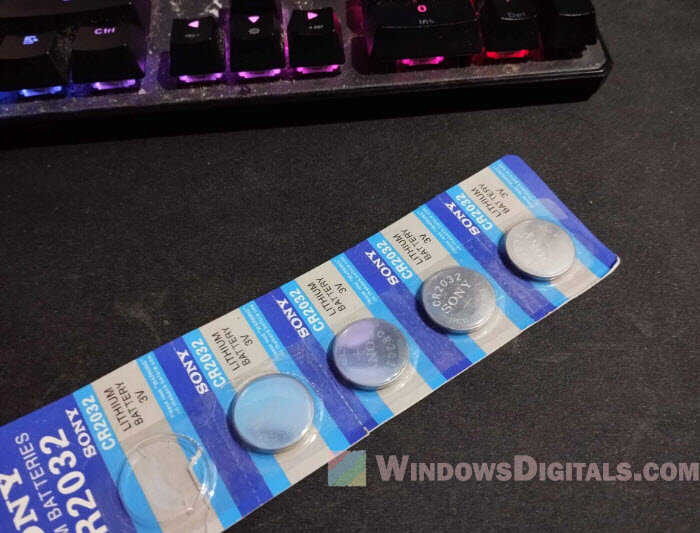
If your BIOS settings or the clock reset whenever the PC loses power, the CR2032 coin battery on the motherboard may be running out. It’s cheap, so it’s easy to rule out. With the PC unplugged, swap in a new battery. Then clear the CMOS the way your motherboard’s manual says (or see the guide below).
Clearing CMOS puts every BIOS setting back to default, so set up your boot drive and anything you changed again afterward. The first boot after it can stay black for a minute or more while the RAM trains.
Pro tip: How to Clear CMOS without Removing Battery or Jumper Cap
Reseat the RAM, the graphics card and the cooler
A part that isn’t seated quite right can cause boot trouble that comes and goes. With the PC unplugged:
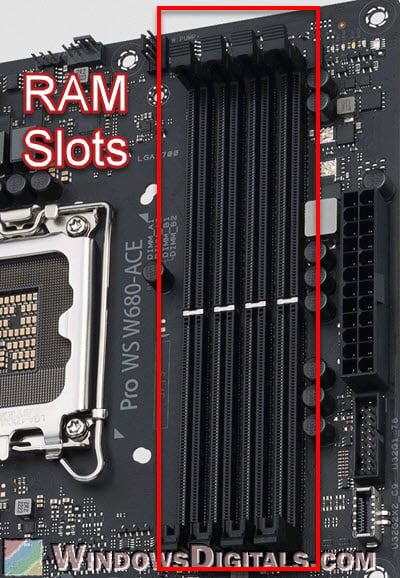
- Reseat the RAM in the slots your manual recommends. With two sticks, that’s usually the second and fourth slots (A2 and B2), so move them if they’re in the first and third.
- Reseat the graphics card and check its power cables are plugged in.
- Check the CPU cooler isn’t over-tightened. Loosening or reseating the cooler fixed this exact cold-boot hang for some people.
Go back to the previous graphics driver
A few people with new AMD Radeon RX 9000 cards saw it start right after a graphics driver update. If yours started after one, go back to the previous driver. If that doesn’t help, try setting the graphics card’s slot to PCIe Gen 3 (or similar) in the BIOS.
Check the power supply
If none of the above helps, suspect the power supply. A weak or aging unit can run the PC fine all day but struggle at a cold start. A quick test: switch the power supply off at the back for a minute, then boot right after. If that changes how the PC starts, the power supply is the likely cause.
The surest test is another power supply. If the PC is still under warranty, contact the maker or the store before buying anything.