If you’re using Chrome or another browser and Microsoft Edge suddenly opens facebook.com or YouTube by itself, sometimes every few minutes, and it keeps coming back even after you end the task or restart the PC, this guide will show you what could be opening Edge and how to stop it.
Also see: Chrome or Firefox keeps opening new tabs on its own, virus?
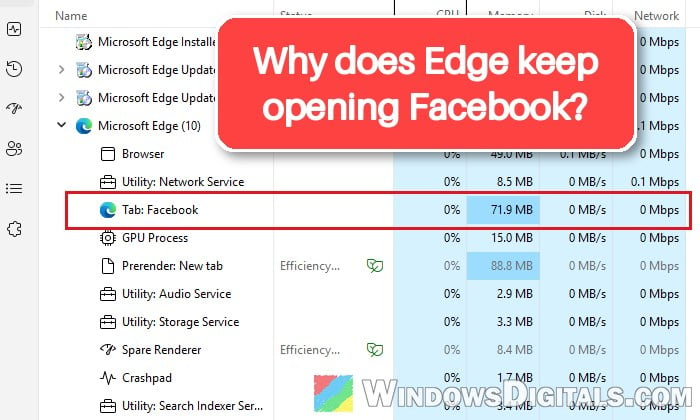
Why does Edge keep opening Facebook or YouTube?
The first thing most people think of is a virus. It can be, but there’s no sign of it in most cases, and a Microsoft Defender scan often finds nothing. A lot of people started seeing it at about the same time in late October 2026, with Facebook for some and YouTube for others, on PCs where Edge has no extensions at all.
Here are the likely reasons, roughly from the most to the least likely:
- Microsoft Edge for Game Bar (formerly called Edge Game Assist), the Edge browser built into the Xbox Game Bar. It knows which game you’re playing and suggests tips and guides for it, and for several people the pop-ups started when they launched a game.
- A Facebook or YouTube “app” installed in Edge, which can start by itself when you sign in to Windows.
- Something stored in your Edge profile, since a fresh profile stops it for some people.
- Startup boost, which keeps Edge running in the background even after you close it.
- Less often, an extension or a piece of adware that launches Edge with that page.
If you look for the shortcut behind the pop-up, it sits in a folder called ImplicitAppShortcuts. That folder belongs to Windows’ taskbar and isn’t a sign of malware by itself. Deleting the shortcut doesn’t help, since it simply comes back.
Uninstall Microsoft Edge for Game Bar (Edge Game Assist)
If the pop-ups happen while you play, or they started right after you opened a game (Minecraft, for example), start here. Edge for Game Bar is a special version of Edge that runs as a widget inside the Xbox Game Bar. It can end up on your PC without you really noticing, for example after you accept a Game Bar prompt. Removing it only removes the in-game browser. Edge itself and the Game Bar stay.
To uninstall it from Settings, follow the steps below:
- Open Settings and go to Apps > Installed apps.
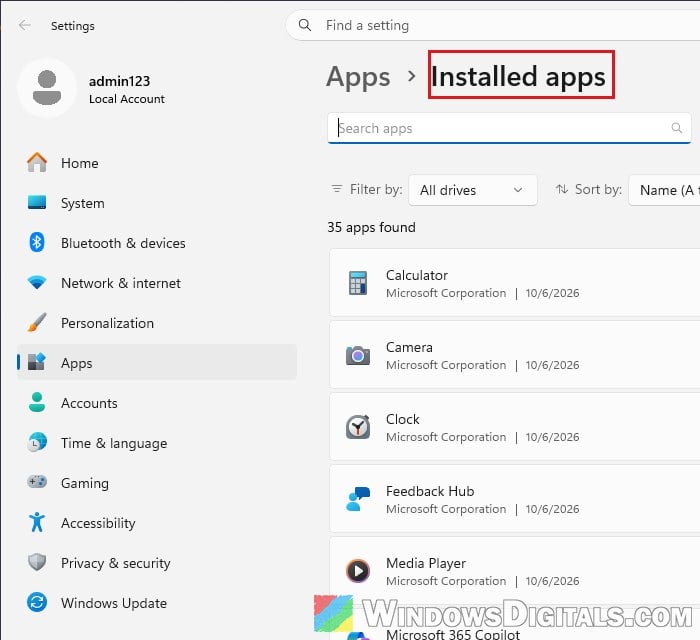
- Type “Edge for Game Bar” in the search box. It’s listed as Microsoft Edge For Game Bar (searching for “Game Assist” finds nothing, since it was renamed).
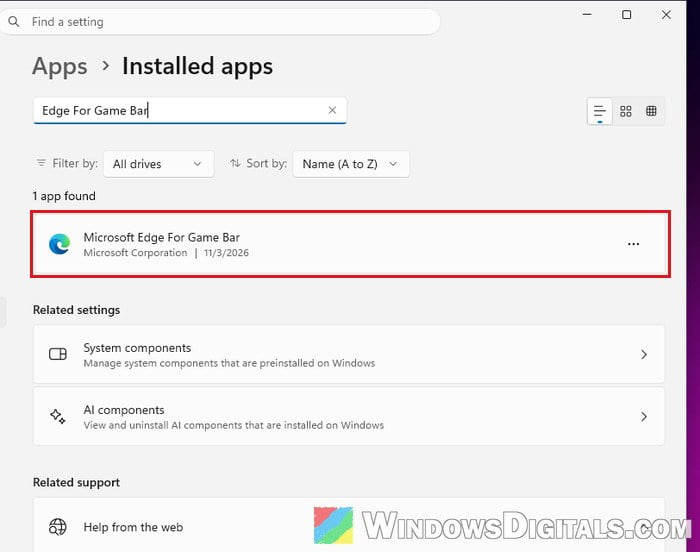
- Click the three-dots button next to it and select Uninstall, then confirm.
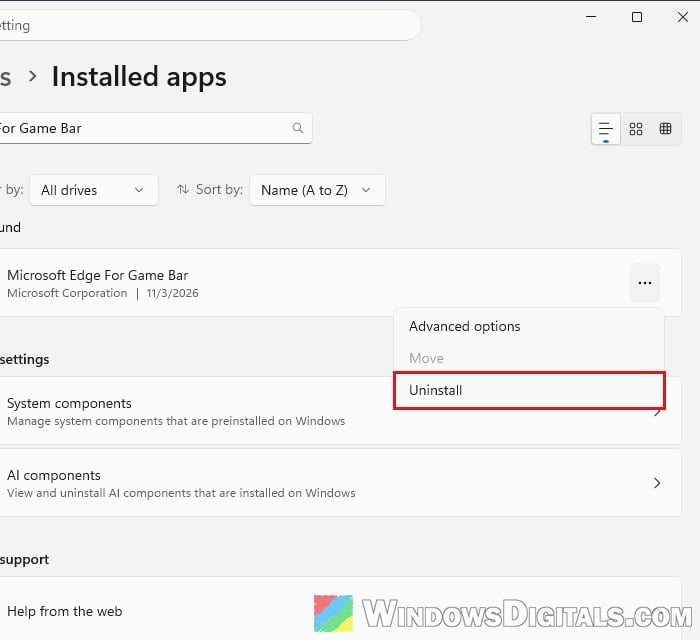
You can also remove it from the Game Bar itself. Press Win + G, open the Widget Store from the widget menu, go to the Installed tab, click the three dots next to Microsoft Edge For Game Bar, select Uninstall and confirm.
After that, open the game you were playing and see whether Edge still pops up. Please note that it can sometimes reinstall itself after a few days or an update, so check again if the pop-ups return.
Related guide: How to Remove Xbox Game Bar From Windows 11
Remove a Facebook or YouTube app from Edge
Edge can install a website as an app, with its own taskbar icon and an option to start when you sign in. If the icon that pops up on your taskbar shows an empty preview, and clicking it is what actually opens the site, the site may be installed as an Edge app. It isn’t confirmed as the cause, but it only takes a minute to check.
Here’s how to check:
- In Edge, type
edge://appsin the address bar and press Enter.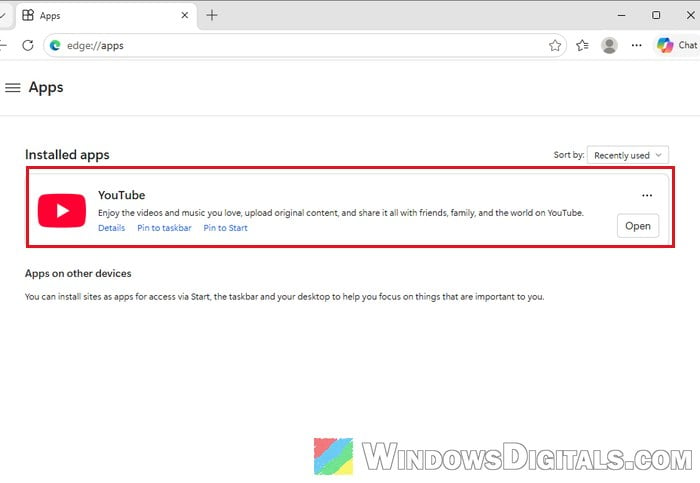
- If you see Facebook, YouTube or any app you don’t recognize, open its Details.
- Turn off “Auto-start on device login“, then select Uninstall.
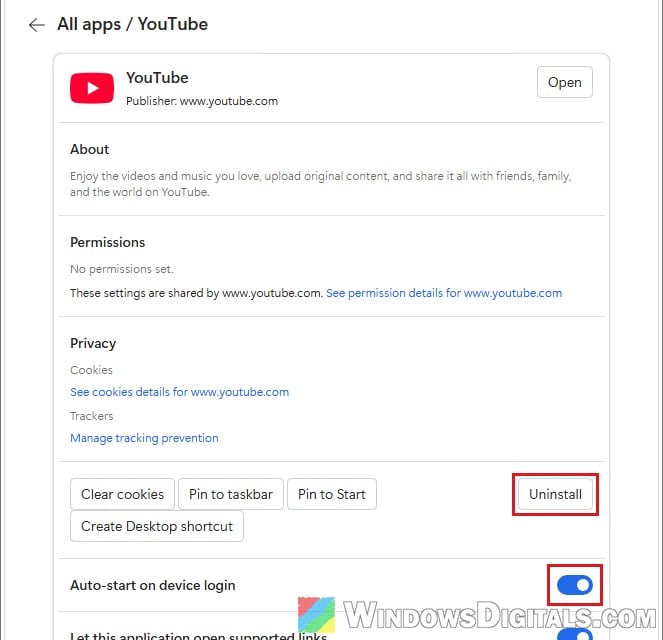
If the page is empty, just move on to the next fix. If you did remove an app, restart the PC and see whether the pop-ups still come back.
Turn off “Startup boost” and background apps in Edge
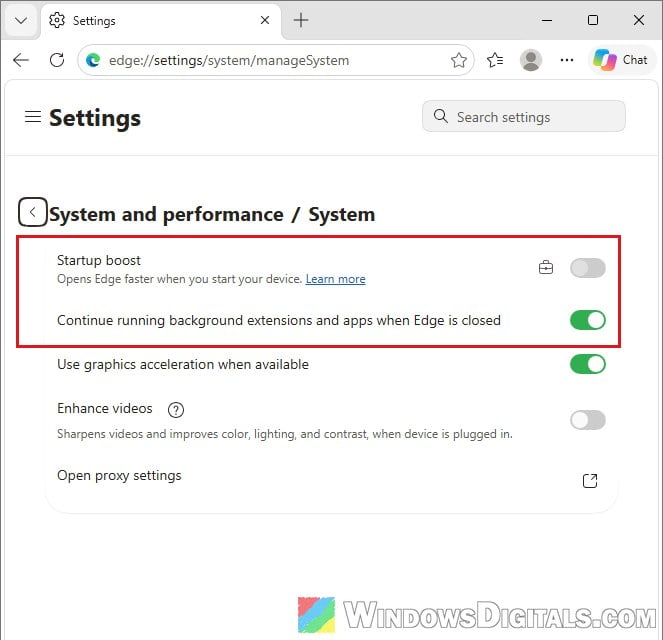
Startup boost keeps parts of Edge running after you close it, so it opens faster next time. That’s also why you might still see Edge in Task Manager when you never opened it. Turning it off, together with background apps, can stop the pop-ups, although for some people they come back as soon as Edge is opened again.
Here’s how to do it:
- In Edge, go to
edge://settings/system/manageSystem. - Turn off Startup boost.
- Turn off “Continue running background extensions and apps when Edge is closed“.
While you’re at it, open Settings > Apps > Startup and turn off anything called Microsoft Edge or Facebook that you don’t want starting with Windows.
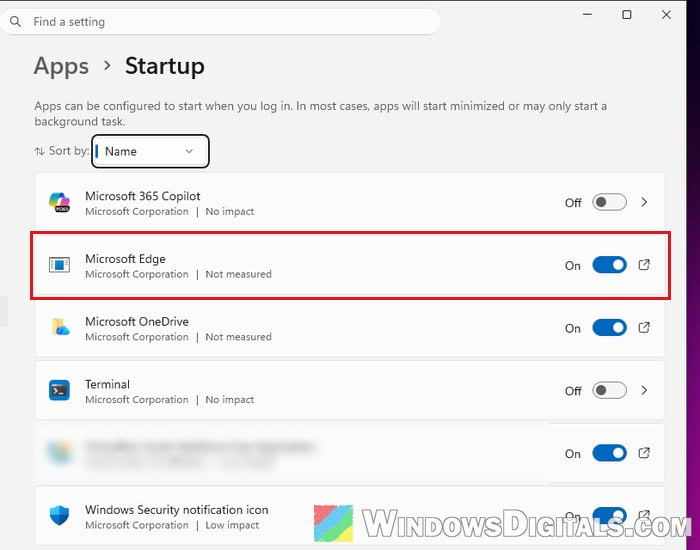
Might be useful: How to Disable Startup Programs in Windows 11
Check your Edge extensions
According to Microsoft, Edge treats an extension that opens a window when no Edge window is open as a conflicting extension. Most people with this issue had no extensions, but if you do have some, it’s a quick check. Follow the steps below:
- Type
edge://extensionsin the address bar and press Enter. - Turn off every extension.
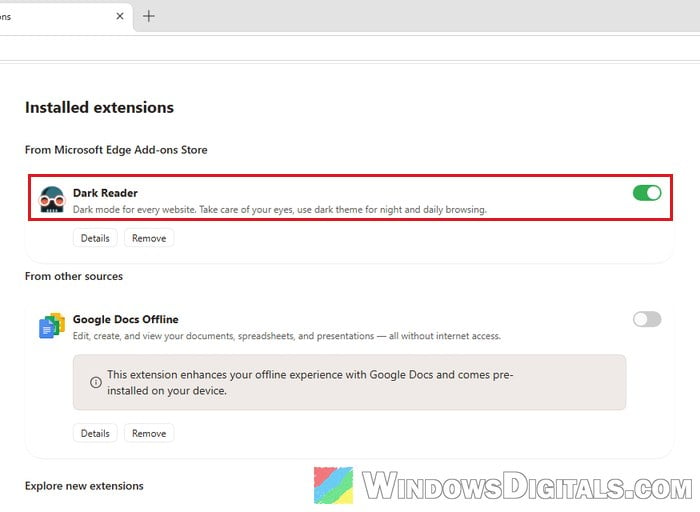
- Wait and see if the pop-ups stop, then turn the extensions back on one at a time to find the one causing it.
Related concern: Is “AdBlock Next” Popup and Extension Safe or a Virus?
Try a new Edge profile
If nothing above helped, the trigger may be stored in your Edge profile. A fresh profile is the quickest way to find out, since the pop-ups can stop in a new profile and come back the moment you switch to the old one. Here’s how to do it:
- Click your profile picture at the top-right of Edge, next to the Favorites button.
- Select Set up a new profile > Personal.
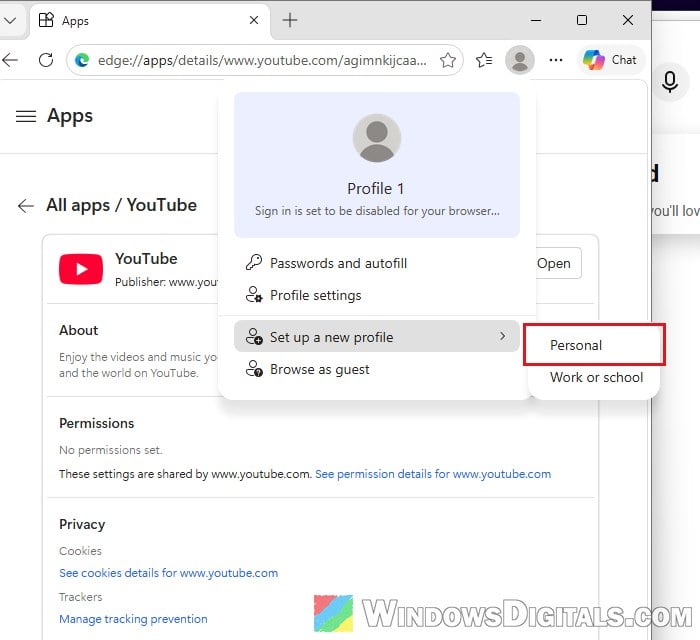
- A new Edge window opens with the new profile. Don’t sign in or add any extensions. Just leave that window open for a while and watch.
If Facebook or YouTube stops opening, you can keep using the new profile, or reset the old one as shown below.
Reset Edge settings
Resetting Edge puts your startup page, new tab page, search engine and pinned tabs back to default, turns off all extensions and clears cookies and temporary data. Your favorites, history and saved passwords are kept. To reset it, follow the steps below:
- Go to
edge://settings/reset. - Click “Restore settings to their default values” if the Reset settings box doesn’t open by itself.
- Click Reset to confirm.
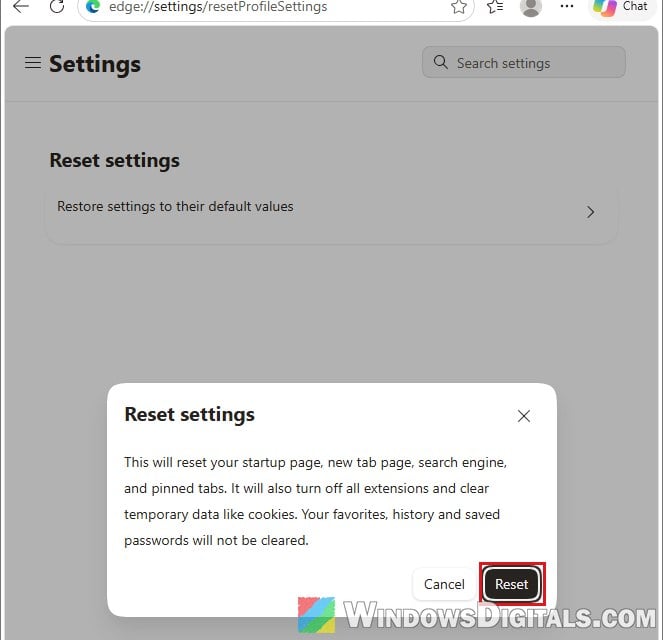
Leave Edge open for a while afterwards and see if Facebook or YouTube still opens by itself.
Scan for malware and find what keeps opening Edge
If Edge still opens by itself after all of this, something outside Edge may be launching it. Run a full scan with Microsoft Defender first:
- Open Windows Security and go to Virus & threat protection.
- Click Scan options, select Full scan, and click Scan now.
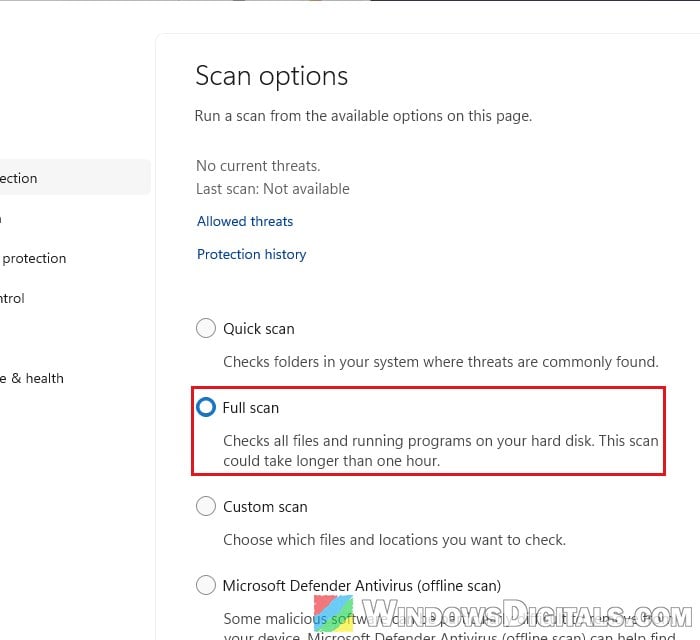
- If the scan finds nothing but the pop-ups go on, choose “Microsoft Defender Antivirus (offline scan)” on the same page instead.
If you’d rather use the command line, you can also remove a virus using CMD.
For a closer look, Microsoft’s free Autoruns tool (part of Sysinternals) lists everything that starts with Windows or runs on a schedule. Run it as administrator, select Options > Hide Microsoft Entries, and look in the Scheduled Tasks and Logon tabs for anything that mentions facebook, msedge.exe or a web address. Untick a suspicious entry instead of deleting it, restart, and see if the pop-ups stop.