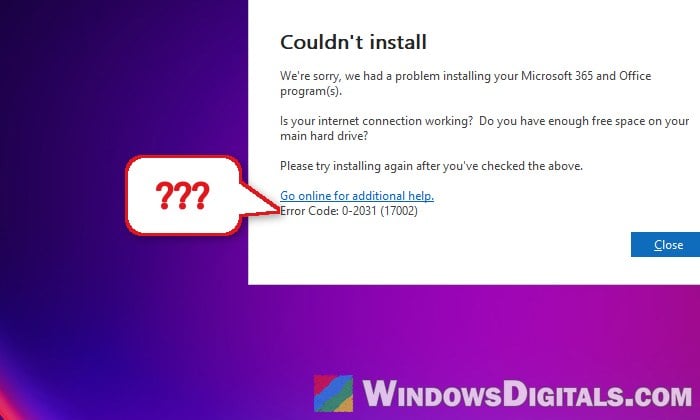
If you’re trying to install Microsoft 365 or Office (2024, 2021 or another version) and the setup stops with “Couldn’t install” and error code 0-2031 (17002), sometimes right after another code like 30015-11, it usually means something from an earlier Office install, update or uninstall is getting in the way. This guide will show you what causes the error and how to get Office installed again.
Also see: How to Activate Microsoft Office 2021 or 2019 by Phone
Page Contents
Why does Office setup fail with error 0-2031 (17002)?
The error itself doesn’t say what went wrong, and people get it for a few different reasons. Very often, though, it shows up after an earlier Office installation broke halfway or Office suddenly disappeared from the PC, and every attempt to reinstall it fails the same way.
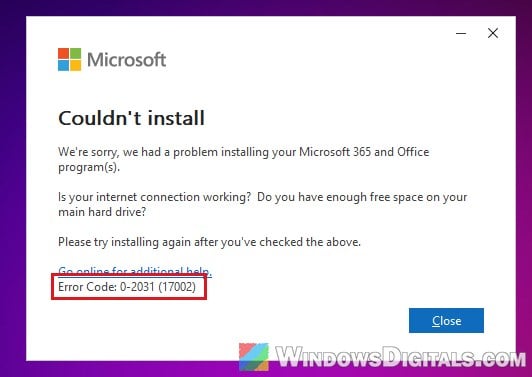
Some common reasons for this error are:
- Another Office installation, update or uninstall is still running, or was left unfinished. Microsoft gives this as the usual reason for closely related setup codes like 17003-2031.
- Leftovers from an earlier Office, such as files, services or settings that a broken install or a normal uninstall didn’t clean up.
- Antivirus or other security software blocking the installer.
- Damaged Windows system files, when nothing related to Office seems to help.
Start with the first fix below, since it only takes a minute.
Make sure no other Office install is running, then restart
Since this error often means setup is clashing with another Office process, the first thing to check is whether an install or update is still going in the background. Here’s what to do:
- Look at the notification area (the system tray) at the bottom right of your taskbar. If there’s an Office icon there, click it to see the progress of that installation or update.
- If an installation is running, let it finish before you try to install Office again.
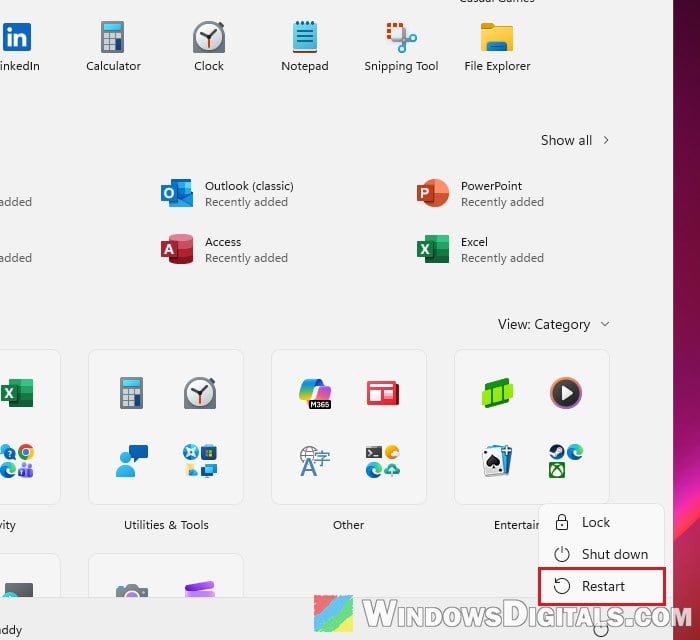
- If there’s no Office icon, restart your PC (a restart, not a shutdown).
- Run the Office installer again.
If setup still fails with the same error, move on to the next section.
Remove every trace of Office with Microsoft’s uninstall tool
This is the fix that has worked for most people on Microsoft’s forums. A broken or half-removed Office leaves pieces behind that a normal uninstall can’t see, and the new installer trips over them. Microsoft’s uninstall troubleshooter removes all of it, so you can install Office cleanly afterwards.
Before you start, temporarily turn off your antivirus if you use a third-party one, since it can also block the Office installer. Remember to turn it back on once Office is installed. Here’s what you should do:
- Open your browser and go to
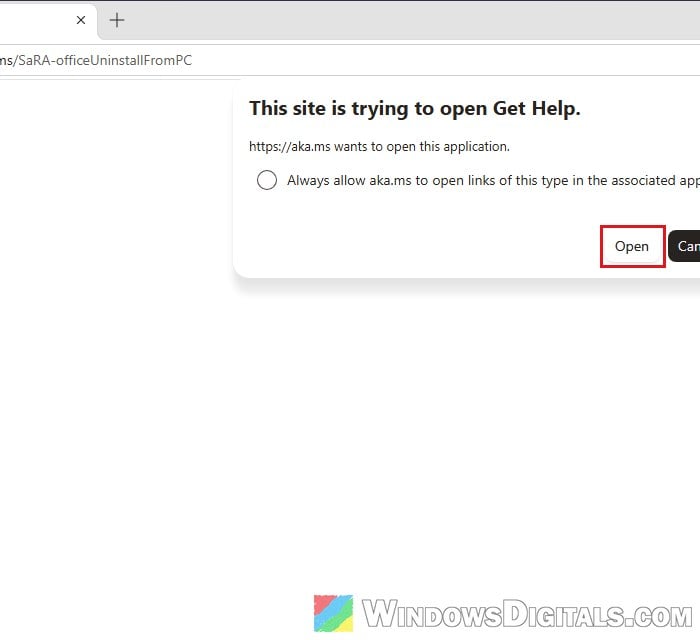
https://aka.ms/SaRA-officeUninstallFromPC. - When the browser asks “This site is trying to open Get Help“, click Open.
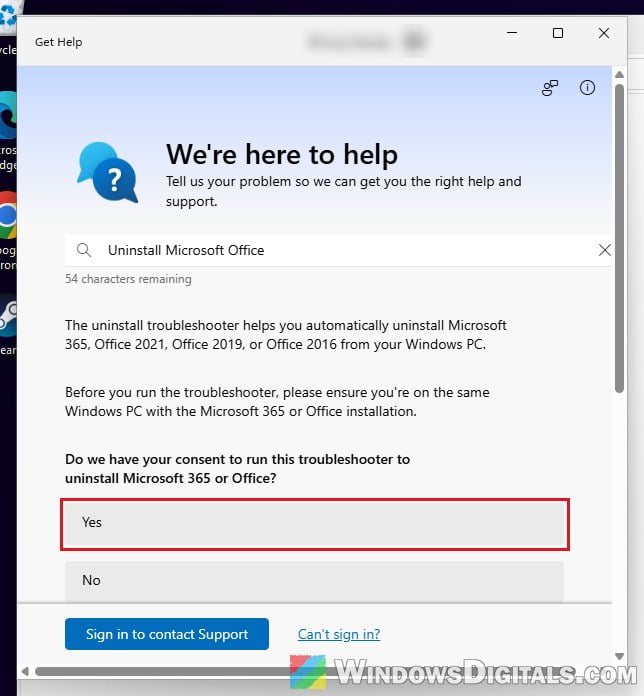
- The Get Help app opens with the Office uninstall troubleshooter. When it asks “Do we have your consent to run this troubleshooter to uninstall Microsoft 365 or Office?“, click Yes and follow the prompts to remove Office.
- Restart your PC when it asks you to.
- Reinstall Office from your Microsoft account. Go to
https://account.microsoft.com/services, sign in with the account your Office is tied to, and select Install next to your Office product.
Note: The troubleshooter itself says it removes Microsoft 365, Office 2021, Office 2019 and Office 2016, and Microsoft says it can’t uninstall Office 2024 yet. If that’s your version, use the next section instead. You might also remember this tool by its old name, the Microsoft Support and Recovery Assistant (SaRA). Microsoft removed SaRA from Windows in 2026, and the same link now opens the Get Help app instead.
Uninstall Office from Windows yourself (Office 2024, or if the tool won’t run)
If you have Office 2024, or the troubleshooter doesn’t open or finish, you can remove Office yourself first:
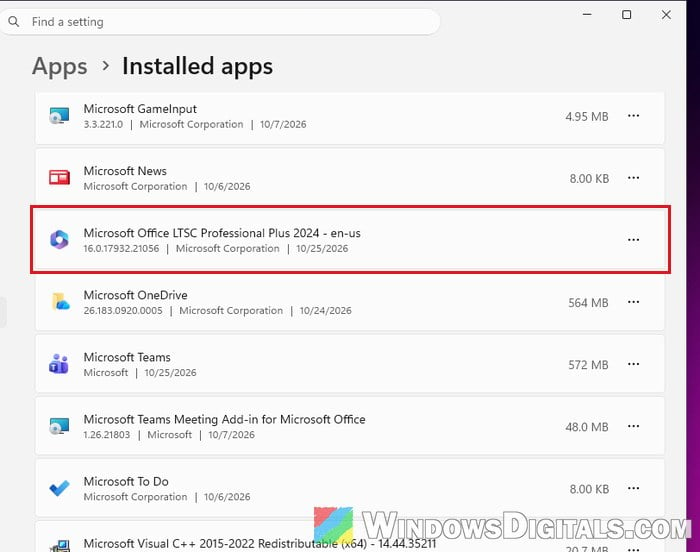
- Check Settings > Apps > Installed apps for any Office or Microsoft 365 entry that’s still there.
- To remove it, open Control Panel > Programs > Programs and Features, select the Office product, and click Uninstall.
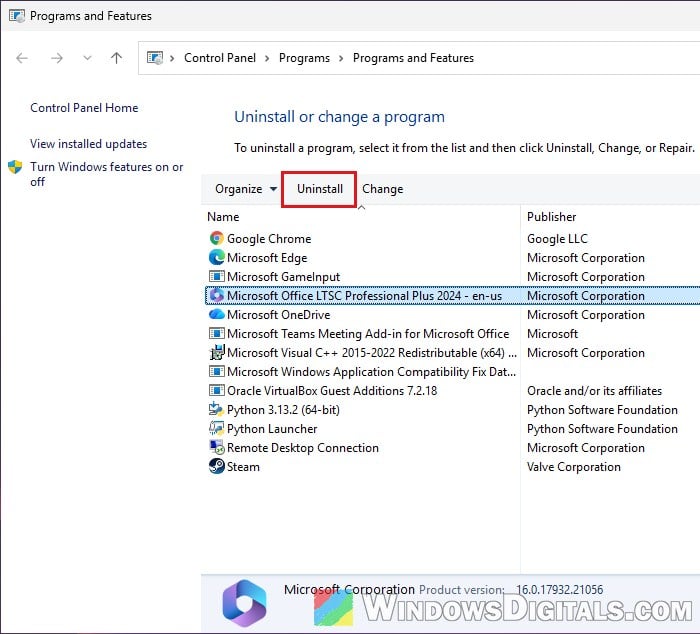
- Follow the prompts, then restart the PC and install Office again.
If Office isn’t listed anywhere but setup still fails, its leftovers are probably still on the drive. Microsoft has a support page called “Manually uninstall Office” that lists every folder, scheduled task, service and registry key to remove, such as %ProgramFiles%\Microsoft Office and %ProgramData%\Microsoft\ClickToRun. It’s quite technical, so only go that route if you’re comfortable with it, and create a system restore point first.
Use the offline installer instead
If something on your connection, a proxy or a firewall gets in the way while setup is downloading Office, the install can fail. The offline installer gets around that: you download the whole of Office as one file first, and then install from it. Here’s how to do it:
- Sign in to your Microsoft account’s Office install page as before. In the install window, choose Offline installer from the Choose a version list, pick your language, and select Install.
- It downloads an image file (for Microsoft 365, it’s called O365HomePremRetail.img). Double-click it, and Windows opens it as a new drive in File Explorer.
- Open the Office folder on that drive and run Setup64.exe (or Setup32.exe for the 32-bit version).
- When setup finishes, open Word or Excel while connected to the internet to activate Office.
It doesn’t work for everyone (some people get the same error with it too), but it’s worth a try before the bigger fixes below.
Pro tip: How to Run SFC Scannow Command At Boot in Windows 10/11
Repair Windows files, then install Office again
If Office still won’t install after a clean uninstall, the problem may be with Windows itself. Office setup leans on Windows’ own files, so if those are damaged, it can fail no matter what you do on the Office side.
Start with the System File Checker, which scans and repairs protected Windows files:
- Click Start, type “cmd“, right-click Command Prompt and select Run as administrator.
- Type the following command and press Enter:
sfc /scannow
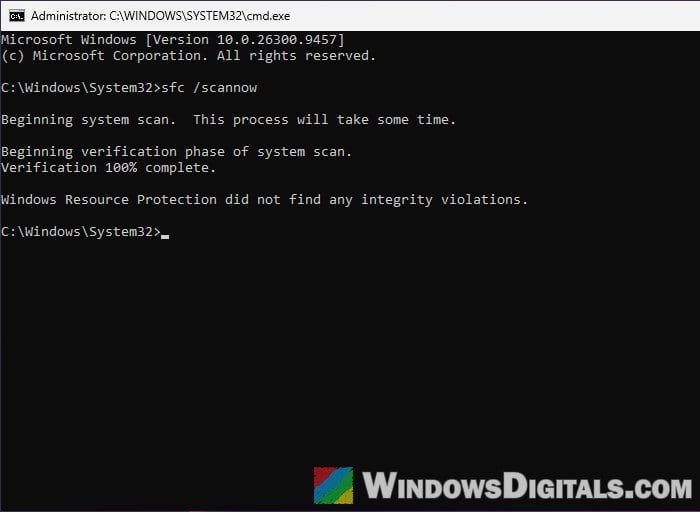
- Wait for the scan to finish, restart the PC, and try installing Office again.
Related concern: Can I cancel “SFC /scannow” while it’s running?
Do a repair install of Windows as a last resort
When even SFC doesn’t help, a repair install (also called an in-place upgrade) reinstalls Windows over itself while keeping your files and apps. It has fixed this error where nothing else did, but it takes a while, so keep it for last. Back up your important files first anyway, just to be safe.
- Go to Microsoft’s Windows 11 download page,
https://www.microsoft.com/software-download/windows11, and scroll to “Download Windows 11 Disk Image (ISO) for x64 devices“. Pick the Windows 11 ISO from the Select Download list, click Confirm, and follow the page to download the ISO in your language.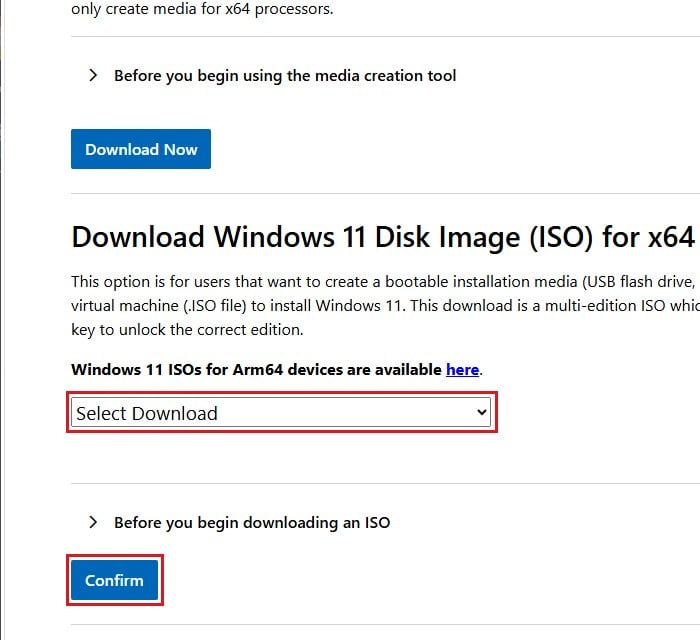 On Windows 10, use
 https://www.microsoft.com/software-download/windows10instead: run the Media Creation Tool it offers, choose to create installation media for another PC, and save it as an ISO file. - Double-click the ISO file to open it as a drive, and run setup.exe.
- Follow the prompts, and make sure you choose to keep your personal files and apps.
- Once Windows has been reinstalled, install Office again from your Microsoft account.
If Office installs without the error now, it was a problem with Windows all along. For a longer walkthrough of the repair install with screenshots, see: In-place Upgrade of Windows 11 on Unsupported Hardware.