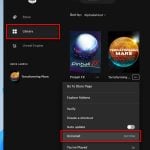
Say you’re running low on space, so you uninstall a game or two in Steam to make room, but when you check the drive afterward, the free space barely moves, or doesn’t change at all. Often, the game’s folder is still sitting in Steam’s library folder with gigabytes of files in it, because Steam only deletes the files it downloaded itself. This guide will help you find what was left behind and get that space back.
Also see: How to Uninstall Games on Windows 11
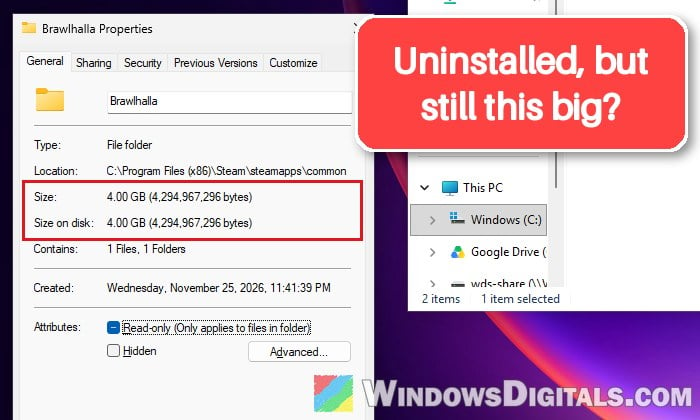
Why doesn’t Steam free up all the space?
When you uninstall a game, Steam removes only the files it downloaded for it. Anything else stays where it is. Some common reasons for leftovers are:
- Files the game created by itself: its own screenshots, settings, extra data it built while running, or files it downloaded after the install. Steam doesn’t know these exist, so it doesn’t touch them.
- Games with their own launcher or updater: games like War Thunder or EVE Online download most of their data through their own launcher. Uninstalling them in Steam can leave most of that data behind, sometimes well over 100 GB.
- Mods you dropped into the game folder yourself.
- Saves and settings in your Documents, Saved Games or AppData folders. These are usually small next to the game itself.
- The Recycle Bin: anything you deleted by hand in File Explorer still takes up space until the bin is emptied.
- Steam lost track of the game: when a library folder was moved or the file that tells Steam a game is installed got removed, the game shows as uninstalled while its files stay on the drive.
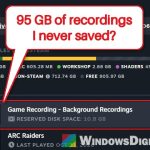
- Steam’s own game recordings: if background recording is on, Steam keeps gameplay recordings that can reach tens of gigabytes. They’re listed separately in Steam’s Storage settings and aren’t part of any game’s folder.
All of this can be cleaned up, and deleting the leftovers doesn’t touch the games you own on your account.
Related guide: How to Delete or Turn Off Steam Background Recordings
Check the game’s folder in steamapps\common
This is the fix that worked for most people on Reddit and Steam’s own forums. Every Steam library keeps its games in steamapps\common, one subfolder per game. After a clean uninstall, the game’s folder should be gone or nearly empty. If it’s still there and still big, those are the files Steam left behind.
Here’s how to check and clean it up:
- Open Steam, click Steam in the top-left corner, and choose Settings.
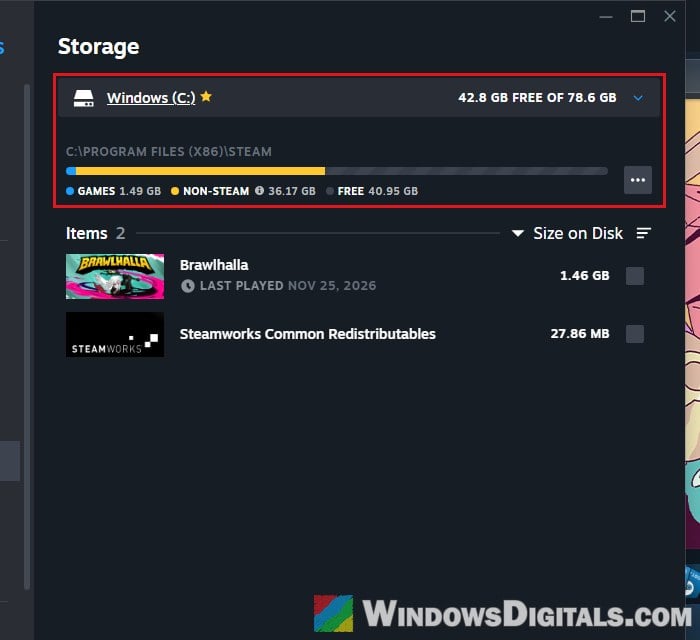
- Go to Storage. The drive drop-down at the top lists the drives where you have a Steam library. Under it, you’ll see that library’s path and how much space its games take. If you have more than one library, note each path. Unless you remember where the game was, you’ll need to check them all.
- Open File Explorer and go to the
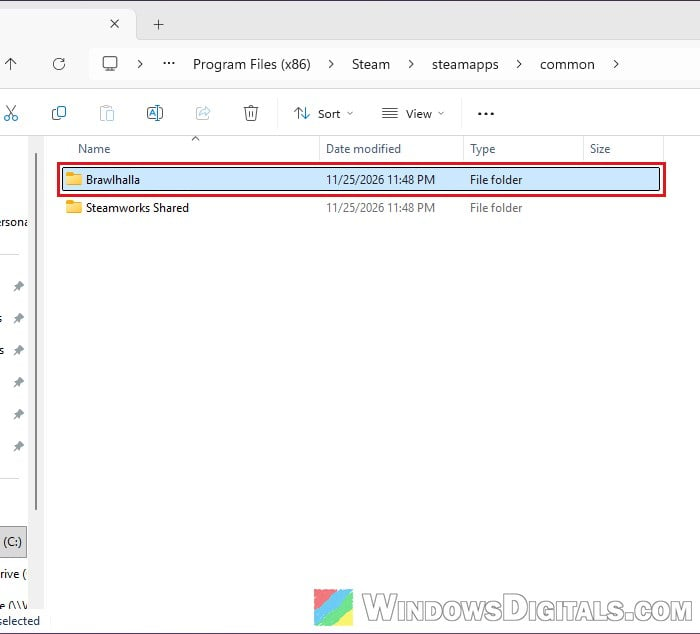
steamapps\commonfolder of each library. On the default library, the path is:C:\Program Files (x86)\Steam\steamapps\common
A library on another drive is usually at
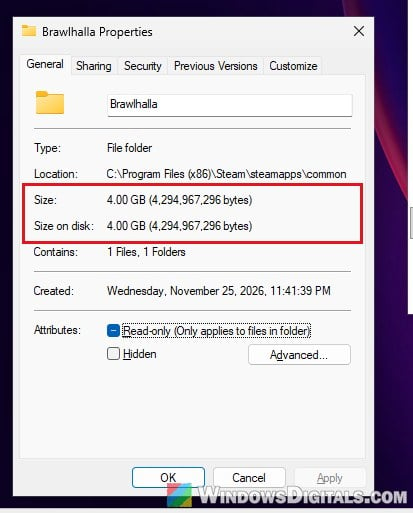
<drive letter>:\SteamLibrary\steamapps\common. - Look for the folder named after the game you uninstalled. Right-click it and select Properties to see how much space it’s using.
- If the game keeps its saves in that folder and doesn’t use Steam Cloud, copy the save files somewhere safe first.
- Select the game’s folder and press Shift + Delete to delete it permanently, then click Yes.
If the game uses a launcher of its own (like Call of Duty or War Thunder), most of its data came from that launcher, not Steam, so expect its folder to still be big after the Steam uninstall. Next time, uninstall it from that launcher first.
Is it safe to delete these folders?
Yes, as long as the game is uninstalled in Steam. Deleting a leftover folder doesn’t remove the game from your Steam library, and Steam simply downloads it again if you reinstall it.
Just watch out for save files. Most games keep them in Steam Cloud or your user folders, but a few keep them in the game folder. If you’re not sure, rename the folder first and delete it later, once you’re sure nothing you need was in it.
Empty the Recycle Bin
If you deleted the leftover folder with just the Delete key, Windows moved it to the Recycle Bin, and the space won’t come back until the bin is emptied. It’s easy to miss, since Steam’s own uninstall skips the Recycle Bin and frees the space right away.
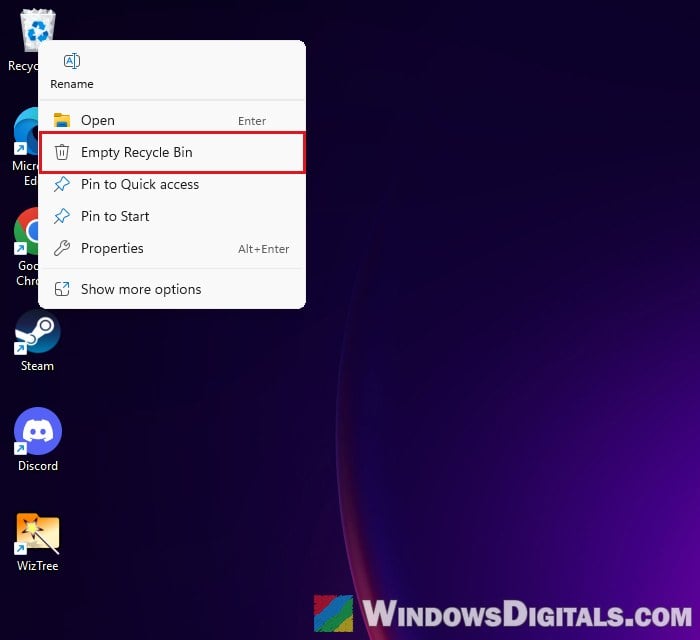
- Right-click the Recycle Bin on your desktop.
- Select Empty Recycle Bin and confirm with Yes.
Check your drive’s free space again in File Explorer to see if it has gone up.
Might be useful: What files can I delete from C: drive to free up space?
Find what’s still using the space
If the steamapps\common folder looks clean and you still haven’t got the space back, a disk analyzer can show you exactly where it went. WizTree and WinDirStat both scan a drive and list folders by size, so a 50 GB leftover stands out right away. WizTree is the faster of the two, since it reads the drive’s file table instead of opening every file.
- Install WizTree from its official website and open it.
- Under Select, choose the drive the game was on.
- Click Scan.
- Folders are listed by size, largest first. Expand them and look for game folders you no longer use, inside or outside the Steam folder.
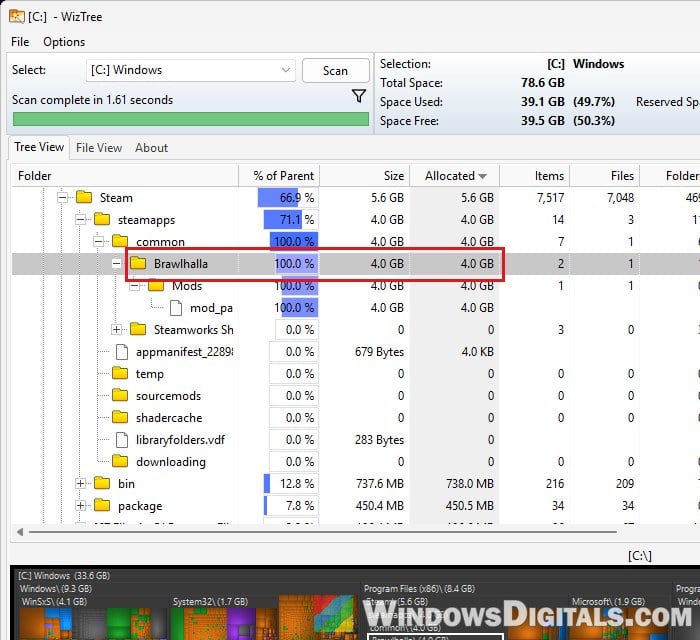
Delete what you don’t need in File Explorer, and remember to empty the Recycle Bin afterward.
Delete game data left in AppData or Documents
Games also keep settings, saves and sometimes their own screenshots and videos in your user folders, and those stay after an uninstall. They’re usually small next to the game itself.
- Press Win + R to open the Run dialog box.
- Type “%localappdata%” and press Enter.
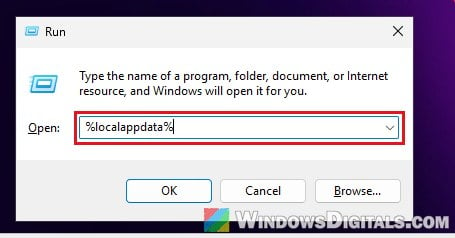
- Look for a folder with the game’s name or its developer’s name, and delete it if you don’t need it anymore.
- Do the same for “%appdata%“, and check the Documents and Saved Games folders in your user folder.
There’s no standard place for this, so check game by game, and keep the folders of games you might play again.
Linked issue: Steam Download Stuck on “Stopping” and the Game Won’t Uninstall
Games show as uninstalled but their files are still there
After moving a library to another drive, reinstalling Windows, or a game messing with its own folders, Steam can show games as uninstalled even though their files are still on the drive. This happens because Steam no longer sees that library, or the small file that tells it a game is installed is gone.
First, make sure Steam knows about the library:
- Open Steam’s Settings and go to Storage.
- Click the drive drop-down at the top and check whether the library with your games is listed.
- If it isn’t, select Add Drive. In the “Add a new Steam library folder” window, pick the drive, or choose “Let me choose another location” and point it to where that library is.
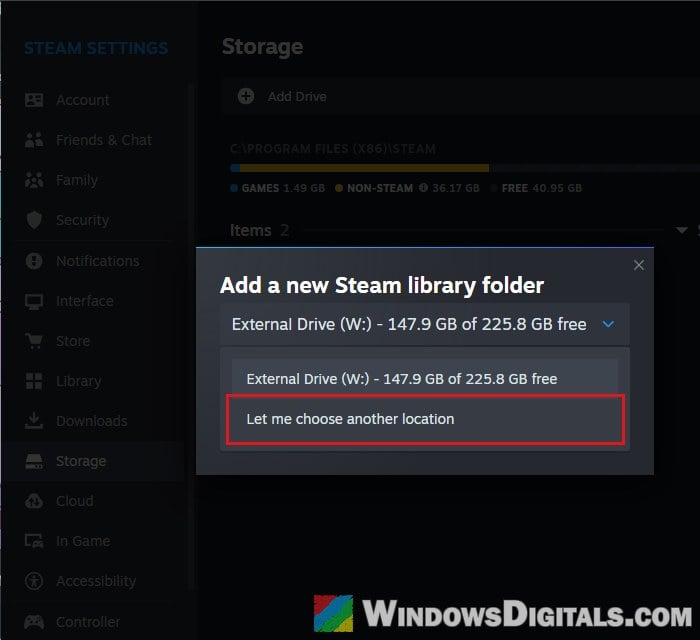
- Click Add.
Once Steam sees the library again, the games in it should show as installed. If Steam refuses the folder, see Fix: “Failed to Add New Steam Library Folder”.
If the games still show as uninstalled, click Install on one of them and choose the same library it’s in. Steam should find the existing files, check them, and only download what’s missing. Once it shows as installed again, you can either keep it or uninstall it properly so that Steam deletes the files this time.