Many users have run into a problem where they want to turn off Windows protected print mode because their printer or scanner stopped working, but Printers & scanners only shows a “Set up” button and no “Turn off” option anywhere. In most cases, the mode is already off, and the green shield next to its name just makes it look like it’s on. This guide will look into how to tell whether the mode is really on, how to turn it off when it is (even when Settings won’t let you), and what to check when your printer still won’t print.
Also see: “Windows protected print mode cannot be turned on…” in Windows 11
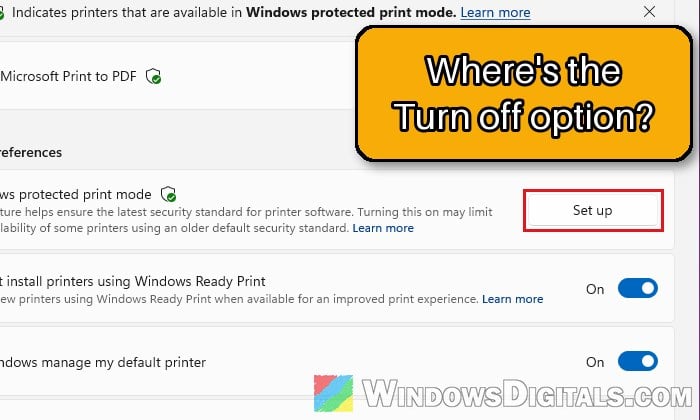
Why is there no “Turn off” button?
The button under Windows protected print mode shows what you can do, not what the mode is doing right now. According to Microsoft, the mode isn’t on by default, so on most PCs the button says “Set up“, which is how you’d turn it on. Only when the mode is actually on does the button change to “Turn off“.
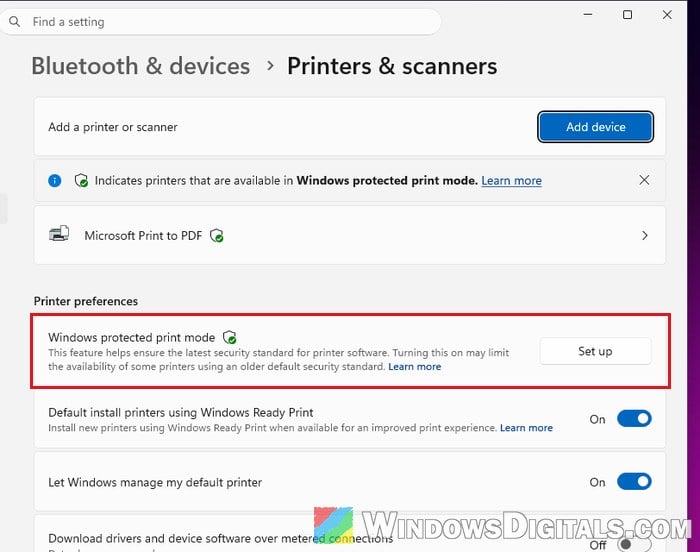
What makes this confusing is the green shield icon. Recent Windows 11 updates (build 26100.8328 for 24H2 and 26200.8328 for 25H2) added it to mark printers that work with protected print mode. It also sits right next to the “Windows protected print mode” name, even while the mode is off, so it doesn’t mean the mode is on.
- “Set up” shown: protected print mode is off. There’s nothing to turn off, and it isn’t what’s stopping your printer.
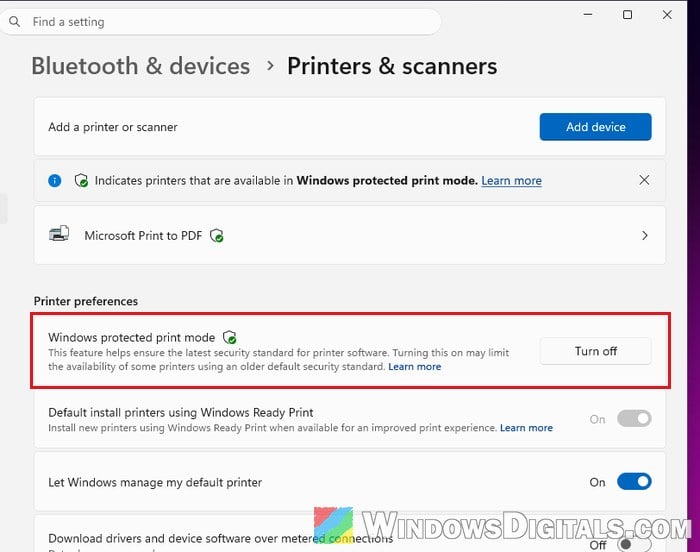
- “Turn off” shown: the mode is on, and you can switch it off (next section).
- “Turn off” grayed out: the mode was turned on by a policy, so Settings can’t change it (see further below).
- No “Windows protected print mode” item at all: older versions of Windows don’t have it (the policy came with version 24H2), so it isn’t what’s blocking your printer.
If yours says “Set up“, skip to “Printer still won’t print with the mode off” below.
Turn off protected print mode in Settings
When the mode really is on, turning it off takes a few clicks. You’ll need to be signed in with an administrator account. Here’s how to do it:
- Press Win + I to open Settings, then go to Bluetooth & devices > Printers & scanners.
- Scroll down to Printer preferences. Next to Windows protected print mode, click “Turn off“.
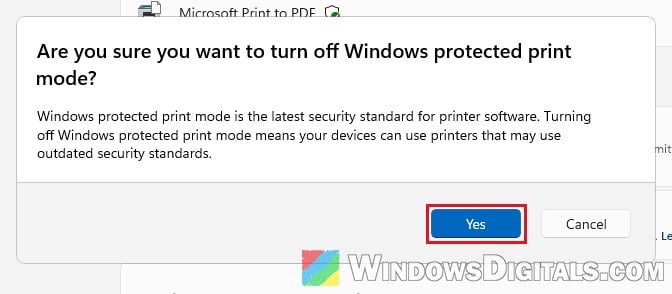
- When asked “Are you sure you want to turn off Windows protected print mode?“, click Yes.
The button changes back to “Set up” once it’s done. Printers the mode removed don’t come back by themselves, though (see further below).
“Turn off” is grayed out (set by a policy)
If the “Turn off” button is grayed out and you see “Some of these settings are managed by your administrator or organization.” above the printer preferences, the mode was turned on through the Configure Windows protected print policy. As long as that policy is on, Settings won’t let you turn the mode off.
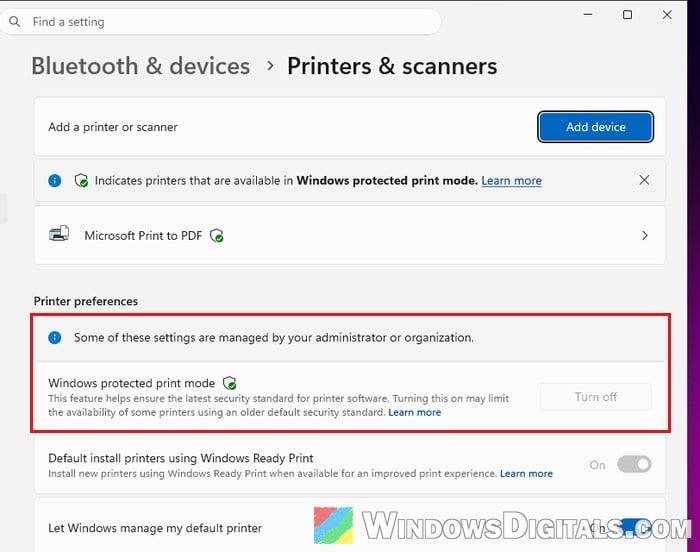
On a work or school PC, the policy comes from your organization, so ask your IT admin instead of changing it yourself.
On your own PC, you can undo it yourself, with Group Policy Editor on Windows 11 Pro, Enterprise or Education, or through the registry on Home edition.
Suggested read: Troubleshooting has been disabled by Group Policy Windows 11
Change the policy in Group Policy Editor (Pro, Enterprise or Education)
- Press Win + R, type “gpedit.msc” and press Enter.
- Go to Computer Configuration > Administrative Templates > Printers.
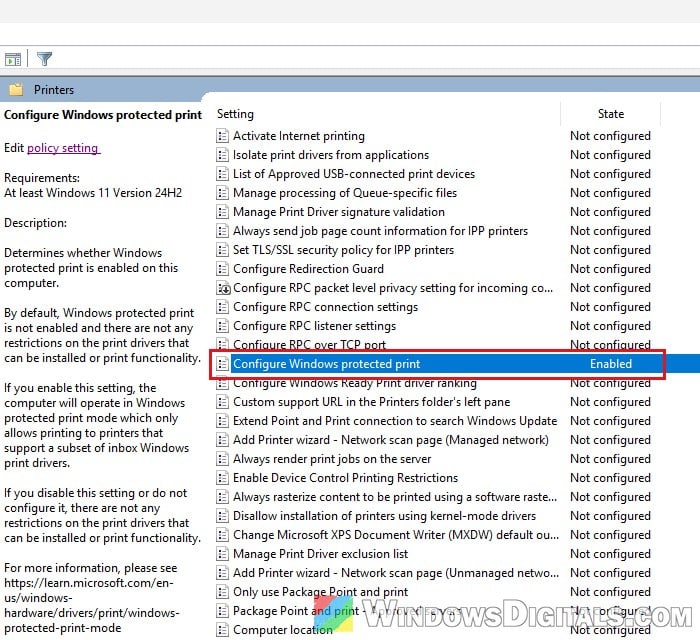
- Find “Configure Windows protected print” in the list. Its state will show Enabled. Double-click it (or select it and click the policy setting link on the left).
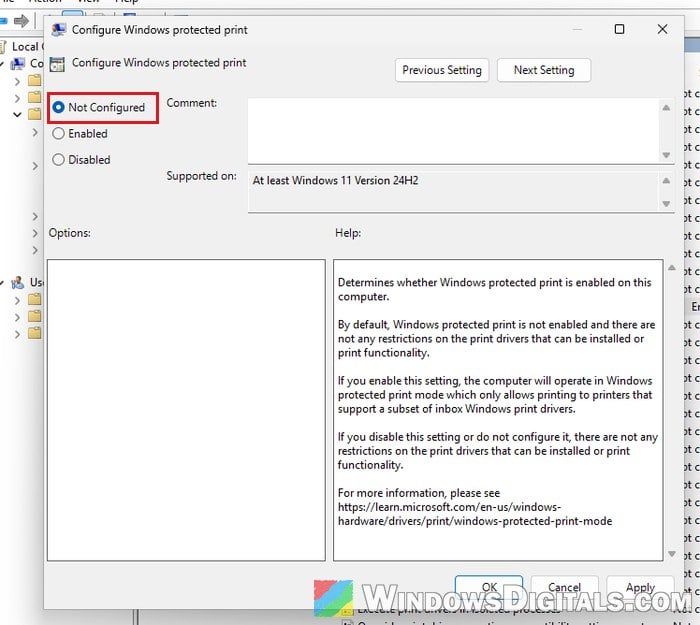
- Select Not Configured and click OK.
- Restart your PC.
Setting the policy back to Not Configured turns the mode off as well, so you don’t have to click “Turn off” afterward. Go back to Printers & scanners and the button should read “Set up” again. According to Microsoft, Disabled removes the restriction too, but if the button then reads “Turn off“, click it to switch the mode off.
Remove the policy from the registry (Home edition)
Home edition doesn’t have the Group Policy Editor, but the policy is just a few values in the registry. Incorrectly changing the registry in Windows could lead to serious problems, so please at least create a system restore point first. If you’re not sure what you’re doing, it’s better to get someone who knows to help you instead.
- Press Win + R, type “regedit” and press Enter. Click Yes if User Account Control asks.
- Copy and paste the following path to the address bar and press Enter:
HKEY_LOCAL_MACHINE\SOFTWARE\Policies\Microsoft\Windows NT\Printers\WPP
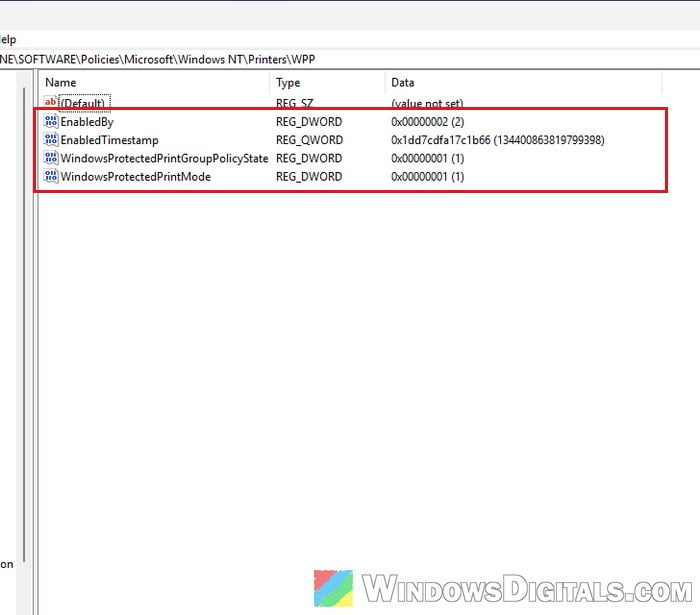
- Right-click WindowsProtectedPrintGroupPolicyState and select Delete, then click Yes to confirm.
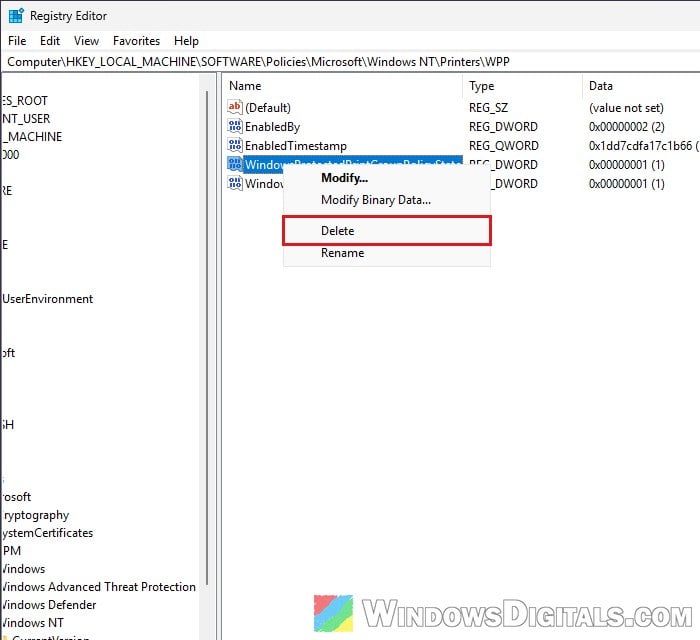
- Delete EnabledBy and EnabledTimestamp the same way.
- Double-click WindowsProtectedPrintMode, change its value data to “0” and click OK.
- Close Registry Editor and restart your PC.
After the restart, Printers & scanners shows “Set up” again, without the “managed” line. Also, don’t try to turn the mode back on by typing these values in yourself. Set by hand, they can stop the Print Spooler service from starting, and then nothing prints at all.
Reinstall the printers it removed
When protected print mode is turned on, it removes every printer that isn’t compatible with it, along with the Microsoft XPS Document Writer and fax. Turning the mode off doesn’t bring any of them back, so you have to add them again yourself. Once the mode is off, the printer’s original driver can be used again.
- Go to Settings > Bluetooth & devices > Printers & scanners.
- Click “Add device” next to Add a printer or scanner and pick your printer when it shows up.
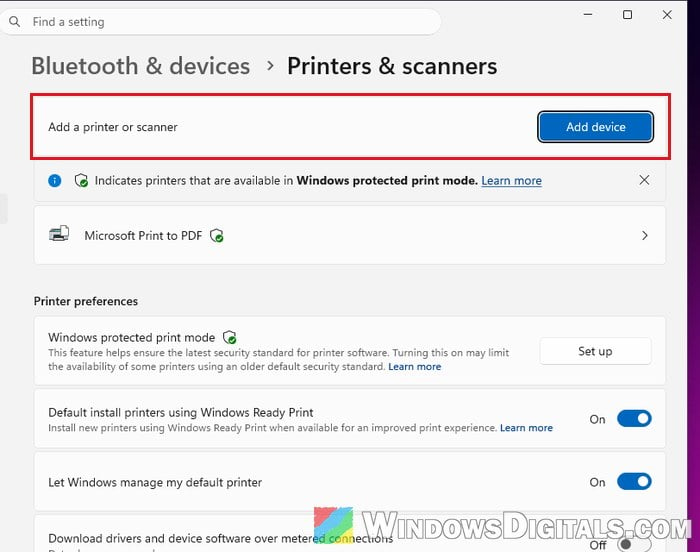
- If it isn’t found, or it installs but doesn’t print properly, download the full driver package for your exact model from the maker’s support page and install it.
Print a test page afterward to check that it works again.
To get the Microsoft XPS Document Writer back, search for “Windows Features” in the Start menu, check Microsoft XPS Document Writer and click OK. For fax, go to Settings > System > Optional features and add Windows Fax and Scan.
Related guide: How to Reinstall Printer Driver on Windows 11
Printer still won’t print with the mode off
If the button says “Set up” and your printer still doesn’t work, protected print mode isn’t the cause, even with the green shield showing. Here’s what you can check:
- Restart the Print Spooler: Press Win + R, type “services.msc“, right-click Print Spooler and select Restart.
- Check whether the printer’s network address changed: A Wi-Fi printer that got a new IP address from your router can look installed but never receive anything.
- Use the printer maker’s own app: Try printing from HP Smart for HP printers or Epson Smart Panel for Epson ones.
- Remove the printer, restart, and reinstall it with the full driver and software from the maker’s website, as in the section above.
- Check for Windows updates: Go to Settings > Windows Update, click Check for updates, and look under Advanced options > Optional updates for printer driver updates.
Might be useful: How to Uninstall Drivers in Windows 11
What if it’s the scanner that stopped working?
Microsoft says printers that aren’t Mopria certified only keep their printing functions in protected print mode, and some scanners stop working even on compatible ones. So if the mode is on and you need the scanner, turn it off and reinstall the printer with its full driver. If the mode is already off, try scanning with the Windows Scan app or the maker’s own software to see whether it’s the scanner or the app.