If Microsoft Word suddenly shows a Copilot button in the corner of every document, with Copilot icons and writing suggestions popping up next to your text, you might want it gone, especially if you’re not allowed to use AI at work or in an exam. This guide will show you how to turn Copilot off in Word, what to do when the setting isn’t there, and how to get Word without Copilot at all.
Also see: Stop Copilot Cowork from Taking Actions on Its Own in Windows 11
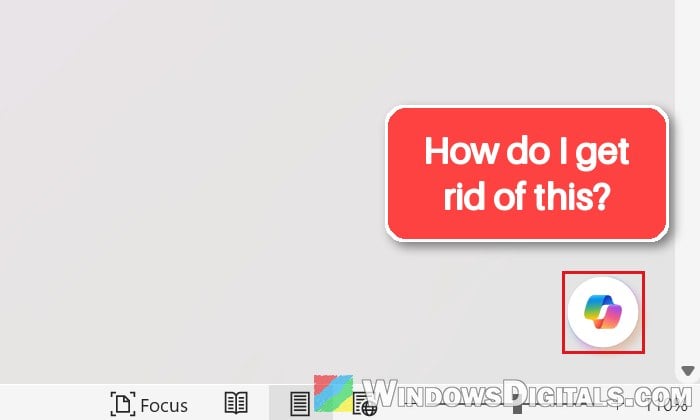
Why is Copilot suddenly all over Word?
Copilot is built into Word, Excel and PowerPoint for anyone whose plan includes it: Microsoft 365 Personal, Family or Premium, or a work or school account with a Copilot license. Between April and June 2026, Microsoft also moved it off the ribbon and into a floating Copilot button in the corner of the document, which is why it seems to have appeared out of nowhere after an update.
A few things to know before you start:
- Copilot can’t be uninstalled from Word. It’s part of the app, so the best you can do is turn it off or switch to a version of Office that doesn’t have it.
- Removing the Copilot app from Windows doesn’t touch Word. The Copilot app in Windows is a separate app, so uninstalling it leaves Copilot in your documents.
- The “Enable Copilot” checkbox is per app and per device. Clearing it in Word doesn’t change Excel or PowerPoint, and you’ll need to repeat it on each computer.
- There’s no off switch in Word on the web, iPhone, iPad or Android.
Might be useful: “This version of Windows Copilot is no longer supported” in Windows 11
Turn off Copilot in Word’s options
The cleanest way is the “Enable Copilot” checkbox in Word’s own settings. According to Microsoft, clearing it hides Copilot’s entry points and stops Copilot from working in Word, without touching your account’s other privacy settings. It’s available when Word is signed in with a personal Microsoft account (an outlook.com address, for example) and on Word version 2412 or newer.
Here’s how to do it on Windows:
- Open Word and click “File“, then “Options” at the bottom of the left pane.
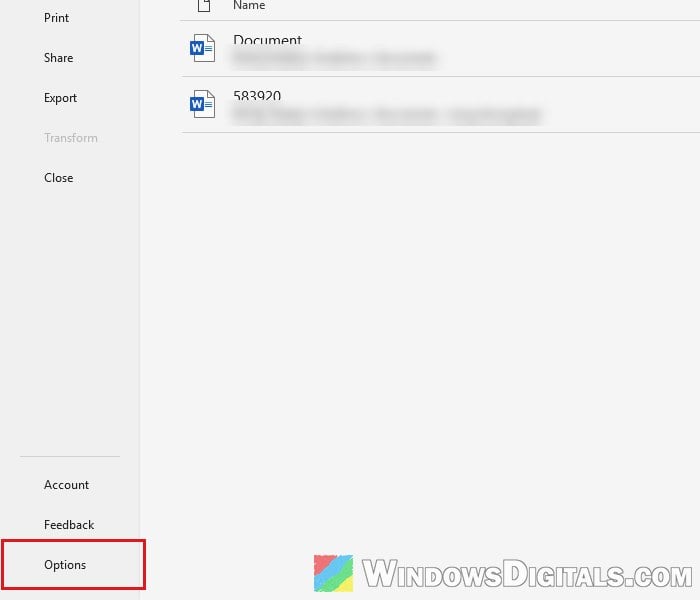
- Select “Copilot” in the left pane of the Word Options window.
- Clear the “Enable Copilot” checkbox and click “OK“.
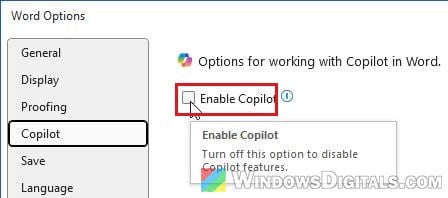
- Close Word completely and open it again.
Once Word reopens, Copilot can’t be used in Word on that PC. If the floating button still shows, see “Move the Copilot button out of the way” below. Since the setting only covers Word, do the same in Excel and PowerPoint (“File” > “Options” > “Copilot“) if Copilot bothers you there too. To bring Copilot back later, just select the same checkbox again.
On a Mac
On Word for Mac (version 16.93 or newer), the same checkbox is under “Word” > “Preferences” > “Authoring and Proofing Tools” > “Copilot“. Clear “Enable Copilot“, then quit and reopen Word.
What if there’s no Copilot option in Word?
Plenty of people open Word’s options and find no Copilot page at all. Most of the time it’s because Word is signed in with a work or school account. If it isn’t, there’s still a privacy setting that turns Copilot off.
Word is signed in with a work or school account
The “Enable Copilot” checkbox doesn’t exist when Word is signed in with a work or school account. In that case, Copilot is controlled by your organization’s IT admin, and only they can turn it off. To see which account Word uses, check “File” > “Account“.
If you’re the admin of a small business or school account yourself, there are a few ways to do it, such as blocking the Copilot app under “Integrated apps” in the Microsoft 365 admin center, or setting the “Allow the use of connected experiences in Office that analyze content” policy to Disabled. Changes made in the admin center can take a while to reach everyone’s apps.
Related concern: Can’t Remove School or Work Email from Windows 11 or 10
Turn off “experiences that analyze your content”
If Word is signed in with your own Microsoft account and the Copilot page still isn’t there, there’s another way: a privacy setting. Copilot doesn’t work when “experiences that analyze your content” are off, so turning this off also turns off Copilot in Word, Excel, PowerPoint, Outlook and OneNote.
Please be warned that this switch also turns off a few other features you might use, including text predictions in Word, PowerPoint Designer, suggested replies in Outlook and automatic alt text for images. If you rely on any of them, the Copilot button tips in the next section might suit you better.
Here’s how to turn it off:
- In Word, click “File” > “Account“.
- Under “Account Privacy“, click “Manage Settings“.
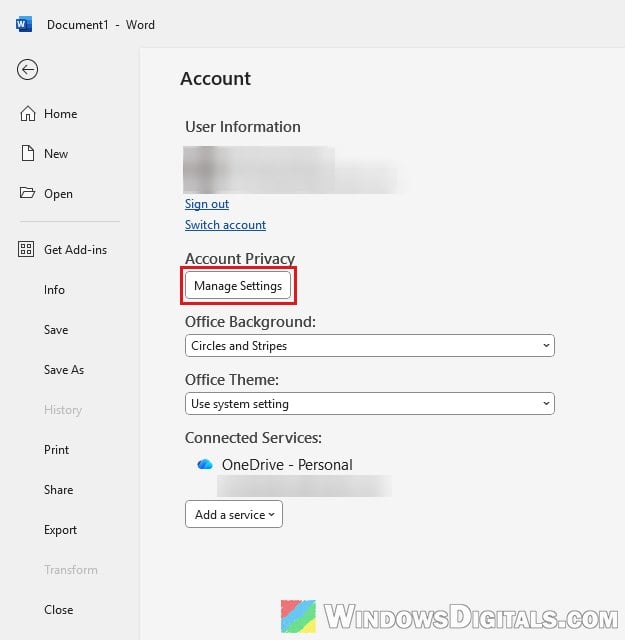
- Under “Connected experiences“, clear “Turn on experiences that analyze your content“.
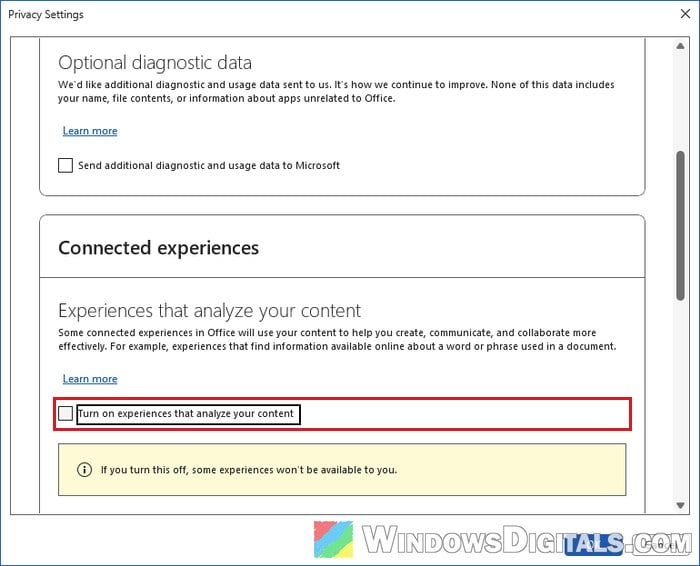
- Click “OK“, then close and reopen Word.
You only need to do this in one app: the other Office apps pick up the change the next time you open them. Note that this is a different switch from the “optional connected experiences” setting, which doesn’t remove Copilot. If the checkbox is grayed out, the PC or Office is managed by an organization (a work or school PC, for example), and only its IT can change it.
On a Mac, the same setting is under “Word” > “Preferences” > “Privacy” (in the Personal Settings group) > “Manage Connected Experiences“. Clear “Turn on experiences that analyze your content” there and restart Word.
Move the Copilot button out of the way
If you’d rather keep Copilot but just stop the floating button from covering your text, you can tuck it away. This doesn’t turn Copilot off; it only moves the button. Here’s how to do it:
- Right-click the Copilot button in the corner of your document.
- Choose one of these options:
- “Dock“: Shrinks the button to a small icon at the side of the page. Docking only lasts for your current session, so it may come back the next time you open Word.
- “Move to ribbon“: Puts Copilot back on the ribbon as a normal button, out of your document. On Windows and Mac, Word remembers this choice. It needs a fairly recent build of Word, so update Office if you don’t see it.
To undo it, right-click the Copilot button on the ribbon and choose “Move out of ribbon“. In the newest Excel builds the button already sits at the right end of the ribbon instead of over the sheet, so don’t be surprised if Word’s moves there after an update.
Related problem: Installed Office 2024 but It Still Says Office 2021, What to do?
Get Word without Copilot at all
If you want Copilot completely gone and not just switched off, the only way is a version of Office that doesn’t include it. You have two options:
- Microsoft 365 Personal Classic or Family Classic: Microsoft has offered these plans without Copilot to existing subscribers for a limited time. They usually show up when you go to cancel your subscription (sign in at
https://account.microsoft.com/, open “Subscriptions“, then “Manage” > “Cancel subscription“), but they aren’t offered in every country or to every account, so check what your cancel page shows before you cancel anything. - Office Home 2024 or Office Home & Business 2024: A one-time purchase with no subscription, and it isn’t eligible for Copilot.