If you open the Copilot app on Windows 11 and all you get is “This version of Windows Copilot is no longer supported. Please follow this link and download the latest version from the Microsoft Store“, nothing is wrong with your PC. Microsoft has replaced the old Copilot app with a new one, and the old one simply stops working. This guide will explain what’s going on and show you how to get the new Copilot app installed, including what to do if the Store won’t install it.
Also see: Microsoft Store “Error encountered – One of the update services is not running properly”
Page Contents
Why does Copilot say it’s no longer supported?
Microsoft is combining its two Copilot apps, the standalone Microsoft Copilot app and the Microsoft 365 Copilot app, into one updated Copilot app. Microsoft started rolling the new app out more widely to Windows PCs in mid-September 2026 (after an early-access phase in August), and the old Copilot app that came with Windows 11 is being retired along with it.
So the message isn’t an error you can fix inside the old app. According to Microsoft, it’s a planned change and not a problem with your device or your account, and there’s no supported way to go back to the old Copilot. Your chats aren’t lost either. Microsoft says most chats and content move over to the new app automatically when you sign in with the same account.
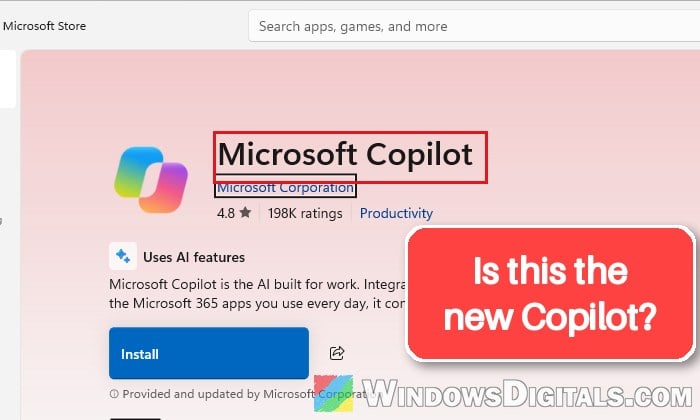
The two apps have very similar names in the Microsoft Store, which makes it easy to pick the wrong one:
- Microsoft Copilot on Windows: the old app that now shows the message.
- Microsoft Copilot: the new app you need.
Both are by Microsoft Corporation, so go by the name.
Install the new Copilot app from the Microsoft Store
The link in the message takes you straight to the right Store listing, but first check the Store for updates, since the new Copilot can also arrive that way. Here’s how to do it:
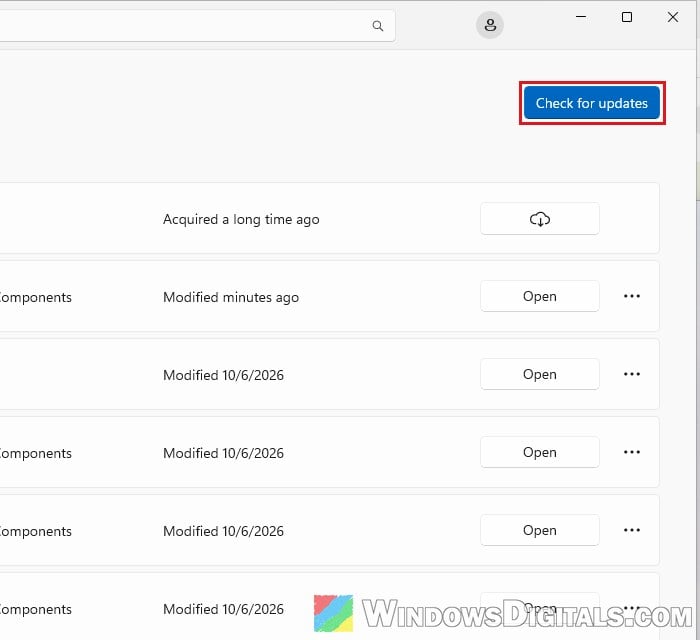
- Open Microsoft Store and click the Downloads icon (the cloud with an arrow) at the bottom left, just above Library.
- Click Check for updates and let it install what it finds. If the new Copilot shows up there and installs, skip to the last step and sign in.
- Go to
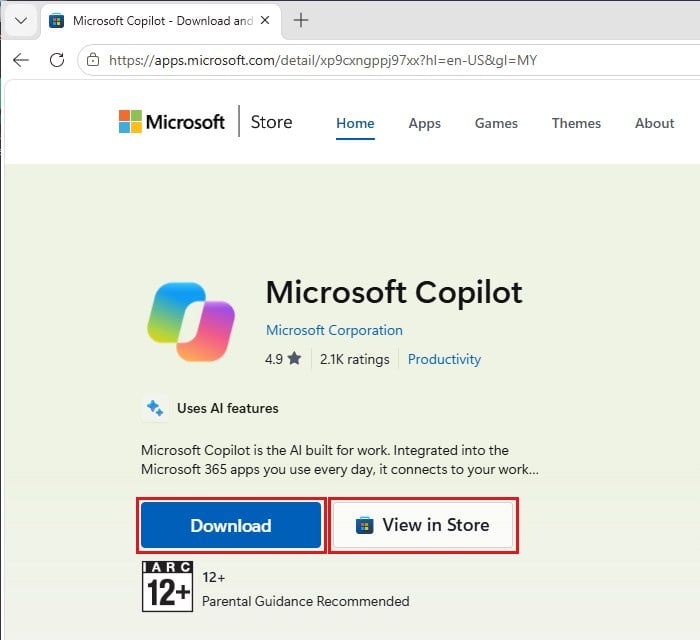
https://aka.ms/DownloadWindowsCopilotin your browser. It opens the Microsoft Copilot page on the Microsoft Store website. - Click View in Store, then click Open when your browser asks to open Microsoft Store.
- On the Microsoft Copilot page in the Store, click Install.
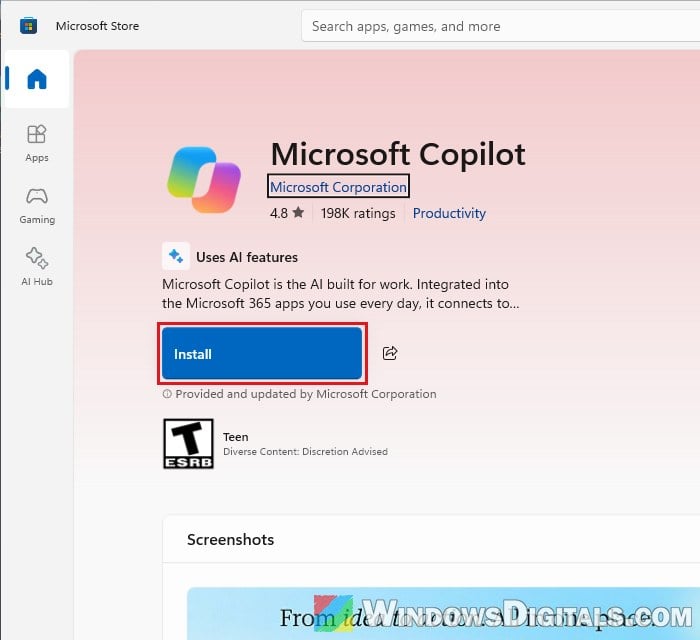
- When Windows asks “Do you want to allow this app to make changes to your device?” for Copilot Update from Microsoft Corporation, click Yes.
- Wait for the installer to finish. When the new Copilot opens, click Continue with Microsoft and sign in with the same account you used before, so your chats come with you.
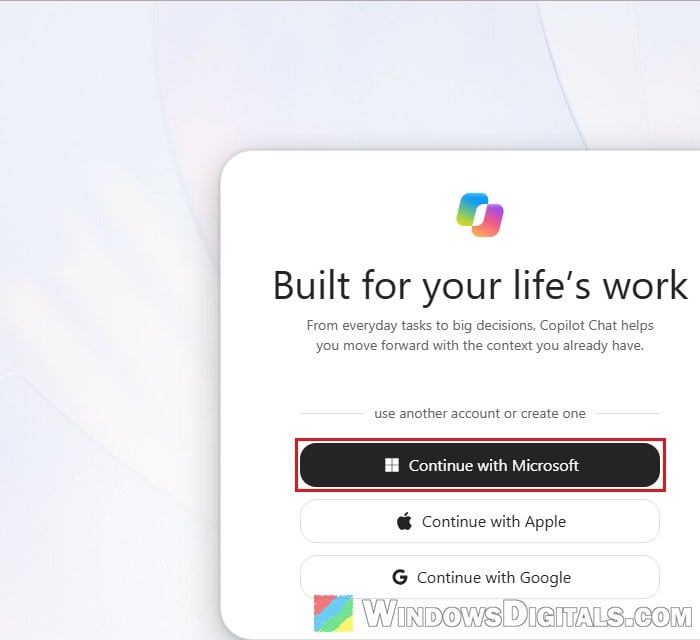
You don’t need to uninstall the old Copilot first. When we installed the new one on a test PC, the old app was gone afterwards, and the new one shows up as just Copilot in your apps.
Linked issue: Microsoft Store Error 0x80248014 After “Verifying Dependencies”
If the Store won’t install the new Copilot
For some people, the new app fails to install no matter how often they try, or reinstalling only brings back the old version. Since the install goes through the Microsoft Store, resetting the Store is a quick thing to try. Here’s what you should do:
- Press Win + R to open the Run dialog box.
- Type
wsreset.exeand click OK. - Wait a few seconds while a blank Command Prompt window opens and closes. Microsoft Store then opens again by itself.
- Go back to the Microsoft Copilot page and click Install again.
If it still fails, the guide below covers the usual fixes for apps that won’t install from the Store. Until then, you can use Copilot on the web, or the Microsoft 365 Copilot app if you have Microsoft 365.
Related problem: Can’t Download or Install Apps on Microsoft Store
Use Copilot on the web in the meantime
If you just need Copilot right now, you don’t have to wait for the app. Microsoft itself suggests using Copilot on the web while the new app reaches your PC. Here’s how:
- Go to
https://copilot.microsoft.com/(it now openscopilot.com). - Click Sign in and use the same Microsoft account as before.
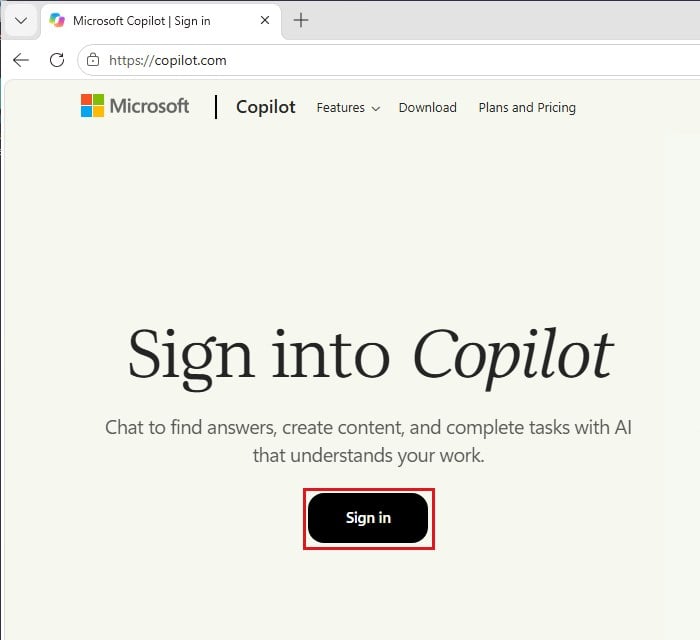
Copilot on the web is free with a Microsoft account (with some usage limits), and your chats come along. Personal and work accounts stay separate, though.
Have Microsoft 365? Try the Microsoft 365 Copilot app
If you have a Microsoft 365 subscription, such as Microsoft 365 Family, the Microsoft 365 Copilot app is another way to get Copilot chat on your PC when the new Copilot app just won’t install. It’s one of the two apps Microsoft is merging into the new Copilot, so it isn’t the old app that shows this message. Follow the steps below:
- Go to
https://apps.microsoft.com/detail/9WZDNCRD29V9(the Microsoft 365 Copilot page, by Microsoft Corporation). - Click View in Store (or Download) and install it.
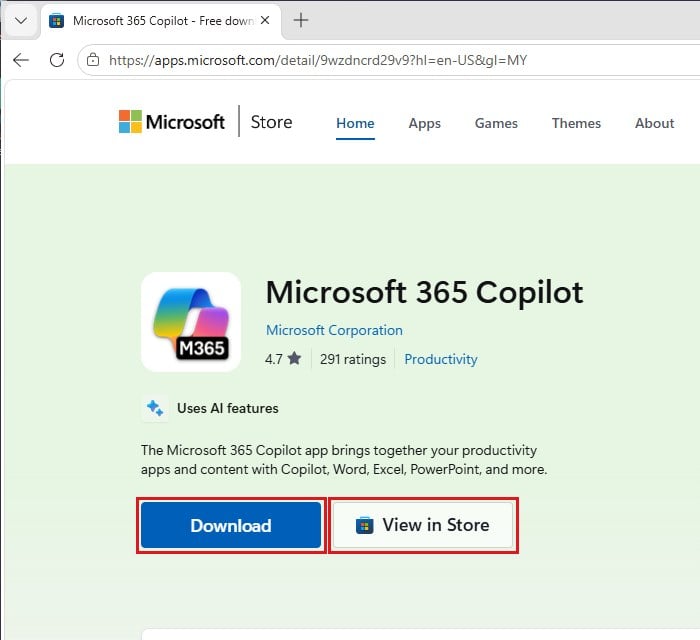
- Open it, sign in with your Microsoft account, and select Chat.
Please note that your older chats may not show up in that app, so don’t panic if your history looks empty there.