Emails you send from an Outlook.com or Hotmail address should simply show up in the other person’s inbox. For a lot of people, though, they land in the recipient’s spam or junk folder instead, mostly in Gmail, and sometimes even a two-line plain email with no links or attachments ends up there. This guide will explain why this happens and what you and the people you email can do about it.
Also see: 550 5.7.23 or 5.7.1 Bounce When Emailing Outlook.com or Hotmail
Why do your Outlook.com emails end up in spam?
The recipient’s email provider decides where your email goes, not Outlook.com. Your message leaves Microsoft’s servers normally, so you get no error or bounce, and then Gmail, Yahoo or whoever receives it runs its own spam filter on it. Microsoft has said it can’t change how Gmail sorts mail, and no Outlook.com setting forces another provider to trust you.
Some of the reasons these filters turn against a normal Outlook.com address are:
- Shared sending servers: Outlook.com mail goes out from servers that many free accounts share, so one misused account can hurt everyone’s reputation.
- New recipients: Mail to someone you’ve never emailed before is treated more strictly than mail to someone who knows you.
- How recipients react: When people mark your emails as spam, never reply or don’t have you in their contacts, the filter learns that your mail isn’t wanted.
- Your account was misused: If someone got into your account and sent spam from it, or set up a rule that forwards mail, your address can get flagged.
People have reported this all through 2026, so it isn’t a single outage. And since the other person’s filter makes the call, most of the fixes below involve the people you email.
Might be useful: Outlook.com Junk Folder Flooded With “Unverified” Emails
First, check where your email actually lands
Send a short plain test message (two or three lines, no signature, link, picture or attachment) to a Gmail address you own, or ask a friend who uses Gmail to look for it.
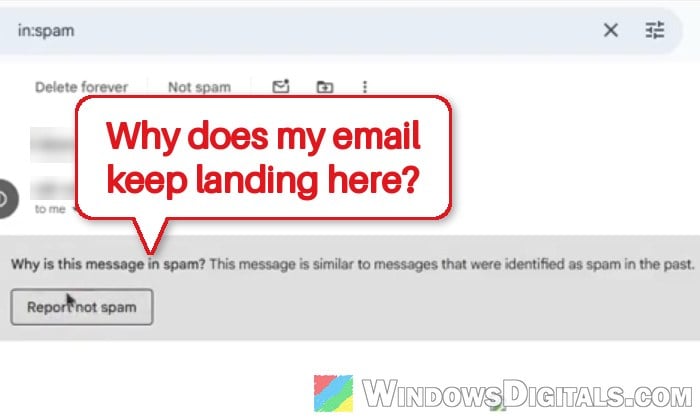
If it shows up in Gmail’s Spam folder, open it. Gmail’s warning at the top says why it ended up there, such as the message being similar to messages that were identified as spam in the past.
If your email came back to you instead, with a notice from “postmaster” and 550 5.7.520 in it, Outlook.com refused to send it at all, and that’s a different problem with its own fixes. If it was Gmail that bounced it, a 4.7.28 code means Gmail is rate-limiting mail that arrives too fast (don’t resend for at least 10 minutes), and 5.7.1 means Gmail blocked it as likely unsolicited mail.
What if only an old alias goes to spam?
If your account has an old Hotmail address and a newer Outlook.com one, send the same test from the newer one. If it reaches the inbox, the problem is probably the old address itself, so use the newer one for important mail.
Ask recipients to mark it “Not spam” and add you to contacts
This is what helps most, and it’s what Google itself recommends. When a recipient takes your email out of spam, adds you to their contacts and replies, their filter learns that your mail is wanted, and future messages should land in the inbox. Some people found that after one “Not spam”, the next email arrived normally.
Ask the people you email often (family, friends, a client) to do this once in Gmail:
- Open Gmail on a computer, click More in the left menu, and then click Spam.
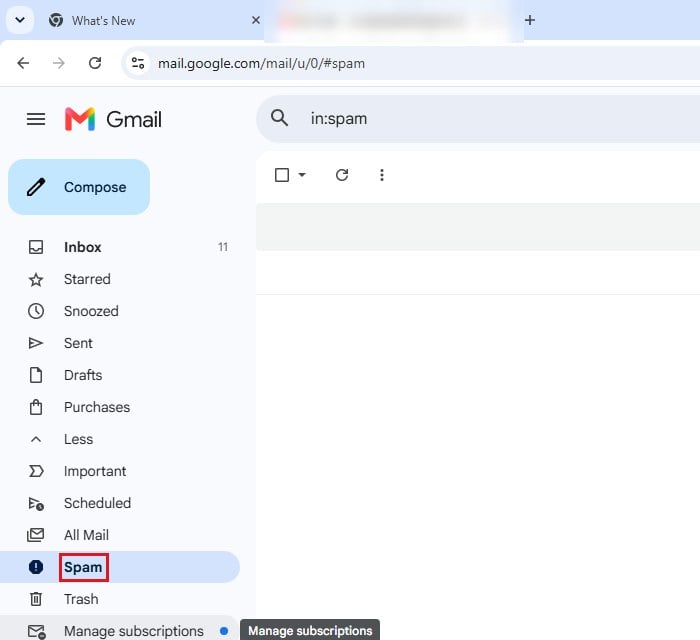
- Tick the box next to the email and click Not spam at the top. Or open the email and click Report not spam in the warning box.
- Add the sender’s address to Google Contacts, and reply to the email.
If the recipient uses Outlook.com or Hotmail too, they can go to Settings > Mail > Junk email and add the sender’s address with Add safe sender under Safe senders and domains.
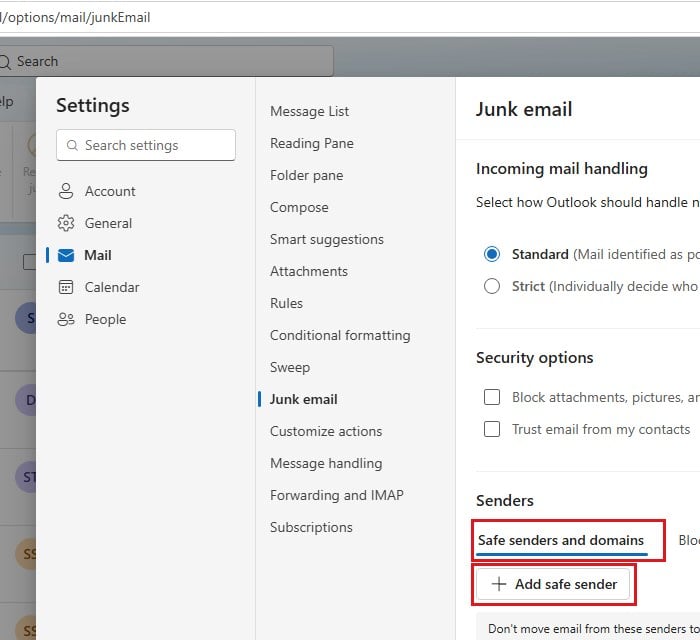
Have Gmail users create a “Never send it to Spam” filter
For someone who really needs your emails, like a family member or a customer, a Gmail filter is the surest way. It has to be done on the recipient’s side, in Gmail on a computer:
- In the search box at the top of Gmail, click the Show search options button (the sliders icon on the right).
- In the From field, type the sender’s Outlook.com or Hotmail address.
- Click Create filter at the bottom right.
- Check Never send it to Spam, and click Create filter again.
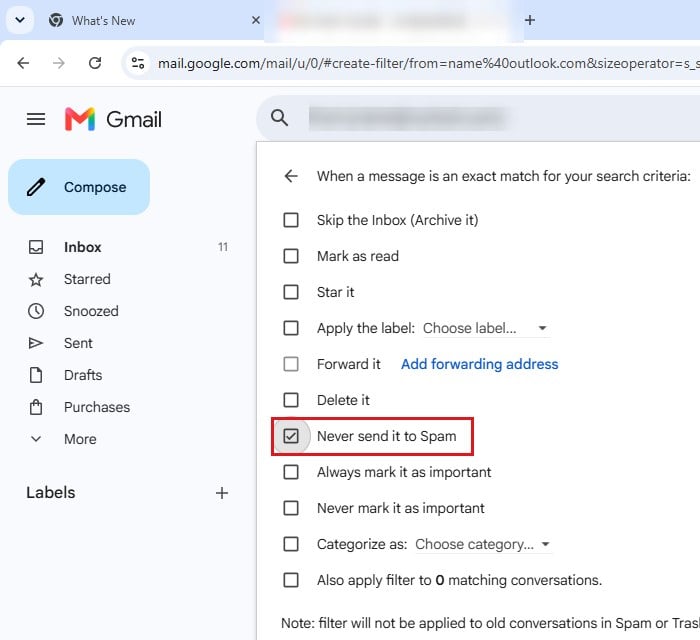
From then on, nothing from that address goes to their Spam folder.
Keep first emails to new people short and plain
Since mail to new contacts is filtered more strictly, the first email you send someone matters most:
- Send to one person at a time instead of putting many addresses in one email.
- Keep the first email plain: no download links, license keys, link shorteners or big images.
- Don’t send lots of near-identical emails close together, and vary the wording when you write to several people.
- When you can, ask the person to email you first, then reply to them.
Microsoft also suggests adding the people you write to as Outlook.com contacts and emailing them regularly.
Make sure nobody else is using your account
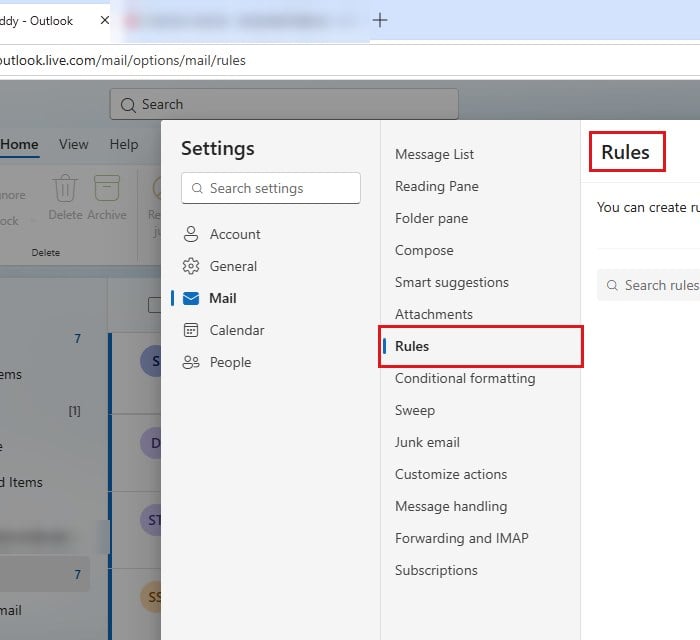
An account that has been sending spam behind your back keeps getting flagged, so check it, especially if this started suddenly. In Outlook.com, go to Settings > Mail > Rules and delete any rule you didn’t create.
Then open Settings > Mail > Forwarding and IMAP and make sure your mail isn’t being forwarded to an address you don’t know. If the page asks you to sign in and verify your account first, do that to see the forwarding setting. Also look through your Sent Items folder for emails you never wrote.
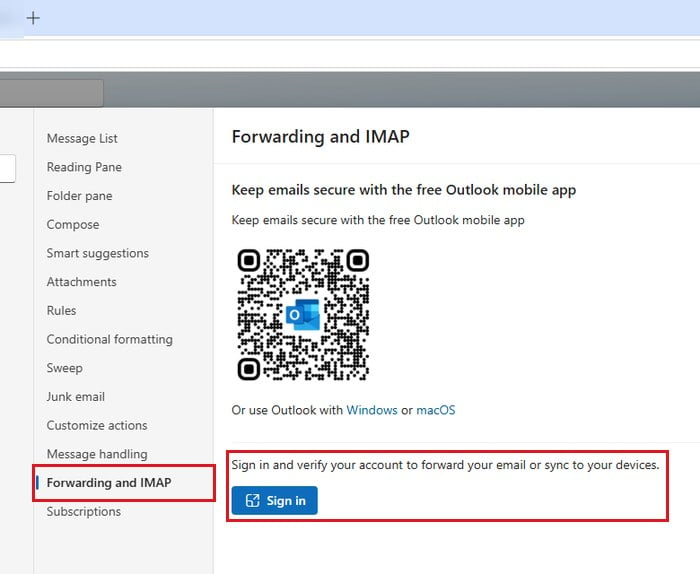
If you find anything odd, check your Microsoft account’s recent sign-in activity, change your password and turn on two-step verification.
Related concern: Microsoft Account Locked for Unusual Activity and Won’t Unlock
Ask Outlook.com support to look into it
If your emails still go to spam everywhere after all of this, you can ask Outlook.com support to check the account. They can look at Microsoft’s side, but they can’t change how Gmail sorts its users’ mail.
- In Outlook.com, select Help in the top menu, and then Help.
- Type your problem in the Search help box and press Enter.
- Scroll down to Still need help? and select Yes.
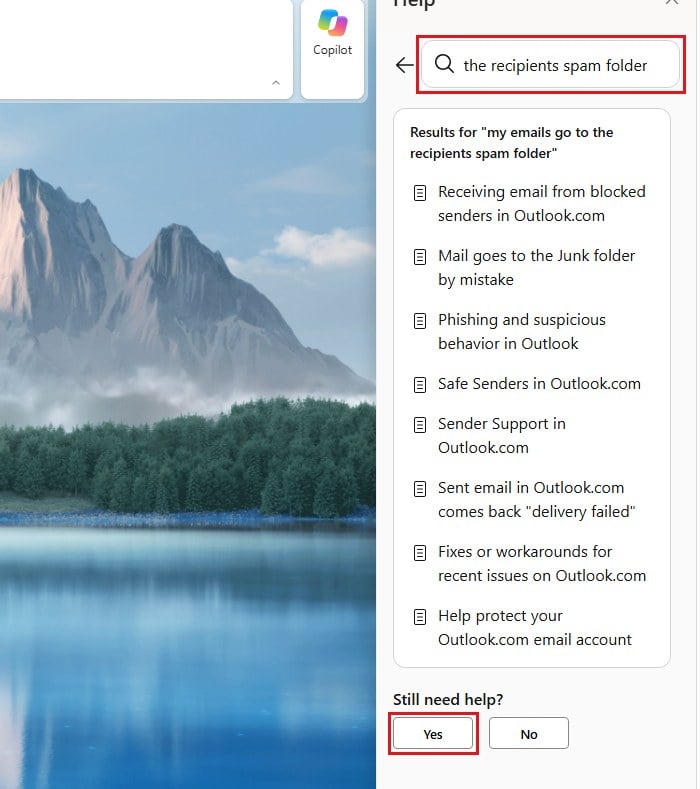
If an automated assistant answers, ask for a live agent. Include when you sent the emails, which providers they went to, and the full headers of one email that landed in spam (in Gmail, open it and click Show original). Sometimes the Help pane doesn’t show “Still need help?”, so support can be hard to reach.
Use an address on your own domain for important mail
For business mail you can’t afford to lose to spam folders, the lasting answer is an address on your own domain with a proper mail provider. Your sending reputation is then your own, instead of shared with every free Outlook.com account.