If you’ve noticed “Microsoft Corporation AudioProcessingObject Driver Update” in Windows Update on Windows 11, or found it already installed even though you never added any audio software, it’s actually Microsoft’s Voice Clarity feature, not a new driver for your sound card. This guide explains what it does, whether you should install it, and what to do if your sound changed after it.
Also see: No Sound in Windows 10 or 11 After Update (Fix)
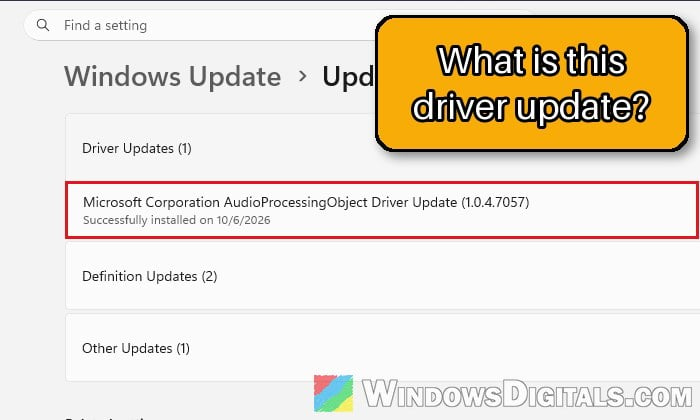
What is the AudioProcessingObject driver update?
It’s Microsoft’s Voice Clarity feature, delivered through Windows Update as a driver. If it’s already installed, you’ll see it under Settings > Windows Update > Update history > Driver Updates.
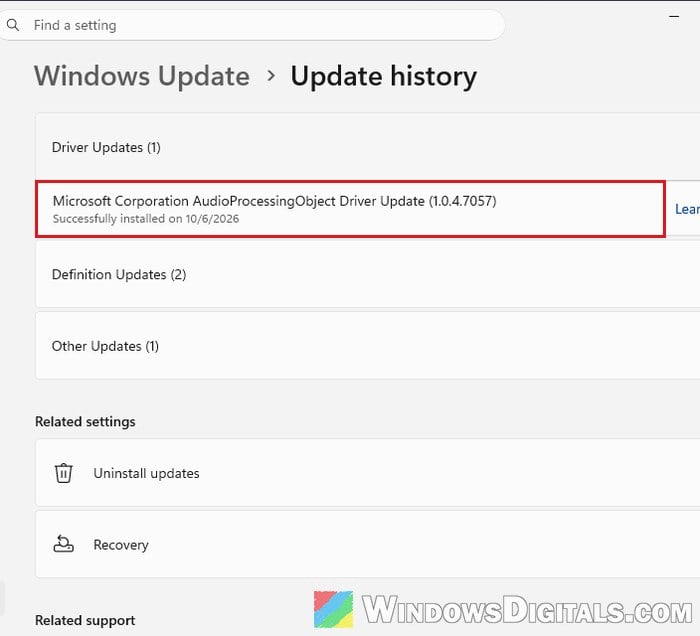
The “AudioProcessingObject” part comes from Audio Processing Objects (APOs), small pieces of software that add effects to the sound going through Windows, things like noise reduction or echo cancellation. Since Windows 11, Microsoft requires every APO to ship as an “AudioProcessingObject” class driver package. That’s why it shows up as a driver update, even though it doesn’t drive any hardware.
Sound companies ship their own APOs this way too, so you might also see updates from Dolby, DTS or A-Volute (Nahimic) with “AudioProcessingObject” in the name. The first words tell you who made it. When it says Microsoft Corporation, it’s Microsoft’s own APO, which in the versions people have reported is Voice Clarity.
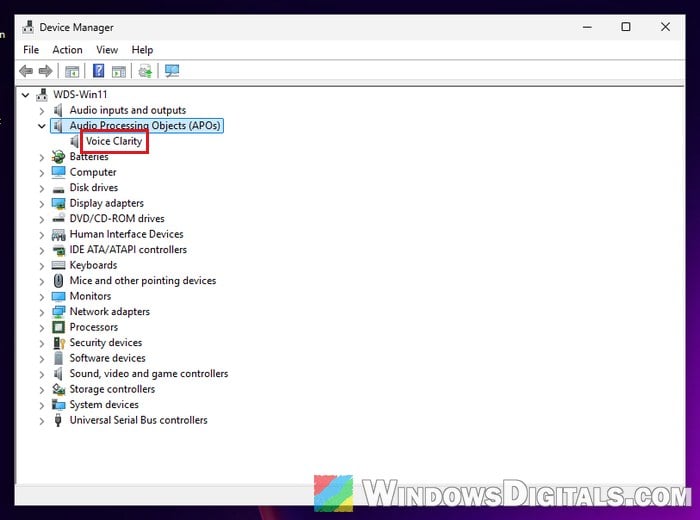
Once it’s installed, you’ll find it in Device Manager under Audio Processing Objects (APOs) as a device called Voice Clarity. It’s a virtual device, so there’s nothing physical behind it. Your Realtek, Cirrus Logic or USB audio driver stays the same.
Pro tip: How to Update Realtek Drivers in Windows 11
What does Voice Clarity actually do?
Voice Clarity uses small AI models to cancel echo, suppress background noise and reduce reverberation in real time, mostly on your microphone during calls. It started as a feature for Surface laptops, and Microsoft later brought it to every Windows 11 PC, with no special hardware needed.
It’s on by default, but it only kicks in for apps that ask Windows for its “communications” audio processing, such as Phone Link, WhatsApp and some PC games with voice chat.
Why did it show up, or install by itself?
Microsoft updates Voice Clarity through Windows Update as a driver package. It isn’t part of the monthly update, which is why it has no KB number. Several versions have gone out over the past year, for example 10.0.26100.6710, 1.0.3.56670 and 1.0.4.7057, and newer ones keep coming.
On some PCs it waits in Optional updates. On others it installs on its own with the rest of the updates, because Windows installs many driver updates automatically. Seeing it doesn’t mean anything is wrong with your PC, and it isn’t malware.
Should you install it?
If your sound and mic work fine, you can just let it install. Most people who get it notice nothing at all, including those using a separate sound card or an external DAC.
If it’s sitting in Optional updates and you don’t use voice calls on your PC, it’s also fine to skip it. It will stay in the list in case you ever want it.
What to do if your sound changed after it
Some people do run into problems right after it installs: muffled or quieter sound, crackling and pops, an echo-like effect, a mic or audio interface that’s no longer detected, or no sound at all. Since Voice Clarity sits in the audio path, it’s worth undoing it first. Try these in order.
Roll back the Voice Clarity driver
This puts back the version you had before the update, and it’s the fix that has worked most often for this problem. Here’s how to do it:
- Right-click the Start button and select Device Manager.
- Expand Audio Processing Objects (APOs), right-click Voice Clarity and select Properties.
- Go to the Driver tab and click Roll Back Driver.
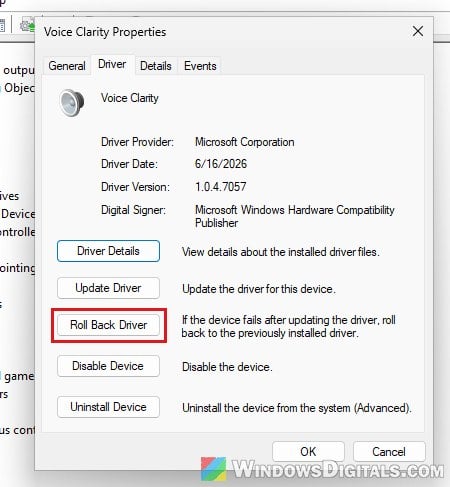
- Pick a reason, click Yes, then restart your PC.
If Roll Back Driver is greyed out, Windows didn’t keep an older version, so move on to the next fix.
Disable the Voice Clarity device
Disabling Voice Clarity is safe, since it only adds processing on top of your normal audio. It’s also better than uninstalling it, because an uninstalled device tends to get offered again by Windows Update.
- In Device Manager, expand Audio Processing Objects (APOs).
- Right-click Voice Clarity and select Disable device.
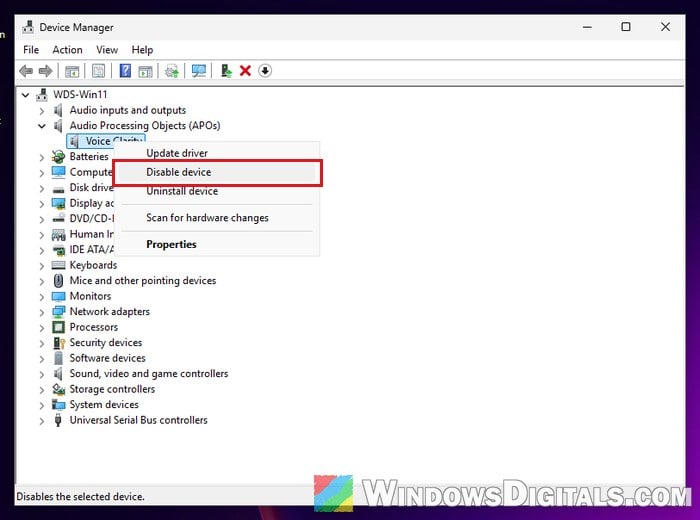
- Click Yes to confirm, then restart your PC.
Check your speakers, headphones and mic again. If you ever want it back, right-click it again and select Enable device.
Turn off audio enhancements
If the sound is still muffled or crackly, turn off the extra effects Windows applies to your device. Microsoft suggests this for most sound problems.
- Open Settings > System > Sound.
- Under Output, select the speakers or headphones you’re using.
- Scroll to Advanced settings and set Audio enhancements to Off.
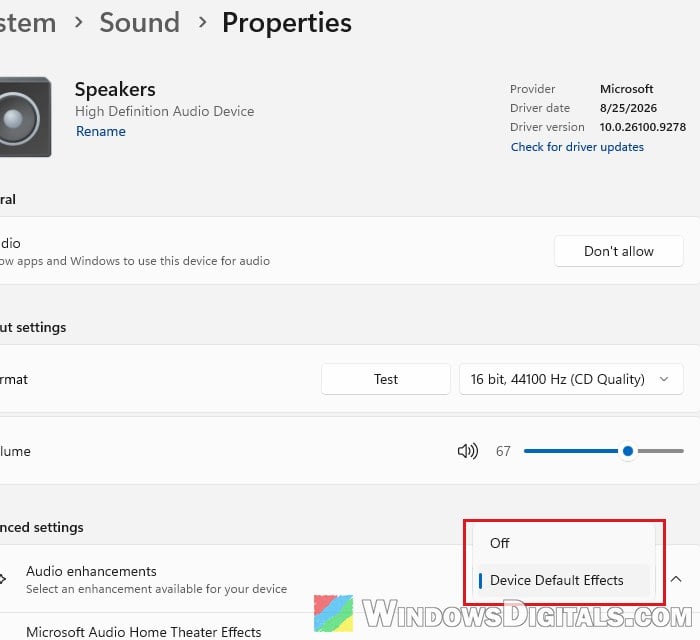
Play something again and see if the sound is back to normal.
Might be useful: Playback Devices Not Showing in Windows 10/11 (Fix)
Reinstall your sound card’s own driver
When a mic or an audio interface (like a Focusrite) has stopped being detected, reinstalling the driver from its maker usually brings it back. Download the latest audio driver from your PC or motherboard maker’s website, or from the interface maker’s site, and install it.
After that, open Settings > System > Sound and make sure the right device is selected under Output and Input. An audio update can switch your default device back to another one without telling you. If nothing helps, you can also restore your PC to a previous date from before the update.
Related concern: Microphone Not Working After Windows 11/10 Update
How to stop it from installing again
If it’s only in Optional updates, just don’t tick it. Windows doesn’t install optional updates unless you choose them.
To stop Windows Update from installing drivers at all on Windows 11 Pro, Enterprise or Education, you can use a Group Policy:
- Press Win + R, type “gpedit.msc” and press Enter.
- Go to Computer Configuration > Administrative Templates > Windows Components > Windows Update > Manage updates offered from Windows Update.
- Double-click Do not include drivers with Windows Updates, set it to Enabled and click OK.
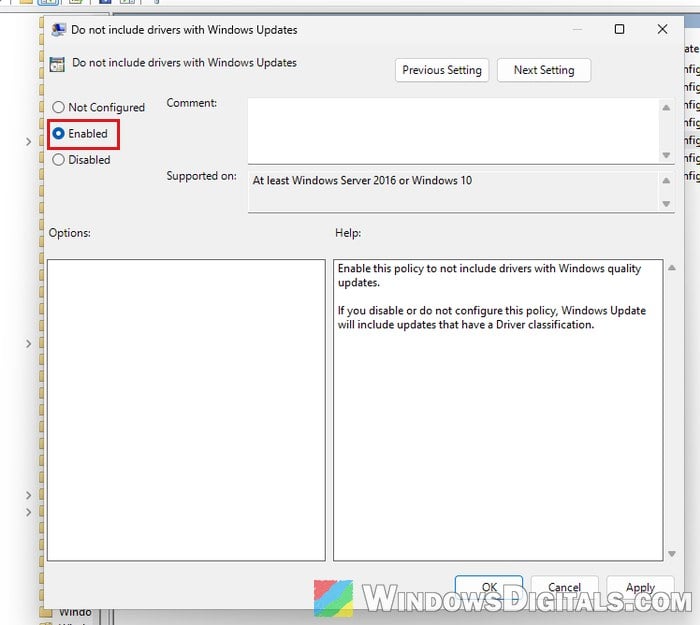
Please note that this blocks every driver from Windows Update, not just this one, so you’ll need to update your other drivers yourself from then on. The Voice Clarity update can still come through with the policy on, possibly because it’s a Windows feature that only shows up as a driver. If that happens to you, leaving the Voice Clarity device disabled in Device Manager is the most dependable way to keep it out of your audio.