If you’re seeing the “A driver cannot load on this device” warning for kvckiller.sys every time Windows starts, and Windows Security won’t open or only shows a blank window, you should treat the PC as infected. kvckiller.sys is a driver that malware brings along to switch off Microsoft Defender, and Windows blocking it only means that part of the attack didn’t work. This guide will walk you through what the driver is, why Windows Security breaks, and how to get the PC clean again.
Also see: XMRig Miner Keeps Coming Back After You Delete It
What is kvckiller.sys?
kvckiller.sys is a signed Windows kernel driver with a known security hole. Attackers drop it on a PC and load it because a driver runs with the highest level of access, which lets it kill security software that normal malware can’t touch. Security researchers call this “bring your own vulnerable driver”.
It has already been used in real attacks in 2026. One was a remote access trojan spread through phishing emails, which used kvckiller.sys to end Microsoft Defender’s processes before it started stealing passwords and browser cookies. Another was a crypto-mining campaign in November 2026 that broke into PCs running exposed security camera software.
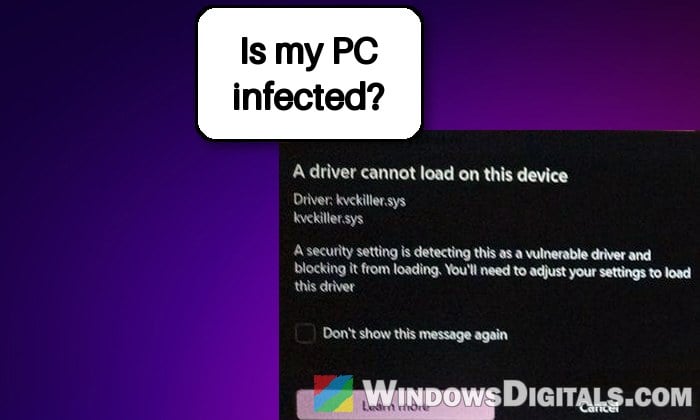
The warning you see at startup looks like this:
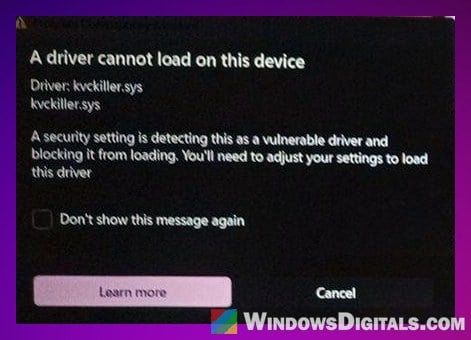
It says “A security setting is detecting this as a vulnerable driver and blocking it from loading“. That’s Windows’ vulnerable driver blocklist doing its job (it’s on by default in Windows 11). The bad news is that the blocklist only stops the driver. Whatever tries to load it at every startup is still on your PC, and that’s what you need to get rid of.
Could it be a legitimate driver?
Only if you installed it yourself. The name also belongs to an open-source security research tool that does the same thing on purpose, so if you didn’t install anything like that, assume it came from malware. Don’t confuse it with Intel’s “Killer” network drivers either, since those are different files signed by Intel.
Related concern: Trojan:Win32/LummaStealer Found by Defender, What Now?
Why won’t Windows Security open?
Besides loading the driver, the malware in the camera attacks (and the kvckiller tool itself) adds a “Debugger” entry in the registry for Defender’s engine (MsMpEng.exe), the Windows Security service and its tray icon. Each entry tells Windows to start a harmless Windows file, systray.exe, instead of the real program. So Defender’s service never starts, and the Windows Security app has nothing to show.
When we set up the two Windows Security entries on a test PC and restarted it, Windows Security opened as an empty window with only its title, like this (it’s black if you use the dark theme):

That’s also why repairing or reinstalling the Windows Security app usually won’t help here. The app itself is fine. It’s just that its service is being sent somewhere else.
Related problem: Windows Security Not Opening or Blank Screen on Windows 11
Disconnect the PC and change your passwords first
Before anything else, take the PC off the internet (unplug the cable or turn off Wi-Fi). Some of the malware that uses this driver steals saved passwords and browser sessions and lets the attacker control the PC remotely.
Then, from another device you trust, change the passwords of your important accounts. Doing it on the infected PC itself could hand the new passwords straight to the attacker.
Scan the PC with Microsoft Safety Scanner
Microsoft Safety Scanner is a free, portable scanner from Microsoft. It’s a separate scan tool, so it still runs when Defender has been tampered with. If the infected PC is offline, download it on another PC and copy it over with a USB drive.
- Download the 64-bit version from
https://go.microsoft.com/fwlink/?LinkId=212732. - Run msert.exe and click Yes on the UAC prompt.
- Tick “Accept all terms of the preceding license agreement” and click Next twice.
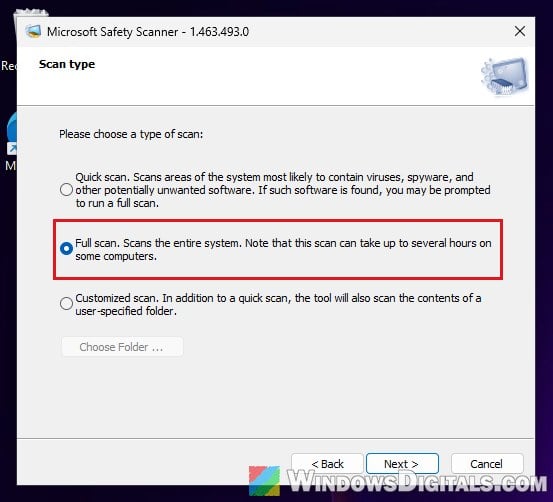
- Select Full scan and click Next. A full scan can take a few hours.
- Let it remove whatever it finds.
The scanner stops working 10 days after you download it, so get a fresh copy for any later scan. For a second opinion, you can also run a scan with the free version of Malwarebytes from its official website.
Remove the “Debugger” entries so Windows Security works again
A scan may remove the malware but leave these entries behind, and then Windows Security still won’t open. Getting rid of them should bring Defender and the Windows Security app back.
Changing the wrong thing in the registry can break Windows, so create a system restore point first. If you’re not comfortable doing this, skip to the reset section below.
To see the entries first, use Microsoft’s free Autoruns tool:
- Download Autoruns from Microsoft’s Sysinternals page at
https://learn.microsoft.com/sysinternals/downloads/autorunsand extract the ZIP file. - Right-click Autoruns64.exe and select Run as administrator.
- Click Options and untick “Hide Windows Entries“. Since the entries point to a Windows file, Autoruns hides them otherwise.
- Open the Image Hijacks tab. Look under
Image File Execution Optionsfor SecurityHealthService.exe, SecurityHealthSystray.exe or MsMpEng.exe. Their description reads “Systray .exe stub“, since that’s the file they now start (they show twice, the second time underWow6432Node). Don’t let “(Verified) Microsoft Windows” fool you: that only means systray.exe itself is a real Windows file.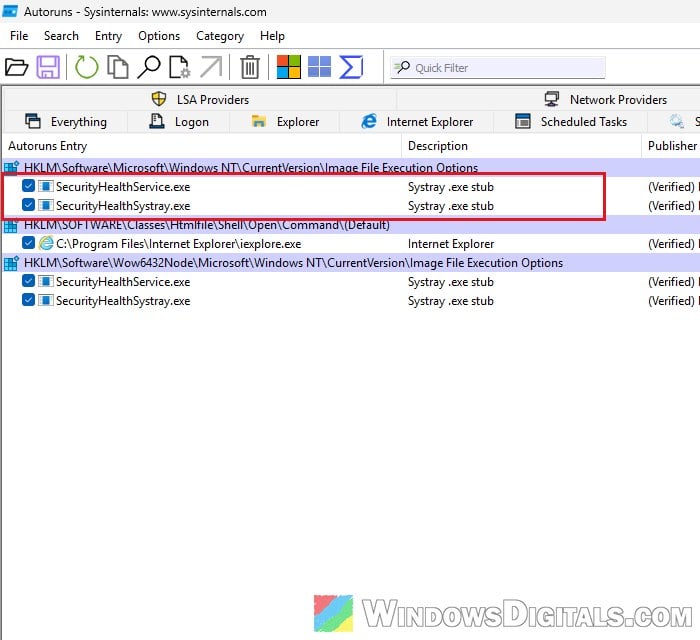
To remove them, use Registry Editor:
- Press Win + R, type “regedit” and press Enter.
- Copy and paste the following path to the address bar and press Enter:
HKEY_LOCAL_MACHINE\SOFTWARE\Microsoft\Windows NT\CurrentVersion\Image File Execution Options\SecurityHealthService.exe
- Right-click the “Debugger” value on the right (its data is
C:\Windows\System32\systray.exe) and select Delete, then Yes.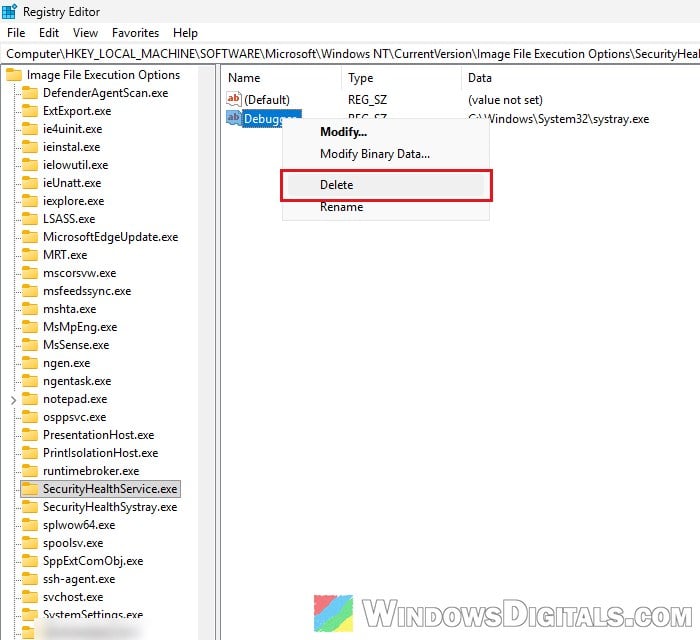
- Do the same for the SecurityHealthSystray.exe and MsMpEng.exe keys if they have a “Debugger” value. If Windows won’t let you delete the MsMpEng.exe one, leave it and go on to the reset section below.
Only delete the “Debugger” value, not the whole key, since some of these keys (MsMpEng.exe, for one) are in Windows by default. Restart the PC afterwards and try opening Windows Security again.
Find what keeps loading the driver
Back in Autoruns, type “kvckiller” in the Quick Filter box to see which entry loads it, and check the Scheduled Tasks and Services tabs for anything you don’t recognize. The miner campaign hid in scheduled tasks named PackageUpdater and PackageUpdater_Startup, so a task like that, or any task you don’t recognize, is a good sign of where the infection lives. Note the entry’s file path and publisher. If the scan didn’t remove it, that’s your sign to reset Windows.
Reset or reinstall Windows to be sure
Once a driver like this has been used on a PC, you can’t really be sure what else the attacker changed. Security researchers who studied these attacks recommend rebuilding the PC rather than cleaning it, and people on Reddit who’ve looked at this driver say the same.
Back up your personal files first (documents, photos, not programs), then reset Windows with the “Remove everything” option, or do a clean install from a USB drive made on another PC. For the steps, see: How to Reset Windows 11/10 to Factory Default.
After that, keep the vulnerable driver blocklist on in Windows Security, and only install programs from their official websites.