You click the Windows Security icon in the taskbar corner, and instead of the usual dashboard, all you get is a blank white or black window with just the shield logo in the middle, which then closes by itself a few seconds or minutes later. This guide will help you figure out what broke and how to get the app working again.
Also see: How to Reinstall Windows Defender in Windows 11
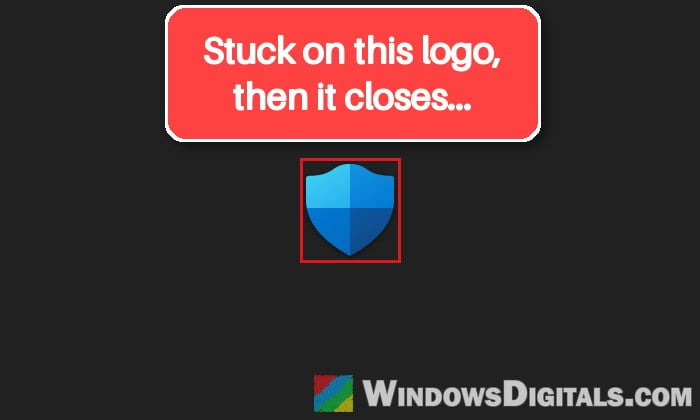
Why does Windows Security open blank and then close?
What you open is just the app’s window. Behind it there’s a background service called Windows Security Service, and a set of platform files kept in a version-numbered folder under C:\Windows\System32\SecurityHealth. The app needs that service running to show anything at all.
Some common reasons for the blank window are:
- The platform files are damaged or missing. When the files in the SecurityHealth version folder get corrupted, the service can’t start, and the app is left showing only its logo.
- The app package itself is broken, which a repair or reset can sometimes sort out.
- Malware has tampered with it. Some malware deliberately breaks Windows Security.
The blank window has been reported on Windows 11 23H2, 25H2 and right after the 26H2 update. SFC and DISM often don’t fix it, and for some people it even came back after a Windows reset. Most of the confirmed fixes came down to the platform files, but start with the quick fixes anyway.
Install all pending updates first
Windows Security and its platform are updated through Windows Update, as “Update for Windows Security platform – KB5007651“. Microsoft reissues this update with a new version number every so often, so make sure you have the latest one. Here’s what you should do:
- Open Settings > Windows Update.
- Click Check for updates and install everything listed, including any Windows Security platform update.
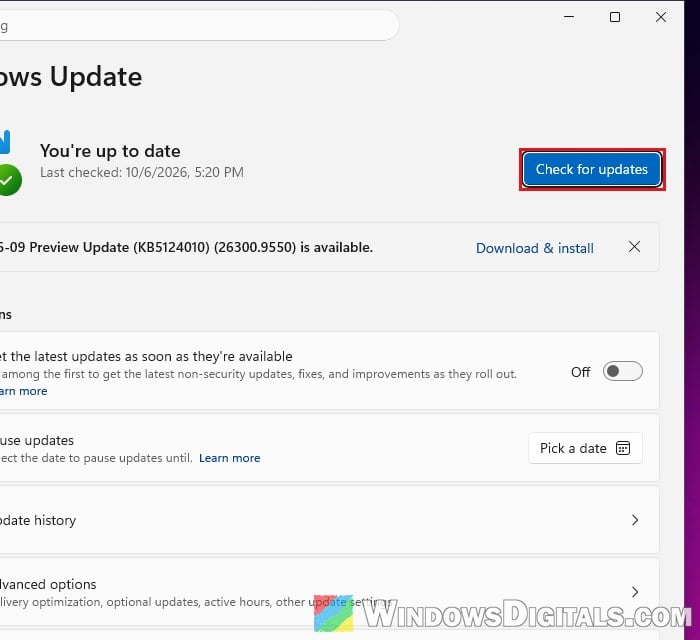
- Restart your PC, then try opening Windows Security again.
Repair or reset the Windows Security app
Windows lets you repair or reset Windows Security from Settings. It’s quick and safe, though it doesn’t work for everyone. Try Repair first, then Reset. Here’s how:
- Open Settings > System > System components.
- Click the three dots next to Windows Security and select Advanced options.
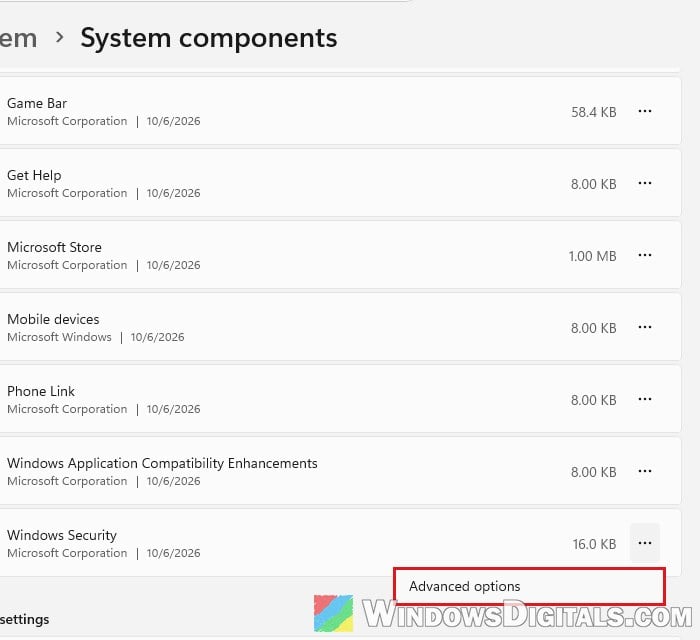
- Click Repair and wait for it to finish.
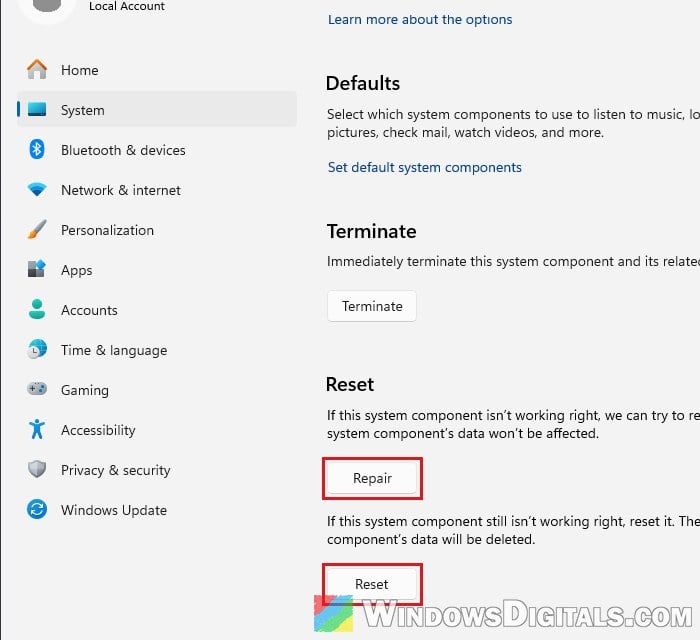
- Open Windows Security again. If it’s still blank, come back and click Reset.
Reset the app with PowerShell
If Repair and Reset don’t help, you can reset the same app package with a single PowerShell command. Follow the steps below:
- Search for “PowerShell” in the Start menu, right-click Windows PowerShell and select Run as administrator.
- Type the following command and press Enter:
Get-AppxPackage Microsoft.SecHealthUI -AllUsers | Reset-AppxPackage
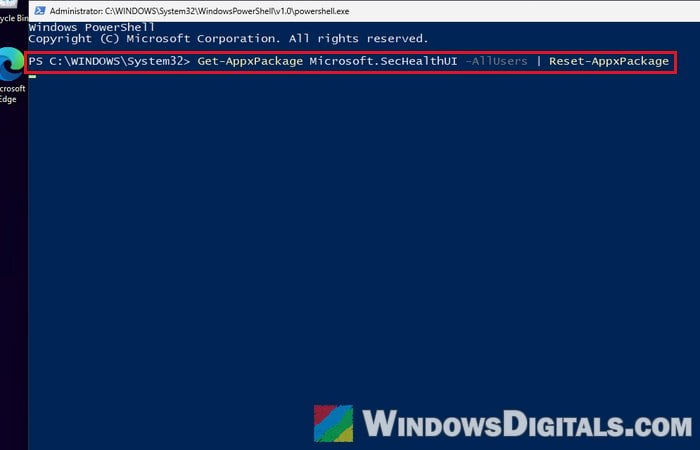
- Wait until the prompt comes back on a new line, then restart your PC and open Windows Security again.
Run DISM and SFC
These two are suggested for almost every Windows problem. They check Windows’ own system files and replace any that are damaged, so they’re worth ruling out. Here’s what you should do:
- Search for “cmd” in the Start menu, right-click Command Prompt and select Run as administrator.
- Type the following command and press Enter:
DISM /Online /Cleanup-Image /RestoreHealth
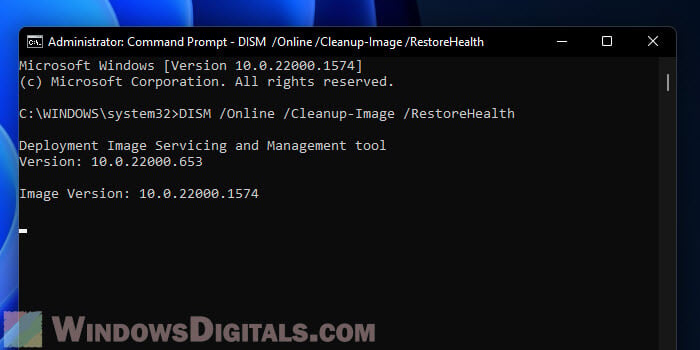
- When it’s done, type the following command and press Enter:
sfc /scannow
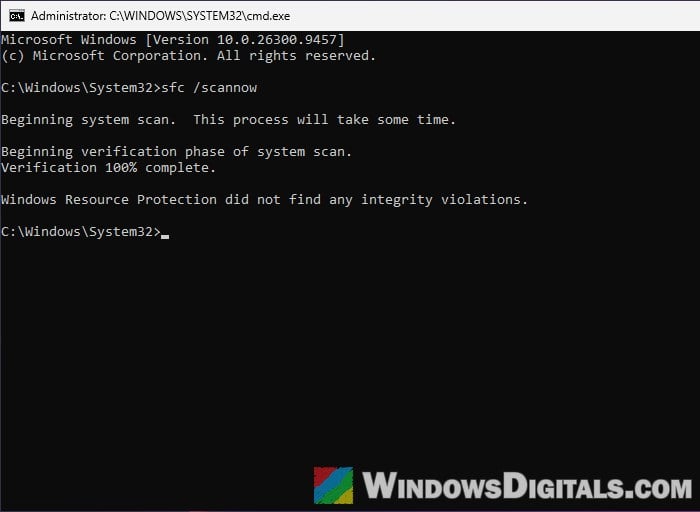
- Restart your PC and check Windows Security again.
Don’t be surprised if SFC finds nothing. With this problem it often comes back clean.
Scan for malware with Microsoft Safety Scanner
Since you can’t scan with Windows Security while it’s broken, use Microsoft Safety Scanner, a free standalone scanner from Microsoft. It’s worth doing before you touch any system files. Here’s how:
- Go to the Microsoft Safety Scanner download page and download the 64-bit version.
- Open the downloaded file (msert.exe) and click Yes on the UAC prompt.
- Check “Accept all terms of the preceding license agreement“, then click Next twice.
- Select Full scan, click Next and let it finish.
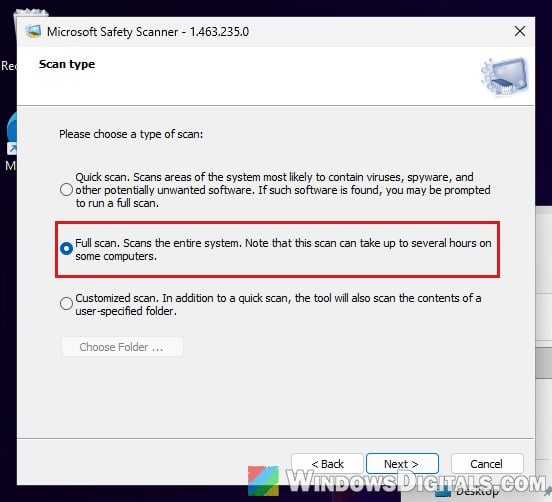
The download expires 10 days after you get it, so get a fresh copy for each scan. If it finds and removes something, run the fixes above again, since malware may have damaged the app along the way.
Check if the Windows Security Service is running
The app shows nothing without this service, so checking it tells you whether the platform files are the problem. Here’s how to check:
- Press Win + R, type “services.msc” and press Enter.
- Look for Windows Security Service and check its Status column.
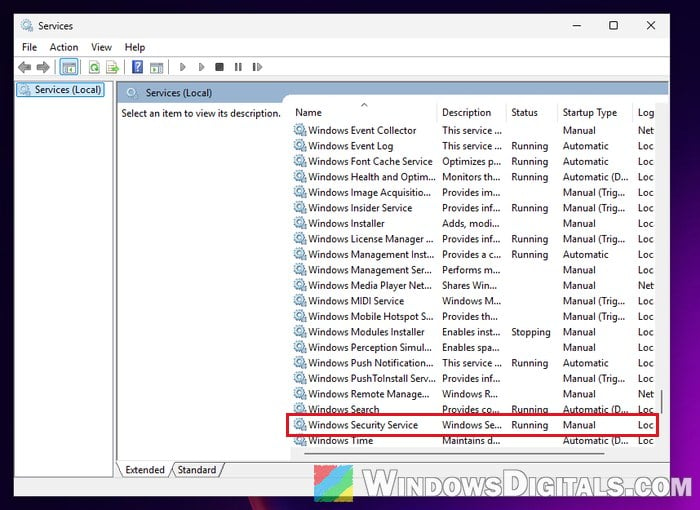
If it says Running, the platform files are most likely fine, so skip to the last section. If it’s empty or says Stopped, read on.
Linked issue: Windows Defender Security Center Service Missing Windows 11/10
Reinstall the platform by hand first
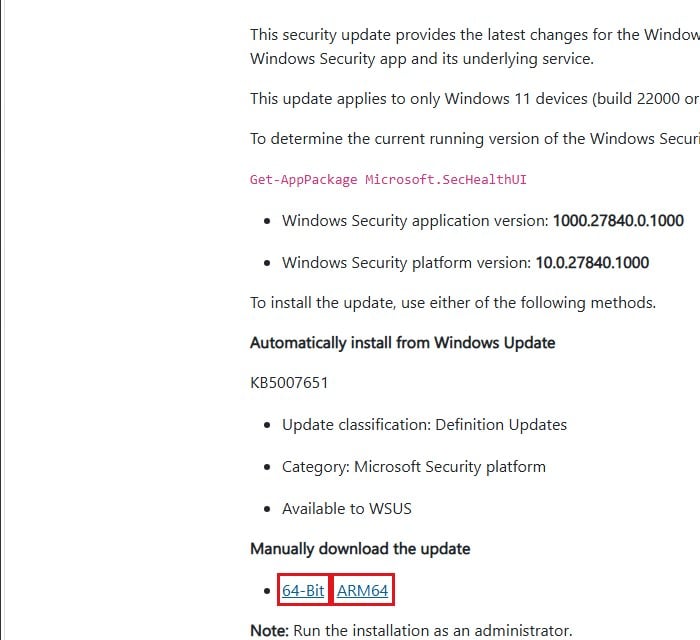
Microsoft also offers the Windows Security platform as a separate installer. It has fixed this for several people whose SecurityHealth folder was missing. Note that the version on that page can be older than the one Windows Update installs, so it’s worth checking Windows Update first. Here’s how:
- Go to Microsoft’s Windows Security app update page.
- Under Manually download the update, click 64-Bit (or ARM64 only if your PC has an ARM processor).
- Right-click the downloaded file and select Run as administrator.
- Restart your PC and open Windows Security again.
If the installer does nothing, or the app is still blank, the files in the folder are most likely damaged, which is what the next fix deals with.
Delete the damaged SecurityHealth folder
When the files in the SecurityHealth version folder are corrupted, the service won’t start, and the platform installer can’t fix them because it needs that same service. The way out is to delete the damaged folder, restart, and let the platform install fresh. It has fixed this for several people on different Windows 11 versions, including right after the 26H2 update.
Be warned: This deletes a system folder. Only do it when the Windows Security Service isn’t running (its Status is empty or Stopped) and the steps above didn’t help. While the service is running, rd fails with “Access is denied” on the files it’s using, which leaves the folder half deleted. Please create a system restore point first, and if you’re not sure what you’re doing, it’s better to get someone to help you instead.
- Open Command Prompt as administrator again.
- Type the following command and press Enter to see the folder name on your PC:
dir C:\Windows\System32\SecurityHealth
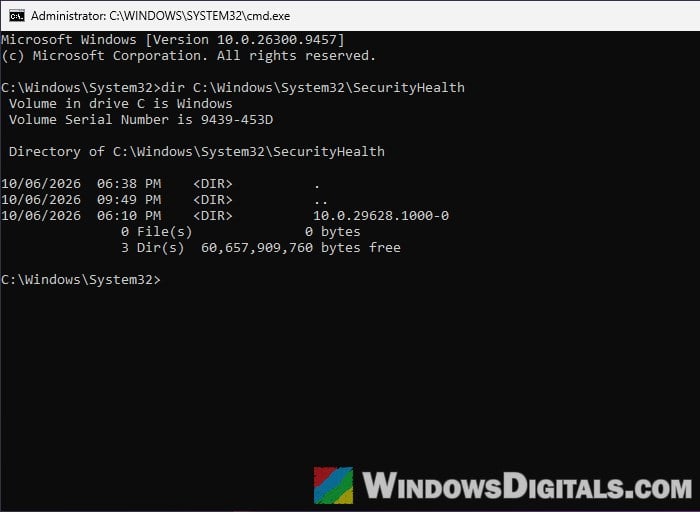 You’ll see a folder named with a version number, like
10.0.29628.1000-0. The number on your PC will likely be different. - Optional, only if there’s more than one folder: to find the damaged one, open PowerShell as administrator (as in the PowerShell fix above) and run the command below. Files from the damaged folder won’t show Valid:
Get-ChildItem C:\Windows\System32\SecurityHealth -Recurse -Include *.exe,*.dll | Get-AuthenticodeSignature
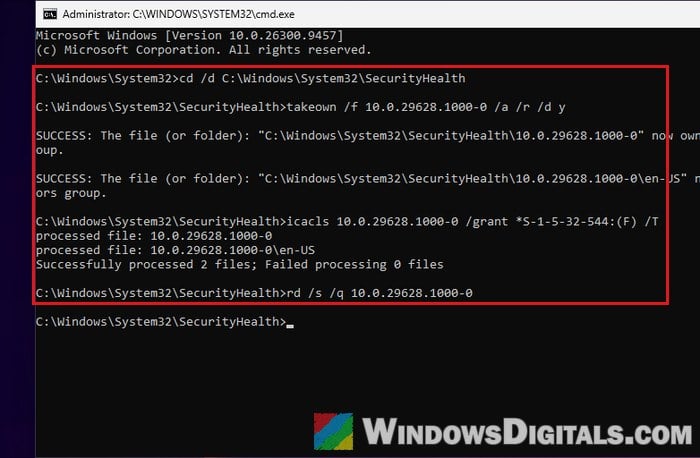
- In Command Prompt, type the following commands one by one, and press Enter after each. Replace
<folder>with the exact folder name you found:cd /d C:\Windows\System32\SecurityHealth takeown /f <folder> /a /r /d y icacls <folder> /grant *S-1-5-32-544:(F) /T rd /s /q <folder>
The middle two commands give the Administrators group ownership and full control of the folder (it normally belongs to TrustedInstaller), and the last one deletes it.
- Restart your PC.
- Install the Windows Security platform again, either through Windows Update or with the installer from Microsoft’s KB5007651 page as described above.
Windows creates a new version folder, the service starts, and Windows Security should open normally again.
Learn more: How to Take Ownership of a File, Folder or Drive in Windows 11
Reinstall Windows with “Fix problems using Windows Update”
If nothing above works, you can reinstall your current version of Windows without losing your files, apps or settings. Here’s how to do it:
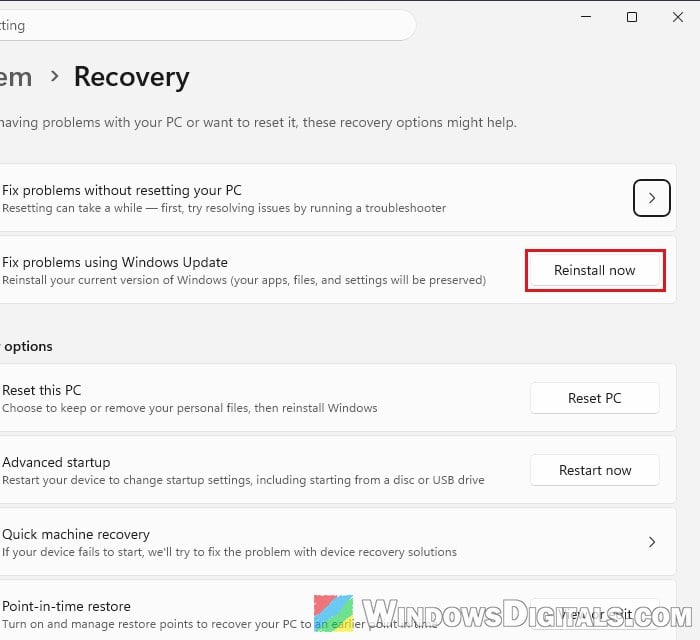
- Open Settings > System > Recovery.
- Under Fix problems using Windows Update, click Reinstall now.
- Follow the prompts and let your PC restart when it’s done.
This option might not be there on a PC managed by work or school, and it hasn’t always fixed a damaged SecurityHealth folder, which is why the folder fix comes before it.