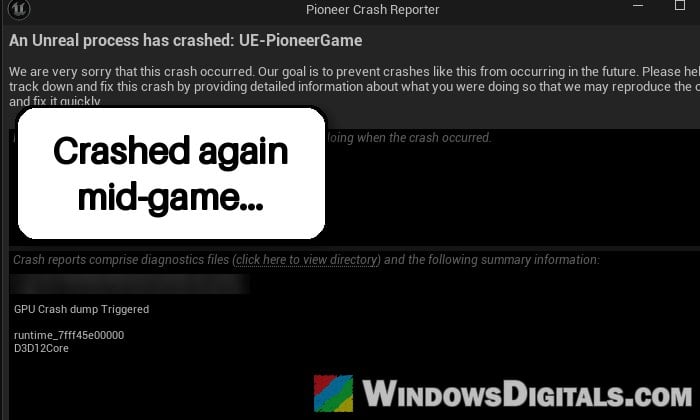
When you’re in the middle of a game on your PC, the picture might freeze for a few seconds, then the game closes and its crash reporter shows “GPU Crash dump Triggered“. It shows up in Unreal Engine games like Fortnite, Dead by Daylight, ARC Raiders and STALKER 2, on AMD and NVIDIA cards alike, and it means the game lost contact with your graphics card. This guide will explain what usually causes it and what has stopped it for other players.
Also see: LiveKernelEvent 141 or VIDEO_TDR_FAILURE Crashes on NVIDIA GPU
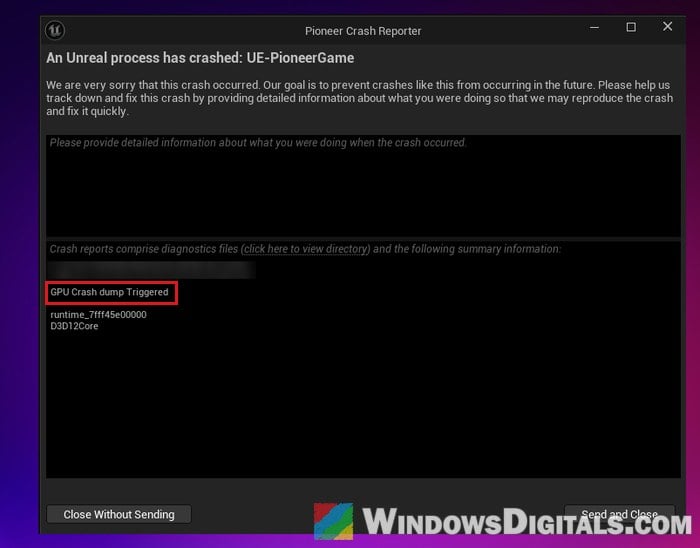
What does “GPU Crash dump Triggered” mean?
The message comes from Unreal Engine itself, not from Windows or your graphics driver. According to Epic, a GPU crash is one of two things: the graphics card took too long to finish a job, so Windows reset it (by default Windows waits only 2 seconds), or it tried to read memory that wasn’t there. The log often says DXGI_ERROR_DEVICE_REMOVED, with a reason such as DXGI_ERROR_DEVICE_HUNG.
The usual triggers are:
- The graphics driver version, either a new one with a bug or an old one.
- An overclock on the graphics card, including a factory overclock, or a RAM profile (EXPO or XMP) that isn’t fully stable.
- Upscaling, frame generation or ray tracing, or running out of video memory.
- A bug in the game, which only a patch can fix.
If your whole PC freezes or goes black instead on an AMD card, see the guide below.
Linked issue: AMD Driver Timeout Freezes the Screen but Audio Keeps Playing
Install a different graphics driver
This is the fix that has worked most often, especially on AMD Radeon cards. Epic recommends the latest driver, downloaded from AMD’s, NVIDIA’s or Intel’s own website rather than through Windows Update. But if the crashes started right after a driver update, going back to the version you had before is often what stops them.
Here’s how to do it:
- Download the driver you want (the newest, or the one before your last update) from your graphics card maker’s website.
- Remove the current driver completely, either with AMD’s Cleanup Utility on an AMD card or with Display Driver Uninstaller (DDU) in Safe Mode.
- Install the driver you downloaded and restart your PC.
Related guide: How to Update Graphics Driver in Windows 11
Turn off upscaling, frame generation and ray tracing
In some games the crash only happens with an upscaler like FSR, frame generation or ray tracing turned on. Turn them off in the game’s graphics settings (or switch FSR to XeSS). A lower preset or resolution can help too, since running out of video memory can cause it.
Put your graphics card back to its default clocks
An overclock that isn’t fully stable can cause the crash, and so can the card’s factory overclock. Going back to default clocks, or lowering the clock speed a little, can stop the crashes or make them much rarer.
Here’s how, depending on your card:
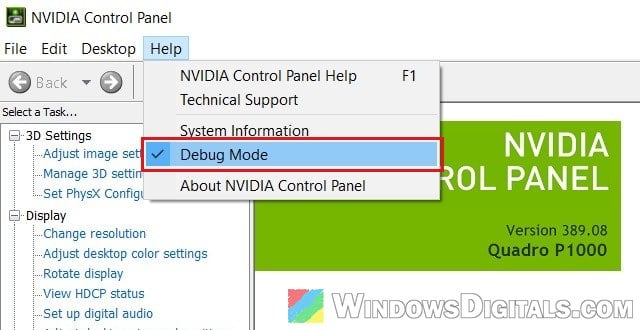
- NVIDIA: Open NVIDIA Control Panel, click the “Help” menu and select “Debug Mode“. According to NVIDIA, it removes all overclocking performance and power settings, so a factory overclock is off too while it’s ticked.
- AMD: In AMD Software, type “Factory Reset” in the search box, select “Factory Reset – System Settings“, then click “Perform Reset” and “Proceed“. This puts all AMD Software settings back to default, so you’ll lose your other custom settings too.
- If you overclocked the card yourself with a tuning tool, set it back to its default clocks there too.
Run the game in DirectX 11
Many of these crashes happen under DirectX 12 (the crash report may name D3D12Core). If the game still supports DirectX 11, running it that way can stop the crashes, though it doesn’t help in every game. Check the game’s own video settings first, since many have a DirectX option.
If there’s no such option, you can add a launch option instead. In Steam:
- Go to your “Library“, right-click the game and select “Properties“.
- On the “General” tab, type “-dx11” in the “Launch Options” box.
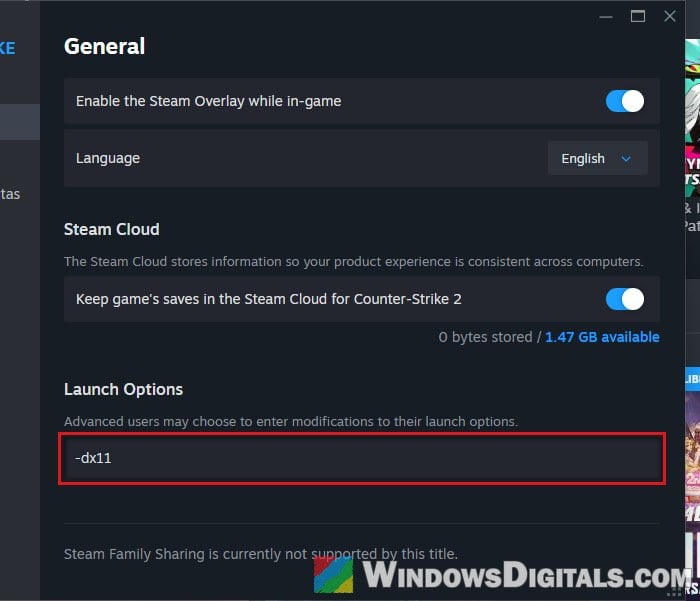
- Close the window and start the game.
In the Epic Games Launcher, the same “-dx11” goes in the game’s command line arguments:
- Go to your “Library” and click the game.
- Click the three-dots button next to “Play” and select “Manage“.
- Under “LAUNCH OPTIONS“, turn on “Additional command line arguments” and type “-dx11” in the box.
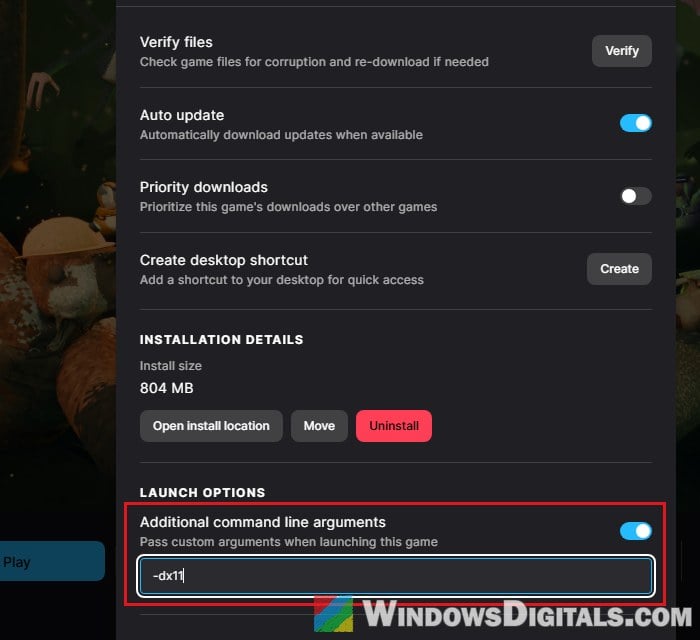
If the game won’t start with it, remove the option again, since it may only run in DirectX 12.
Turn off EXPO or XMP for your RAM
A RAM profile such as EXPO (AMD) or XMP (Intel) runs your memory faster than its default speed. If it isn’t fully stable, games can crash with this exact error, so turning it off is a quick test.
Open the BIOS at startup, find the EXPO, XMP or DOCP setting and turn it off, then save and exit. The names differ by motherboard. If the crashes stop, leave it off. If you’re not sure what you’re doing in the BIOS, it’s better to just get someone to help you instead.
Related concern: Does Faulty RAM Cause Freezes or Crashes on PC?
Give the graphics card more time (TDR delay)
Epic’s own guide suggests raising how long Windows waits before it resets the graphics card, from 2 to 60 seconds, though it says this won’t fix every crash.
Please note that Microsoft says these registry values are meant for driver developers, not normal users. Raising the delay hides the timeout rather than fixing its cause, so only try it when nothing above helped.
Incorrectly changing the registry can break Windows, so please at least create a system restore point first. If you’re not sure what you’re doing, get someone who knows to help you instead. To add the two values, follow the steps below:
- Press Win + R, type “regedit” and press Enter.
- Copy and paste the following path to the address bar and press Enter:
HKEY_LOCAL_MACHINE\SYSTEM\CurrentControlSet\Control\GraphicsDrivers
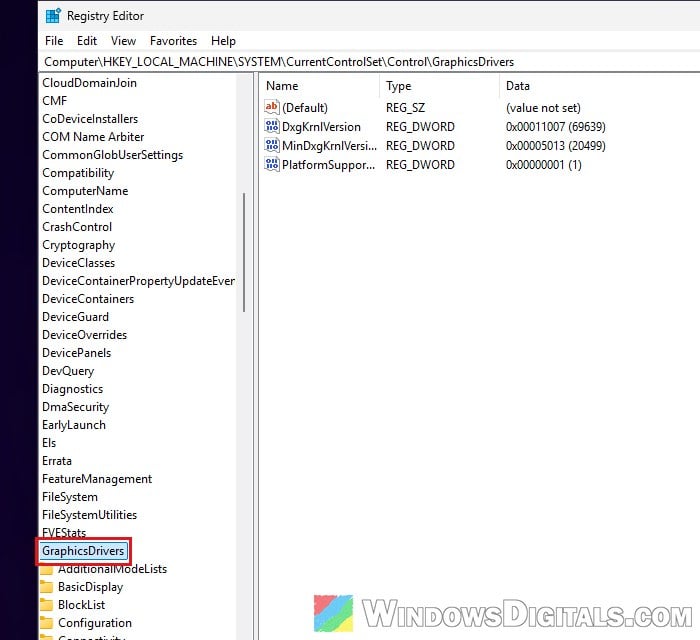
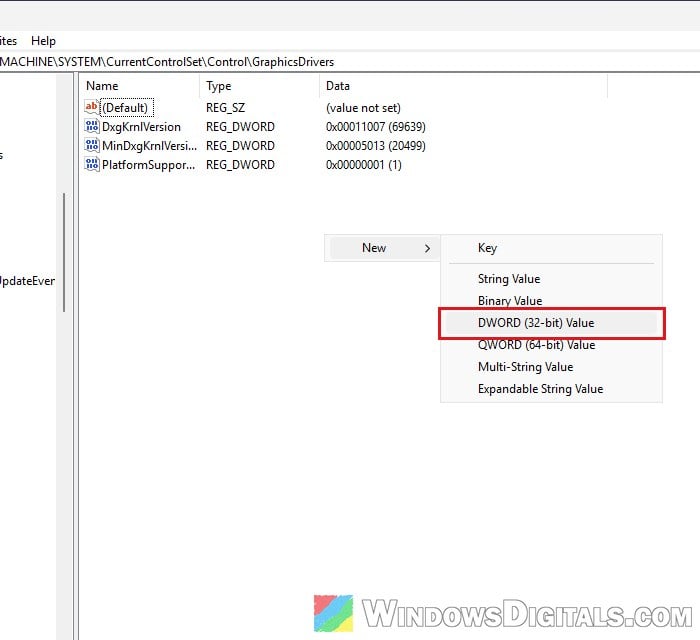
- Right-click an empty space on the right, select “New” > “DWORD (32-bit) Value” and name it “TdrDelay” (if it’s already there, skip to the next step).
- Double-click it, select “Decimal“, set the value to “60” and click “OK“.
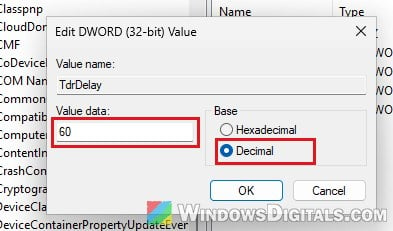
- Do the same for a second value named “TdrDdiDelay“, also 60 in Decimal.
- Restart your PC.
If nothing changes, delete both values and restart to go back to the defaults.
Other things you can try
If only one game crashes and it started for many people after the same patch, it’s probably the game itself. Send the crash report and watch the patch notes. Meanwhile, check these:
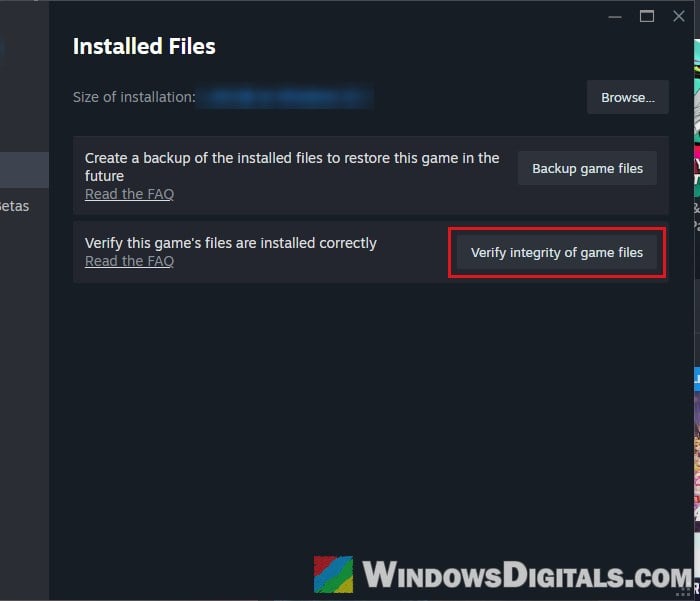
- Verify the game files: In Steam, go to the game’s “Properties” > “Installed Files” > “Verify integrity of game files“. In the Epic Games Launcher, it’s “Verify” in the game’s “Manage” window.
- Turn off overlays and close other 3D apps: In Steam, go to “Steam” > “Settings” > “In Game” and turn off “Enable the Steam Overlay while in-game“, and turn off NVIDIA’s overlay (ShadowPlay) too. Also close other games or 3D apps while you play.
- Intel 13th or 14th Gen CPU: These processors have a known crashing problem that a BIOS update fixes (done wrong, it can stop the PC from booting). See: Apps and Games Keep Crashing (0xc0000005) on Intel 13th or 14th Gen CPU.
- Temperatures: An overheating graphics card can cause it too, so watch its temperature while you play and clean the dust out of the card and the case if it runs hot.