There is a common issue with personal Microsoft accounts where the option to add a phone number is simply gone. You remove an old number to put in a new one, or Microsoft Rewards asks you for a number, and the account’s security page only lets you add an email address, an app or a passkey. This guide explains why the option disappeared and what you can use instead.
Also see: Outlook Sends a Code to Your Other Email Every Time You Sign In
Why is there no option to add a phone number?
Microsoft is phasing out text message (SMS) codes for personal Microsoft accounts, both for signing in and for account recovery. According to Microsoft, sign-in by text message is now a leading source of fraud, so it’s moving people to passkeys, verified email addresses and passwordless sign-in instead. Taking away the option to add a new phone number is part of that.
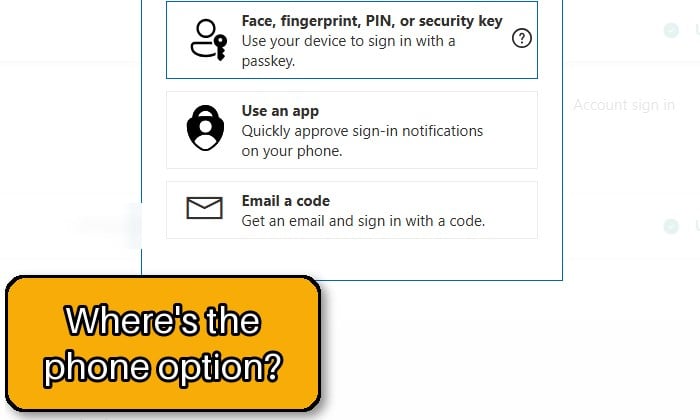
You’ll see it when you go to “Security” > “Manage how I sign in” on your Microsoft account and select “Add another way to sign in to your account“.
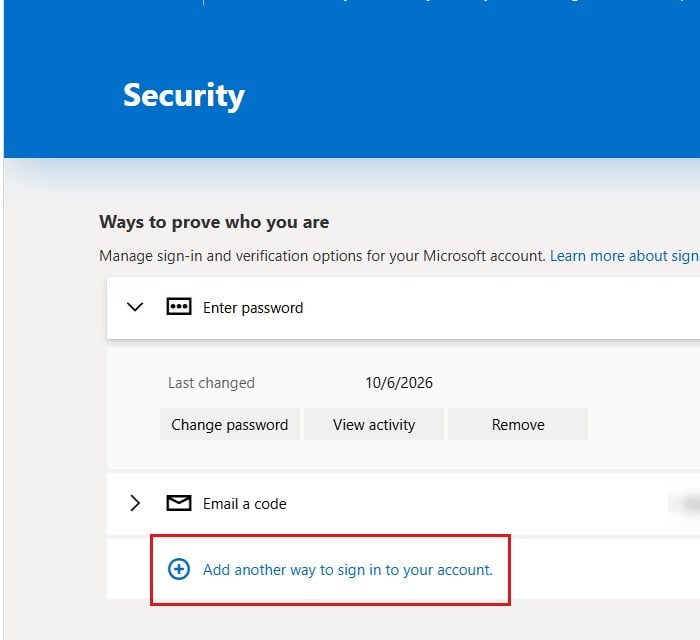
The box that opens, “Add a new way to sign in or verify“, only offers three choices: “Face, fingerprint, PIN, or security key“, “Use an app” and “Email a code“. There’s no phone or text option anywhere in it.
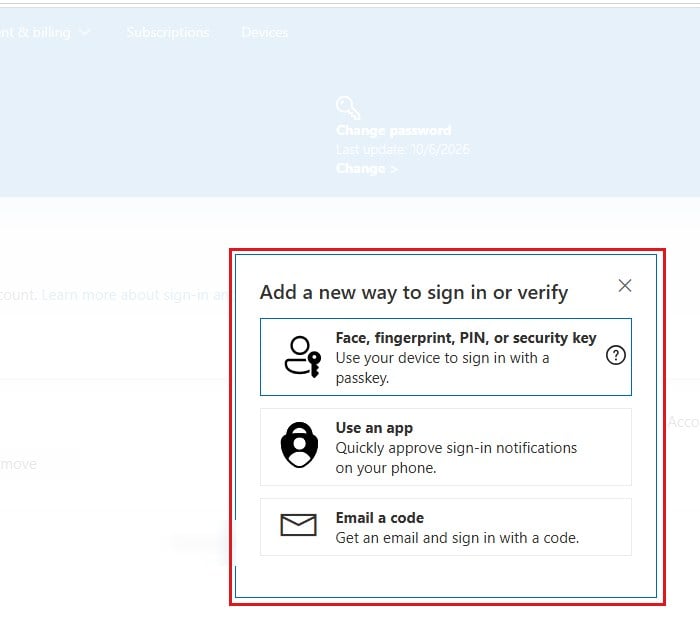
Microsoft’s help page now says the option to add a new phone number may not be available for your account, and that you may only see a recovery email, Microsoft Authenticator or a passkey.
Linked issue: “Password Sign-In Isn’t Available. Try Another Method” on Microsoft Account
Is it a bug, and will it come back?
It’s not a bug on your end. People started running into this around March 2026, it’s a complaint you’ll find all over Reddit and Microsoft’s forums, and trying another browser, another device or clearing the cache changes nothing. Microsoft’s pages describe it as a planned change, so don’t count on the option coming back.
What about adding it under “Your info”?
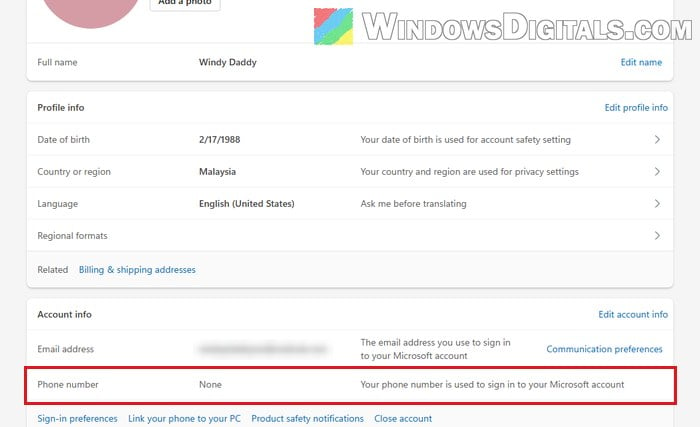
You might also look under “Your info” > “Edit account info“, where a phone number could once be added as a sign-in name (alias). For most people, that option is gone too. On the “Your info” page itself, the “Phone number” row under “Account info” shows “None” when there’s no number on the account, with no button next to it to add one.
What about the phone number you already have?
If a phone number is still on your account, you get to keep it. The change only stops you from adding a new one.
That’s exactly why so many people get stuck: they remove their old number expecting to add the new one right after, and then the add option isn’t there. So, don’t remove a number that’s still on your account just to “update” it. Add one of the other methods below first, and only then decide whether the old number should go.
Add a recovery email address instead
A recovery email does the job your phone number used to do: Microsoft can send your security codes there when it needs to check it’s you, like when you reset your password. It doesn’t even have to be your own address, so a family member’s email works too.
To add one, follow the steps below:
- Go to
https://account.microsoft.com/securityand sign in. - Select “Manage how I sign in“. Microsoft may ask you to verify with a code first.
- Select “Add another way to sign in to your account“.
- Choose “Email a code“.
- Enter the email address you want to add on the “Add alternate email address” page and select “Next“.
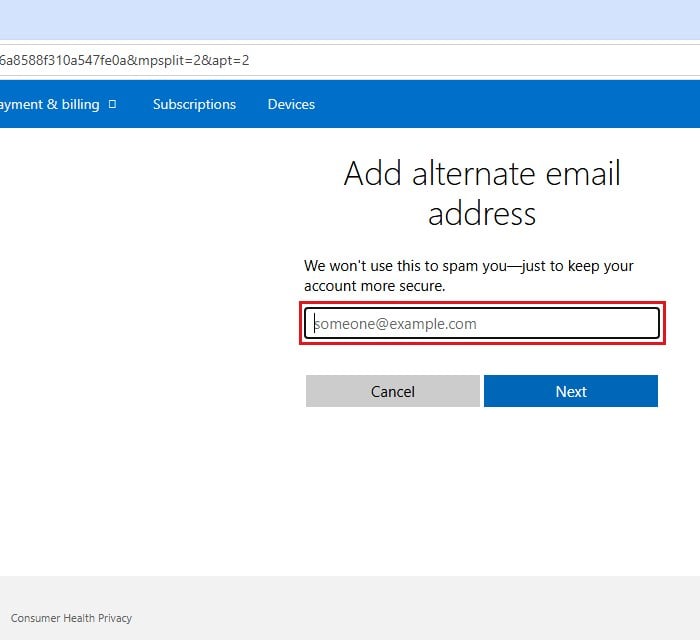
- Microsoft sends a code to that address. Enter it when asked and select “Next“.
The new email now shows up as an option the next time Microsoft asks you to verify. You can add up to 10 ways to verify in total, so it doesn’t hurt to add two.
Related problem: Invalid 2FA Code from Google or Microsoft Authenticator
Set up Microsoft Authenticator or a passkey
If what you wanted the phone number for was two-step sign-in, the Microsoft Authenticator app on your phone is the replacement. Instead of waiting for a text, you approve the sign-in in the app. To set it up:
- If you don’t have it yet, install Microsoft Authenticator on your phone first. Then, in the same “Add a new way to sign in or verify” box, select “Use an app“.
- If Authenticator is already on your phone, choose “Set up a different Authenticator app” and then “Next” to get a QR code.
- In the Authenticator app, tap the “+” icon and choose “Personal account“.
- Tap “Scan a QR code” and scan the code on your screen.
A passkey is the other option Microsoft pushes. It lets you sign in with your face, fingerprint or Windows Hello PIN instead of a code. Pick “Face, fingerprint, PIN, or security key” in the same box, or select “Next” when Microsoft offers to “Sign in faster” while you sign in.
Pro tip: Stop the “Choose where to save your passkey” Pop-up in Windows 11
What if Microsoft Rewards asks for a phone number?
This is how a lot of people find out about the change. Microsoft Rewards asks you to add a phone number before you can redeem your points, but the link takes you to a page where you can’t add one, probably because the Rewards pages haven’t caught up with the change.
There’s a workaround worth trying. On https://rewards.bing.com, start the redemption again, and when it asks to verify with your phone, look for a link under it that lets you verify another way. That got a number of people through the redemption, though others were still asked for a phone number or saw a verification error. Rewards may also ask you to verify by scanning a QR code in the Bing app instead, so if you have the Bing app on your phone, look there. If it still insists on a phone number, contact Microsoft Rewards support, because there’s no way to add one on your side.
What if your codes still go to an old number you no longer have?
If your old number is still on the account but you can’t receive texts on it, sign in with another method if you have one, such as your recovery email. When Microsoft asks you to verify and none of the listed methods work for you, select “I don’t have any of these” and follow the prompts to replace your security info. Be ready to wait, since the change takes 30 days to go through.
If you saved a recovery code, you can use it to get back in and reset your password instead.
Linked issue: Microsoft Account Locked for Unusual Activity and Won’t Unlock
Work or school accounts are different
All of the above is about personal Microsoft accounts (Outlook.com, Hotmail, Xbox and the like). A work or school account has its own security info page at https://mysignins.microsoft.com, and whether you can add a phone number there is up to your organization. If you don’t see a phone option there, ask your IT department.