If you’re playing Ace Combat 8: Wings of Theve on an Intel Arc graphics card, most often the B580, and the game closes with an Unreal Engine “Error 01” message or the whole PC freezes and restarts right after a missile hits, it’s most likely a problem between the game and Intel’s driver, not your hardware. This guide will show you what to update and change first, and the Engine.ini workaround that has actually stopped the crashes for players so far.
Also see: How to Update Graphics Driver in Windows 11
Why does Ace Combat 8 crash on Intel Arc cards?
Ace Combat 8 has been crashing on Intel Arc cards since its early access started at the end of September 2026. Most reports come from Arc B580 owners, but people with a B570, A770 and A750 have the same problem. It shows up in one of two ways:
- The game closes with “Error 01”, an Unreal Engine error, sometimes as early as the first cutscene or after a long loading screen.
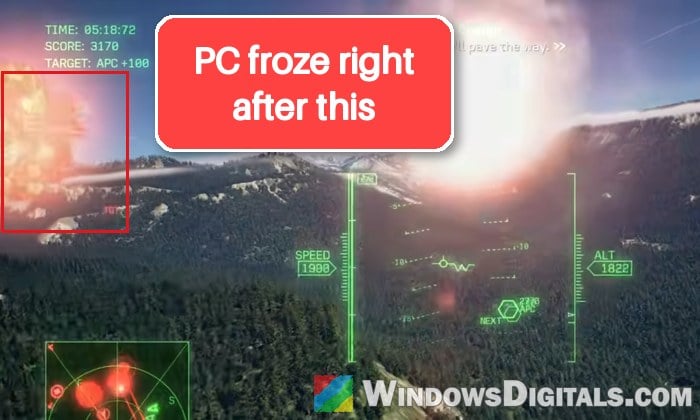
- The whole PC locks up for a few seconds and then restarts or turns off, with no crash dump. This usually happens right after a missile kill or when an explosion goes off close to your plane.
Lower settings and a lower frame rate let some players get further, but the crashes come back. Other Unreal Engine 5 games run fine on the same cards, so it’s specific to this game.
Project Aces, the developer, has said that “asynchronous computation” affects the game’s stability on certain graphics cards, and that it’s still looking into other causes of the PC crashes and working on a permanent fix for an upcoming update.
Intel is also on it. Its staff said in mid-November that they had passed players’ findings to the driver team and were working with the game developer. One player’s testing, which neither Intel nor the developer has confirmed, points to the game’s GPU particle effects (explosions, smoke and missile trails) hanging the graphics card, and to Intel’s driver not recovering from it. That’s why the workaround below turns those effects off.
Related problem: Phantom Blade Zero Crashing at Startup or Mid-Game on PC
Update the Intel Arc driver and the game first
Driver 32.0.101.9034, released on October 1, added Intel’s official support for Ace Combat 8. It reduced the crashes for some players, but didn’t stop them. Newer drivers have come out since (the latest is 32.0.101.9175, from November 4), and none of them lists a fix for this game yet. Still, start with the latest driver, since the one that added support helped some players, and any fix from Intel will come as a new driver.
- Go to Intel’s “Intel Arc Graphics – Windows” download page at
https://www.intel.com/content/www/us/en/download/785597/intel-arc-graphics-windows.html.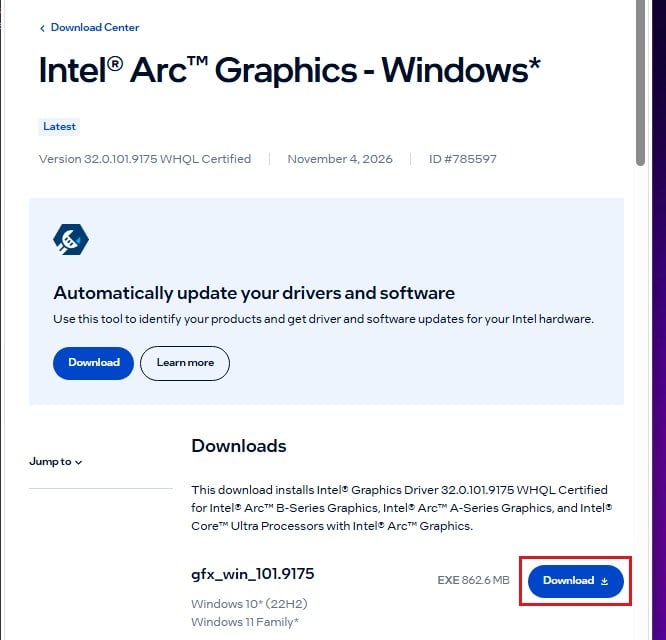
- Download the latest driver and run the installer.
- Restart your PC if the installer asks you to.
Also let Steam install the game’s latest update. Update 1.01.002 is the one that added the Async Compute option in the next section.
If you’ve overclocked your Arc card, put it back to its stock settings too while you test, so you know the crashes aren’t coming from the overclock.
Turn off “Async Compute” in the game’s settings
Update 1.01.002 added an “Async Compute” option to the game’s “SYSTEM” menu on Steam. Async compute lets the graphics card run some work side by side with the normal rendering, and the developer says players who get crashes may see improvements by turning it “OFF“. On graphics cards that don’t support it, the option is greyed out.
Open the game, go to “SYSTEM” and set “Async Compute” to “OFF“.
On Arc cards, this alone usually isn’t enough: it helps some players get further, mainly together with low settings and a 30 FPS cap, but the crashes still come back. Leave it off anyway, and use the workaround below if the game keeps crashing.
Use the Engine.ini workaround to stop the crashes
This is the one that has worked for players who kept crashing. You create a small settings file, Engine.ini, in the game’s config folder, which turns off the game’s GPU particle effects and async compute. With this file in place, players got through the missions that used to stop them (and online play), and they could keep their graphics settings as high as they liked.
The downside is that explosions and missile and rocket engine effects mostly disappear. It’s a workaround until Intel or the developer fixes the crash, not a real fix.
Here’s how to do it:
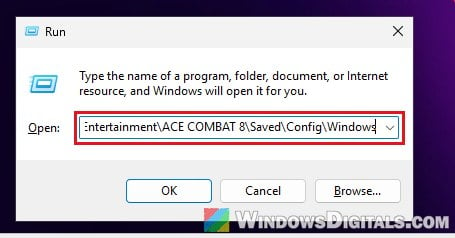
- Press Win + R, paste the following path and press Enter:
%LOCALAPPDATA%\BANDAI NAMCO Entertainment\ACE COMBAT 8\Saved\Config\Windows
- Open “Notepad” and paste the following lines into it:
[SystemSettings]
fx.NiagaraAllowGPUParticles=0
fx.NiagaraAllowComputeShaders=0
r.D3D12.AllowAsyncCompute=0
r.RDG.AsyncCompute=0
[ConsoleVariables]
fx.NiagaraAllowGPUParticles=0
fx.NiagaraAllowComputeShaders=0
r.D3D12.AllowAsyncCompute=0
r.RDG.AsyncCompute=0
- Click “File” > “Save as” and go to the folder from step 1.
- Set “Save as type” to “All files“, name the file “Engine.ini” and click “Save“. Otherwise Notepad can save it as Engine.ini.txt, which the game won’t read.
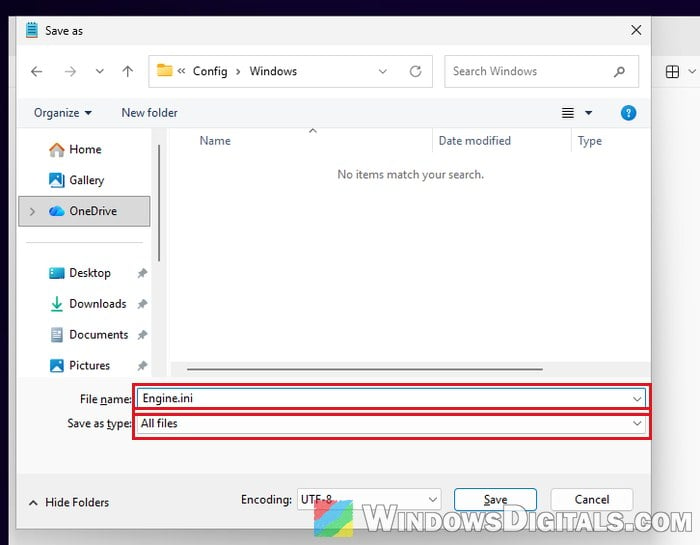
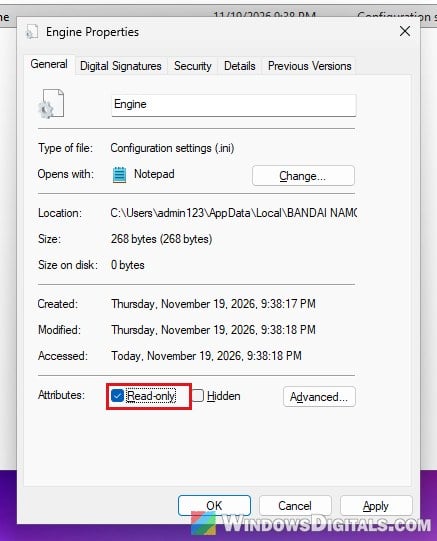
- In the folder, right-click “Engine.ini” (it may show as just “Engine”) and select “Properties“.
- Tick “Read-only” and click “OK“. Don’t skip this: without Read-only, the game deletes the file the next time it starts.
Start the game and play a mission where it used to crash.
Might be useful: How to Clean Up AppData Folder in Windows 11
Keep the missile trails and smoke with a lighter version
There’s a newer, lighter version of the file that only blocks the part of the particle system that seems to hang the card, so missile trails, smoke and jet streams still show. It’s been tested in free flight and an online match, but by far fewer players than the full version, so if the game still crashes with it, go back to the lines above.
To use it, put only these lines in Engine.ini instead, and keep the file set to Read-only:
[SystemSettings]
fx.Niagara.SetGpuDataInterfaceDenyList=UNiagaraDataInterfaceCoherentMemoryBuffer,NiagaraDataInterfaceCoherentMemoryBuffer

[ConsoleVariables]
fx.Niagara.SetGpuDataInterfaceDenyList=UNiagaraDataInterfaceCoherentMemoryBuffer,NiagaraDataInterfaceCoherentMemoryBuffer
To edit the file later, untick “Read-only” in its “Properties” first, save your changes, then tick it again.
How to undo it
Once a game update or a new Intel driver fixes the crash, delete “Engine.ini” from the same folder (untick “Read-only” first if Windows won’t let you), and the explosions and effects come back.
Still crashing? Lower the settings and cap the frame rate
If the workaround isn’t for you, or the game still crashes, the other option is to go easy on the card. It won’t stop every crash, but it gets some players further. Intel’s own staff suggested this while they look into the problem:
- Set the graphics to the lowest preset, and turn off motion blur and bloom.
- Keep “Async Compute” off.
- Cap the frame rate at 30 FPS. The freezes can come back at a 60 FPS cap.
Some Steam launch options for turning off async compute are also going around, but on Windows none of them stopped the crashes by themselves.
If nothing works for you, the only real fix will be a game patch or a new Intel driver. Both Intel and Project Aces are working on one, so keep the game and your Arc driver up to date and check the game’s patch notes and Intel’s driver notes for Ace Combat 8.