If you’ve noticed that the text in a new email, reply or forward in classic Outlook is suddenly tiny, even though the font box still says 11 or 12 and the emails you receive look perfectly normal, it’s almost always the zoom of the message window and not your font. This guide will help you get the text back to its normal size and keep it there.
Also see: Classic Outlook Keeps Switching Back to the New Outlook
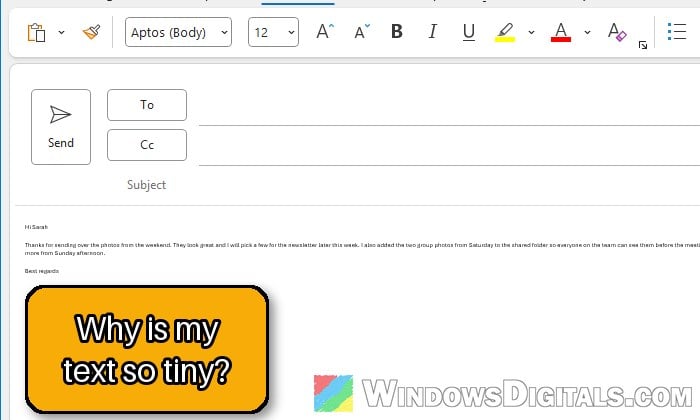
Why does the text look tiny when the font size hasn’t changed?
The window you write emails in has its own zoom level, separate from the font size. When the zoom drops below 100%, everything you type (your signature too) looks smaller on your screen, but the font box still shows the size you normally use. The lines also wrap much earlier, so the text only fills a strip on the left side of the window, as if the email had a huge right margin. When the zoom goes above 100%, you get the opposite problem, where 11-point text suddenly looks huge.
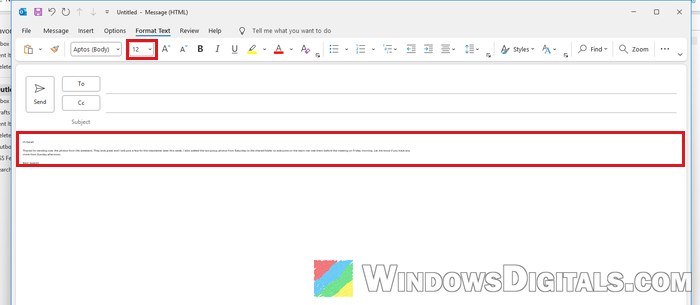
Most of the time, the zoom was changed by accident. Holding Ctrl while turning the mouse wheel (or pinching on a touchpad) in the message body zooms it in or out, and it’s very easy to do without noticing. Classic Outlook then keeps that zoom, so every new email and reply opens at the same tiny size until you change it back. That’s also why repairing Office doesn’t help with this one: nothing is broken.
Please note that you shouldn’t “fix” it by picking a bigger font size like 20 or 72. The zoom only changes what you see on your own screen, but the font size is what gets sent, so the people you email would get huge text.
Set the zoom back to 100% in the message window
This fixes it for most people, and it only takes a few seconds. The quick way is to click anywhere in the body of the new email, hold down Ctrl and scroll the mouse wheel up until the text looks normal again.
If you’d rather set it to exactly 100%, here’s how to do it:
- Click New Email to open a new message window (or open the reply you’re writing in its own window).
- Click anywhere inside the message body.
- Go to the Format Text tab and click Zoom near the right end of the ribbon.
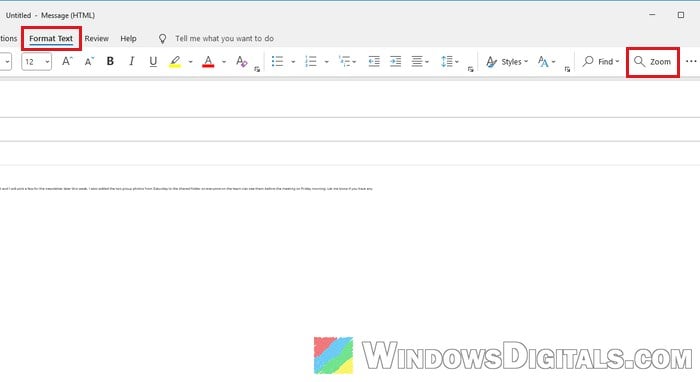
- If you can’t see Zoom on your ribbon, click the … button at the right end of the ribbon to find it.
- In the Zoom While Composing window, select 100% and click OK.
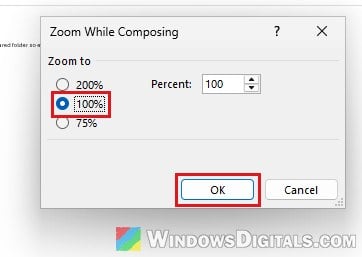
The text should now show at its normal size and use the full width of the window again. Close the message, open a new one, and check that it also opens at 100%.
Might be useful: How to Make Text Darker And Easier to Read in Windows 11
What if you’re replying in the Reading Pane?
When you click Reply and write your answer right in the Reading Pane (an inline reply), you won’t see the Format Text tab with the Zoom button. You can do one of two things:
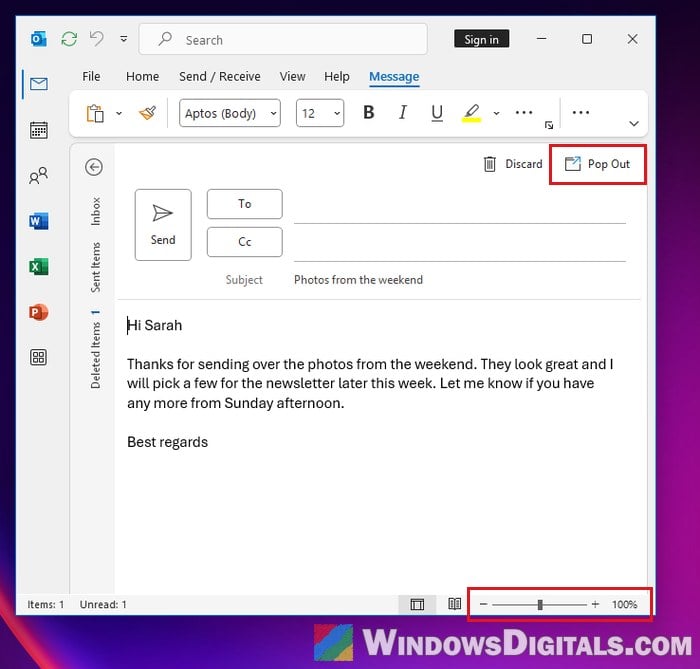
- Click Pop Out at the top of the reply to open it in its own window, then follow the steps above.
- Use the zoom slider at the bottom right of the Outlook window. It also changes the zoom of a reply you’re writing there. Drag it back until it shows 100%, or click the percentage to open the same Zoom While Composing window.
Make the zoom stick for the emails you read
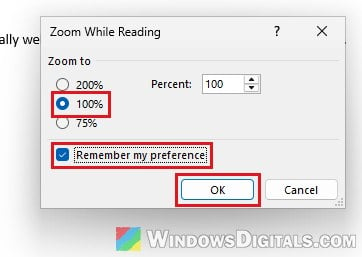
If the emails you receive look off too, the reading zoom may have changed as well. With an email selected in the Reading Pane, click the percentage next to the zoom slider at the bottom right (in an email opened in its own window, click Zoom on the Message tab instead). In the zoom window that opens, choose 100%, tick Remember my preference, and click OK. That way every email you open uses that zoom, not just the one in front of you.
Check the default font in “Stationery and Fonts”
If the zoom is already at 100% and the text is still too small, the default font for new emails might really have been set to a small size. Classic Outlook has separate default fonts for new emails and for replies and forwards, so check both. Here’s how:
- Click File > Options.
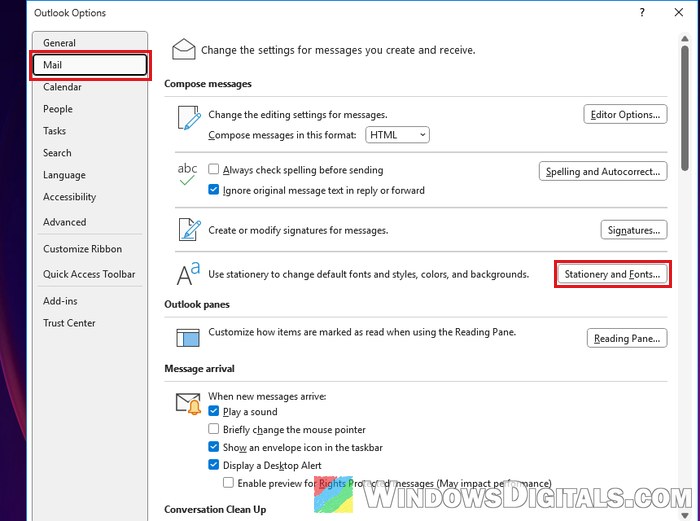
- Select Mail on the left, then click Stationery and Fonts under Compose messages.
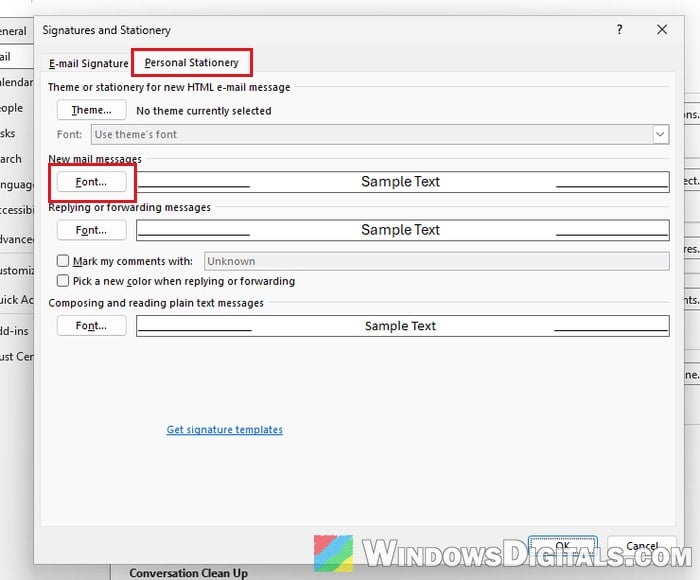
- On the Personal Stationery tab, click Font under New mail messages.
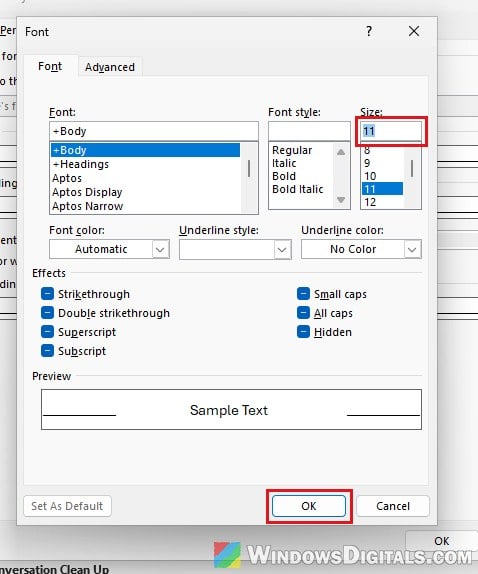
- Choose your font and set the Size to the one you want (for example 11 or 12), then click OK.
- Do the same with the Font button under Replying or forwarding messages.
- Click OK until all the windows are closed.
Outlook’s own default is the +Body font in Regular, size 11, with the color set to Automatic, so you can go back to those values if you’re not sure what to pick.
Suggested read: Classic Outlook Folders Not Syncing and Missing Emails
If everything in Outlook looks small
If it’s not just your emails, and the ribbon, the folder list and even other apps on your PC look smaller than they used to, it’s probably Windows’ own display scale rather than Outlook (see How to Make Everything Smaller or Bigger on Windows 11). You can change it in Settings > System > Display under Scale.