If you’re installing or updating NVIDIA Broadcast (for example, to version 2.3.0) and the installer sits on “Downloading required components” for hours, barely moves past a few percent or ends with an install failure, this guide will show you why it gets stuck there and how to get NVIDIA Broadcast installed.
Also see: How to Update Graphics Driver in Windows 11
Page Contents
Why does NVIDIA Broadcast get stuck on “Downloading required components”?
The NVIDIA Broadcast installer you download from NVIDIA isn’t the whole app. During the install, it downloads the AI models made for your specific GPU, which is what the “Downloading required components” stage is doing. According to NVIDIA, this download is around 500 MB, so on a slow connection it can take a while.
When it’s stuck for much longer than that, or ends with an error, the usual reasons are:
- Your antivirus, ad-blocker or firewall is blocking the download. NVIDIA says this makes the installation fail.
- NVIDIA Broadcast is still running (with its effects on) while you install over it, which NVIDIA says can end in an installation error.
- The download itself has stalled, or your connection dropped partway.
If you recently switched to a GPU from another series, NVIDIA Broadcast will ask to be reinstalled so it can download the AI models for the new card, which is why you’re seeing this stage again.
The good news is that NVIDIA also offers a complete offline installer, which skips this download entirely.
Check if anything is actually being downloaded
Before you cancel anything, check whether the installer is really stuck or just slow. If the stage hasn’t moved for more than 5 minutes, see whether your PC is receiving any data:
- Right-click the taskbar and select “Task Manager“.
- Go to the “Performance” tab.
- Select your network connection (“Ethernet” or “Wi-Fi“) and look at the receive speed.
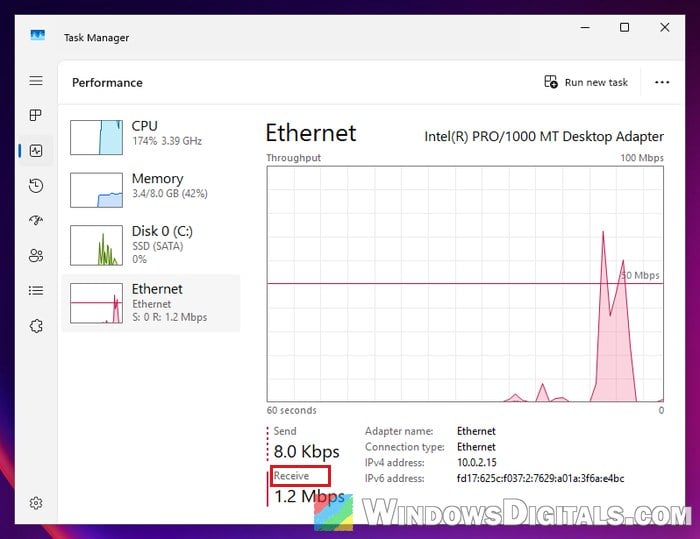
If it’s receiving data at a reasonable speed, just let the installer finish. If it shows nothing or a very low speed for a long time, move on to the next section.
End the installer processes and try again
When nothing is coming in, the installer is unlikely to recover by itself. Close it completely and start over:
- In Task Manager, go to the “Details” page.
- Right-click each of these processes, if you see them, and select “End task“:
- The NVIDIA Broadcast installer you ran (for example,
NVIDIA_Broadcast_v2.3.0.71988672.exe) NvBroadcastInstallerOTAUtility.exenvngx_update.exe
- The NVIDIA Broadcast installer you ran (for example,
- Make sure your internet connection is working and has a decent download speed.
- Close NVIDIA Broadcast and anything using your microphone or webcam (see below).
- Run the NVIDIA Broadcast installer again.
Make sure NVIDIA Broadcast and mic apps are closed
If you’re updating, the installer is supposed to close the old NVIDIA Broadcast app by itself. When it doesn’t, installing over the running app (especially with its effects turned on) can make the install fail. You can force it to close:
- Press Win + R to open the Run dialog box.
- Type the following command and press Enter:
taskkill /f /im "NVIDIA Broadcast.exe"
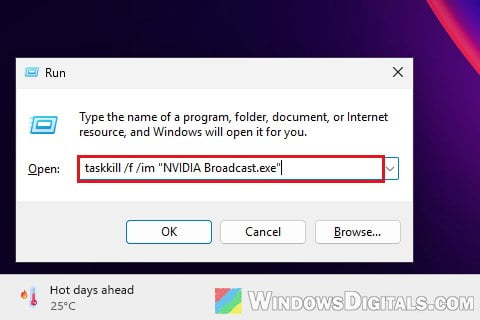
The installer itself asks you to close all video conferencing apps completely (even from the system tray) before it continues, so it also helps to close games, voice chat apps and anything else that’s using your microphone or webcam before you run it again. If the install already failed this way, uninstall NVIDIA Broadcast from Windows first, then install it again.
Use NVIDIA’s offline installer for your GPU
This is the fix most likely to work, and it’s the one NVIDIA itself points to. The offline installer already includes the AI models, so it doesn’t need to download anything during setup. Users on NVIDIA’s forums and Reddit suggest it for this problem too.
The catch is that each offline installer is for one GPU family, so you need to know which graphics card you have. Here’s how to get the right one:
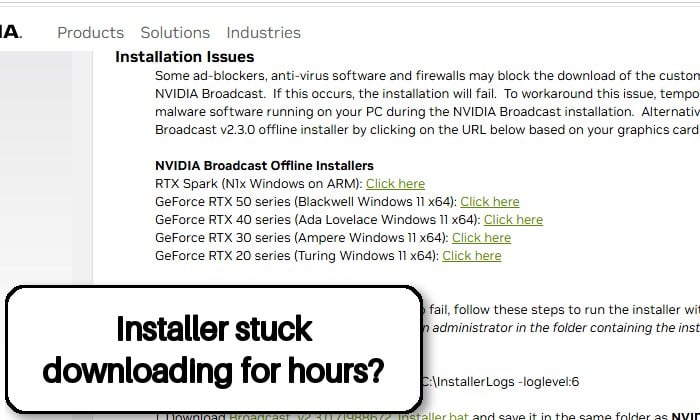
- Go to NVIDIA’s knowledge base article
https://nvidia.custhelp.com/app/answers/detail/a_id/5086/(titled “NVIDIA Broadcast – How to send feedback/report bugs”). - Under “Installation Issues“, find the “NVIDIA Broadcast Offline Installers” list.
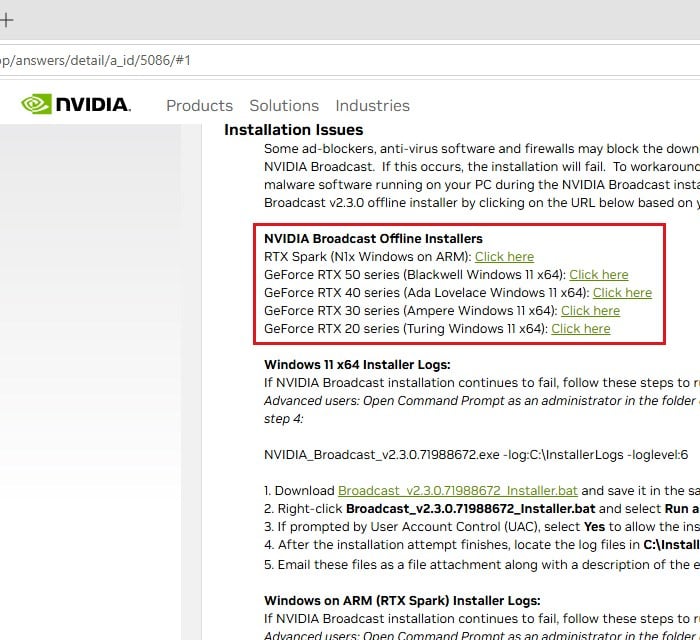
- Click the “Click here” link next to your GPU series:
- GeForce RTX 50 series (Blackwell)
- GeForce RTX 40 series (Ada Lovelace)
- GeForce RTX 30 series (Ampere)
- GeForce RTX 20 series (Turing)
- RTX Spark (Windows on ARM)
- Run the downloaded installer and follow the prompts.
Make sure you use the offline installer for the newest version (2.3.0 at the time of writing). An older offline installer may simply tell you that NVIDIA Broadcast needs to be updated, and you’d be back where you started.
Pro tip: Check Graphics Card on Windows 11/10 (NVIDIA, AMD or Intel)
Temporarily turn off your antivirus and ad-blocker
If you’d rather stick with the regular installer, check your security software. NVIDIA confirms that some ad-blockers, antivirus software and firewalls can block the download of the custom files for your GPU, which makes the installation fail. Their own workaround is to temporarily disable any antivirus and anti-malware software while you install NVIDIA Broadcast.
If you use a third-party antivirus, pause its real-time protection until the install is done. For Windows Security, here’s how to do it:
- Open Windows Security from the Start menu.
- Click “Virus & threat protection“.
- Under “Virus & threat protection settings“, click “Manage settings“.
- Turn off “Real-time protection“, and click “Yes” when Windows asks.
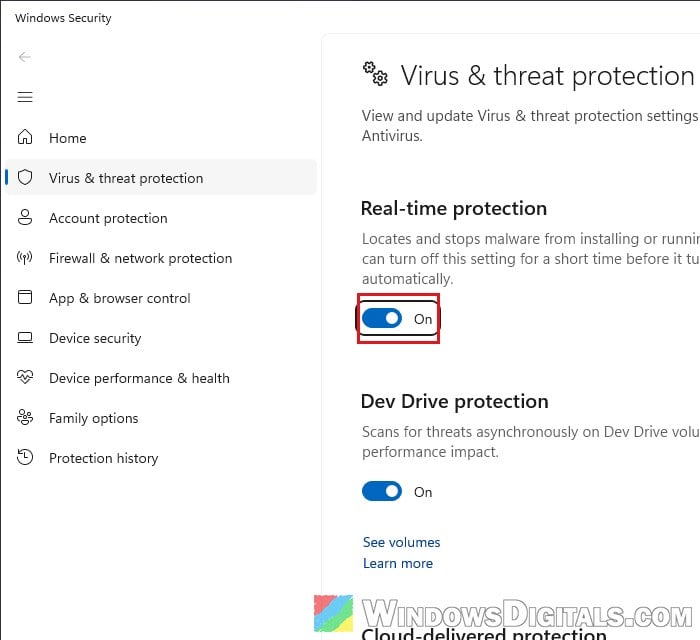
- Run the NVIDIA Broadcast installer again.
Important: Turn your antivirus back on as soon as the install is done, so your PC isn’t left unprotected.
Related concern: “You’re using other antivirus providers” Windows 11 (Fix)
Uninstall and do a clean reinstall
If the regular installer keeps failing, and the offline one doesn’t work for you either, remove NVIDIA Broadcast completely and install it fresh:
- Open Settings > Apps > Installed apps.
- Find NVIDIA Broadcast in the list, click the three-dots icon next to it, and select “Uninstall“.
- Download the latest installer from NVIDIA’s Broadcast page at
https://www.nvidia.com/en-us/geforce/broadcasting/broadcast-app/.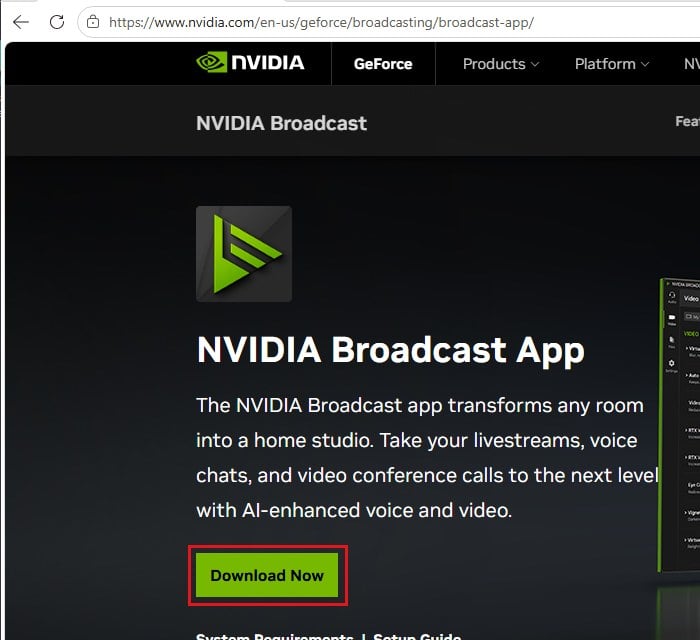
- Run it, and on the “Installation options” screen, choose “Custom (Advanced)“, which gives you the option to do a clean installation.
Download it from that page directly. The update banner inside the app sometimes opens NVIDIA’s homepage instead of the Broadcast download page.
Other things to check
If you’re still stuck, go through these:
- Disk space: NVIDIA says the install needs about 1.5 GB of free space while it runs.
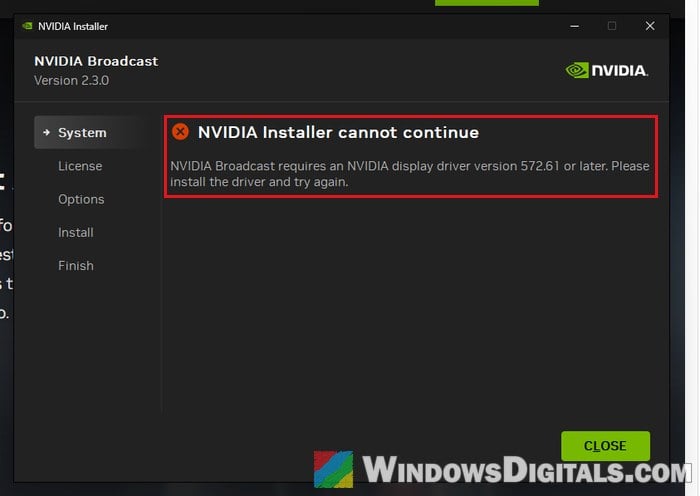
- Graphics driver: NVIDIA Broadcast needs an RTX 2060 or newer and NVIDIA driver 572.61 or higher. With an older driver, the installer doesn’t even reach the download: it stops at the start with “NVIDIA Installer cannot continue“. If that’s the message you see, update your graphics driver first.
- Send logs to NVIDIA: NVIDIA’s offline-installer article (KB 5086) also has a small
.batfile that runs the installer with logging turned on. Save it in the same folder as the installer, right-click it and select “Run as administrator“. The logs are saved inC:\InstallerLogs, and you can email them to NVIDIA using the link in that article so their team can see where the install fails.