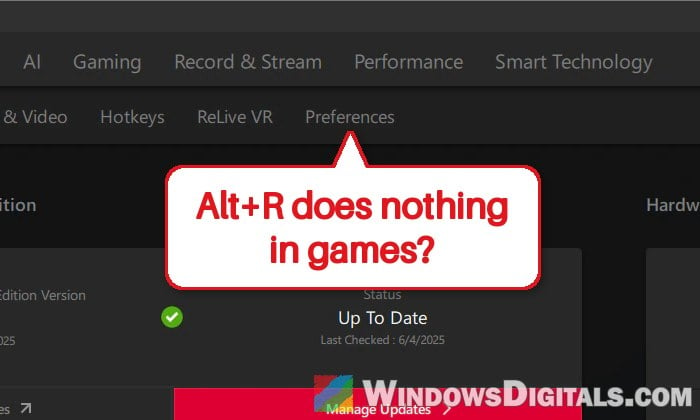
If you have Radeon graphics and pressing Alt + R brings up the AMD Software overlay on the desktop but does nothing once a game is running, or the performance metrics overlay has stopped showing in games, it’s a pretty common issue with recent Adrenalin drivers. This guide will show you why it happens and how to get the overlay working again.
Also see: AMD Software Warning: Graphics Driver Replaced?
Page Contents
Why does the AMD overlay stop working in games?
The overlay breaking after a driver update is a common complaint on Reddit, and it has happened on many Adrenalin versions over the past year. Most recently, owners of the RX 9070 XT and RX 7900 XTX found that the overlay stopped opening in games with Adrenalin 26.9.1 and 26.9.2, and it’s still broken for some on 26.10.1, while going back to 26.8.1 brings it back. AMD hasn’t listed it as a known issue so far.
Some common reasons for this are:
- The In-Game Overlay switch or the hotkeys got turned off, often by a driver update.
- A video with copy protection is open somewhere (Netflix, Prime Video), which blocks the overlay.
- A broken or partial install, for example Windows Update swapping the driver, or the installer putting on the minimal version that has no overlay at all.
- A bug in the newest drivers for some cards, which, for now, only going back to an older driver seems to fix.
Start with the quick checks below; the reinstall and rollback are near the end.
Restart AMD Software
It sounds basic, but restarting AMD Software is the quickest thing to try. First make sure it’s actually running at all, then restart it.
- Press Ctrl + Shift + Esc to open Task Manager.
- Find AMD Software in the list, right-click it and select End task.
- Open AMD Software again from the Start menu, then start your game and press Alt + R.
Might be useful: How to Show FPS in Games on Windows 11
Turn the “In-Game Overlay” and hotkeys back on
After an update, the overlay switch or the hotkeys in AMD Software can quietly turn themselves off. In that case, Alt + R and the metrics shortcut (Ctrl + Shift + O by default) simply do nothing in games. It only takes a click to turn them back on.
- Open AMD Software and click the gear icon (Settings) at the top right.
- Go to the Preferences tab and make sure In-Game Overlay is turned on.
- Go to the Hotkeys tab and make sure Use Hotkeys is turned on.
- In the same list, check that the overlay is still on Alt + R and the performance overlay on Ctrl + Shift + O.
AMD’s hotkeys must include Ctrl or Alt, and they shouldn’t clash with keys another app or Windows already uses. If another program has the same shortcut, assign a different one here and try that in your game. Then start your game and press the hotkey again.
Close anything playing protected video
Copy-protected video blocks the overlay, so it can’t be used to record that video. Even a Netflix or Prime Video tab sitting idle in your browser can be enough.
Close every tab or app playing streaming video (Netflix, Prime Video, Disney+ and the like), then go back into your game and press Alt + R again. If the overlay opens now, that was the culprit.
Try exclusive fullscreen, or run the game as administrator
Some games only show the overlay in one display mode. If your game runs in borderless or windowed mode, switch it to exclusive fullscreen in its graphics settings (or the other way around) and try again.
Running the game as administrator has also brought the overlay back for several people. To make a game always run as administrator:
- Right-click the game’s
.exefile (or its shortcut) and select Properties. - Go to the Compatibility tab.
- Check “Run this program as an administrator” and click OK.
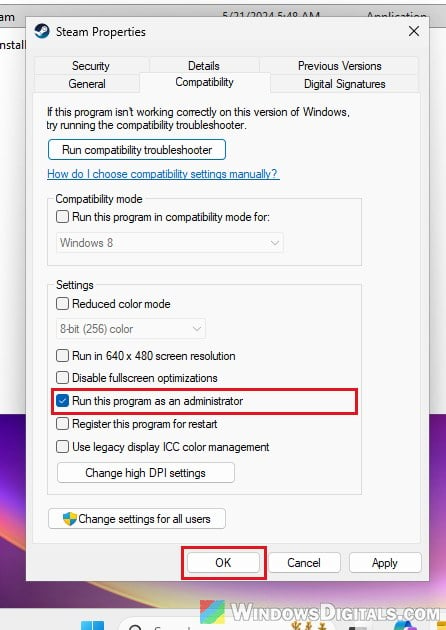
If the game is started from a launcher (Steam, Epic Games), do the same for the launcher’s .exe as well, and for AMD Software if it still doesn’t work. Then start the game again and press Alt + R to see if the overlay shows up.
Reset AMD Software to its default settings
If the switches are on and the overlay still won’t open, AMD Software’s own settings may have gotten mixed up. Its Factory Reset option restores all user settings and profiles to their defaults.
Please note that this also resets everything else you’ve set in AMD Software, like your tuning, graphics profiles and recording settings, so you’ll have to set those again.
- Open AMD Software and click the gear icon (Settings). You can also type “Factory Reset” into its search box.
- On the System tab, click Perform Reset next to Factory Reset.
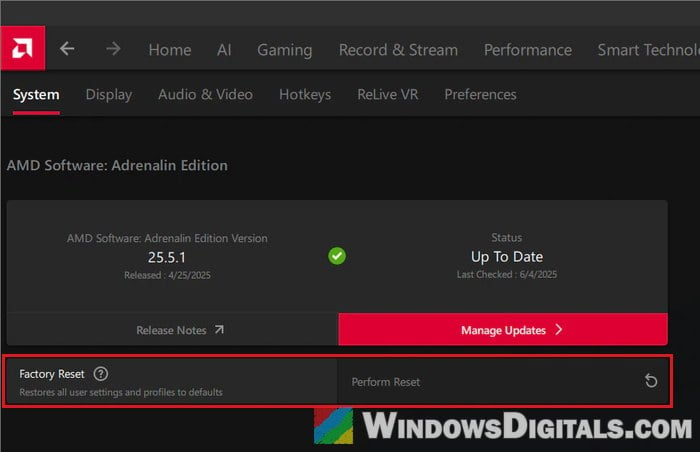
- Click Proceed on the warning that appears.
- When AMD Software shows its Quick Setup screen, pick a profile or skip it, then check the overlay in a game again.
Do a clean reinstall of the AMD driver with AMD Cleanup Utility
If an update didn’t install properly, a clean reinstall is what fixes it most often. AMD Cleanup Utility is AMD’s own tool for removing every AMD graphics and audio driver and AMD Software before a fresh install.
- Download the latest AMD Software: Adrenalin Edition installer for your graphics card from AMD’s website first, and AMD Cleanup Utility from AMD’s support page (
https://www.amd.com/en/resources/support-articles/faqs/GPU-601.html). - Disconnect your PC from the internet (unplug the cable or turn off Wi-Fi), so Windows Update can’t install its own AMD driver while you’re between drivers.
- Run
amdcleanuputility.exe. When it offers to restart into Safe Mode, accept (AMD recommends it). - Click OK on the message saying it will remove AMD drivers and applications.
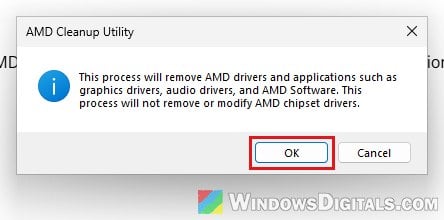
- When it’s done, click Finish and let it restart your PC.
- Run the Adrenalin installer you downloaded. Click Accept & Express Install for the default installation, or open Additional Options and make sure Software Type is Default, not Minimal or Driver Only, since those leave out features like the overlay.
- Restart your PC if the installer asks you to, reconnect to the internet and test the overlay in a game.
Tip: The installer’s Additional Options also have a “Factory Reset (Optional)” choice (not the same as the Factory Reset in AMD Software’s settings) that does a similar cleanup by itself. It removes all previous versions of AMD Software and temporarily pauses Windows Update during the install.
Related guide: How to Update Graphics Driver in Windows 11
Go back to Adrenalin 26.8.1 for now
If you’re on 26.9.1, 26.9.2 or 26.10.1 and nothing above worked, it’s most likely the driver bug itself. A clean reinstall doesn’t always help on these drivers, while going back to Adrenalin 26.8.1, a WHQL-recommended driver from August 2026, brought the overlay back for RX 9070 XT and RX 7900 XTX owners.
- On AMD’s drivers and support website, find your graphics card and open its previous versions page, then expand Windows 11 – 64-Bit Edition.
- Find Adrenalin 26.8.1 (WHQL Recommended) in the list and click its Download button.
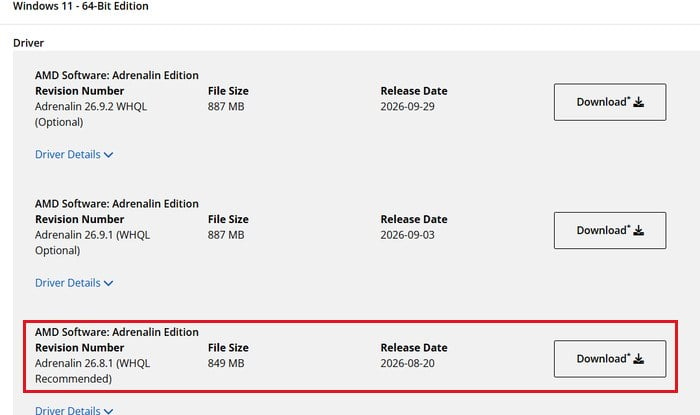
- Remove the current driver with AMD Cleanup Utility and install 26.8.1 offline, the same way as in the section above, then check the overlay in a game again.
Keep in mind that you’ll miss whatever the newer drivers added or fixed, such as FSR 4.1 upscaling for RX 6000 series cards in 26.10.1. Try each new driver as it comes out, and stay on it once the overlay works in your games.