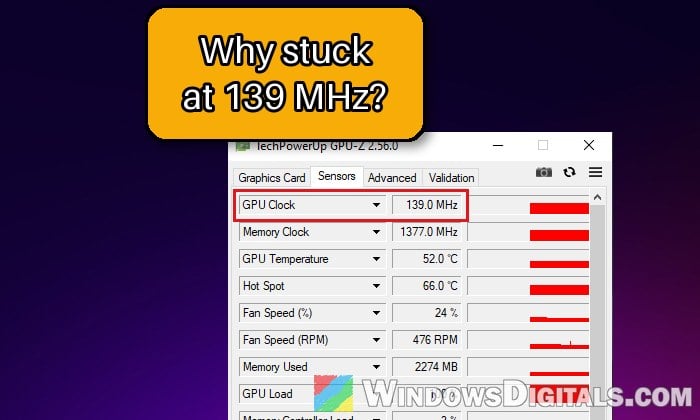
If you’ve noticed that your NVIDIA graphics card is stuck at 139 MHz in GPU-Z or MSI Afterburner even while a game has it at 100% usage, your games are probably crawling at 20 or 30 FPS. This guide will explain what 139 MHz means, how to find out what’s keeping your GPU there, and what you can do to fix it.
Also see: GPU 100% Usage When Idle or Gaming (Good or Bad)
Page Contents
Why is your GPU stuck at 139 MHz?
139 MHz is the lowest (idle) clock speed of many NVIDIA cards, especially the GTX 10 series (GTX 1050, 1060, 1070, 1080 Ti) and laptop chips like the MX350. At idle, the card drops into a low-power state and runs at 139 MHz, which is normal. Newer cards do the same at their own idle speed, so an RTX 30 series card can get stuck at 210 MHz instead.
What’s not normal is when it stays there while a game is running, usually with very low temperatures and power draw. Something is keeping it from leaving its idle state or forcing its clocks down. Common reasons are:
- Power delivery: a loose PCIe power cable or a weak power supply on desktops, or a laptop on battery or with a charger it doesn’t recognize.
- GPU tuning or OEM software holding the card at a low clock.
- A broken driver install.
- A mistake after opening the card, for example during a repaste.
- A hardware fault, such as a failed power sensor or VRM.
Related problem: Laptop CPU (Processor) Stuck at 0.40 GHz, Why?
Check what’s holding the clock down first
NVIDIA’s driver keeps track of what’s lowering the clocks, so it’s worth reading that before changing anything.
Using GPU-Z
- Download GPU-Z from TechPowerUp (it’s free) and open its Sensors tab.
- Start a game, then look at the PerfCap Reason row.
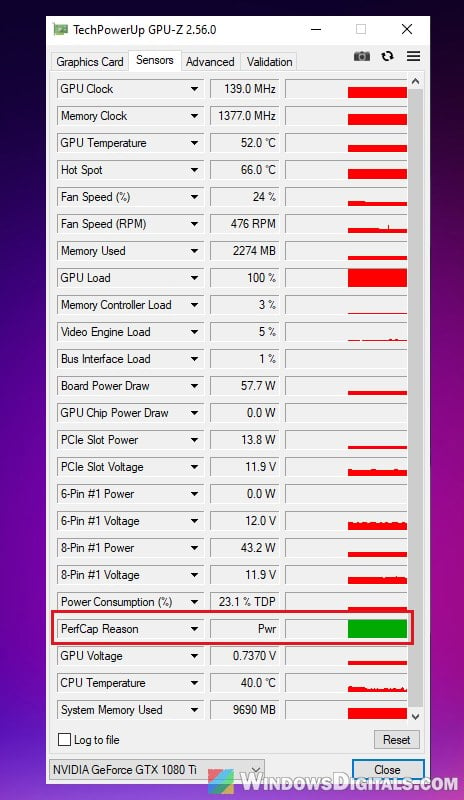
- Pwr: held back by the power limit.
- Thrm: held back by temperature.
- VRel or VOp: the card has reached a voltage limit.
- Util: the card isn’t given enough work.
Using nvidia-smi
- Open Command Prompt while a game is running.
- Type the following command and press Enter:
nvidia-smi -q -d PERFORMANCE
- Look at the Performance State (P0 is maximum performance, P8 is idle) and the Clocks Event Reasons (Clocks Throttle Reasons on older drivers). The one marked Active is what’s limiting the card.
If HW Power Brake Slowdown or HW Slowdown is active, NVIDIA says the power supply can trigger it, so check the charger, cables and PSU sections below. A thermal reason points at cooling. If nothing is active, software or the driver is more likely.
Note: nvidia-smi comes with the driver from NVIDIA’s website. A driver installed through Windows Update may not include it.
Laptop users: plug in the original charger
On battery, a laptop can’t draw as much power, so it may throttle both the CPU and GPU. The same can happen when it doesn’t recognize the charger, for example one that isn’t the original, or a loose or damaged plug. Dell laptops even warn that the AC power adapter type can’t be determined and that the system will operate slower.
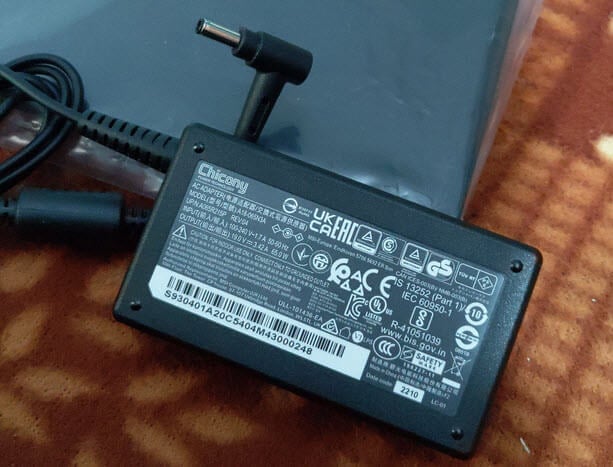
Plug in the charger that came with your laptop, make sure it sits firmly in the port, and test a game again.
Linked issue: Gaming Laptop FPS Drops Randomly, Plugged in or Not
Desktop users: check the GPU power cables
A card that isn’t getting full power from its connectors may still show a picture but not boost. For one owner, the clock even changed when the cable at the power supply was moved, a sign of a bad connection or a failing PSU.
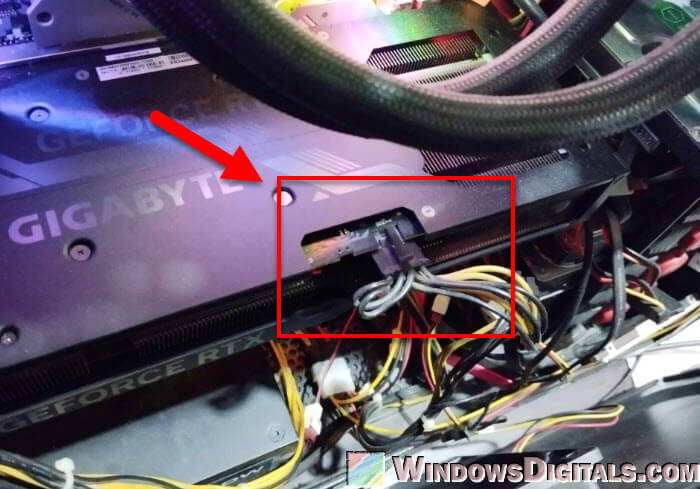
Turn off the PC, unplug it from the wall, then:
- Push every PCIe power connector (6-pin, 6+2-pin or 8-pin) all the way into the card.
- On a modular power supply, check the cable’s other end at the PSU too.
- Use proper PCIe cables, ideally a separate one for each connector, and avoid adapters.
- Reseat the card, or try another PCIe x16 slot if your motherboard has one.
Close or reset GPU tuning and OEM tools
Tools like MSI Afterburner apply their own clock and power settings on top of the driver, and a saved profile can keep the card from boosting. Here’s what you should do:
- Close MSI Afterburner, ASUS GPU Tweak, Armoury Crate, NVIDIA Inspector and any other tool that controls your GPU, tray icons included.
- Start a game and check the clock speed again.
- If it goes up, reset that tool to its default settings, or uninstall it if you don’t need it.
Check Windows and NVIDIA power settings
On their own, these settings usually won’t unstick the card, but they’re quick to check and rule out a power setting holding it back.
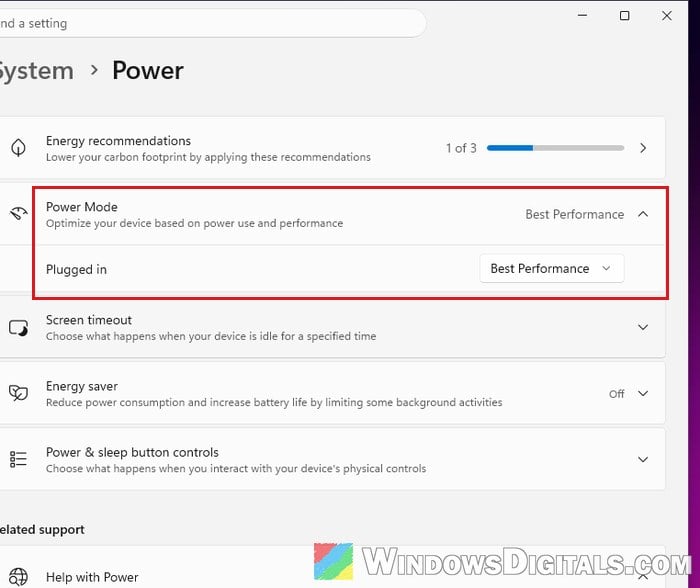
- Open Settings > System > Power (Power & battery on a laptop), expand Power Mode and set it to Best Performance for Plugged in.
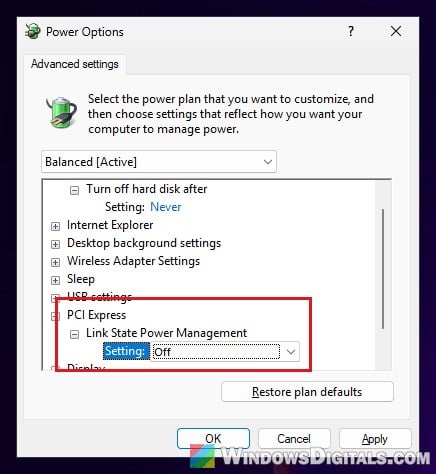
- Press Win + R, type “control powercfg.cpl,,3” and press Enter to open your power plan’s advanced settings.
- Expand PCI Express > Link State Power Management, set it to Off and click OK.
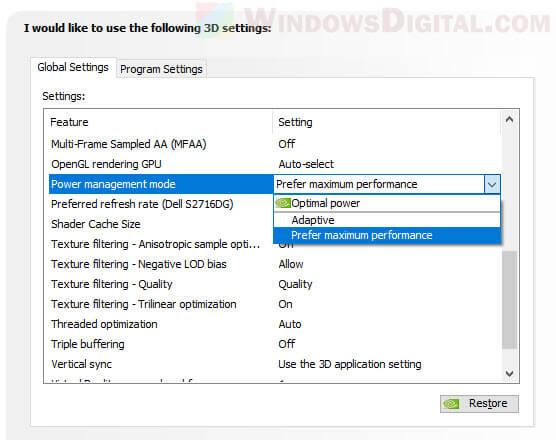
- Open NVIDIA Control Panel and go to Manage 3D settings > Global Settings.
- Set Power management mode to Prefer maximum performance and save the change.
Restart your PC and check the GPU clock in a game again.
Do a clean install of the NVIDIA driver
If the driver didn’t install cleanly, updating over it often won’t help. A clean install removes the old driver and its settings first. If the problem started right after a driver update, the previous version is worth a try too.
- Download the latest driver for your card from NVIDIA’s website.
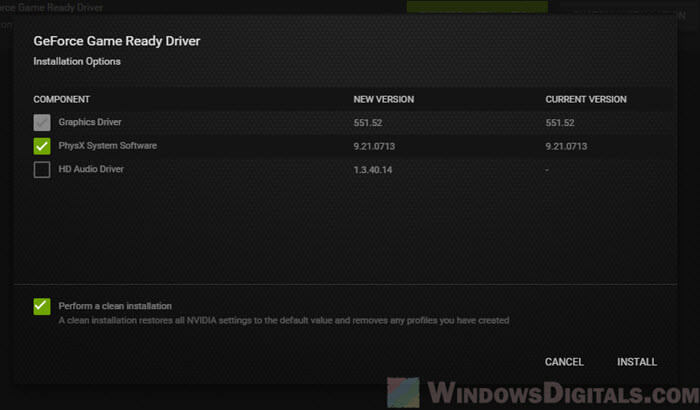
- Run the installer and choose the custom install option instead of the express one.
- Tick “Perform a clean installation” and finish the install.
- Restart your PC.
You can also remove the driver with Display Driver Uninstaller (DDU) in Safe Mode first, then install it again. Either way, start a game afterwards and check the GPU clock again.
Might be useful: How to Uninstall Drivers in Windows 11
Test with another power supply or another PC
If the card is still stuck, put it in another PC, or try your PC with another power supply. If the card stays at its idle clock in a different PC, the problem is almost certainly the card. Also make sure your PSU is big enough, especially if you just upgraded from a lower-power card like a GTX 1650.
Related guide: How to Check Power Supply Wattage on Windows 11/10 PC
Did it start after you repasted the card?
If the card worked until you replaced its thermal paste, the job itself is the likely cause: paste that’s too thick, missing or wrong-size thermal pads, unevenly tightened screws, or something that came loose. Open it again and check. HWiNFO also shows memory and VRM temperatures, since a cool core doesn’t mean the whole card is cool.
Suggested read: Can you use old Thermal Paste? Does it expire?
Maybe a hardware failure
If nothing above works, the bad news is that the card probably has a hardware problem, such as a failed power sensor or a damaged VRM. Some people on Reddit and other forums with this problem ended up having the card repaired or replaced, and a card that stays at its idle clock in two different PCs is a strong sign of it.
If your graphics card or laptop is still under warranty, contact the manufacturer. If not, a repair shop can check the card’s power circuits before you decide whether it’s worth fixing.