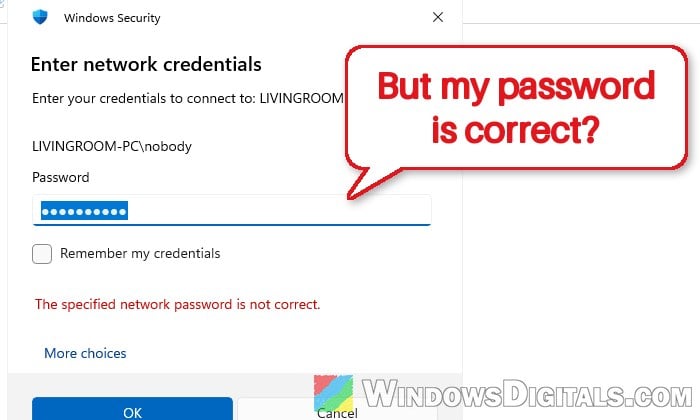
If you’re trying to open a shared folder on another PC at home and Windows 11 keeps showing “Enter network credentials“, then says “The username or password is incorrect” (or “The specified network password is not correct“) no matter which email, username, password or PIN you try, this guide will explain what the prompt wants and how to get past it.
Also see: How to Forget Samba (SMB) Credentials in Windows 11/10
Page Contents
Why does Windows keep asking for network credentials?
The prompt wants an account that exists on the other PC, the one sharing the folder, and that account’s password. Why the usual guesses fail:
- A PIN is not a password. Over the network, only the account’s real password is accepted.
- The account name is in the wrong form. The other PC may know you by a short local username.
- Turning off password-protected sharing doesn’t remove the prompt. It makes the other PC offer guest access, which Windows 11 Pro won’t use by default.
- Both PCs have the same SID. Microsoft confirmed that Windows updates since August 2025 block sign-ins between PCs set up from the same image or a cloned drive.
Use the other PC’s account name and password (not the PIN)
The whoami command shows the account name in the exact form the prompt expects. On the PC that’s sharing the folder:
- Press Win + R, type “cmd” and press Enter.
- Type the following command and press Enter:
whoami
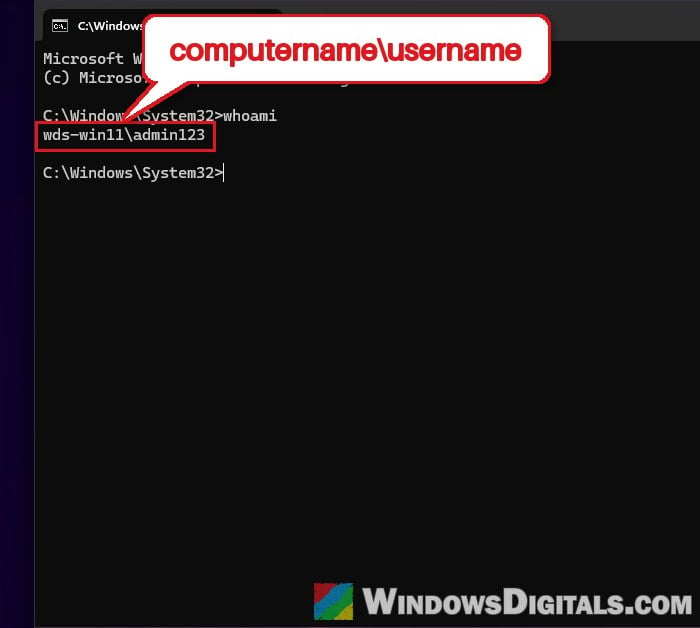
- Note what it shows, in the form computername\username.
Now go back to the PC that keeps asking:
- Open the shared folder again so the prompt shows up. If it already shows a name with only a password box, click More choices > Use a different account.
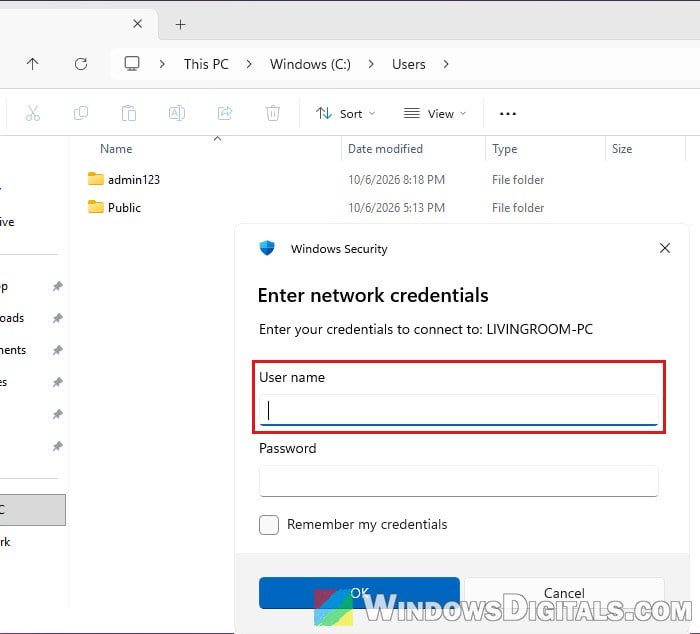
- In the User name field, type the computername\username you just noted. “.\username” (a local account on that PC) also works.
- If the other PC signs in with a Microsoft account, you can type that account’s email address instead.
- In the Password field, type that account’s password, not the PIN.
- Tick “Remember my credentials” and click OK.
The shared folder should now open.
Sign in to the other PC with its password once
If the other PC has only ever been signed in to with a PIN, its Microsoft account password may still be refused over the network. Signing in to that PC once with the password usually sorts it out:
- On the PC sharing the folder, sign out.
- On the sign-in screen, click Sign-in options and choose the key icon (password).
- Sign in with the Microsoft account password.
- Try opening the shared folder from the other PC again.
If there’s no password option on the sign-in screen, Windows is set to allow only Windows Hello. Go to Settings > Accounts > Sign-in options on that PC and, under Additional settings, turn off “For improved security, only allow Windows Hello sign-in for Microsoft accounts on this device“, then sign out and try again.
Might be useful: Windows 11 Cannot Access Shared Folder (Fix)
Create a local account just for sharing
If the right name and password still won’t work, give the sharing PC a simple local account just for its shared folders. A local account has a plain password, with no PIN or Microsoft account sign-in in the way, so there’s nothing to get wrong at the prompt.
- On the PC sharing the folder, open Command Prompt as administrator.
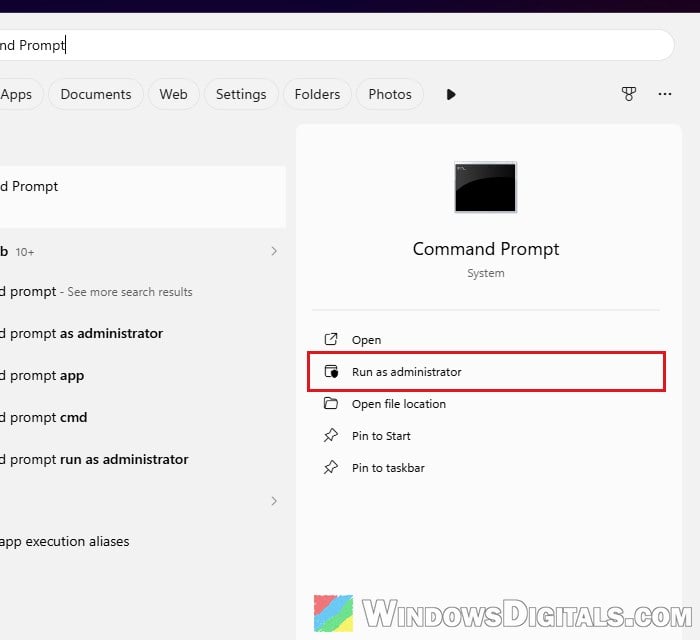
- Type the following command, with your own name and password, and press Enter:
net user shareuser Pass1234word /add
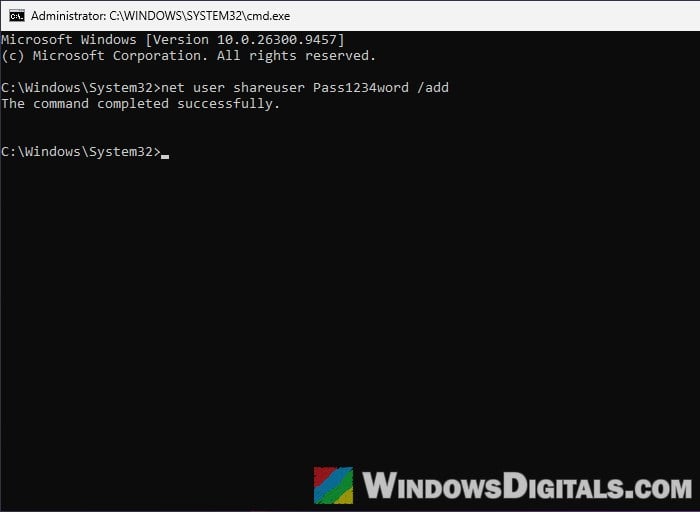
- Right-click the folder you’re sharing, select Properties, open the Sharing tab and click Share….
- Type the new username, click Add, set its permission level (Read or Read/Write) and click Share.
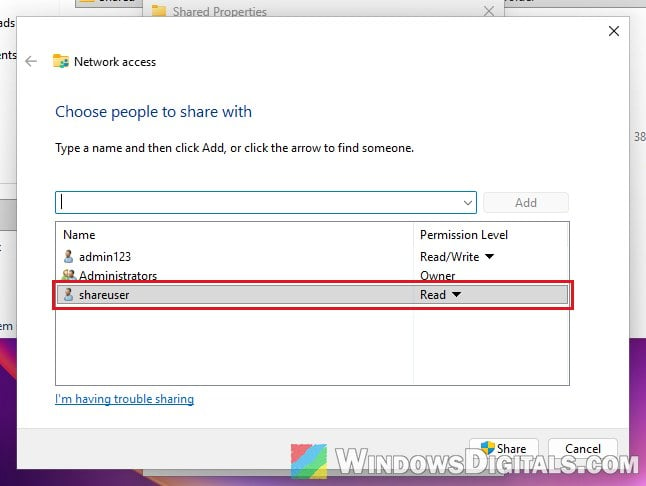
- On the other PC, open the shared folder and sign in as computername\shareuser with the password you set.
Related guide: How to Login Windows 11 Without Microsoft Account
Save the other PC’s credentials in Credential Manager
If you save the other PC’s name and password on the PC that keeps asking, Windows sends them by itself every time it connects. If Credential Manager already has an entry for that PC, remove it first. Then:
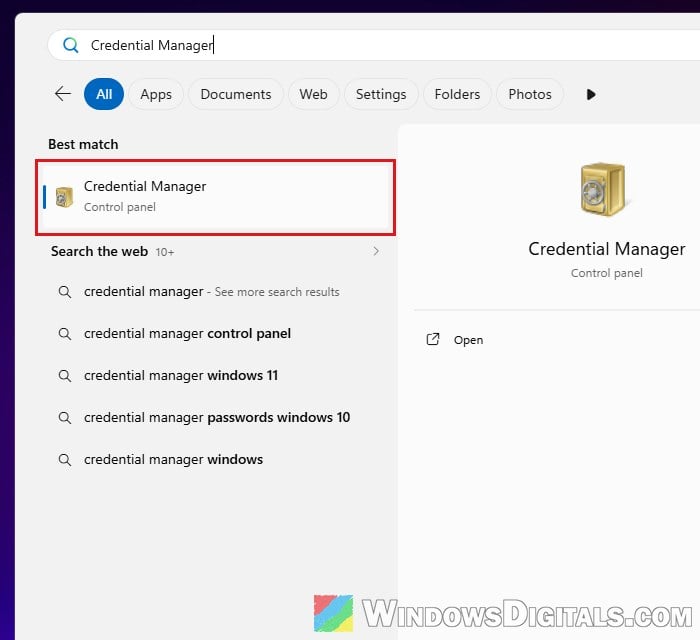
- Open the Start menu, search for “Credential Manager” and open it.
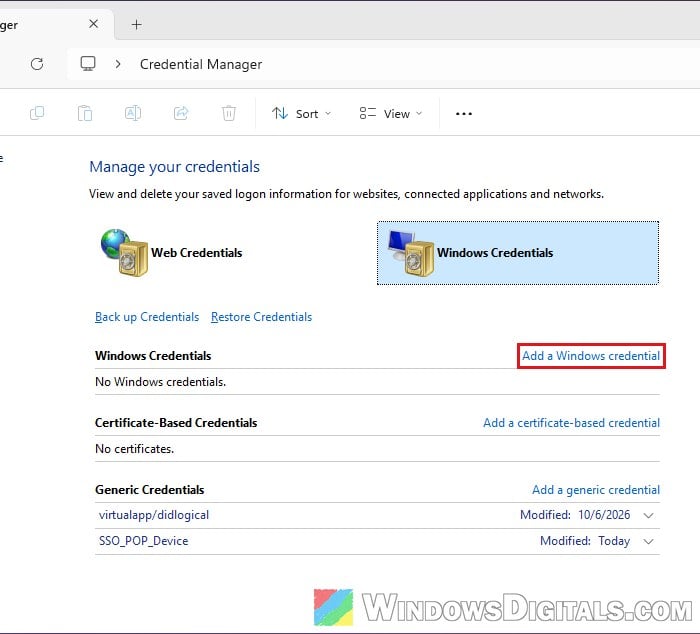
- Select Windows Credentials, then click Add a Windows credential.
- In the Internet or network address field, type
\\followed by the other PC’s name (or its IP address). - Enter the username and password of an account on that PC (a password, not a PIN), and click OK.
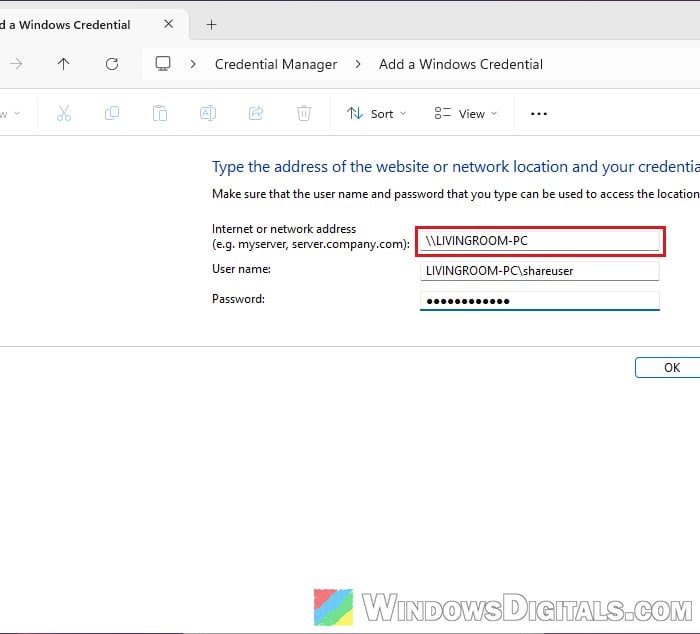
The shared folder should now open without the prompt.
Linked issue: How to Update Network Drive Login Credentials in Windows 11
Make sure both PCs are on a private network with sharing on
It’s easy to turn on sharing for private networks while Windows actually treats your home network as public, and then those settings don’t do anything. Check this on both PCs:
- Open Settings > Network & internet, and click Wi-Fi or Ethernet, depending on how the PC is connected.
- For Wi-Fi, open your network’s properties (Ethernet shows it right away), then set Network profile type to Private network.
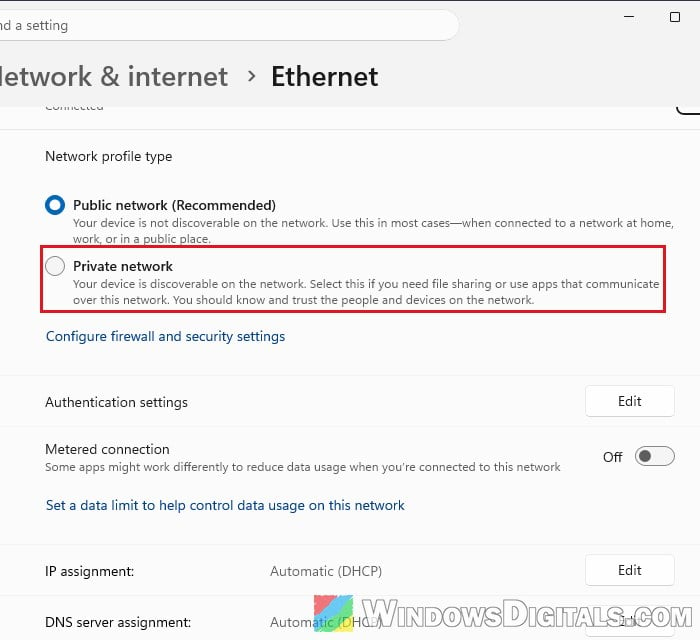
- Go back to Network & internet, then open Advanced network settings > Advanced sharing settings.
- Under Private networks, turn on Network discovery and File and printer sharing.
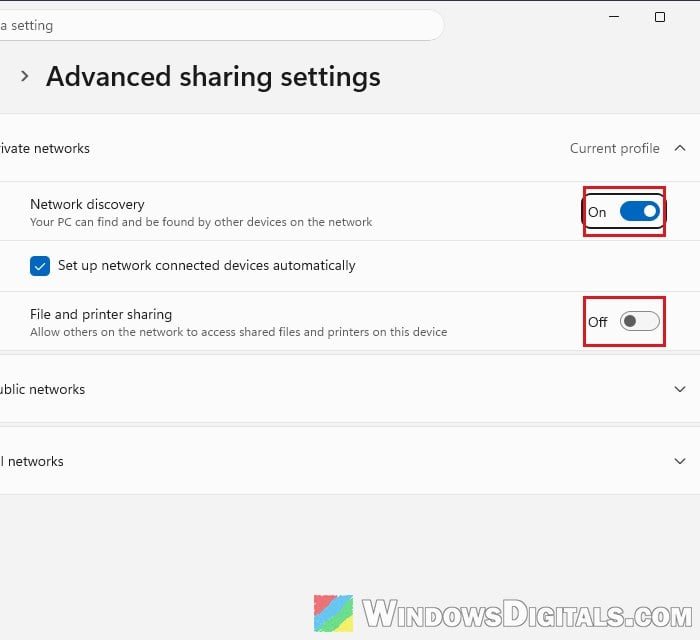
Then try the shared folder again.
Pro tip: Windows 11: Turn On Network Discovery and File Sharing
Allow guest access instead (not recommended)
If you’ve already turned off Password protected sharing, you’ve probably noticed it doesn’t help. It only makes the sharing PC offer guest access, which Windows 11 Pro doesn’t use by default, according to Microsoft. Since version 24H2, required SMB signing also gets in the way.
A policy on the PC that connects allows guest access again. Please be warned that Microsoft recommends against it: a fake or compromised device on your network could then pass you files without any sign-in, which is an easy way for ransomware to get onto your PC. If you still want it on a home network you fully trust, here’s how on Windows 11 Pro:
- Press Win + R, type “gpedit.msc” and press Enter.
- Go to Computer Configuration > Administrative Templates > Network > Lanman Workstation.
- Double-click Enable insecure guest logons, select Enabled and click OK.
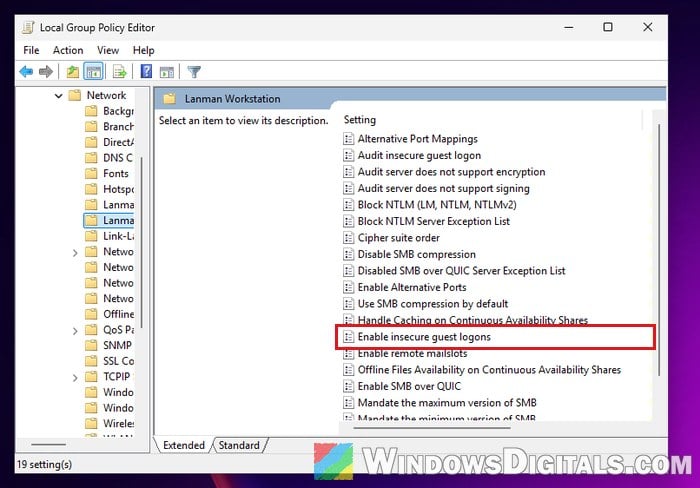
If you can’t open gpedit.msc (Home edition doesn’t have it), turn on the same setting in PowerShell as administrator:
Set-SmbClientConfiguration -EnableInsecureGuestLogons $true -Force
On 24H2 and later, this alone may not be enough because of the SMB signing requirement.
Check if both PCs have the same SID
If every correct password is still refused, check whether the two PCs are clones. Each Windows installation should have its own security identifier (SID), but PCs set up from the same image or a cloned drive share one. Microsoft confirmed that updates since 29 August 2025 block sign-ins between them on Windows 11 24H2 and 25H2.
On both PCs:
- Open Command Prompt, type the following command and press Enter:
whoami /user
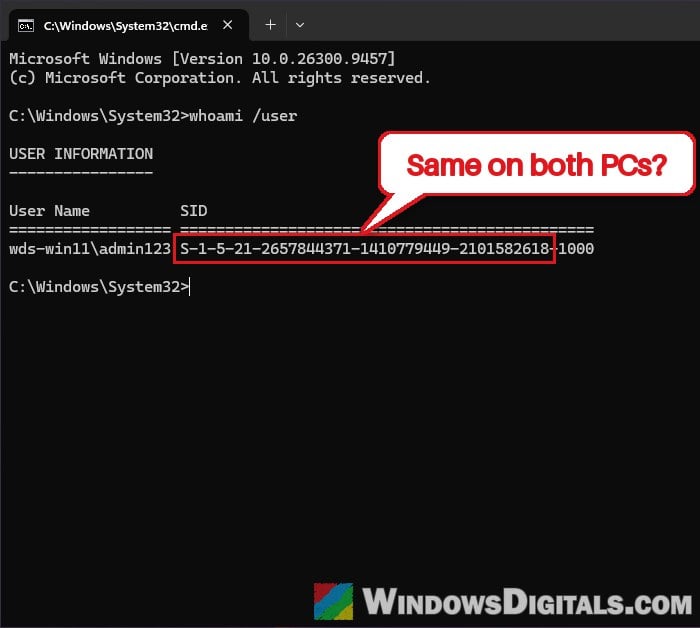
- Compare the SIDs. Ignore the last group of digits after the final dash (that’s the account), and compare the long part before it.
If that part matches on both PCs, they share a SID. Event Viewer may confirm it: under Windows Logs > System, look for Event ID 6167 from LsaSrv saying “There is a partial mismatch in the machine ID“.
Microsoft’s answer is that one of the PCs has to be rebuilt so it gets its own SID, which for a home PC means backing up your files and reinstalling Windows on one of them with Microsoft’s own installer. Sysprep with the generalize option also gives a new SID, but it deletes your accounts and their files too.