If your laptop’s touch screen suddenly stopped responding and there’s no “HID-compliant touch screen” under Human Interface Devices in Device Manager anymore, it usually means Windows can no longer see the touch hardware. It often happens after a Windows reset, a reinstall or a big update. This guide will show you why the touch screen disappears and how to get Windows to detect it again.
Also see: How to Uninstall Drivers in Windows 11
Page Contents
Why does the HID-compliant touch screen disappear?
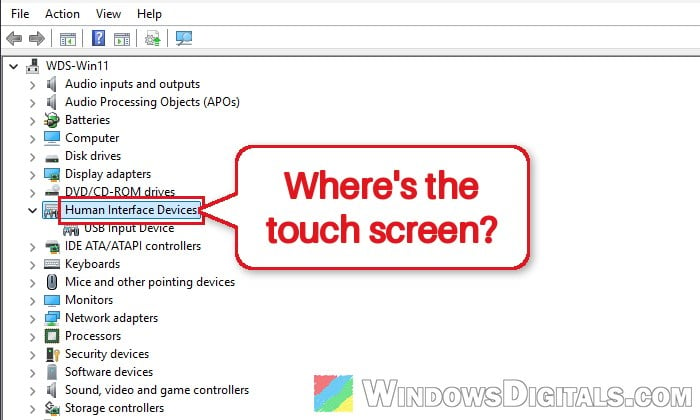
The “HID-compliant touch screen” driver comes with Windows, which adds it as soon as it detects the touch controller. So when the entry is completely missing (not just disabled), it means Windows can’t see the touch hardware at all right now.
Some common reasons for this are:
- Missing chipset or Serial IO drivers. On many laptops the touch panel sits on a connection called I2C, and Windows only finds it after the maker’s chipset and Intel Serial IO (I2C) drivers are installed. A fresh Windows install or reset often leaves these out.
- An old BIOS or touch firmware that doesn’t play well with your current Windows version.
- The touch screen is turned off in the BIOS, which some laptops allow.
- Another pen or tablet driver got in the way, for example after using a drawing tablet.
- A hardware problem, such as a loose display cable or a failed touch panel.
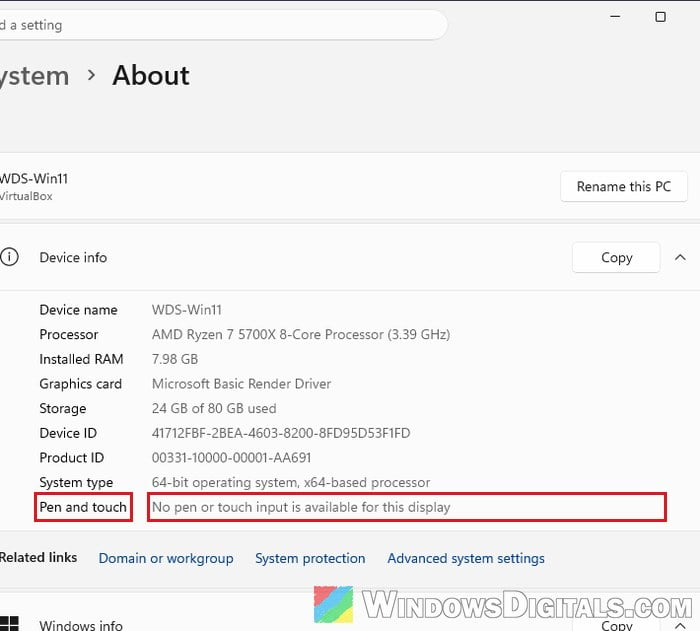
To check whether Windows still sees a touch screen, go to Settings > System > About and look at “Pen and touch” under Device info (called Device specifications on older versions). If it says “No pen or touch input is available for this display“, Windows isn’t detecting the touch panel.
Restart, then look for hidden devices
Yes, it sounds silly, but Microsoft’s own first step is a plain restart. After that, check whether the touch screen is only hidden. Device Manager hides devices that Windows remembers but can’t see right now, which looks exactly like a missing one.
Here’s what you should do:
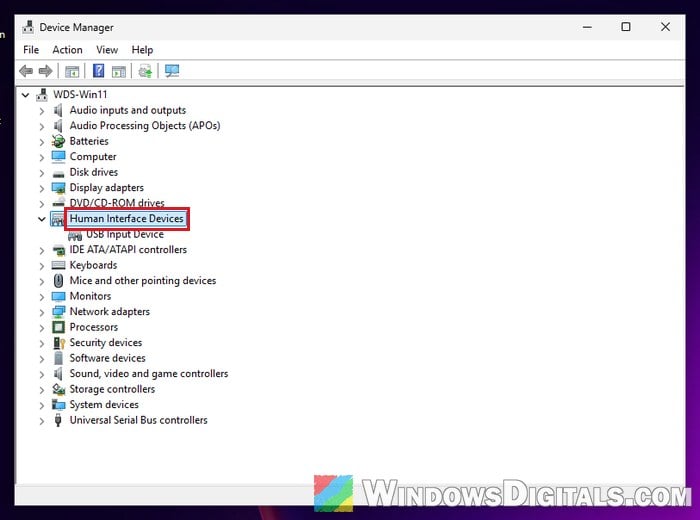
- Right-click the Start button and select Device Manager.
- Click View and select Show hidden devices.
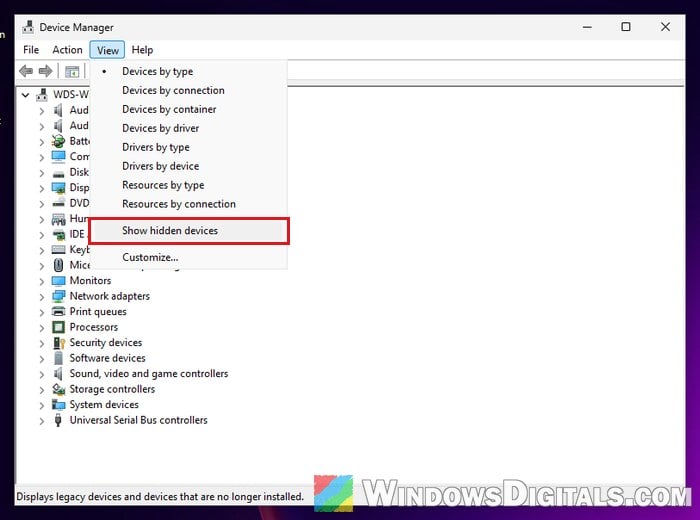
- Expand Human Interface Devices and look for “HID-compliant touch screen“.
- If it’s there but faded (grayed out), right-click it and select Uninstall device, then restart your laptop.
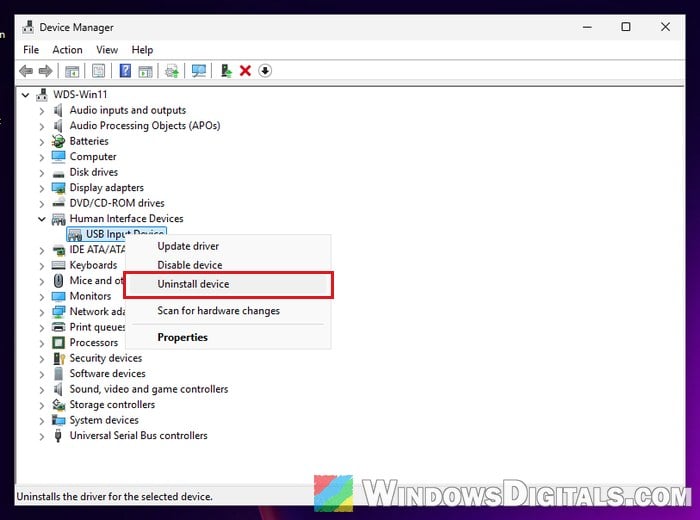
- If it’s there with a small down arrow on its icon, it’s disabled. Right-click it and select Enable device.
If there are two “HID-compliant touch screen” entries, do the same for both.
Pro tip: Can’t Completely Uninstall a Driver in Windows 11 (Fix)
Scan for hardware changes
If the entry isn’t there even with hidden devices shown, make Windows look for new hardware again. If it finds the touch controller, it adds the driver itself. Here’s how to do it:
- In Device Manager, click the Action menu.
- Select Scan for hardware changes.
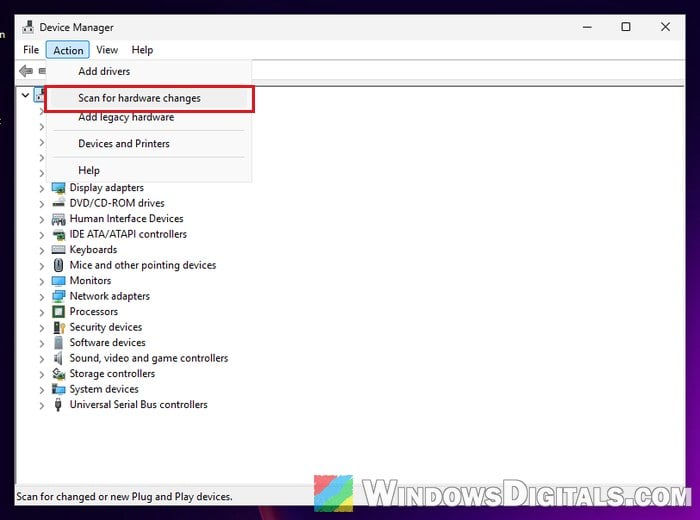
- Expand Human Interface Devices again and check if “HID-compliant touch screen” is back.
Fully power off the laptop
If the scan finds nothing, try draining the power completely. Shut down the laptop, unplug the charger and any other devices, then hold the power button for 30 seconds. Plug the charger back in, turn the laptop on, and scan for hardware changes again.
Install all updates, including optional ones
Microsoft recommends installing every update when a touch screen stops working, including the optional ones, where driver updates for your laptop can show up.
On Windows 11:
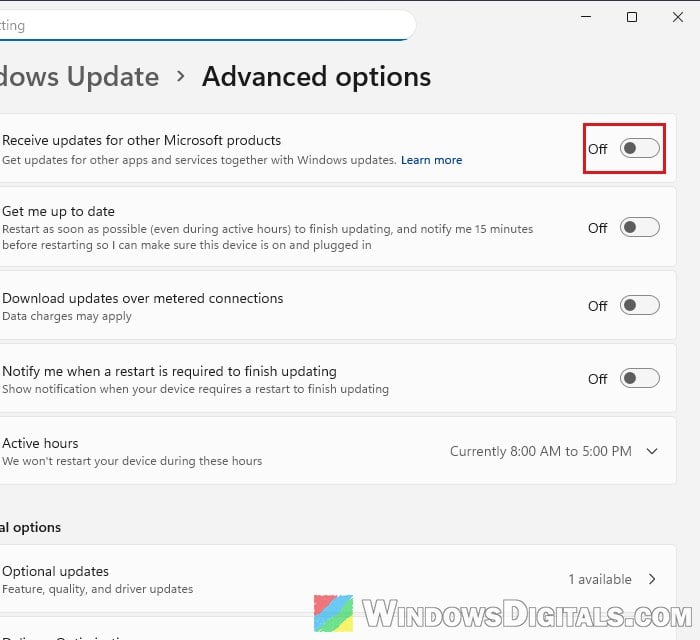
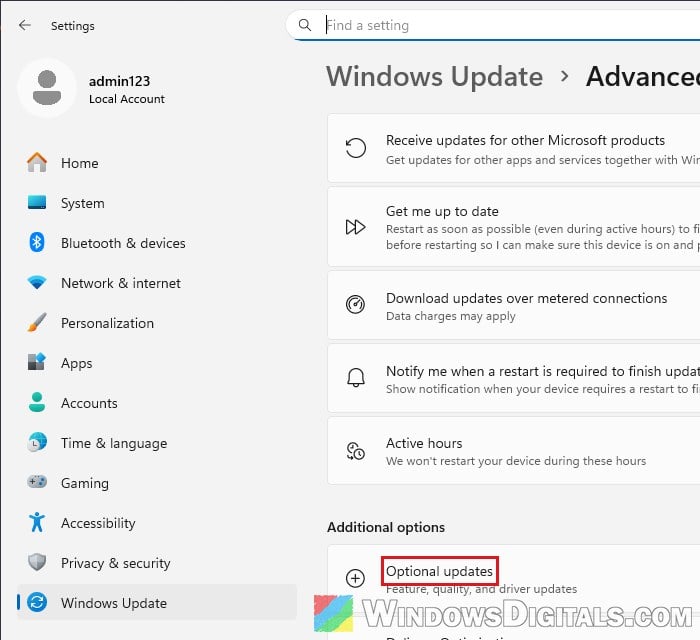
- Right-click Start and go to Settings > Windows Update > Advanced options.
- Turn on “Receive updates for other Microsoft products“.
- Under Additional options, select Optional updates.
- Select all the optional updates and click Download and install.
- Go back to Windows Update, click Check for updates and install everything it finds.
- Restart your laptop, even if no update asks for it.
On Windows 10, go to Settings > Update & Security > Windows Update > Advanced options, turn on “Receive updates for other Microsoft products when you update Windows“, then check for updates. If a “View optional updates” link shows up, open it and install them all.
After the updates install and your laptop restarts, open Device Manager and check if “HID-compliant touch screen” is back under Human Interface Devices.
Check if the touch screen is turned off in the BIOS
Some laptops have a BIOS (UEFI) setting that turns the touch screen on or off. When it’s off, Windows doesn’t know the touch screen is there, even after a reinstall, so it never shows up in Device Manager. Restart your laptop and open the BIOS (on Dell laptops, press F2 as it starts; other brands use their own key), then look for a Touchscreen or Touch Panel option and make sure it’s enabled. On some Dell laptops it’s under Advanced > Display, but its name and place differ between makers.
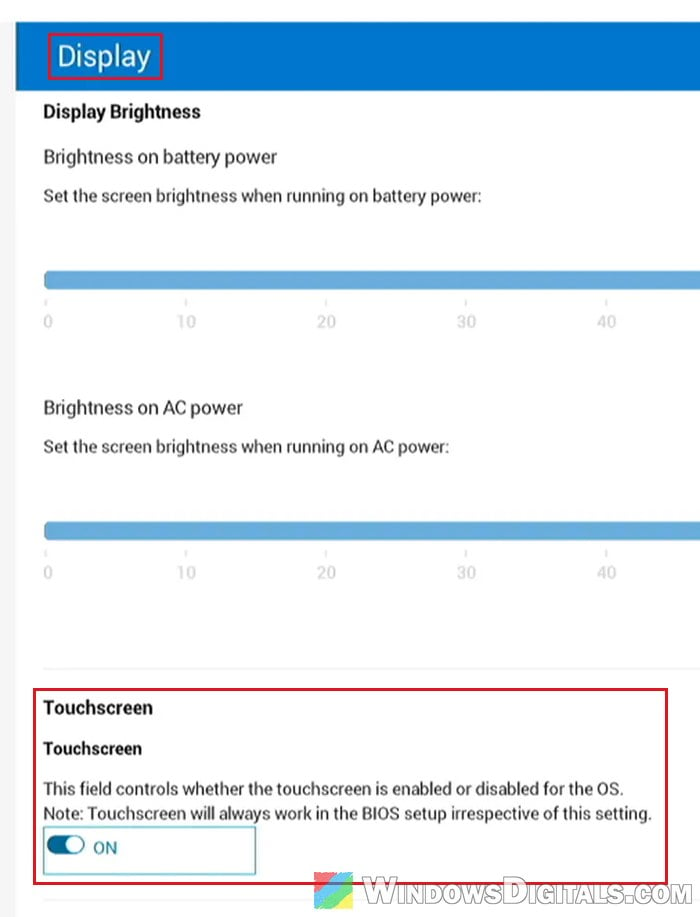
If touch works inside the BIOS or UEFI screen, the hardware is fine and the problem is on the Windows side. On a Surface, you can test it by holding the volume-up button while pressing the power button until the Surface logo shows.
Install your laptop maker’s chipset, Serial IO and touch drivers
This often brings the touch screen back after a reset or a clean install. The touch driver is part of Windows, but Windows can’t find the touch panel until the drivers underneath it are in place.
Go to your laptop maker’s support page, enter your exact model (on Dell laptops, the SupportAssist app does this too), and install:
- the chipset drivers
- the Intel Serial IO (I2C) driver, if your laptop has an Intel CPU
- any touch screen or touch panel firmware update listed for your model
Restart after installing them, then check Device Manager again. If your maker lists no touch driver for your model on your version of Windows, check whether it supports touch on that version at all.
Might be useful: How to Install or Update Driver in Windows 11
Update the BIOS
A BIOS update can also bring a missing touch screen back.
Be warned: A BIOS update is risky. If it gets interrupted, it can leave your laptop unable to start. Only install the version your maker lists for your exact model, keep the laptop plugged in the whole time, and don’t turn it off until it’s done. If you’re not sure what you’re doing, it’s better to get someone to help you instead.
If the touch screen keeps disappearing after sleep
When the touch screen comes back but stops working again after the laptop wakes from sleep, Windows might be turning it off to save power. Here’s how to stop that:
- In Device Manager, expand Human Interface Devices.
- Right-click “HID-compliant touch screen” and select Properties.
- Open the Power Management tab.
- Uncheck “Allow the computer to turn off this device to save power” and click OK.
Put the laptop to sleep, wake it, and check if touch still works.
Other things you can check
- Drawing tablet software: if the problem started after you used a pen tablet such as Wacom, uninstall its software from Settings > Apps and restart.
- Touch monitors: a separate touch monitor needs its USB upstream cable connected to the PC. The video cable alone isn’t enough for touch.
- Screen protector: some can block touch, so try without it.
- System Restore: if touch worked a few days ago, restore Windows to a date before it broke.
Related guide: How to System Restore Windows 11/10 to a Previous Date
Maybe a hardware problem
If none of this brings the HID-compliant touch screen back, especially if touch doesn’t work in the BIOS either, the touch panel or its cable may have failed or come loose. If your laptop is still under warranty, contact the manufacturer for a repair.