If your left Ctrl key suddenly stopped working on Windows 11 or 10, often right after an update, while the right Ctrl key still works fine, this guide will show you how to tell whether it’s the key itself or something in Windows, and how to get it working again.
Also see: Windows 11 Keyboard Shortcuts Not Working (Fix)
Page Contents
Is it the key or Windows?
When only one Ctrl key dies, there are really two possibilities. Either the key itself is worn, dirty or broken, or something in Windows (a setting, a key remapping tool or the keyboard driver) is stopping the left Ctrl key from doing its job.
The quickest way to tell is to plug in another keyboard, any USB or Bluetooth one will do:
- If the left Ctrl key works on the other keyboard, Windows is fine, and the problem is with your original keyboard. Skip to the last section.
- If the left Ctrl key doesn’t work on either keyboard, it’s almost certainly software, so go through the fixes below in order.
Until it’s fixed, you can use the right Ctrl key for most of your shortcuts. The steps below are from Windows 11. Windows 10 has the same options, though some of them are on different Settings pages.
Turn off Sticky keys and Filter keys
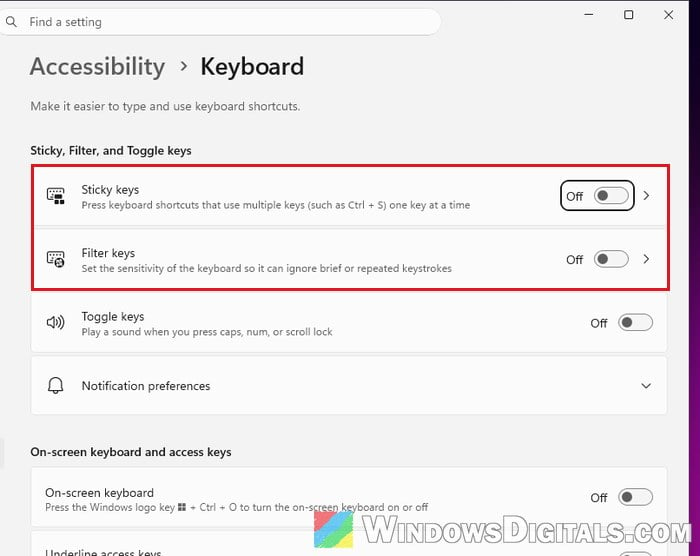
These two accessibility features change how Windows reads your key presses. Sticky keys makes modifier keys like Shift, Ctrl and Alt “stick” after you press them, so you can press shortcuts one key at a time, and pressing one of them twice locks it. Filter keys makes Windows ignore brief or repeated key presses. Sticky keys can even be turned on by accident just by pressing Shift five times in a row.
Both would affect the right Ctrl key too, so it’s a long shot, but it takes a few seconds to rule out. Here’s how to check them:
- Open Settings > Accessibility > Keyboard.
- Turn off Sticky keys and Filter keys if either is on.
- Try a shortcut with the left Ctrl key again, for example Ctrl + A in Notepad.
Check PowerToys Keyboard Manager and other remapping tools
If you’ve ever used a tool to remap keys, it might have taken over your left Ctrl key. PowerToys Keyboard Manager is the most common one. According to Microsoft, its remaps only work while PowerToys is running with Keyboard Manager turned on, and remapping Ctrl, Alt, Shift or the Windows key can break some gestures and special keys.
To check it:
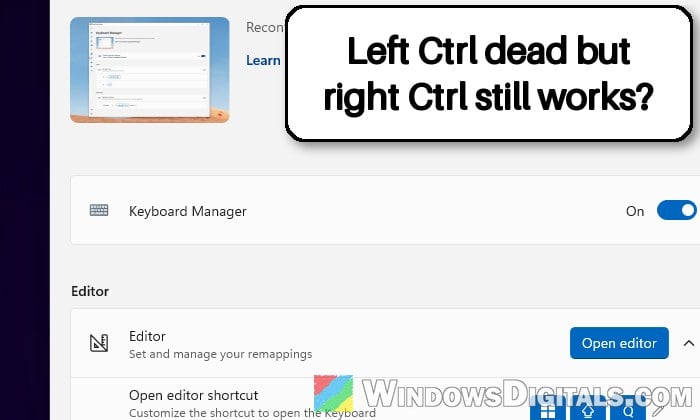
- Open PowerToys and go to Input & Output > Keyboard Manager.
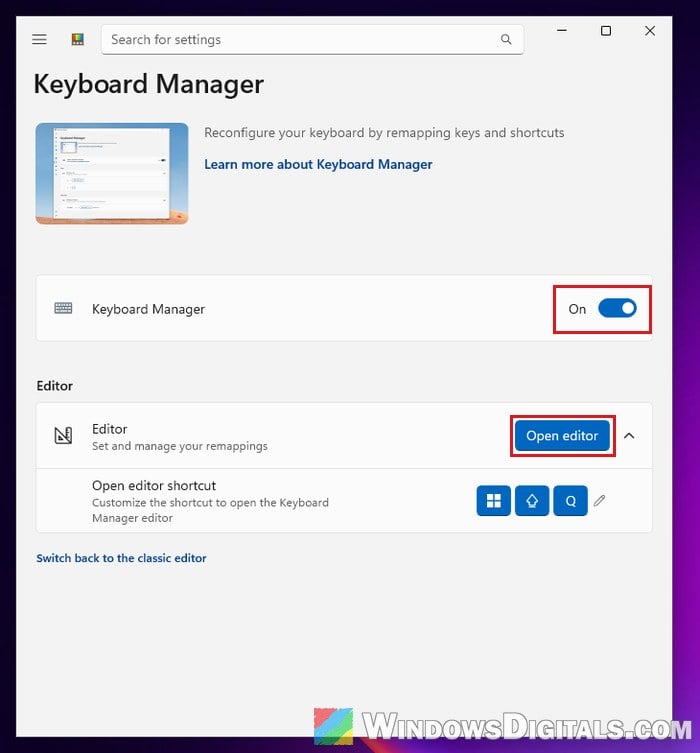
- To test quickly, turn the Keyboard Manager switch off and try the left Ctrl key again.
- If that fixes it, turn the switch back on, click Open editor, and look for any remapping that uses Ctrl or Left Ctrl. Remove the ones you don’t need.
If you see Remap a key and Remap a shortcut buttons instead (older versions of PowerToys, or after clicking Switch back to the classic editor), check both of them. If removing the remaps doesn’t help, uninstalling PowerToys completely can also bring the left Ctrl key back.
The same goes for other tools that change your keys, such as SharpKeys, AutoHotkey scripts or the software that came with a gaming keyboard: turn them off or close them, then test again.
Related guide: How to Remap Keyboard Keys in Windows 11
Remove a leftover “Scancode Map” from the registry
Some remapping tools, like SharpKeys or KeyTweak, don’t run in the background at all. Instead, they write a value called Scancode Map into the registry, which tells Windows to treat a key as another key, or as no key at all. It stays there even after you uninstall the tool, so a Ctrl key remapped or disabled years ago can stay that way. Since it can turn off a single key, it fits a dead left Ctrl better than a driver problem does.
Incorrectly changing the registry can cause serious problems with Windows. Please at least create a system restore point first, and if you’re not sure what you’re doing, get someone who knows to help you instead. Here’s how to check for it:
- Press Win + R, type “regedit” and press Enter.
- Copy and paste the following path into the address bar and press Enter:
HKEY_LOCAL_MACHINE\SYSTEM\CurrentControlSet\Control\Keyboard Layout
- Look for a value named Scancode Map on the right. If there isn’t one, this isn’t your problem.
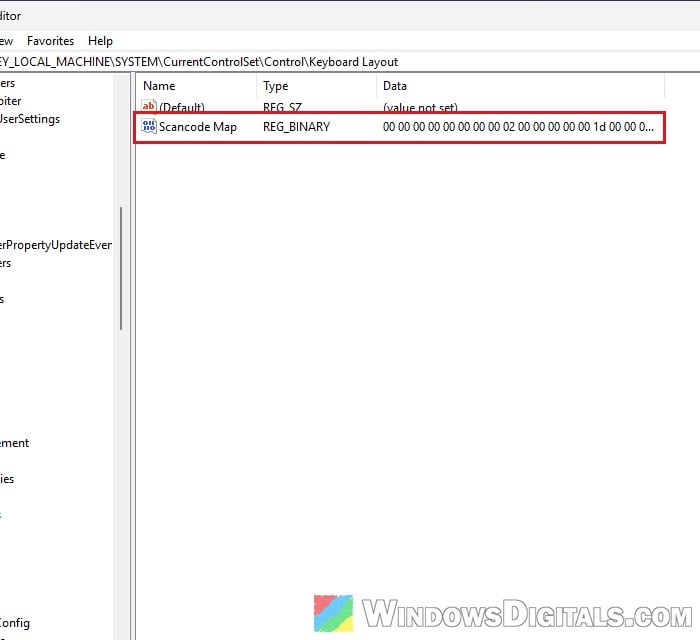
- If it’s there, back it up first: right-click the Keyboard Layout key on the left, select Export and save the file.
- Right-click Scancode Map, select Delete and confirm.
- Restart your PC. The change only takes effect after a restart.
After the restart, try the left Ctrl key again. If you still need some of the other keys remapped, you can set them up again with PowerToys or the tool you used before.
Learn more: How to Disable a Key on Keyboard in Windows 11
Reinstall the keyboard driver
If the left Ctrl key stopped working right after an update, the keyboard driver might not have been set up correctly. Removing it makes Windows install it again on the next restart. It doesn’t help everyone, but it’s quick and safe. Follow the steps below:
- Right-click the Start button and select Device Manager.
- Expand Keyboards, right-click your keyboard and select Uninstall device.
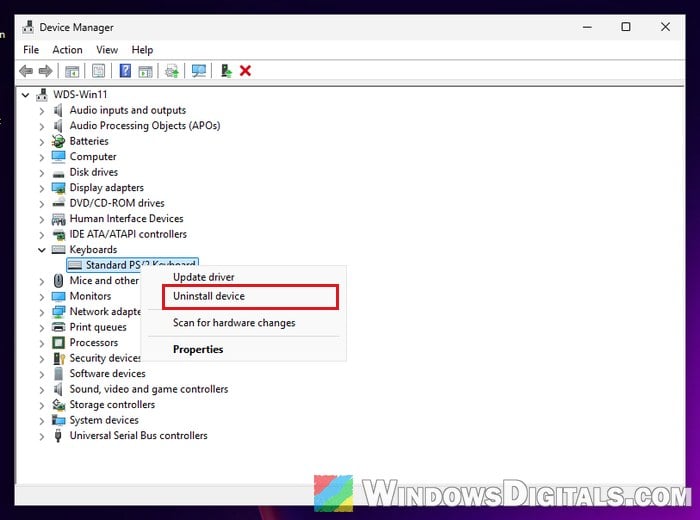
- Click Uninstall to confirm, then restart your PC.
If there’s more than one keyboard listed, you can do the same for each one. Once Windows has started again and reinstalled them, test the left Ctrl key.
Linked issue: Keyboard or Mouse Not Working After Windows 11/10 Update
Uninstall the update that started it
If the left Ctrl key worked fine until a specific update and none of the above helped, removing that update is worth a try. Here’s how to do it:
- Go to Settings > Windows Update > Update history.
- Scroll down and click Uninstall updates.
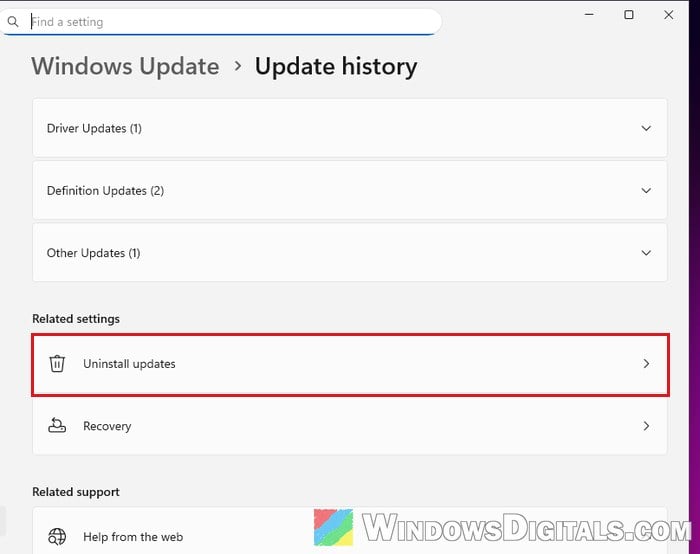
- Find the update that was installed around the time the problem started and click Uninstall next to it.
Windows Update may offer the same update again later, so keep an eye on the left Ctrl key after the next round of updates.
Clean or replace the keyboard
If the left Ctrl key only fails on one keyboard, it’s most likely the key itself. Ctrl gets pressed a lot, so it can wear out or get dirt stuck under it. Try blowing compressed air around the key, or gently clean under the keycap if your keyboard lets you remove it.
If that doesn’t help, the keyboard needs to be repaired or replaced. If it’s a laptop that’s still under warranty, contact the manufacturer. Until then, you can keep using the right Ctrl key, or use PowerToys to turn a key you never use into a Left Ctrl key (note that Ctrl + Alt + Del can’t be remapped this way).