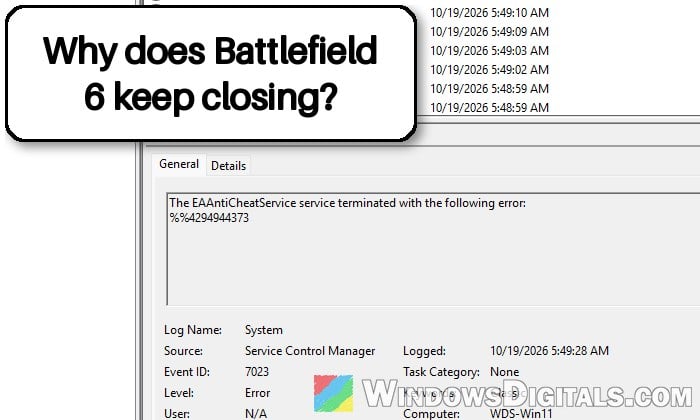
If Battlefield 6 loads to the main menu just fine and then closes to the desktop after about a minute with no error at all, and Event Viewer shows “The EAAntiCheatService service terminated with the following error” (followed by a code like %%4294944373 or %%4294931798), the problem is most likely EA’s anticheat, not the game itself. This guide will explain what’s going on and show you how to get the game working again.
Also see: KB5124010 Update Crashing Games and Apps on Windows 11
Page Contents
Why does Battlefield 6 close with the EAAntiCheatService error?
Battlefield 6 uses EA Javelin anticheat, which runs in the background as a Windows service called EAAntiCheatService. If that service stops, the game closes with it. That’s why you don’t get a Battlefield error message, just a sudden trip back to the desktop.
For most people, this started right after a Windows 11 update. EA confirmed that Javelin stopped working on these Windows 11 Insider builds and anything newer (only the last four digits count):
- Windows 11 24H2: 26100.9539
- Windows 11 25H2: 26200.9539
- Windows 11 26H2: 26300.9539
The September 2026 preview update KB5124010 already puts a normal PC above that line (it’s build .9550), which is why so many players saw the crashes start right after installing it. Later updates, including the October 13 one (KB5127648), have higher numbers too, so recent builds fall under EA’s notice as well. EA said it was working on a new version of Javelin to fix this.
Please note that this isn’t the AC-3 audio bug that also came with KB5124010. That one crashes older games through a Windows audio decoder, while this one is EA’s anticheat service stopping.
Check if this is the problem you have
Event Viewer will tell you if the anticheat service is what’s closing the game. Here’s how to check:
- Press Win + R, type
eventvwr.mscand press Enter. - Go to Windows Logs > System.
- Look for an Error from around the time the game closed, with Service Control Manager as the source and Event ID 7023. Click it, and if its text says “The EAAntiCheatService service terminated with the following error“, it’s this issue.
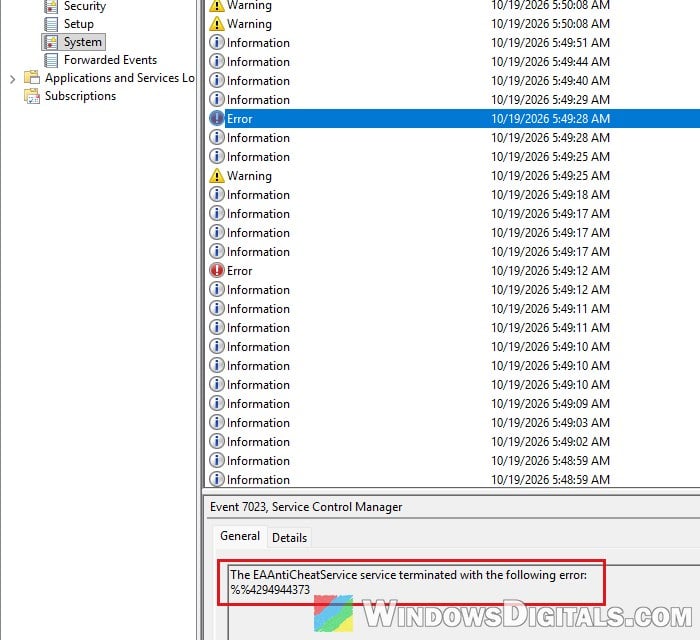
- You can also check Windows Logs > Application for an Event ID 1000 error from EA Javelin Anticheat with an “ExitType” line.
Pro tip: How to Check if a KB Update is Installed in Windows 11
Update Battlefield 6 and let it update Javelin
Since the problem is an older Javelin version on a newer Windows build, the real fix is the newer Javelin that EA said it would roll out. A Battlefield 6 update has already got the game working again on an affected build, so make sure you have the latest one. Here’s what to do:
- Close the game completely, then close and reopen Steam or the EA app (whichever you play through) so it checks for updates.
- Let any Battlefield 6 update download and install fully.
- Restart your PC, then launch the game and stay in the menu for a few minutes to see if it still closes.
If the game is already up to date and still crashes, try the fixes below.
Make sure nothing is set to always run as administrator
EA also asks players to make sure Battlefield 6, EA Javelin AntiCheat, Steam and the EA app aren’t set to always “Run as administrator”. Here’s how to check:
- Right-click the program’s shortcut or its
.exefile and select Properties. - Go to the Compatibility tab.
- Make sure “Run this program as an administrator” is unchecked, then click OK.
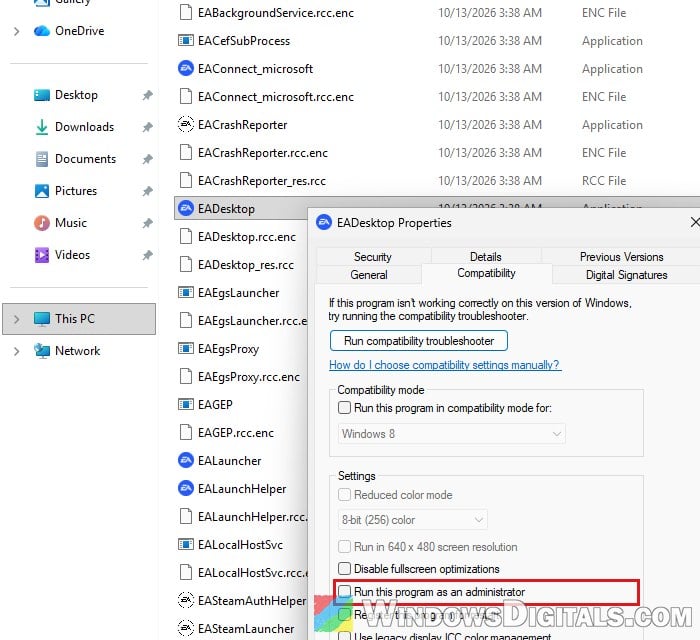
Do this for the game, the EA app, Steam (if you use it) and EA Javelin AntiCheat, whose files are in C:\Program Files\EA\AC. Then launch the game normally.
Suggested read: Game Lag and Slow Performance After Windows Update
Reinstall EA Javelin anticheat
According to EA, anticheat errors usually come from corrupted files or other software getting in the way, and a clean reinstall of Javelin takes care of the first. Please note that reinstalling the same old version of Javelin won’t fix the Windows build problem above, so do this after updating the game. EA only recommends uninstalling Javelin when you’re having problems and need to reinstall it, and any game that uses it won’t run until it’s back.
First, remove the current copy:
- Open File Explorer and go to
C:\Program Files\EA\AC. - Run EAAntiCheat.Installer.exe.
- Choose Battlefield 6 and select Uninstall. If you want to remove Javelin for every EA game, choose Uninstall All instead.
Then install it again with EA’s installer:
- Go to EA’s help page for Javelin:
https://help.ea.com/en/articles/platforms/pc-ea-anticheat/ - Download the “EA Javelin anticheat installer” from the “How do I install EA Javelin anticheat?” section.
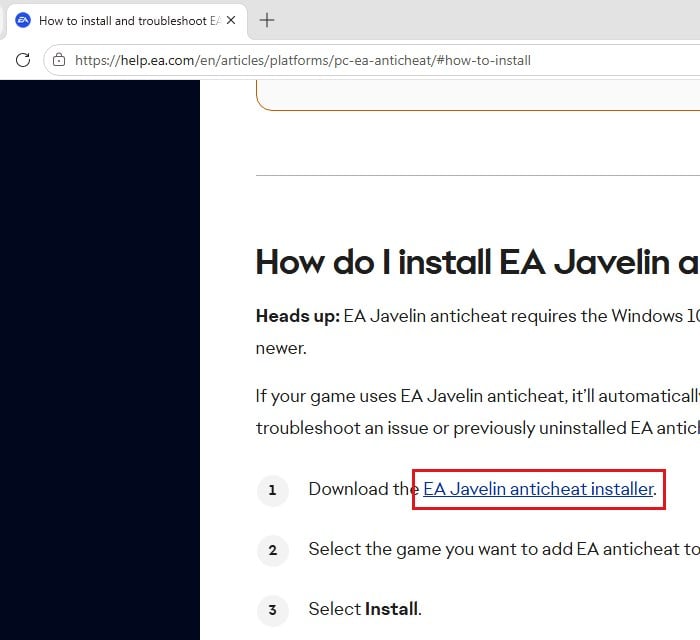
- Run the installer, select Battlefield 6, then select Install.
- Wait until it says Install success, restart your PC and try the game again.
Reinstall Battlefield 6 and the EA app
If reinstalling Javelin alone didn’t work, a full reinstall of the game and the EA app is the next step. It’s slow because of the download, but it replaces the game and the anticheat service in one go. Here’s what to do:
- Uninstall Battlefield 6 from the launcher you play it through (Steam, the EA app or Epic Games).
- Uninstall the EA app as well.
- Restart your PC.
- If you bought the game on the EA app, install the EA app again first. Then install Battlefield 6 again from the store you bought it from. This also installs EA Javelin anticheat again.
- Before launching, open Command Prompt as administrator and run the following command to check your Windows system files:
sfc /scannow
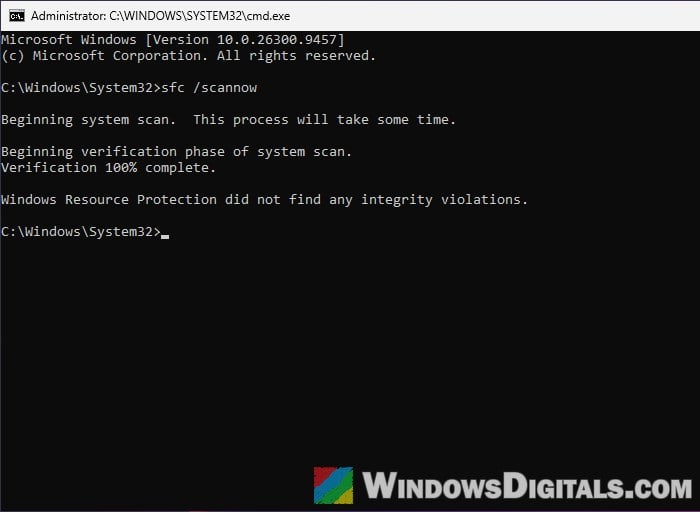
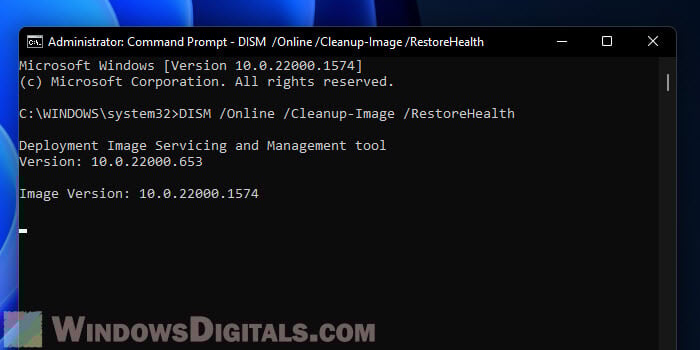
- Then run this command to repair the Windows image:
DISM /Online /Cleanup-Image /RestoreHealth
- Restart your PC and launch the game.
Related problem: EA App “Your Credentials Are Incorrect or Have Expired”
Remove KB5124010 if it’s your latest update
While Javelin wasn’t updated yet, EA’s own advice was to go back to an older Windows build. Several players on EA’s forums got the game running again by uninstalling KB5124010. This only helps if KB5124010 is the newest update on your PC. If you already have the October 13 update (KB5127648) or a newer one, removing it would most likely leave you on another build above EA’s line, and you’d also lose its security fixes, so wait for the Javelin fix instead.
To remove KB5124010, follow the steps below:
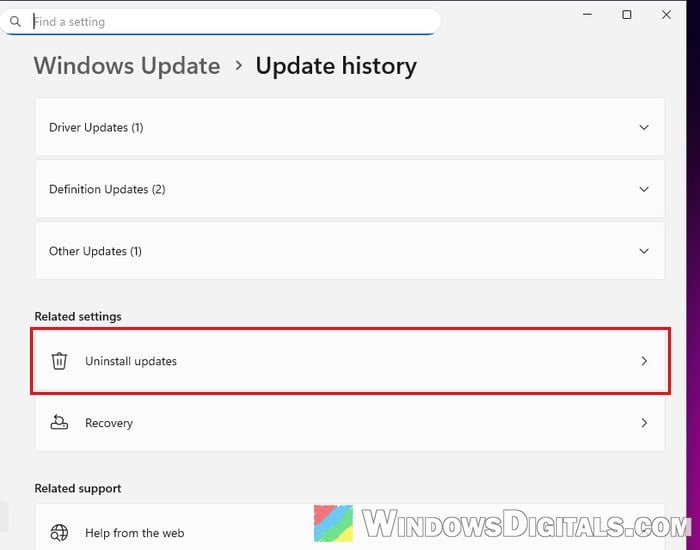
- Open Settings and go to Windows Update > Update history.
- Scroll down and click Uninstall updates.
- Find KB5124010 and click Uninstall.
- Restart your PC when it’s done.
Sometimes the update won’t uninstall at all, so if it fails, don’t fight it and wait for the next Battlefield 6 update instead. If it works, install the updates again once the game gets the new Javelin.
Other things you can try
If the game still closes after all this, EA suggests a few general checks for crashes in games that use Javelin:
- Verify or repair the Battlefield 6 game files in Steam or the EA app.
- Update your graphics driver directly from NVIDIA, AMD or Intel.
- Undo any CPU or GPU overclocking or undervolting, and keep your CPU’s power settings at the manufacturer’s recommended values in the BIOS (many BIOSes have a “default” or “baseline” profile for this).
- Update your CPU’s microcode, which usually comes with a BIOS update from your motherboard maker.
Be warned: A BIOS update that goes wrong can leave your motherboard unable to start. Follow your motherboard maker’s own guide exactly, and if you’re not sure what you’re doing, it’s better to get someone to help you instead.