If you’ve opened Reliability Monitor on your Windows 11 or 10 PC and found a “Hardware error” that says “A problem with your hardware caused Windows to stop working correctly” with LiveKernelEvent and Code 144, often right when your mouse, keyboard or headset cut out for a few seconds, it points to a problem with a USB controller, hub or device. This guide will explain what the code means, how to find the part that’s acting up, and how to fix it.
Also see: Unknown USB Device (Set Address Failed) in Windows 11
Page Contents
What does LiveKernelEvent 144 mean?
Code 144 is short for bug check 0x144 BUGCODE_USB3_DRIVER, which Microsoft describes as the code used for all USB 3 problems. Instead of crashing the whole PC with a blue screen, Windows can save a “live dump” of the error, reset the USB controller and carry on. That’s why your PC usually keeps running, while every USB device on that controller drops out and comes back a few seconds later.
Some common signs that come with this error are:
- All USB devices disconnect at once for a few seconds (mouse, keyboard, headset, USB network adapters)
- A short freeze, sometimes around 10 seconds, while everything reconnects
- “Unknown USB Device (Device Descriptor Request Failed)” or “Unknown USB Device (Link in Compliance Mode)” in Device Manager
- No symptom at all, only new entries in the reliability history every time a certain game or app runs
Some websites blame the graphics card for this error, but LiveKernelEvent 141 is the code for a graphics engine timeout.
Suggested read: What do the Red USB Ports (SS10) mean on my PC?
Check “Parameter 1” in Reliability Monitor first
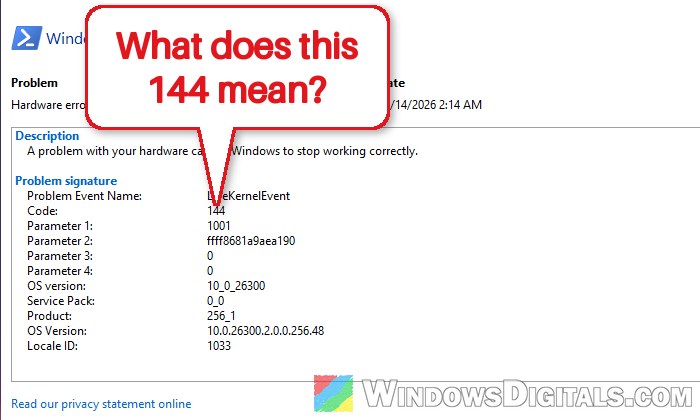
Parameter 1, the line under Code 144, tells you what kind of USB problem Windows ran into. Here’s how to see it:
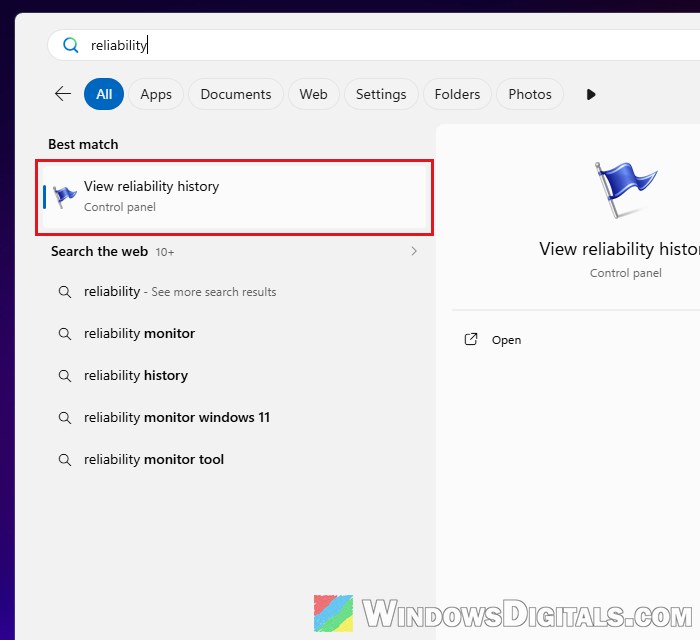
- Open the Start menu, search for “reliability” and open View reliability history.
- Click the day with the red X, then double-click the Hardware error line (source Windows) under Critical events to open Problem Details.
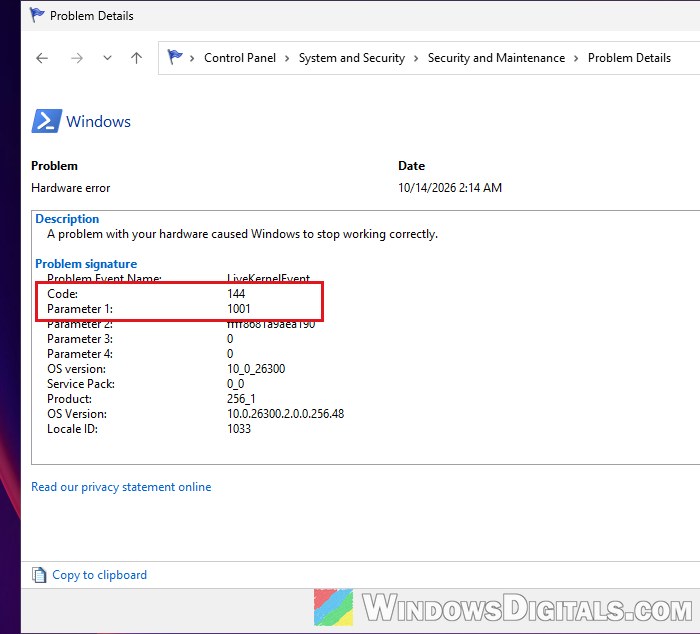
- Look at Parameter 1. Also check the Bucket ID listed under Extra information about the problem, which often names the driver, such as
USBXHCI.
What the most common values mean, according to Microsoft:
- 3003: A USB device failed to connect properly (Windows couldn’t recognize it). In practice, that’s usually one device, cable or hub.
- 3000 or 3001: A USB hub misbehaved and Windows tried to reset it.
- 1001: The USB 3 controller itself reported a host system error.
- 100a: The controller failed a command while stopping a transfer.
- 100c or 100f: The USB controller’s firmware isn’t supported or is outdated, and Microsoft recommends a firmware update.
Windows also saves a dump file of each event in C:\Windows\LiveKernelReports, in case someone helping you wants to look at it. Once you know what Parameter 1 says, pick the fix below that matches it.
Unplug the USB devices you don’t need
If Parameter 1 is 3003, or the drops happen when a certain device is connected, start here. A single faulty device, cable or hub can make the whole controller reset. Sometimes the errors stop once you unplug the USB devices you don’t need.
Here’s what you should do:
- Unplug everything except your keyboard and mouse, including USB hubs, docks and adapters.
- Use the PC as usual and check Reliability Monitor for new Code 144 entries.
- If they stop, plug the devices back in one at a time, a day or so apart, until the error returns. The last device you added is the likely culprit.
- Try that device on a different port, preferably one on the back of the PC.
Might be useful: How to Fix a Loose USB Port on Any Device
Remove old hidden USB devices in Device Manager
Windows remembers every USB device you’ve ever plugged in, and some of those old, greyed-out entries can confuse the USB controller. If you see Code 144 with Parameter 1 3003 and “Unknown USB Device” errors, removing these greyed-out USB entries and fully shutting down the PC can fix it.
Follow the steps below:
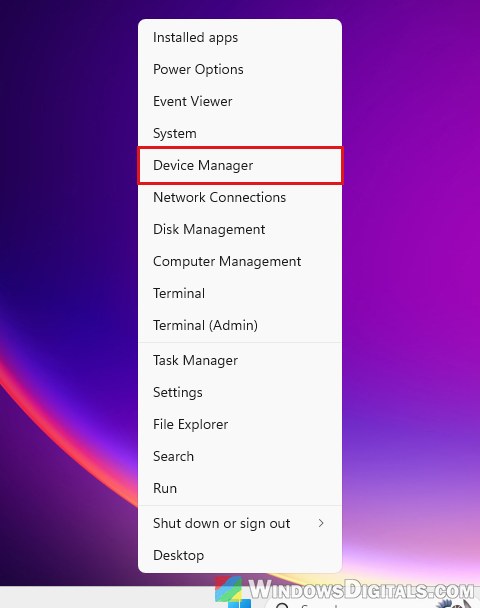
- Right-click the Start button and select Device Manager.
- Click View and select Show hidden devices.
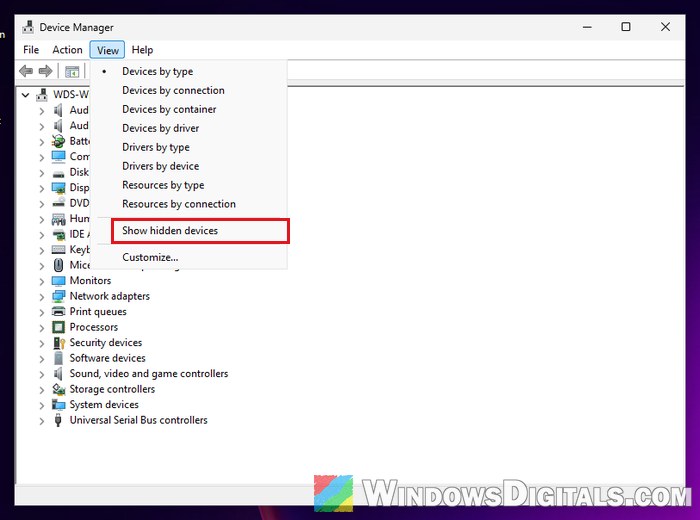
- Expand Universal Serial Bus controllers (and Disk drives if you use USB storage). The faded entries are devices that aren’t connected right now.
- Right-click each faded USB entry and select Uninstall device.
- Shut down your PC completely (not Restart), wait a few seconds, then turn it back on. Windows reinstalls the drivers for the devices that are still plugged in.
Then watch Reliability Monitor for a few days.
Stop Windows from turning off USB hubs to save power
Windows can put USB hubs and ports to sleep when they seem idle, and a device that doesn’t wake up properly can trip the controller. This isn’t a confirmed fix, but it’s quick and easy to undo:
- In Device Manager, expand Universal Serial Bus controllers.
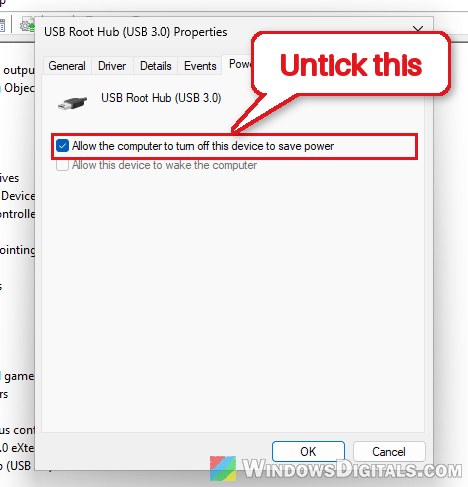
- Double-click USB Root Hub (USB 3.0), go to the Power Management tab, and uncheck “Allow the computer to turn off this device to save power“. Click OK, and repeat for any other root hub in the list.
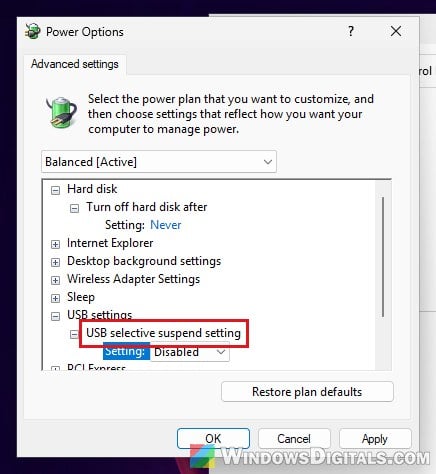
- Open Control Panel > Power Options, click Change plan settings next to your current plan, then Change advanced power settings.
- Expand USB settings > USB selective suspend setting and set it to Disabled. Click OK.
Restart your PC and check Reliability Monitor again after a few days.
Update the chipset driver, BIOS and controller firmware
The USB controller’s driver and firmware come from your PC or motherboard maker. If Parameter 1 is 100c or 100f, Windows is literally telling you the controller’s firmware needs an update, and for 1001 and 100a it’s also worth checking.
- Go to your PC or motherboard maker’s support page, enter your model, and install the latest chipset driver.
- On Intel PCs (laptops especially), also look for Intel Management Engine firmware updates. On an MSI gaming laptop, for example, random freezes along with USB controller errors stopped after flashing the maker’s Intel ME firmware.
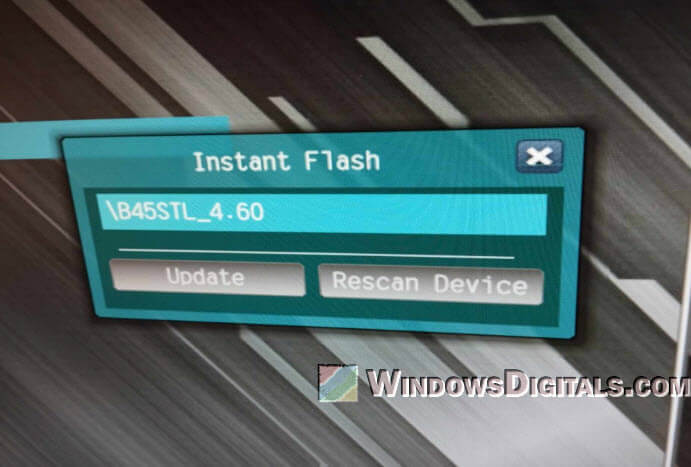
- Install the latest BIOS version from the same page if there is one. Be warned: A BIOS update is a risky process. If the power cuts out halfway, it can brick your motherboard. Follow the maker’s instructions exactly and keep a laptop plugged in. If you’re not sure what you’re doing, get someone to help you.
Updates don’t fix every case, though: the error can still show up with the newest BIOS and chipset drivers.
Could it be the power supply or a loose cable?
If the errors happen mostly when the PC is idle or starting up, or restarts hang too, the power supply may be the problem. A failing PSU is a common suspect with Code 144 (Parameter 1 100a), and some users on Reddit with both 141 and 144 errors said a bigger PSU helped.
Related guide: How to Check Power Supply Wattage on Windows 11/10 PC
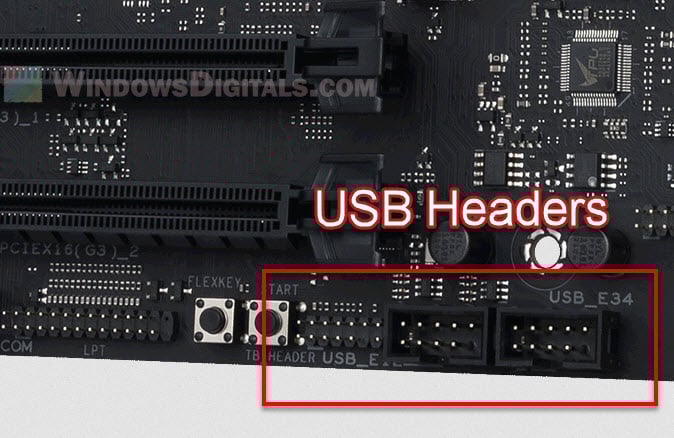
If you built the PC yourself or had it opened recently, also reseat the internal USB cables, especially the ones from the front panel ports to the USB headers on the motherboard.
If nothing above helps and the PC is still under warranty, contact the manufacturer.