If your laptop’s touchpad still moves the cursor and clicks, but there’s no “Touchpad” page in Settings (or it has no gesture options) and two-finger scrolling just doesn’t work, you’re most likely missing the right touchpad driver. This often happens after a clean install of Windows 11 or a Windows update. This guide will show you why the touchpad settings are missing and how to get them back.
Also see: Keyboard or Mouse Not Working After Windows 11/10 Update
Page Contents
Why are the touchpad settings missing in Windows 11?
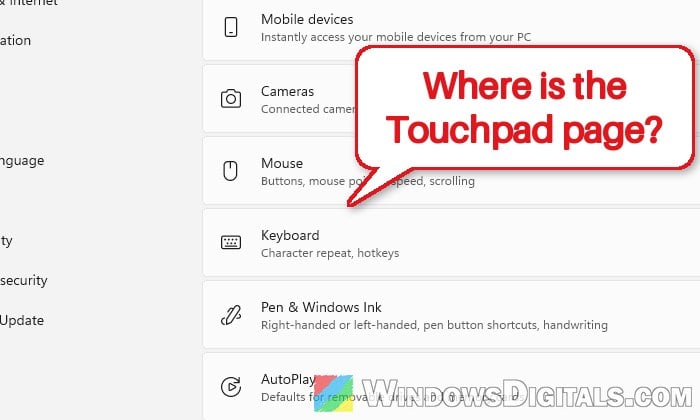
Normally, you’ll find your touchpad options in Settings > Bluetooth & devices > Touchpad. That page and its gestures, like two-finger scrolling, are made for precision touchpads. Microsoft itself says some touchpad gestures only work with a precision touchpad. When you do have one, the Touchpad page says “Your PC has a precision touchpad“.
Windows needs the right driver to know what your touchpad can do. Some common reasons it ends up without one are:
- A clean install of Windows 11: The laptop maker’s touchpad, chipset or Intel Serial IO driver is missing, so the touchpad works like a plain mouse.
- A Windows update removed the touchpad driver. Some users noticed the problem right after their updates installed.
- Your touchpad uses its maker’s own driver (often ELAN or Synaptics), which keeps its settings in a separate app instead of the Settings page.
For most people who reported this, getting the correct driver from the laptop maker is what brought the gestures back, so that’s where you should start.
Pro tip: How to See What Drivers Are Installed in Windows 11
Install the touchpad driver from your laptop maker
This is the fix that actually worked for people with this exact problem. On one HP laptop with no touchpad options after a clean install, Intel’s driver tool found nothing to install, but the ELAN touchpad driver from the laptop maker brought two-finger scrolling back after a restart. Other laptops need the Synaptics driver instead, for example after a Windows update removed it.
First, find out exactly which laptop model you have:
- Press Win + R, type “msinfo32” and press Enter.
- Note the System Manufacturer and System Model.
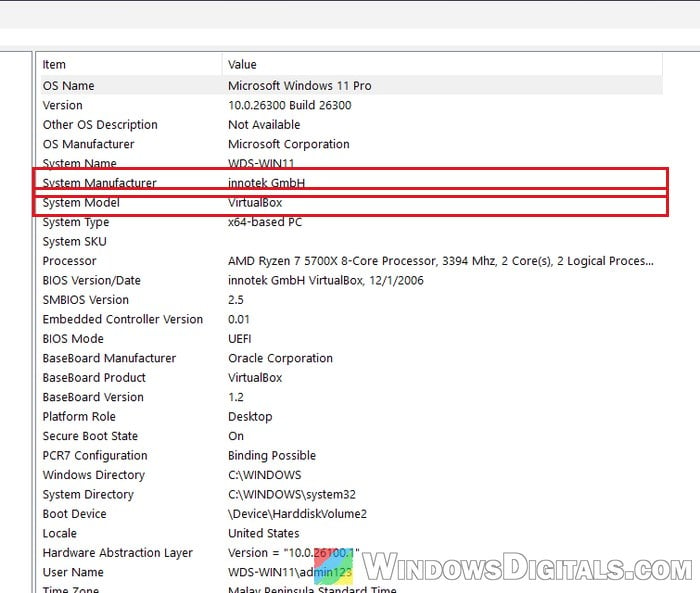
Then get the drivers for that exact model:
- Go to your laptop maker’s support website and look up your model.
- In the drivers section, install the chipset driver first. On laptops with an Intel processor, also install the Intel Serial IO driver if it’s listed.
- Restart your laptop.
- Install the touchpad driver. It may be listed under names like ELAN, Synaptics or Pointing device.
- Restart again.
On a Lenovo laptop, Lenovo Vantage (from the Microsoft Store) can install all of these drivers for you. After the restart, check whether two-finger scrolling works and whether the Touchpad page now shows up in Settings.
Look for your touchpad maker’s own settings
If your touchpad scrolls and works fine but Settings still has no gesture options, it may simply be using its maker’s driver, which comes with its own settings window. That’s what happened on the HP laptop above: scrolling came back, but Settings still showed nothing. On HP laptops with an ELAN touchpad, look for ELAN Touchpad Settings under All apps in the Start menu.
You can also check the old mouse settings window, where these drivers often add their own tab:
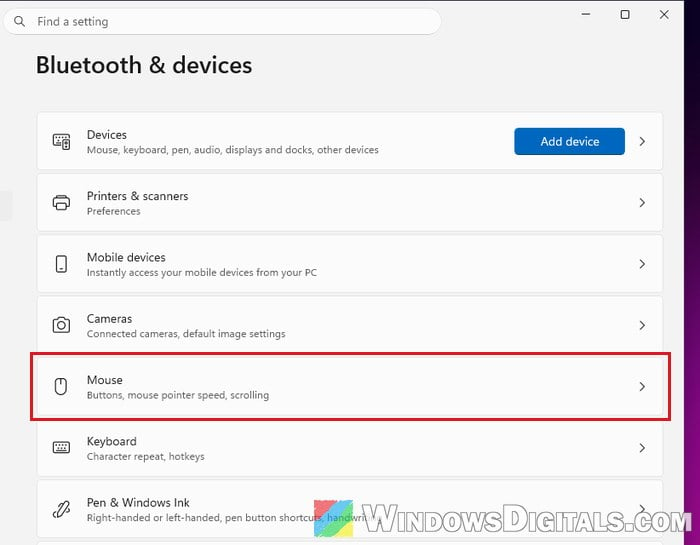
- Open Settings > Bluetooth & devices > Mouse.
- Click Additional mouse settings.
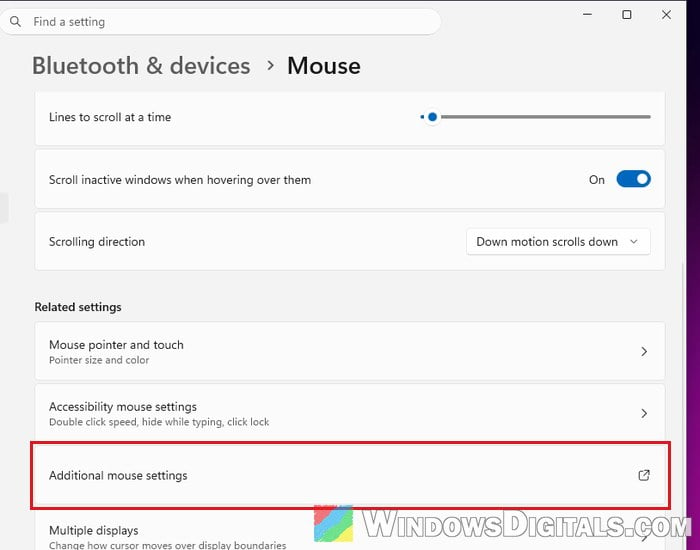
- In the Mouse Properties window, look for a tab named after your touchpad maker (such as ELAN) or one called Device Settings.
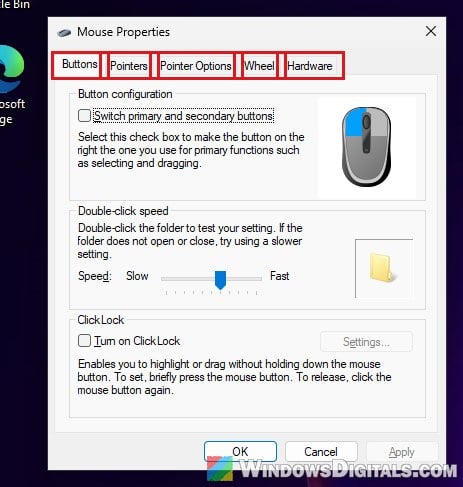
If there’s no such tab and no maker’s app in the Start menu, the touchpad driver is most likely missing, so go back to the previous section.
Might be useful: Windows 11 Keeps Scrolling Down on Its Own (Fix)
Check optional driver updates in Windows Update
Windows Update sometimes has a touchpad or chipset driver from your laptop maker that it doesn’t install by itself. Here’s how to check:
- Open Settings > Windows Update > Advanced options.
- Click Optional updates.
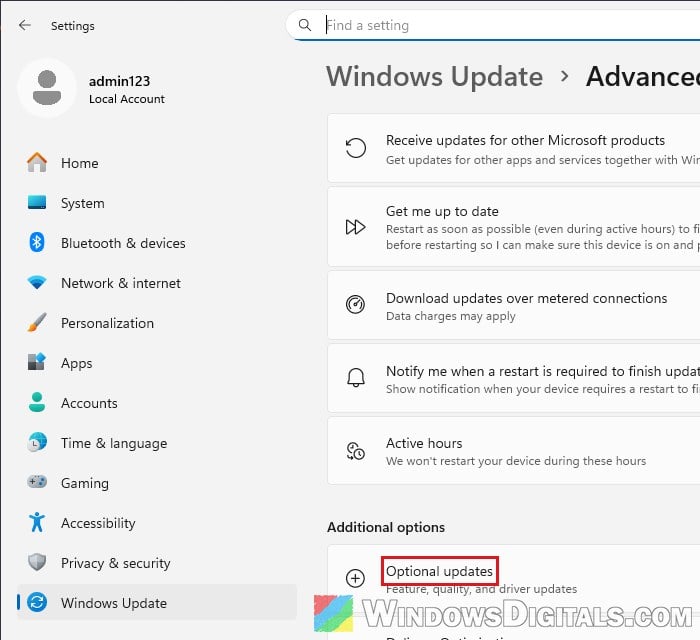
- Look through the driver updates listed there, tick any touchpad, pointing device, chipset or Serial IO driver for your laptop, and install it.
Restart once the driver is installed and test two-finger scrolling again.
Reinstall the touchpad in Device Manager
If the touchpad driver is there but acting up (for example, the settings disappeared after an update), reinstalling it can help. After a restart, Windows sets it up again by itself. Here’s how to do it:
- Right-click the Start button and select Device Manager.
- Expand Mice and other pointing devices (also check Human Interface Devices). Your touchpad may be listed by its maker’s name (ELAN, Synaptics) or just as HID-compliant mouse. A yellow warning icon next to it means there’s a driver problem.
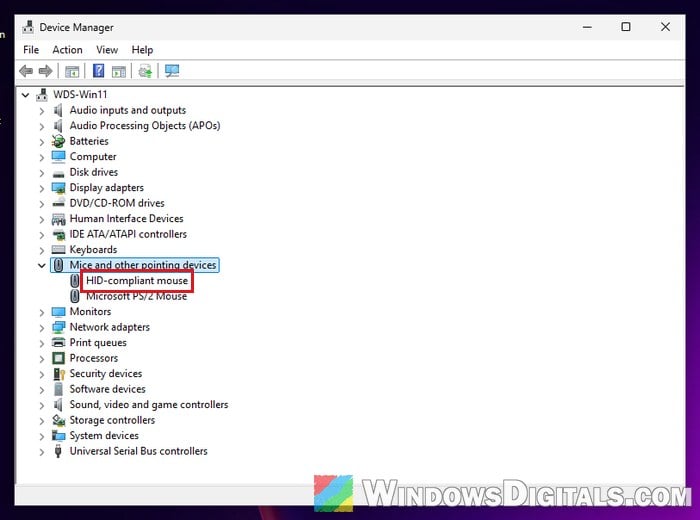
- Right-click the touchpad and select Update driver, and let Windows search for one automatically. If that finds nothing, go to the next step.
- Right-click the touchpad again and select Uninstall device.
- If the window has a checkbox to remove the driver as well, tick it. Then click Uninstall.
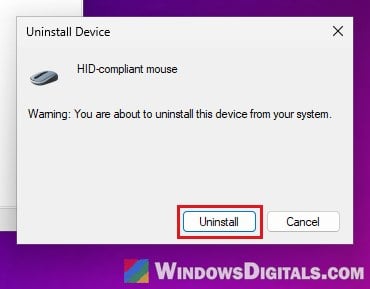
- Restart your laptop.
Please note that the touchpad may stop working until Windows reinstalls it, so keep a USB mouse nearby. Once Windows is back, check whether the Touchpad page is in Settings and test two-finger scrolling. If the touchpad comes back without its settings, install the maker’s driver from the first section.
Related guide: Can’t Completely Uninstall a Driver in Windows 11 (Fix)
Reset the touchpad settings
If the Touchpad page is there but the gestures still don’t behave, a reset is worth a try. Dell suggests it too. Here’s how to do it:
- Open Settings > Bluetooth & devices > Touchpad.
- Click Reset.
This puts the touchpad settings and gestures back to their defaults. If nothing here helps and your laptop is still under warranty, contact the maker’s support with your exact model and ask which touchpad driver it needs for Windows 11.