If you’ve run Windows Memory Diagnostic to check your RAM and restarted, but no report or result window shows up once you’re back in Windows, this guide will show you where Windows keeps the results, how to read them in Event Viewer or with one PowerShell command, and what they mean.
Also see: Memory_Management ntoskrnl.exe BSOD on Windows 11 or 10
Page Contents
Why don’t the results show up after the test?
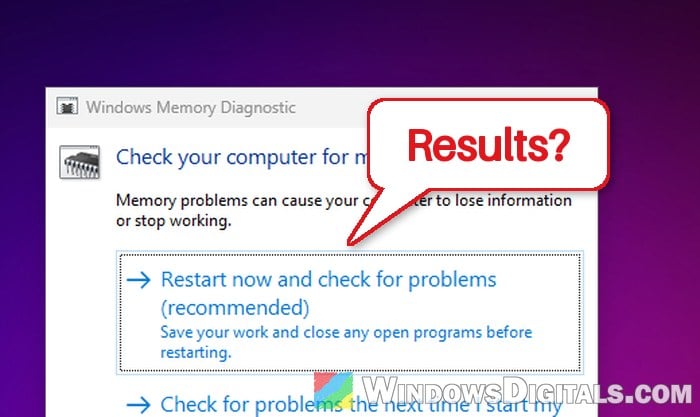
Windows Memory Diagnostic runs while your PC restarts, before Windows loads. When it’s done, Windows starts again by itself, and the result usually appears only as a small notification after you sign in. It’s gone within seconds, so it’s very easy to miss (and let’s be honest, most of us aren’t sitting there waiting for it).
The result isn’t lost, though. Windows writes it to the System log in Event Viewer under a source called MemoryDiagnostics-Results, so that’s where we’ll look. This works the same way on Windows 11 and Windows 10.
How to run Windows Memory Diagnostic (if you haven’t yet)
If you haven’t run the test yet, here’s how to start it:
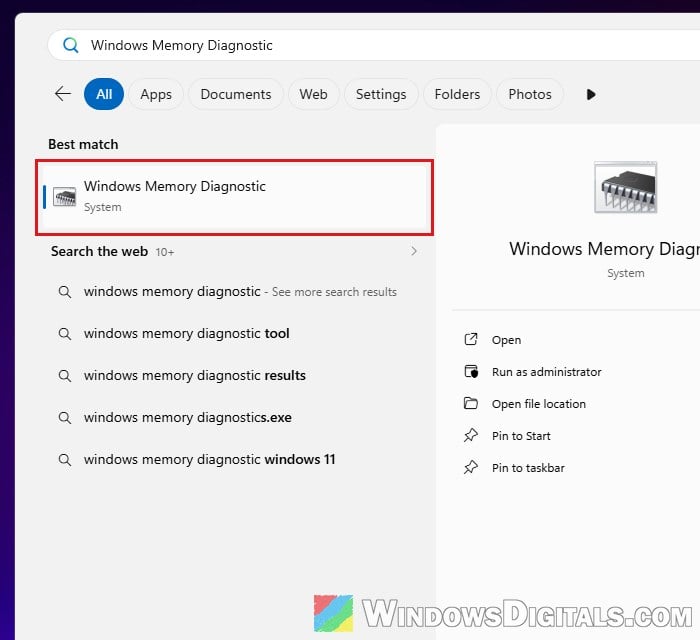
- Click “Start” and search for “Windows Memory Diagnostic“, then open it.
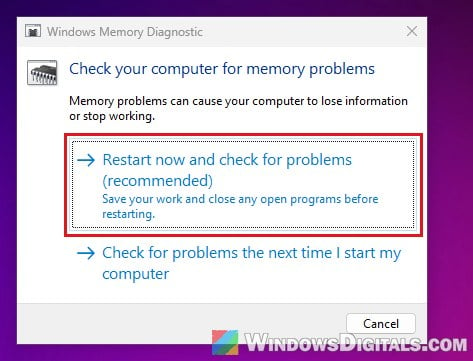
- Choose “Restart now and check for problems (recommended)“, or “Check for problems the next time I start my computer” if you want to save your work first.
- Let the test reach 100%. Your PC will restart into Windows by itself when it’s finished.
You can also open the tool by pressing Win + R, typing mdsched.exe and pressing Enter. While the test is running, press F1 to change its options: the “Test Mix” (“Basic“, “Standard” or “Extended“), the “Cache” setting and the “Pass Count” (up to 15). Press F10 to apply them.
Might be useful: Checking Motherboard Max RAM Speed (MHz) & Capacity
How to see Windows Memory Diagnostic results in Event Viewer
The System log has thousands of entries, so the trick is to filter it down to the memory test only. Follow the steps below:
- Press Win + R, type
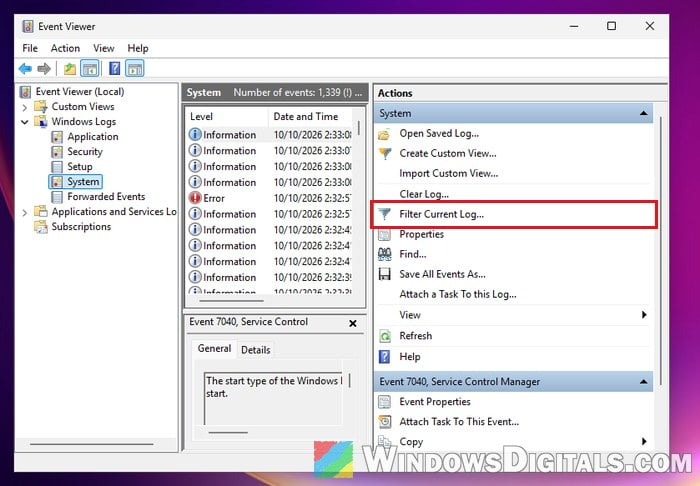
eventvwr.mscand press Enter to open Event Viewer. - In the left pane, expand “Windows Logs” and click “System“.
- In the “Actions” pane on the right, click “Filter Current Log…“.
- Click the drop-down arrow next to “Event sources” and tick “MemoryDiagnostics-Results“. The list is long, so you’ll need to scroll down to find it.
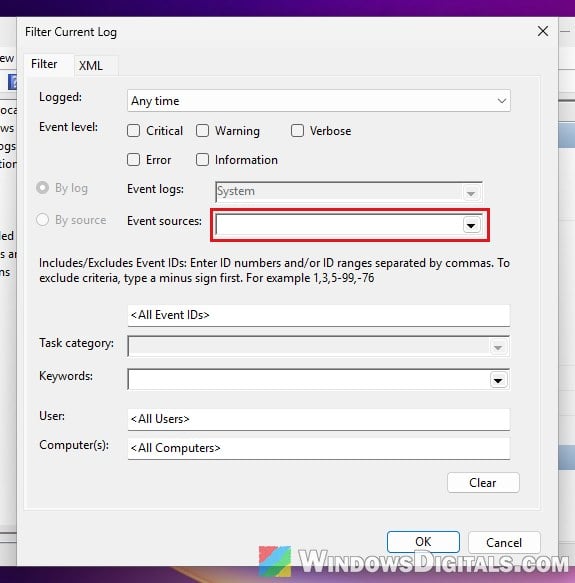
- Click “OK“.
- The list now shows only the memory test results. Click the latest one to read its message below the list.
If you’ve run the test more than once, check the date and time of each entry to make sure you’re reading the right one.
Related problem: Windows 11/10 Computer Blue Screen When Idle (Fix)
Check the results with a PowerShell command
If you’d rather skip Event Viewer, you can get the latest result with one PowerShell command. A moderator on Microsoft Q&A suggested this method to someone who couldn’t find their results.
- Click “Start” and search for “PowerShell“.
- Right-click the top result and select “Run as administrator“.
- Copy and paste the following command, then press Enter:
Get-WinEvent -FilterHashtable @{LogName='System'; ProviderName='Microsoft-Windows-MemoryDiagnostics-Results'} -MaxEvents 1 | Format-List TimeCreated, Id, Message
The command shows the time of the last result, its event ID and the message. If PowerShell shows a red error saying “No events were found that match the specified selection criteria“, Windows has no memory test result on record. See “What if there are no results at all?” below.
What do the results mean?
The message tells you whether your RAM passed. You can also tell from the event ID alone:
- Event ID 1201: The message says that Windows Memory Diagnostic tested the computer’s memory and detected no errors. Your RAM passed the test.
- Event ID 1202: According to several troubleshooting guides, a failed test is logged with this ID, and the message says the tool detected hardware errors and suggests contacting your computer’s manufacturer. This usually means at least one RAM module (or its slot) is faulty.
If you got 1201 but your PC still crashes in ways that point to memory, run the test again, press F1 and pick the “Extended” test mix for a more thorough check.
If the test found errors, one of your RAM modules (or the slot it’s in) is likely faulty, and the module may need to be replaced. If your PC or the RAM is still under warranty, contact the manufacturer.
Related concern: Does Faulty RAM Cause Freezes or Crashes on PC?
What if there are no results at all?
If the filter shows nothing (or the PowerShell command shows the error above), the most likely reason is that the test never finished. It might have been skipped or interrupted, or Windows started normally without running it. In that case, run Windows Memory Diagnostic again and let it reach 100% before touching your PC.
It’s also worth double-checking that you filtered the “System” log, not the Application log, and that you ticked “MemoryDiagnostics-Results” under Event sources, otherwise the filter shows nothing even if the results are there.