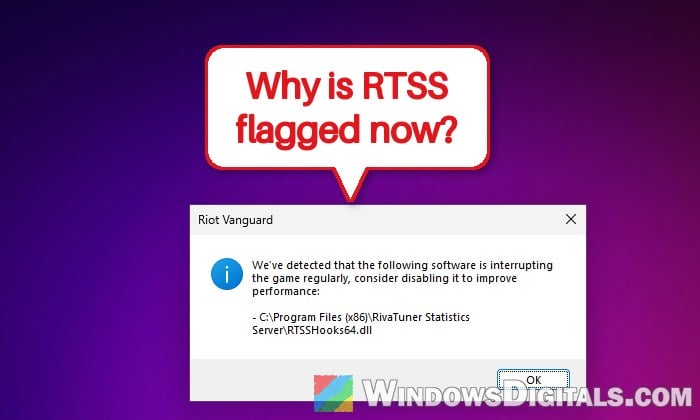
RivaTuner Statistics Server (RTSS), the app that comes with MSI Afterburner, has run alongside Valorant and League of Legends for years as an FPS counter and frame limiter, but Riot Vanguard now treats it as a problem. In Valorant, the game stutters, drops FPS or gets stuck on the loading screen, and the RTSS overlay no longer shows. In League, a Vanguard message pops up when the game starts, saying “We’ve detected that the following software is interrupting the game regularly, consider disabling it to improve performance” and naming RTSSHooks64.dll, while your FPS jumps all over the place. This guide will explain what changed and what you can do to get the game running smoothly again.
Also see: Vanguard Error VAN 293 in Valorant and League of Legends
Why does Vanguard block RivaTuner now?
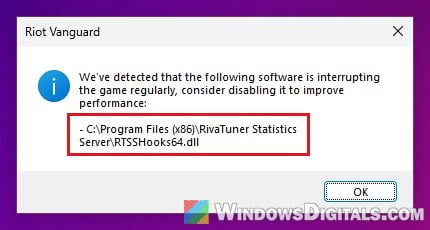
The change came with Valorant’s update in early October 2026, and with a small League of Legends patch on 25 November 2026. Since that League patch, Vanguard shows this message at the start of a game when RTSS is running:
On the Valorant side, Riot added RivaTuner to its list of incompatible software that has to be closed or uninstalled before you play, along with a few other apps (listed in the last section).
RTSS draws its overlay and caps your frame rate by loading its own file, RTSSHooks64.dll, into the game. According to Riot, the way RTSS does this can cause crashes and clashes with the anti-cheat and other software in the game, and it’s also something a cheat could abuse. Vanguard now gets in its way, which is where the stutter and FPS drops come from.
The good news is that MSI Afterburner itself isn’t the problem. Riot has said Afterburner works fine and only RivaTuner doesn’t, so you can keep your fan curve or overclock running. You just lose the in-game overlay, since Afterburner uses RTSS to show it.
Pro tip: How to Show FPS in Games on Windows 11
Close RivaTuner completely before you play
This is what Riot itself tells Valorant players to do, and it’s the fix that has worked for most people on Reddit with both games. RTSS has to be fully closed, since it keeps hooking into games while it runs in the background. Once it’s closed, the Vanguard message in League goes away too.
Here’s how to do it:
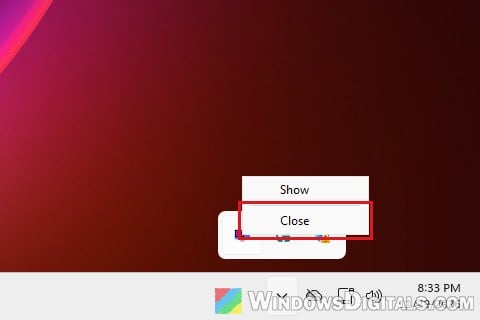
- Click the small arrow on the taskbar near the clock to show the hidden icons.
- Right-click the “RivaTuner Statistics Server” icon and select “Close“.
- If RTSS keeps coming back, MSI Afterburner is probably starting it. Close Afterburner too while you play.
- Press Ctrl + Shift + Esc to open Task Manager, and type “rtss” in the search box at the top.
- If “RTSS (32 bit)“, “RTSS Hooks Loader” or “RTSS Encoder Server (32 bit)” is still listed, right-click it and select “End task“.
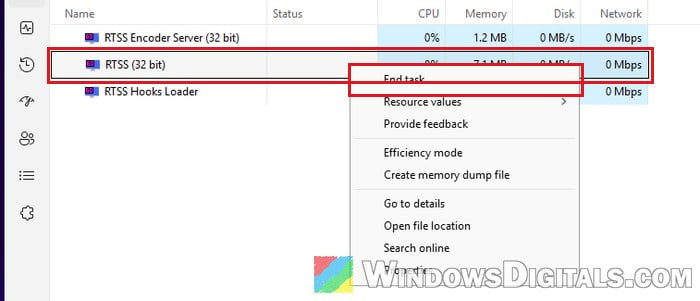
RTSS also has its own “Start with Windows” switch at the top of its window. If it’s on, RTSS comes back every time you start your PC, so turn it off and open RTSS only when you want it. Then start Valorant or League of Legends again and see if the stutter and the Vanguard warning are gone.
Linked issue: How to Fix Game Stuttering on Windows 11
Turn off RTSS for Valorant only (worth a try)
If you use RTSS in other games and don’t want to close it every time, you can tell it to leave Valorant alone. Setting the game’s “Application detection level” to “None” stops RTSS from hooking into that game at all, while it keeps working everywhere else.
It doesn’t work for everyone, though. It cleared the stutter for some Valorant players, but others still had to close RTSS completely. With League of Legends, players who excluded the game this way still got the warning, so for League, closing RTSS (above) is the safer bet.
To set it up for Valorant, follow the steps below:
- Open RivaTuner Statistics Server. If it’s already running, double-click its icon near the clock.
- Click the green “Add” button at the bottom left of the window.
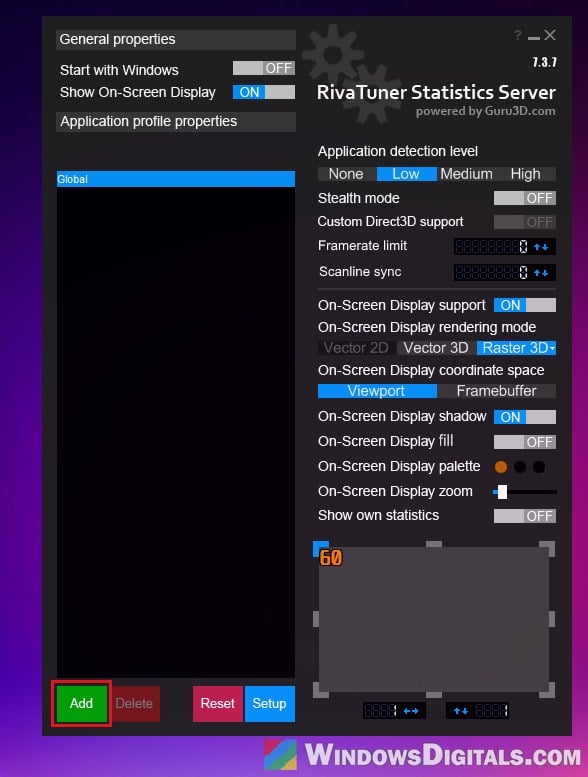
- Go to your Valorant folder (
C:\Riot Games\VALORANTby default), then tolive\ShooterGame\Binaries\Win64, and selectVALORANT-Win64-Shipping.exe. - With the new VALORANT-Win64-Shipping.exe profile selected in the list, set “Application detection level” to “None“. The rest of that profile’s settings turn gray, which means RTSS no longer hooks into the game.
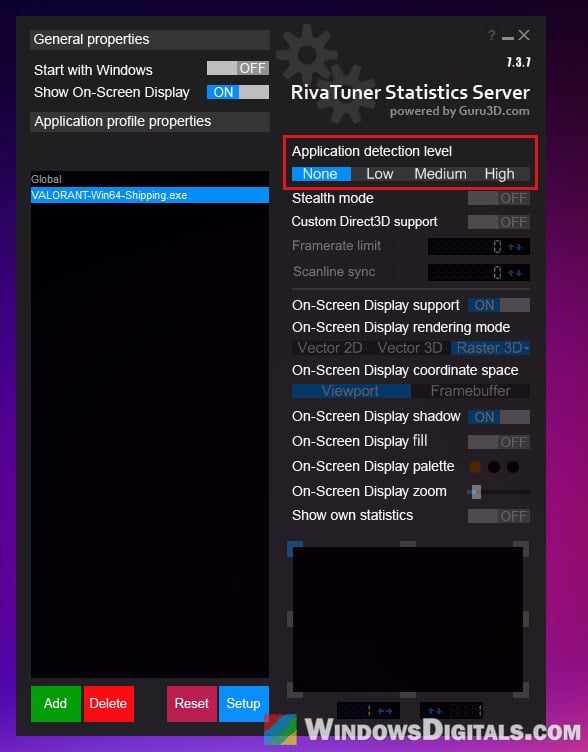
Launch Valorant and play a match. If it still stutters, close RTSS completely instead.
Please note that you shouldn’t try to hide RTSS from Vanguard (for example with RTSS’s Stealth mode) or mess with Vanguard’s own processes to get around the block. Riot has warned that tricks like these can get you kicked from matches or even banned.
Related guide: League of Legends Stuck on “Vanguard session is initializing”
Use the game’s own frame limiter instead
Many people run RTSS mainly for its frame rate cap. With RTSS closed, use the limiter built into the game instead, which Riot also suggests:
- Valorant: Open “Settings” > “Video” > “General“, turn on “Limit FPS Always“, then set your cap in “Max FPS Always“.
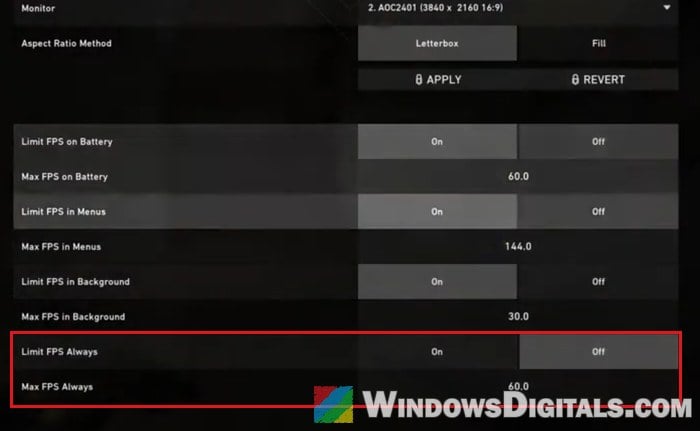
- League of Legends: In a game, press Esc, go to the “Video” tab and set the “Frame Rate Cap“.
Your graphics driver’s own frame limiter (in the NVIDIA or AMD software) is another option. Some players find the in-game limiter doesn’t feel quite as smooth as RTSS’s, so try both and keep the one that feels better.
For temperatures and GPU usage, MSI Afterburner’s monitoring window still works on the side, and the game’s own performance stats can show your FPS.
Close other apps that hook into the game
RTSS isn’t the only app Vanguard has started flagging. The same “interrupting the game regularly” message has named DisplayFusion, ASUS ScreenXpert, YoloMouse and TikTok LIVE Studio, and Valorant’s list also includes Stardock apps like Fences and Start11, Premier Opinion, GearUP Booster and UltraViewer.
If Vanguard’s message shows another file, its folder tells you which app it belongs to (C:\Program Files\DisplayFusion\... is DisplayFusion, for example). Close that app before you play, or uninstall it if it keeps running in the background. DisplayFusion can reportedly be set to turn its hooks off for the game only, so look for that in its settings before you uninstall it.