When you try to join your home WiFi on your Windows 11 or 10 PC, you might see “Can’t connect to this network“, or the PC sits on “Verifying and connecting” and then gives up, even though your phone, TV and other laptops are on the same WiFi without trouble and the PC itself connects fine to a phone hotspot or any other network. This guide will explain why it happens and what to change on the router and in Windows.
Also see: “Can’t connect to this network” WiFi/Hotspot Issue Windows 11/10
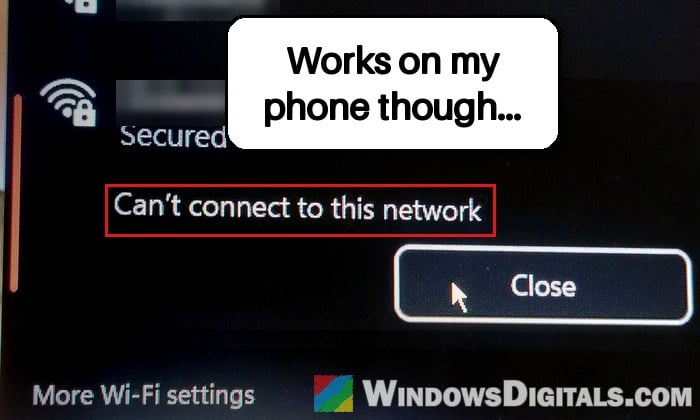
Why won’t your PC connect to your home WiFi only?
Since your other devices get on your home WiFi and your PC gets on other networks just fine, the problem is usually between your PC’s WiFi card and your router. Common reasons are:
- The router’s security mode, such as WPA3, which some WiFi cards or older drivers fail on.
- One network name for all bands, with the router pushing devices between them.
- The 5 GHz channel the router picked by itself.
- The router blocking the PC through a device filter or parental controls.
- The WiFi driver, especially on some MediaTek and Qualcomm cards.
The fixes below start with the quick ones, then the router’s settings, then the driver.
Restart the router and the PC, and leave both off for a while
You’ve probably tried a restart already. The trick is to leave them off for a few minutes, which sometimes works when a quick restart didn’t.
- Shut down your PC (not sleep).
- Unplug your router, and your modem if you have a separate one.
- Wait at least 30 seconds, or better, a few minutes.
- Plug in the modem, then the router, and wait until their lights settle.
- Turn on your PC and try your home WiFi again.
Forget the home network and connect again
Windows keeps a saved profile for every WiFi network you’ve joined. Forgetting it makes Windows set up the connection from scratch.
- Open Settings > Network & internet > Wi-Fi.
- Click Manage known networks.
- Select your home network and click Forget. You can also right-click the network in the taskbar’s WiFi list and select Forget.
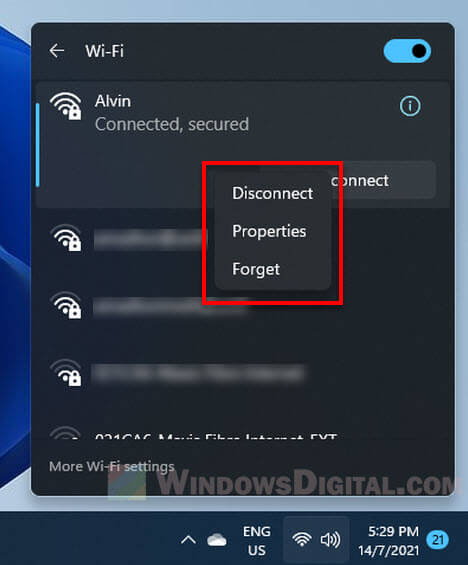
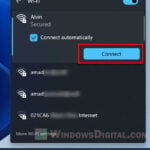
- Click the network icon on the taskbar, select your home network, click Connect and type the password again.
Linked issue: PC Keeps Disconnecting from WiFi but Other Devices Are Fine
Try the other band, or give each band its own name
If it still won’t connect, the next fixes are on the router: open its admin page in a browser, or your internet provider’s app, from your phone or another connected device.
If your router shows separate networks for 2.4 GHz and 5 GHz, simply try the other one, as Microsoft suggests too.
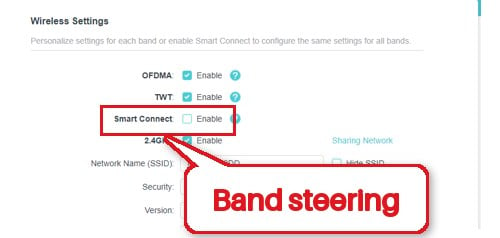
If it shows only one network name, it’s probably using band steering (often called Smart Connect), which moves devices between bands by itself, and some PC WiFi cards fail when pushed around like that. In the router’s wireless settings, turn it off, give the 2.4 GHz and 5 GHz networks different names, and connect the PC to one of them. A 6 GHz band, if there is one, can also be turned off or given its own name, since on some routers it switches the whole network to WPA3.
Change the router’s WiFi security mode
If your PC can’t join one specific router, its security mode is one of the first things to check. Your router may be set to WPA3, or to a WPA2/WPA3 mixed (“transition”) mode, and not every WiFi card or driver handles it properly, while phones connect without a problem.
- Open your router’s admin page or app and go to its WiFi or wireless security settings.
- If the security mode is set to WPA3 only, change it to WPA2/WPA3.
- If it’s already on the mixed mode, change it to WPA2 (often written as WPA2-Personal or WPA2-PSK with AES) to test.
- Save the settings, wait for the router to restart its WiFi, and try connecting the PC again.
If the PC connects with WPA2, you’ve found the cause. You can stay on WPA2 with a strong password, or update the PC’s WiFi driver (see below) and the router’s firmware and try the mixed mode again, since a newer driver can add or fix WPA3 support.
Move the 5 GHz network to a different channel
Routers pick their 5 GHz channel automatically, and according to Intel, some of these channels can be restricted at times because of weather or airport radar. Some PC WiFi cards struggle with them, even right next to the router.
In your router’s wireless settings, change the 5 GHz channel from Auto to a fixed channel such as 36, 40, 44 or 48, save it, and try again.
Related problem: Windows 11 WiFi Not Working But Ethernet Does, Why?
Make sure the router isn’t blocking your PC
Routers and provider apps can block single devices, sometimes by accident. Look in the admin page or app for a MAC filter, an access control or allowed devices list, parental controls, or a device marked paused or blocked. If your PC is blocked (or missing from an allow list), remove the block or add it, then try again.
Install the newest WiFi driver from your PC maker
Download the latest WiFi (wireless LAN) driver for your exact model from your laptop or motherboard maker’s support page, or from the chip maker. For Intel cards, use the Intel Driver & Support Assistant at https://www.intel.com/content/www/us/en/support/detect.html. Use a phone hotspot or Ethernet to download it.
Remove the old driver first
- Right-click the Start button and select Device Manager.
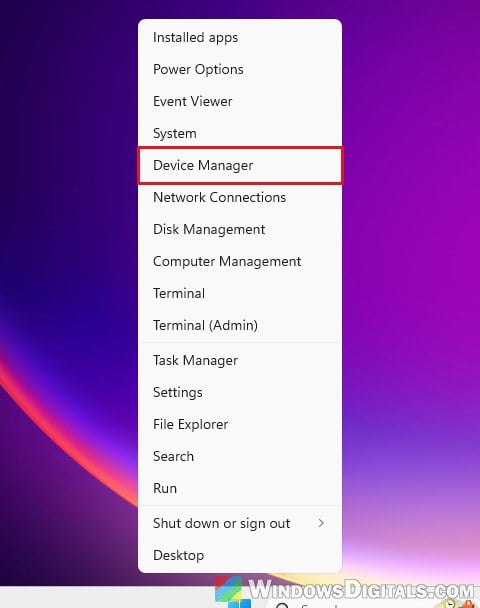
- Expand Network adapters, right-click your WiFi adapter and select Uninstall device.
- Tick “Attempt to remove the driver for this device” if you see it, then click Uninstall.
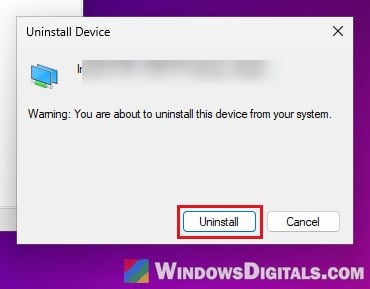
- Restart your PC, install the driver you downloaded, and try your home WiFi again.
Stop Windows from turning the WiFi adapter off
If it only fails after the PC wakes from sleep, Windows’ power saving may be switching the adapter off.
- In Device Manager, expand Network adapters, right-click your WiFi adapter and select Properties.
- On the Power Management tab, uncheck “Allow the computer to turn off this device to save power” and click OK.
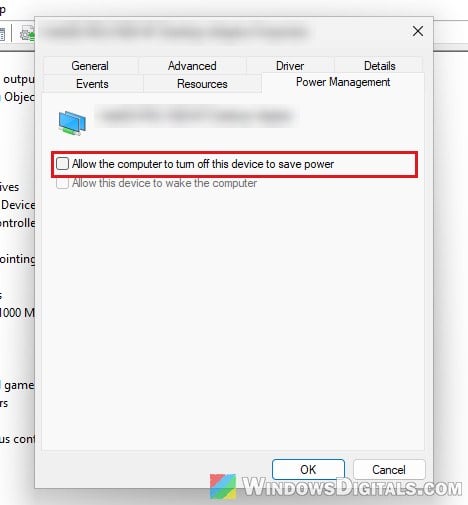
The next time the PC wakes from sleep, check whether it joins your home WiFi.
Reset the network settings in Windows
If Windows’ network settings got into a bad state, resetting them clears it. These commands reset Winsock and the TCP/IP settings and get a fresh IP address:
- Open the Start menu, type “cmd“, then select Run as administrator on the right.
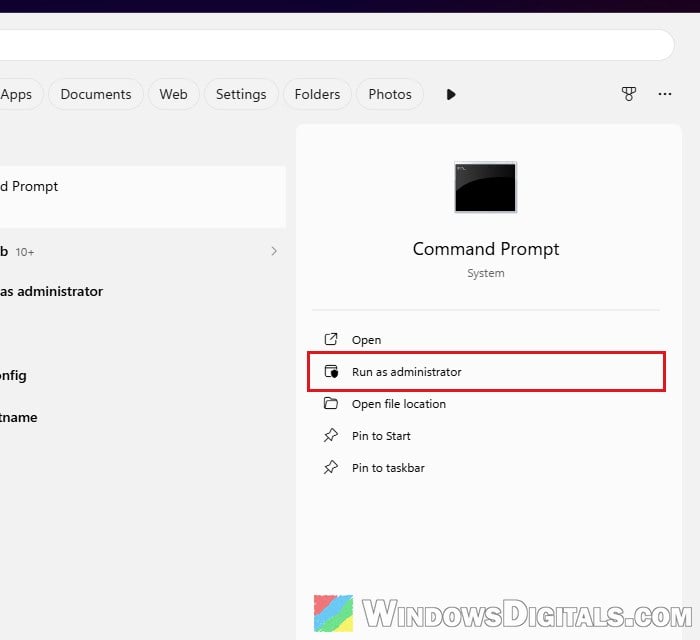
- Type the following commands one by one, and press Enter after each:
netsh winsock reset
netsh int ip reset
ipconfig /release
ipconfig /renew
ipconfig /flushdns
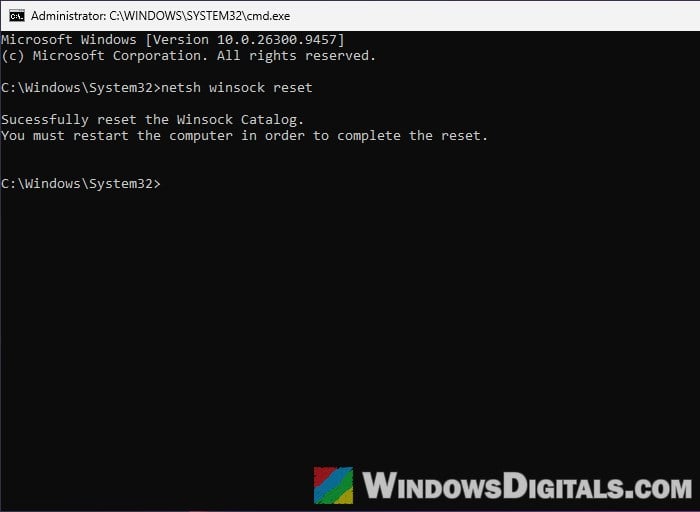
- Restart your PC and try your home WiFi again.
If that doesn’t help, do a full network reset. It reinstalls all network adapters with default settings and restarts your PC, and VPN apps or virtual switches may need reinstalling.
- Open Settings > Network & internet > Advanced network settings (on Windows 10, Settings > Network & Internet > Status).
- Click Network reset, then Reset now, and confirm with Yes.
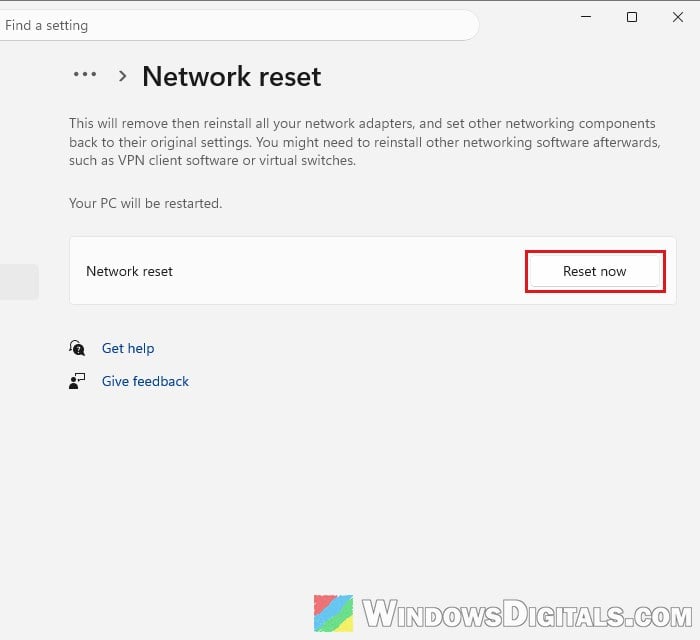
- Wait for your PC to restart, then connect to your home WiFi.
Linked issue: How to Fix “No Internet, Secured” WiFi in Windows 11/10
Test with a USB WiFi adapter
If your PC still won’t join, try a cheap USB WiFi adapter. If that connects, the built-in WiFi card (or its driver) doesn’t get along with your router. Swapping a MediaTek card for an Intel one is a common suggestion. If your PC is still under warranty, contact the maker before opening it up.