A Discord call is only supposed to carry your voice, but sometimes your friends can also hear everything that’s playing on your PC, like the YouTube video you’re watching, your music, game sounds and even your teammates, as if it’s all coming out of your microphone. This guide will walk you through how to tell where the sound is getting in and how to stop it.
Also see: Discord Won’t Connect to Voice Channel (Fix)
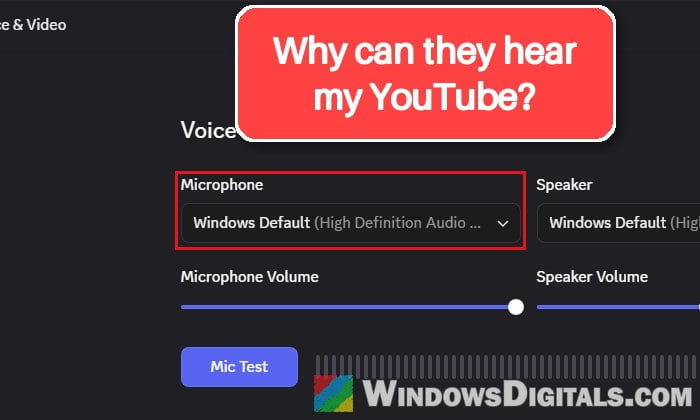
Why does Discord pick up your PC’s audio?
There are two different reasons, and they need different fixes:
- A software loopback: Discord is listening to a device that carries your PC’s own sound instead of your mic. The usual culprit is Stereo Mix, a recording device that captures whatever your PC plays, or Discord’s microphone set to “Windows Default” when the default isn’t your real mic.
- Sound bleeding into the mic: the sound from your headset reaches the mic, either through the air (loud volume, open headphones, speakers) or electrically through the cable, the splitter or the front panel jacks of an analog headset.
Discord’s echo cancellation was built to remove the call’s own sound, which is why your friends don’t hear themselves echo back while your YouTube video can still slip through. Since September 2026, Discord says its echo cancellation on Windows also tries to filter out other sounds playing on your PC, though it doesn’t catch everything.
Also, if you’re sharing your entire screen, the stream sends your PC’s audio on purpose, and that has nothing to do with your mic. You can turn off the stream’s sound in the stream settings if you don’t want viewers to hear it.
First, find out which kind of leak it is
A quick test tells you which of the two problems you have.
- Open Discord and click “User Settings” (the gear icon next to your name at the bottom left).
- Go to “Voice & Video“.
- Click “Mic Test“. The bar next to it shows what Discord hears from your mic.
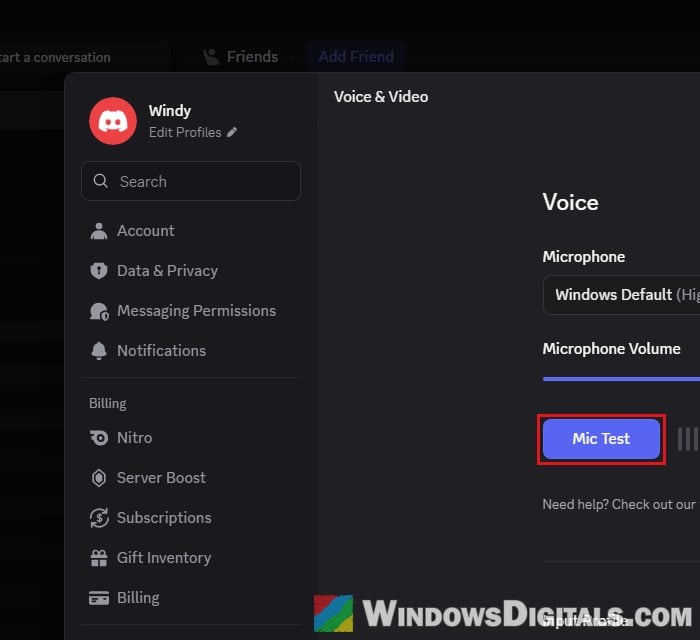
- Play a YouTube video or some music, and watch that meter without talking.
- Now unplug the mic (or the mic plug of your headset) and keep the video playing.
If the meter still moves with the mic unplugged, Discord is listening to something other than your mic, so start with the next two sections. If the meter stops, the sound is bleeding into the mic itself, so skip ahead to the echo cancellation section and then the one about your headset.
Pick your real mic instead of “Windows Default” in Discord
When Discord’s microphone is set to “Windows Default“, it uses whatever Windows thinks the default recording device is, and that isn’t always your mic. If it lands on Stereo Mix or a virtual device, everything your PC plays goes straight into the call.
Here’s what you should do:
- In Discord, go to User Settings > Voice & Video.
- Open the drop-down menu under “Microphone“.
- Select your mic by its name (your headset or USB mic), not “Windows Default” and not “Stereo Mix“.
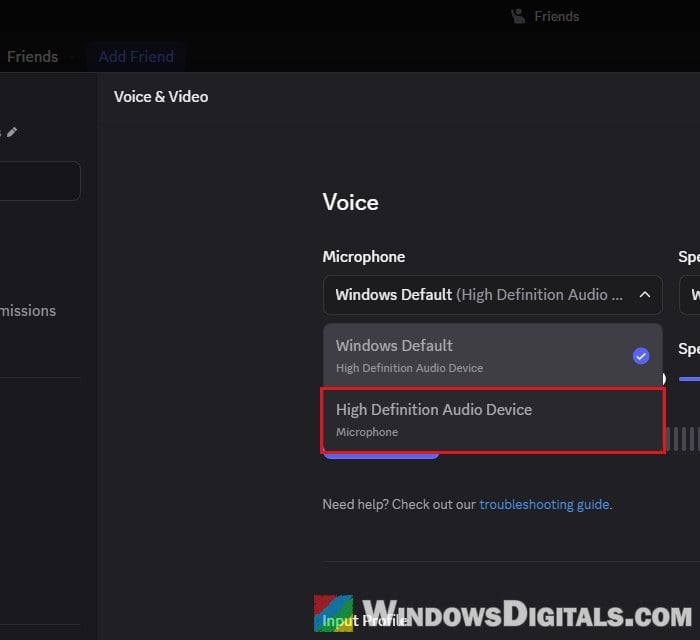
Play the same video again and see if the input meter still reacts to it.
Disable “Stereo Mix” in Windows
Stereo Mix is the device people turn on when they want to record internal audio without a microphone. If it’s enabled, an app that picks it (or picks the default device while Stereo Mix is the default) hears your whole PC. Turning it off is harmless if you don’t use it. Note that not every PC has Stereo Mix; it usually comes with the Realtek audio driver.
To disable it, follow the steps below:
- Press Win + R, type
mmsys.cpland press Enter. This opens the old Sound window. - Go to the “Recording” tab.
- Right-click an empty area of the list and make sure “Show Disabled Devices” is checked, so nothing is hidden.
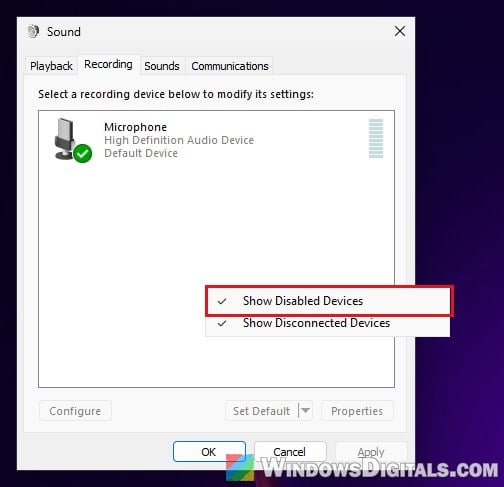
- Right-click “Stereo Mix” (on some PCs it’s called “What U Hear“) and select “Disable“.
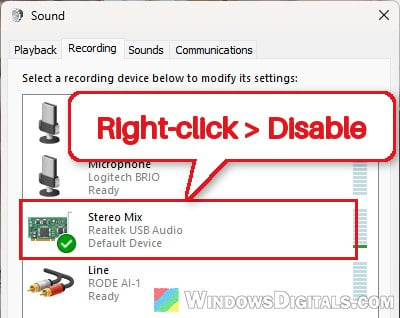
- Click “OK“.
Open Discord’s Mic Test again and see if the meter still moves with the video playing.
Pro tip: How to Open The Old Advanced Sound Settings in Windows 11
Turn on echo cancellation in Discord
Whichever kind of leak you have, Discord’s own echo cancellation is worth checking next. Since it now also tries to filter other sounds on your PC, make sure it’s on (and that Discord is up to date).
Here’s how to do it:
- Go to User Settings > Voice & Video.
- Turn on “Echo Cancellation“.
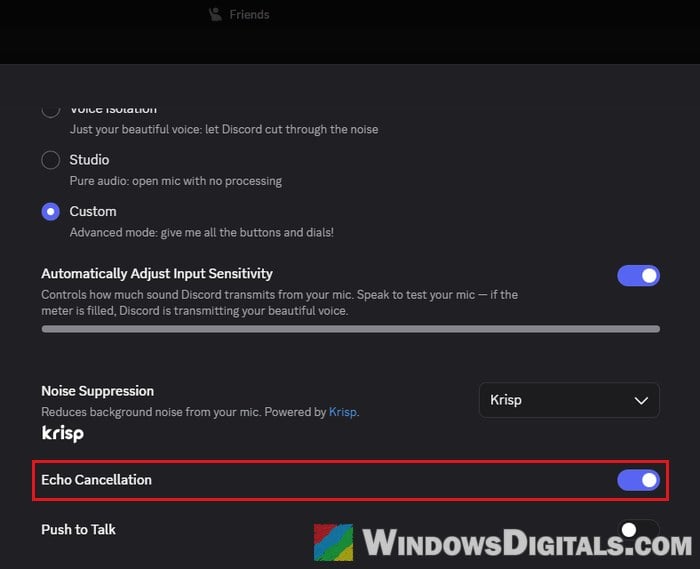
- If you don’t see the switch, select “Custom” under “Input Profile” first.
Play a video again and watch the meter, or ask a friend on the call if they still hear it.
Try turning off “Bypass System Audio Input Processing”
Further down the same page, click “Show Advanced Voice Settings” and you’ll find a switch called “Bypass System Audio Input Processing“. When it’s on, Discord skips the processing that Windows and your audio driver do on your mic, such as Realtek’s own echo cancellation.
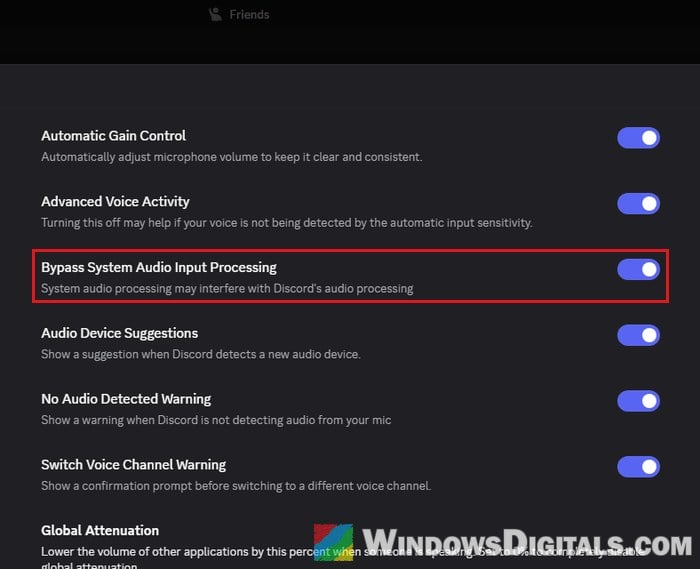
Turning it off can stop the leak completely, but it doesn’t work for everyone. The catch is that your voice may sound worse to your friends, so test it with them and turn it back on if they complain.
Stop the sound from bleeding into your headset’s mic
If the meter stopped moving when you unplugged the mic, the sound is getting into the mic itself. This happens mostly with analog headsets that plug into 3.5mm jacks, especially at the front of the case, where some of the headphone signal can leak across into the mic line.
Here’s what you can try:
- Plug the headset into the rear jacks on your motherboard instead of the front panel of your case. This has fixed it or made it better for some people.
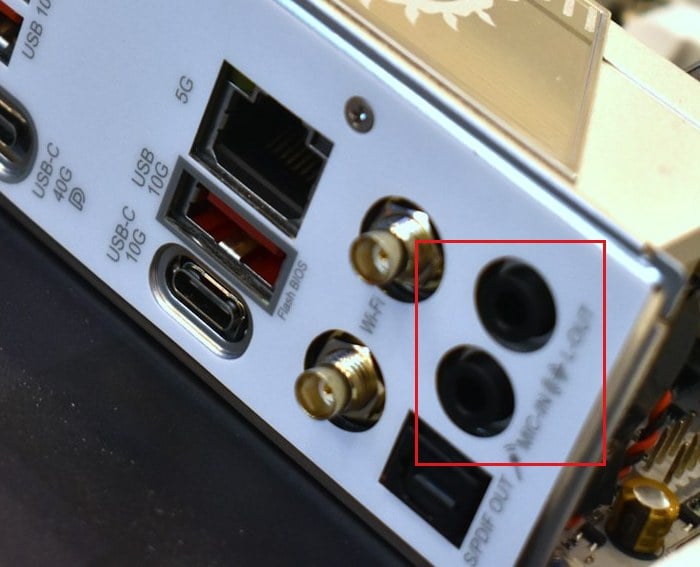
- Use a cheap USB sound card (a USB to 3.5mm adapter) for the headset. It takes the motherboard’s audio and the front panel cable out of the picture, and USB mics don’t go through those jacks at all.
- Check the splitter. If your headset has a single plug and your PC has separate mic and headphone jacks, you need a proper splitter. A cheap or loose splitter (or a loose plug in a USB dongle) can let the sound bleed into the mic line.
- Lower your headset volume. If the sound is loud enough to reach the mic through the air, settings can only do so much.
- If you have the Realtek Audio Console, look for an echo cancellation option in its microphone section and turn it on (it only reaches Discord with Bypass System Audio Input Processing turned off). It’s worth a look, though it often doesn’t help.
If the leak follows every headset and port you try, a USB mic skips the PC’s analog jacks altogether.
Related guide: All Motherboard Slots and Connectors Explained
Use Push to Talk if nothing else works
If you can’t get rid of the leak, or you’re waiting for a new adapter, switch Discord to Push to Talk. Your mic is then only sent while you hold a key, so your friends only hear your PC while you’re talking. If your mic also picks up other noise around you, see: How to Stop Mic From Picking Up Keyboard Noise.
Here’s how to turn it on:
- Go to User Settings > Voice & Video.
- Turn on the “Push to Talk” switch, right below Echo Cancellation.
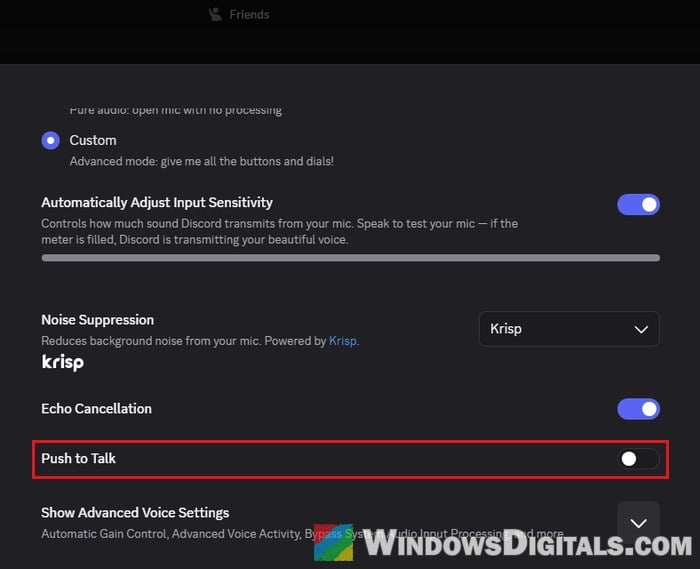
- Set the key you want to hold while talking.
It’s less convenient, but it keeps your videos and game sounds out of the call most of the time.